Overview
musaik is a Mac application for building something new out of finished tracks: a mashup of several songs, a reshaped version of a single track, or a continuous DJ set. To do that, musaik splits every track into its four stems (drums, bass, music, vocals), measures tempo, bar grid, key and song sections, and puts the material on a timeline where you arrange it freely. This chapter gives you the view from above: which project types exist, how you get material, and where to find things.
The three project types
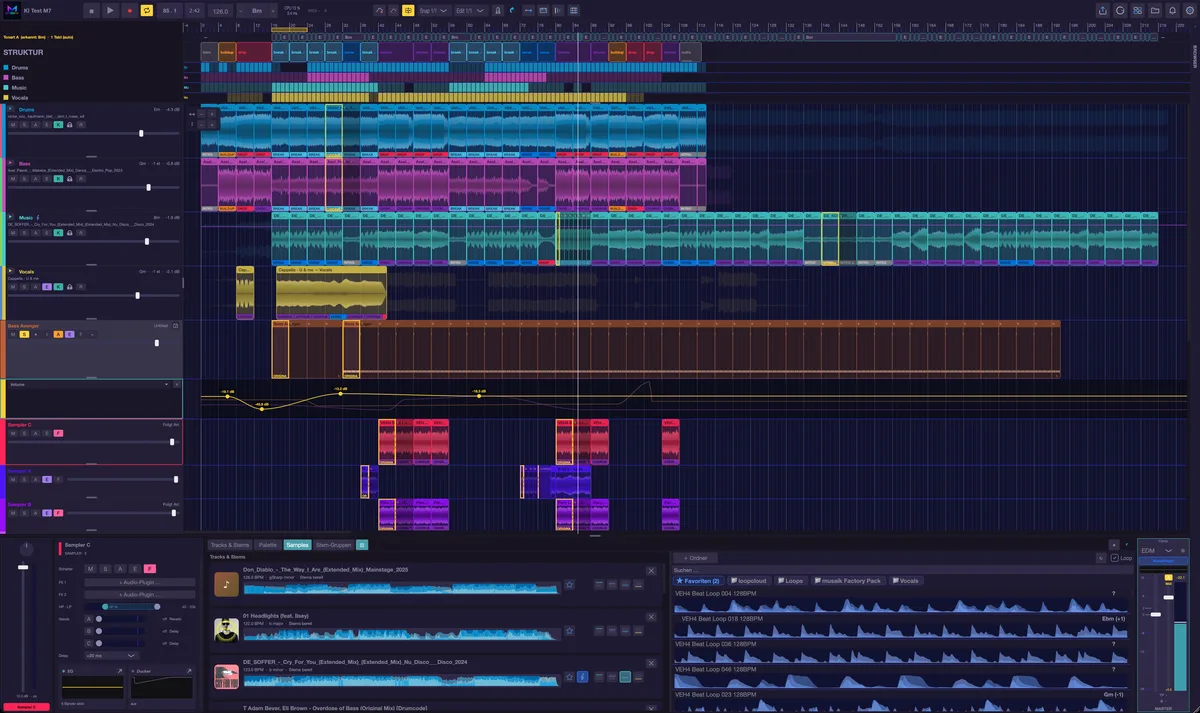
Mashup combines several tracks into one new piece. One track is the structure master: arrangement, bar grid, tempo and the loudness reference come from it. Key, chord lane and chord follow come from the harmony reference instead — that can be the same track or a different one. See the chapter “Mashup”.
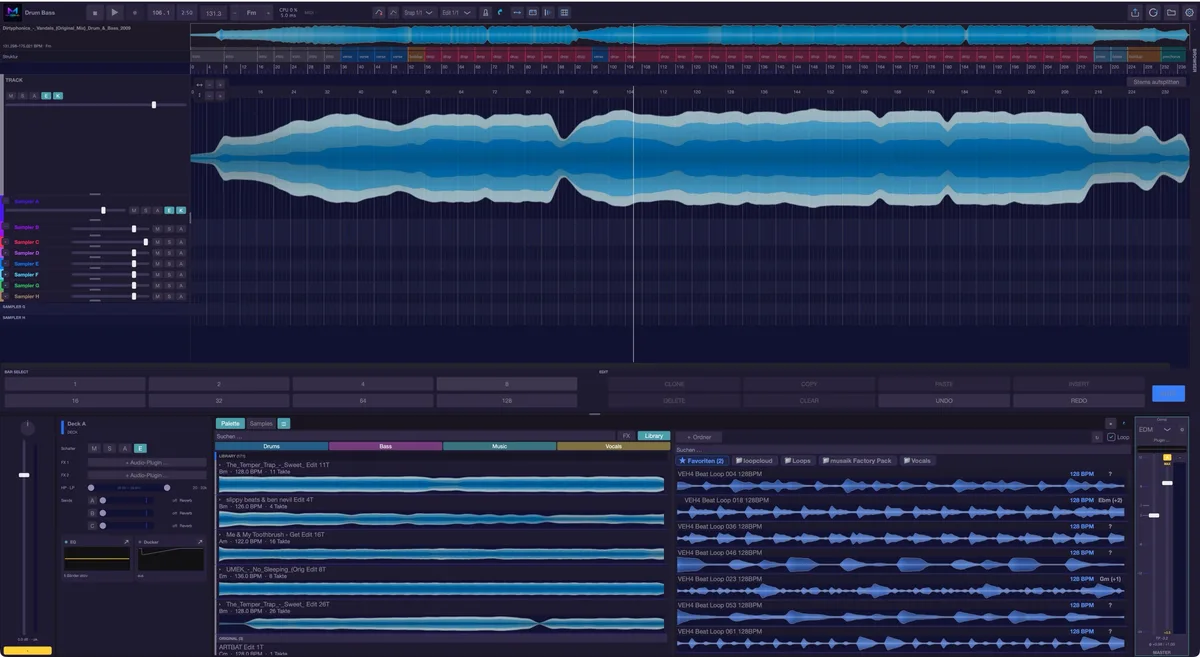
Edit (track edit) reshapes ONE track: shorten a verse, double a chorus, build your own intro, drop the vocals in one place. The track lies on the timeline in full; you work on its form, not on a blend. See the chapter “Edit mode”.
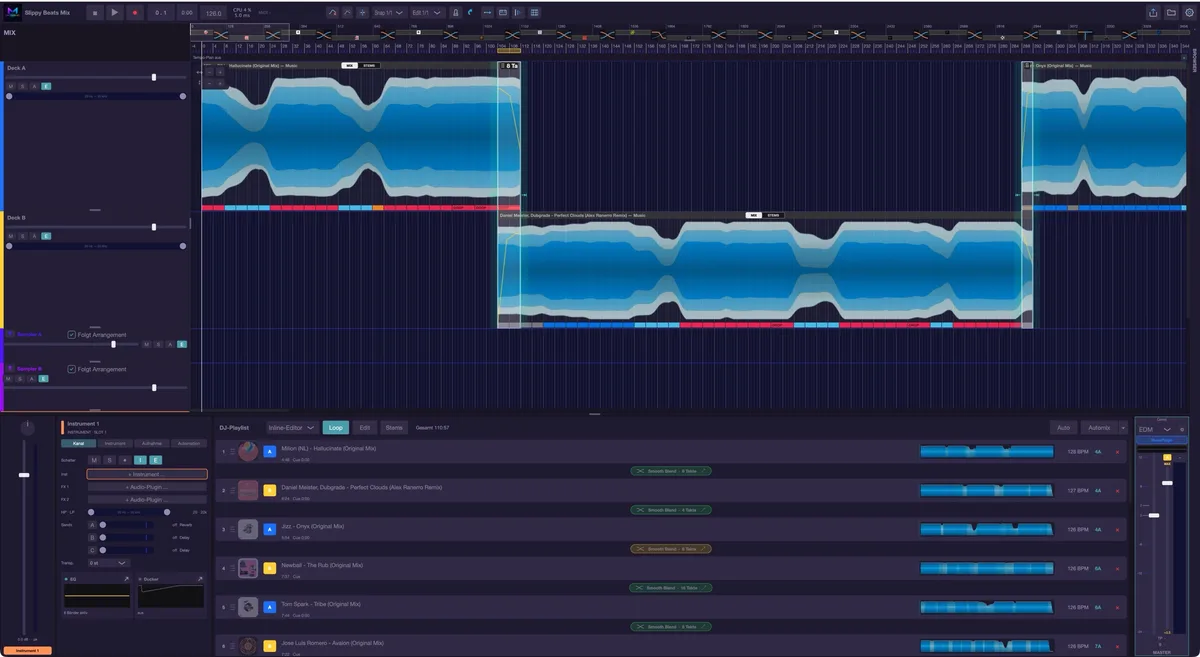
DJ mix chains tracks into a continuous set. Tempo and key are matched, and musaik builds the transitions from a rulebook. The chain is magnetic: change something and everything behind it moves along. See the chapter “DJ mix”.
A project belongs to exactly one type. You do not switch — for another type you create a new project.
The walkthrough
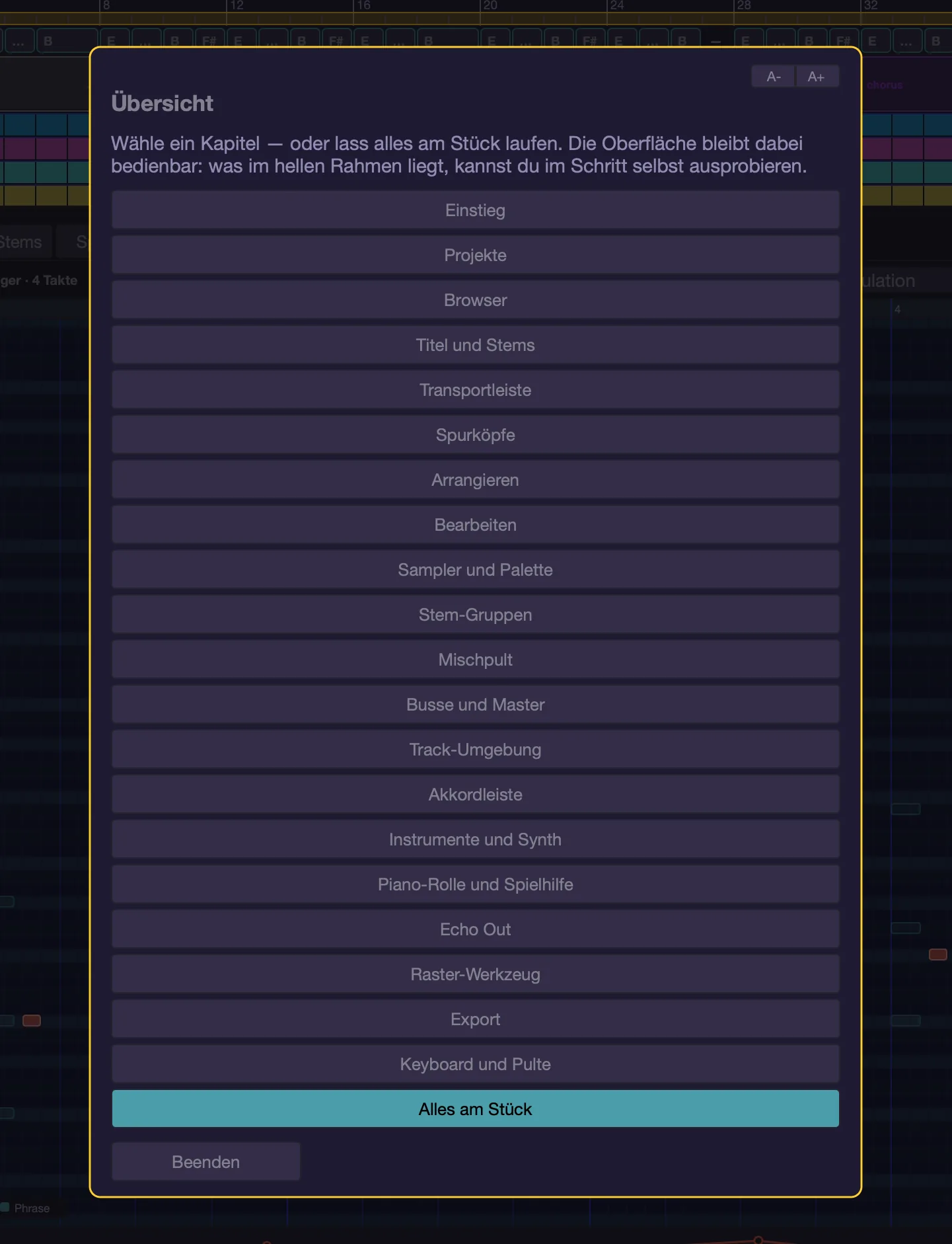
The first time you open a project type, a guided walkthrough starts. A veil covers the app and highlights exactly the area being explained; inside the cut-out the interface stays usable, so you can try every step right away. “Next” and “Back” move through the steps, “Quit” stops. Esc takes you from a step back to the chapter overview; in the overview Esc ends the walkthrough. “A-” and “A+” in the walkthrough window set the text size (it also applies to this help).
The walkthrough is divided into chapters, and which ones depends on the project type — Getting started, Projects, Browser, Tracks and stems, Transport bar, Track headers, Arranging, Editing, Sampler and palette, Stem groups, Mixer, Busses and master, Track environment, Chord lane, Instruments and synth, Piano roll and play assistant, Echo Out, Grid tool, Export, Keyboards and surfaces, Settings and help, Demo material (only while the demo tracks have not been downloaded yet), and in the DJ mix “Chain and transitions”. It begins with an overview: jump to one chapter or choose “Everything in one go”. The “Chapters” button takes you back there at any time.
To start it again use the View menu › “Start walkthrough”, or the “Start walkthrough” button at the top of this help page. The “Do not show automatically again” switch only appears when the walkthrough started by itself; it is on by default and only controls the AUTOMATIC start — by hand you can always call the walkthrough up again.
Demo tracks
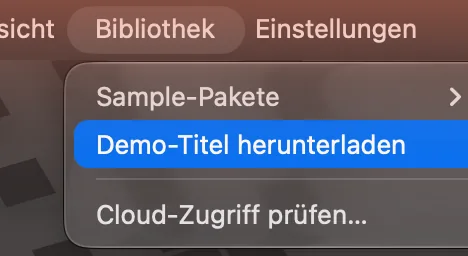
If you have nothing to try things out with, fetch five tracks from musaik.info via Library › “Download demo tracks” (about 42 MB). They land in their own “Demo” folder next to the other app data (on the Mac in ~/Library/Application Support/musaik/Demo). Progress is shown in the project name field of the transport bar while it runs (“Demo tracks 2/5 40%”); at the end a message tells you how many tracks are ready. An interrupted download does no harm: the next attempt resumes properly and skips whatever is already there.
Projects
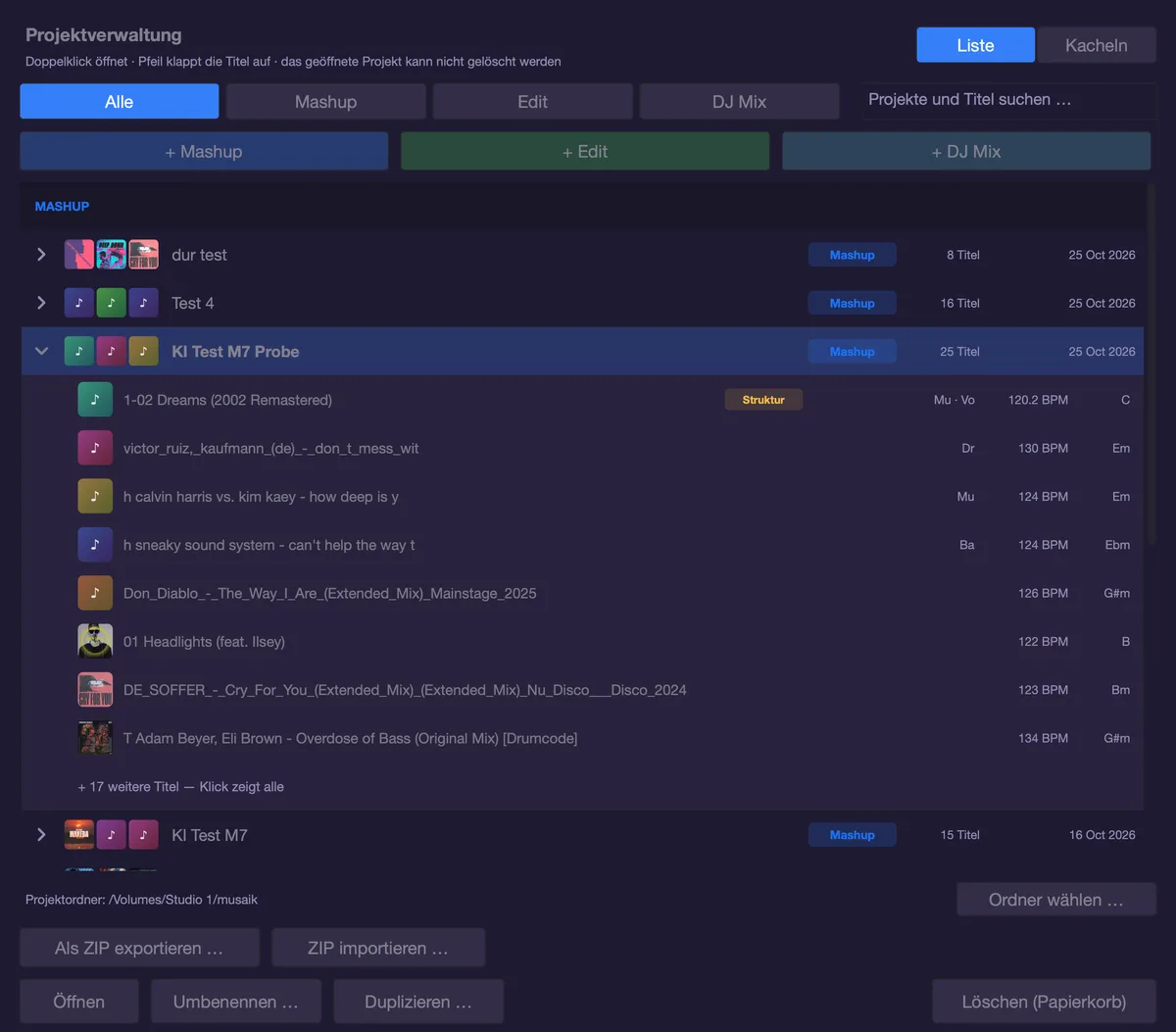
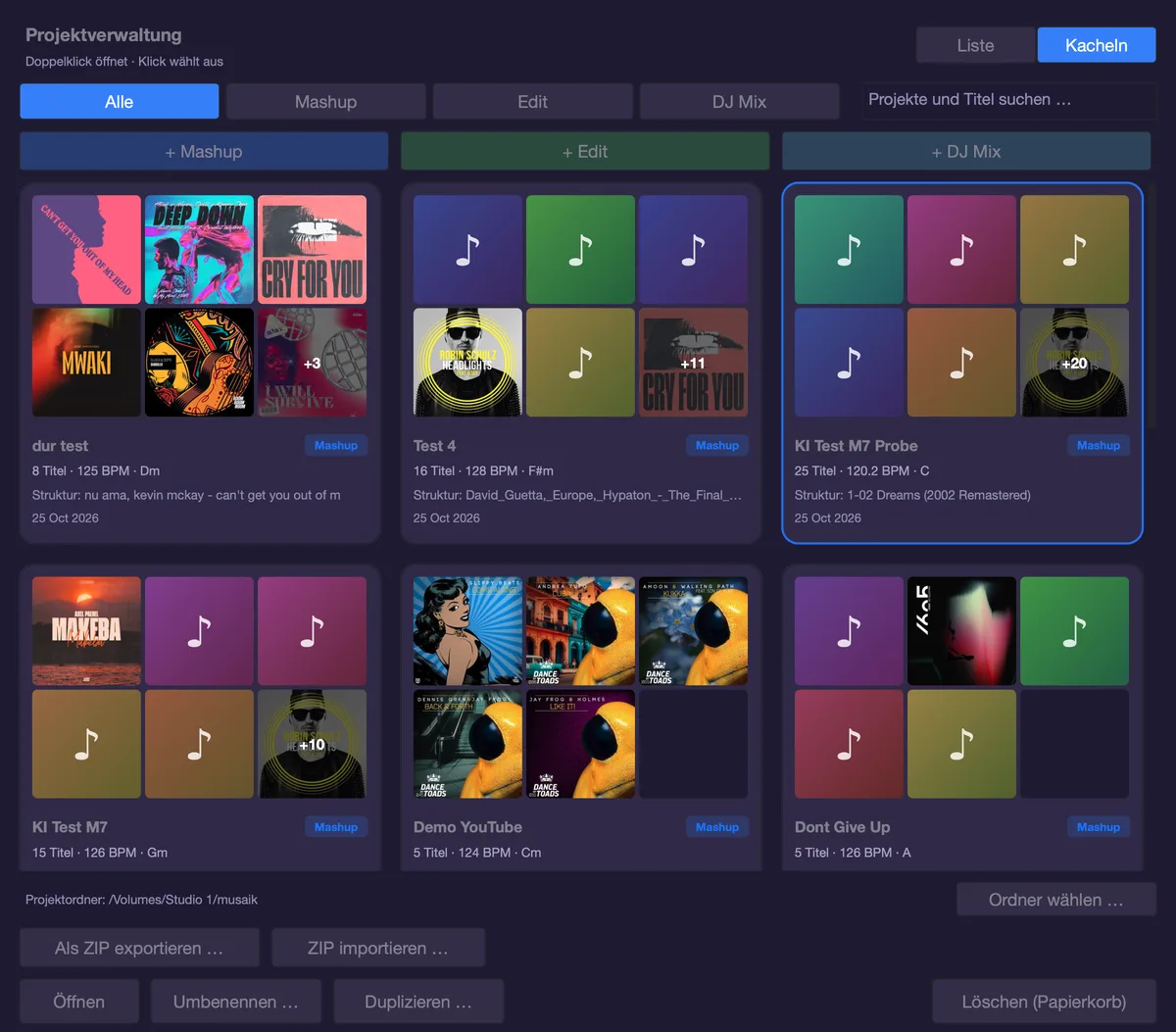
The folder icon on the right of the transport bar opens the project manager. It is the central place for everything project related:
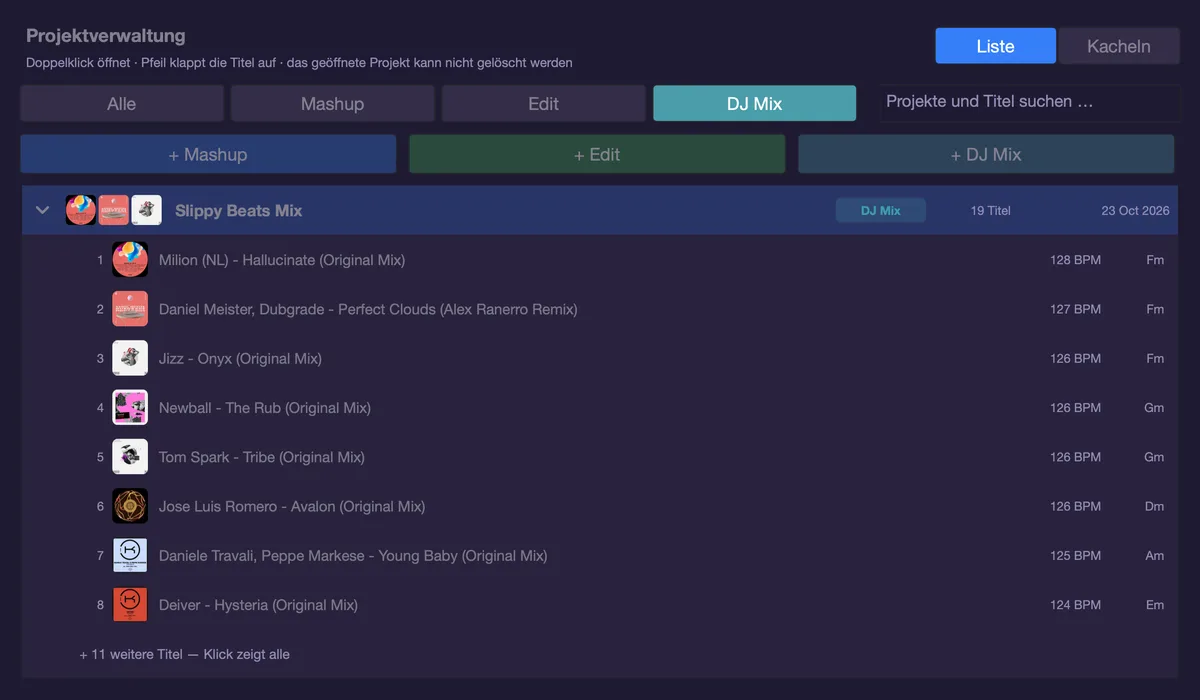
- The tabs “All”, “Mashup”, “Edit” and “DJ Mix” filter the list, with a search field next to them. It also finds titles inside the projects.
- Top right you switch between “List” and “Tiles”; musaik remembers your choice.
- In the list every row shows up to three mini covers. Mashup and DJ mix projects fold out with the arrow on the left: below them you see the titles they contain with cover, roles (Dr · Ba · Mu · Vo), BPM and key; in a mashup the structure master is marked and comes first, followed by the titles that supply a role, in a DJ mix the titles are numbered in playlist order. With nine or more titles the list shows eight first; a click on “+ N more titles” shows all.
- In tile view every project gets a card with up to six mini covers (with more titles the last one shows “+N”), name, type, number of titles, tempo and key or approximate mix length, structure master or number of transitions, and date. An edit shows its cover large. Click selects, double-click opens.
- You create per type: “+ Mashup”, “+ Edit”, “+ DJ Mix” — you only enter a name.
- For every project there is “Open” (or double-click), “Rename …”, “Duplicate …” and “Delete (trash)”. The project that is currently open cannot be deleted.
- “Export as ZIP …” packs the project selected in the list into one file (extension .musaikzip). First musaik asks “With audio” or “Without audio”: with audio, everything belonging to it comes along – including the sampler files from the palette library that the project uses; without audio, only the project and the analyses. Then you choose where to save it (the desktop is suggested). “Cancel” in the progress window stops the export and removes the unfinished file. “Import ZIP …” brings a project back in and puts any included sampler files into your library.
- “Choose folder …” at the bottom sets where your projects live.
“Unload project (all tracks) …” in the Project menu empties the open project without deleting it — and like everything else it can be undone.
Saving happens continuously in the background; immediately on project switch, export and quit. You never have to think about saving. Cmd+Z undoes a step, Cmd+Shift+Z redoes it. Cmd+S forces a save if you explicitly want one.
The menus
- Project — everything tied to the open project: “Project manager …”, “Open …”, “Recently opened”, “Save”, “Duplicate project”, “Unload project (all tracks) …”, “Tracks & stems …”, “Re-analyze all tracks”, “Re-create all stems”, “Segment correction …”, “Inserted bar …”, “Reset master” (mashup only, and only when something on the structure master was changed) and “Export audio …”.
- Edit — the range operations on the loop range: “Cut section”, “Copy section”, “Insert section (at playhead)”, “Insert silence (loop length)”, “Repeat section”, “Delete section”, “Clear section (silence)”.
- View — what you see and hear: “Default view”, track environment and mixer, the tabs of the track environment (channel, instrument, equalizer, ducker), “Switches in track headers”, zoom (in, out, fit project, auto fit), “Equal height for all track headers”, “Show all automation (A)”, “Colours & theme …”, “Show performance log”, “Source song parts in the clips”, mixer or piano roll at the bottom and the keyboard, chord lane and the chord commands, MIDI recording and export, “Bounce instrument to audio …”, phrases — and “Start walkthrough”.
- Library — content that is not tied to a project: the “Sample packs” submenu (load packs, delete installed ones again via “Remove: …”), “Download demo tracks” and “Check cloud access …”.
- Settings — the program itself: “Settings …”, “Audio devices …”, “Help …”, “Online help (musaik.info)”, “Send feedback …” and the “Rulebook …”.
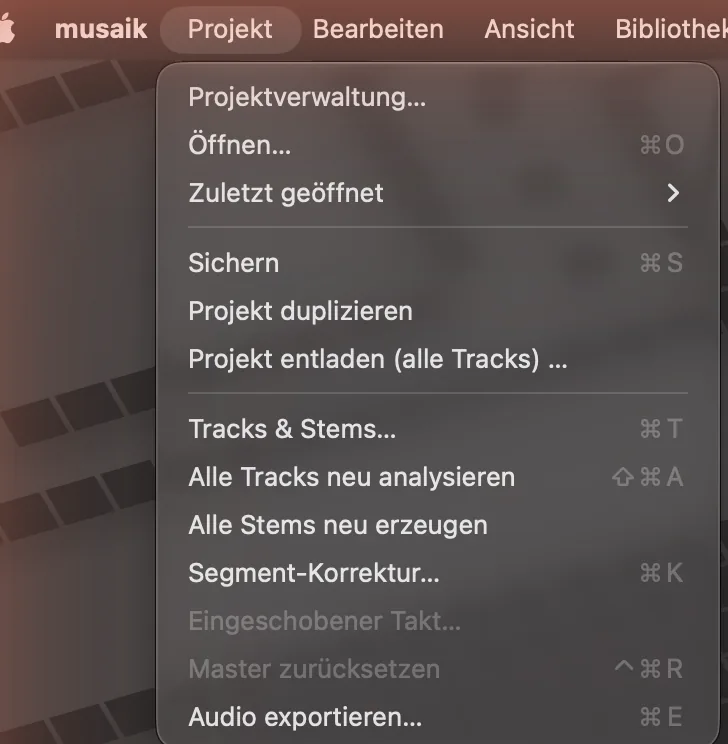
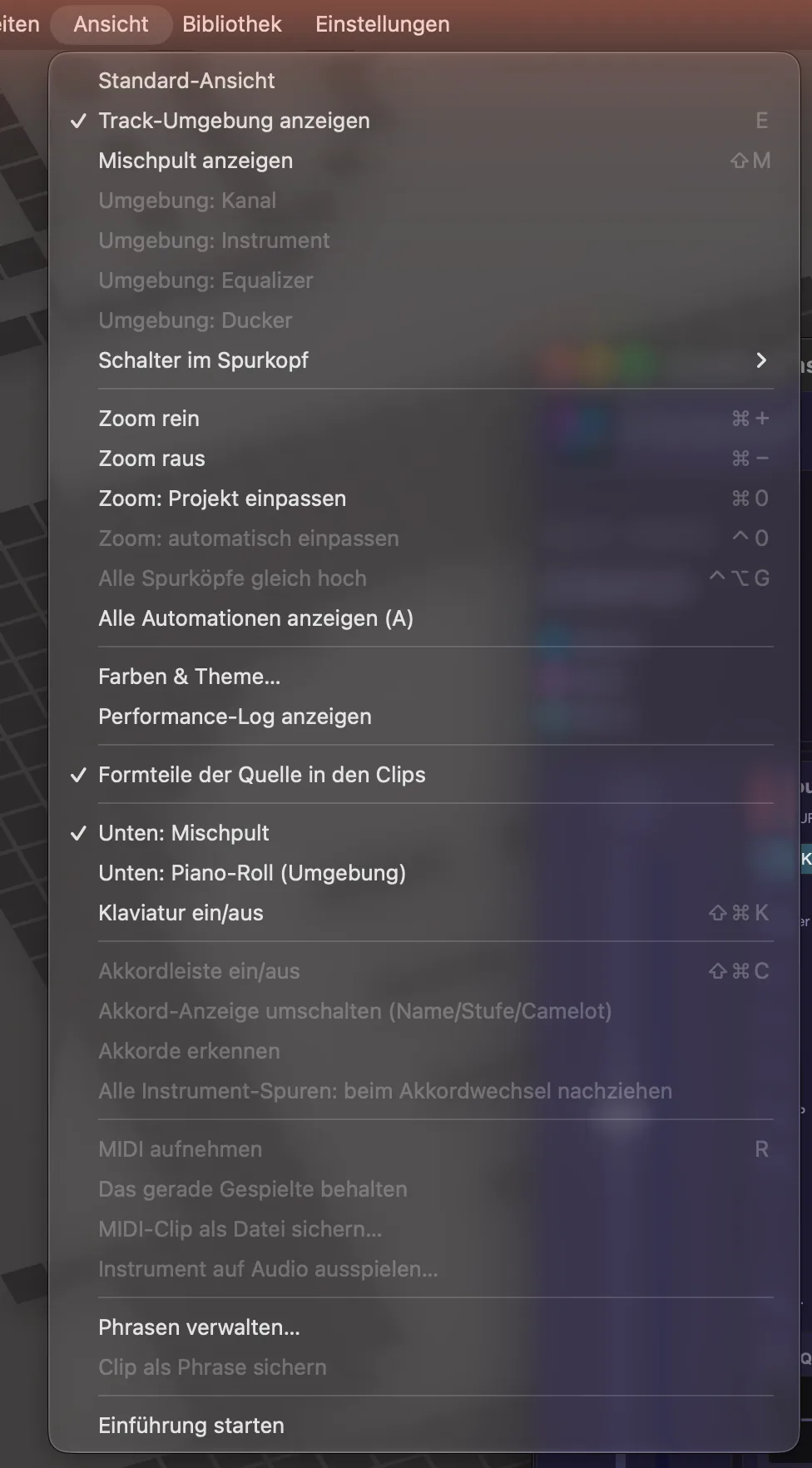
Using this help
The chapters are on the left, the text on the right. Cmd+F jumps into the search field; the search hides chapters without matches, Return jumps to the next match, Esc clears the field. “A-” and “A+” at the top set the text size (the same reading size as in the walkthrough; it is also in the settings under Layout). Next to them, “Online help” opens this help with pictures on musaik.info in the browser, “Feedback …” opens the contact form for bug reports and wishes, and “Start walkthrough” starts the guided tour. The help is a tab in the settings window; you can open it at any time with Cmd+Shift+H or via Settings › “Help …”.
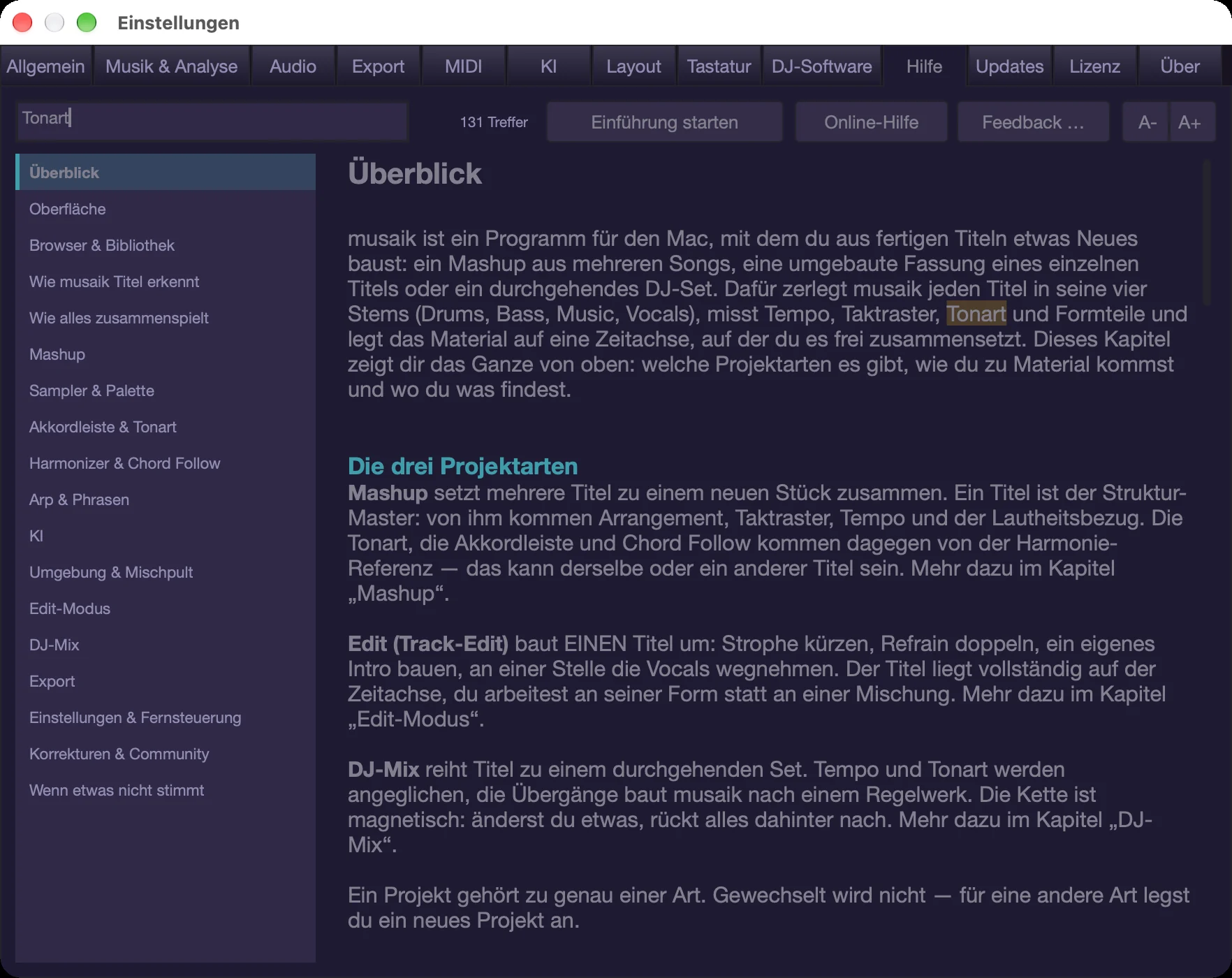
The chapters
- Overview — this chapter.
- Interface — transport bar, arrangement, track headers, lower area, shortcuts.
- Browser & library — where the material comes from.
- How musaik analyses tracks — tempo, key, chords, structure, stems, and how reliable each of them is.
- How it fits together — structure master, harmony reference, signal path.
- Mashup — several tracks into one piece.
- Sampler & palette — collecting and playing excerpts.
- Instruments & MIDI — your own instrument tracks, plug-ins, recording.
- musaik Synth — the built-in synthesizer with its factory sounds.
- Chord lane & key — what the app knows about the harmony and how you correct it.
- Harmonizer & chord follow — playing in key without theory.
- Arp & phrases — automation for figures and patterns.
- Piano roll — writing and editing notes.
- AI — having melodies, arps and phrases suggested.
- Environment & mixer — channel, EQ, sends, ducker, master.
- Edit mode — reshaping a single track.
- DJ mix — chain, transitions, automix.
- Export — finishing and writing the file.
- Settings & remote control — all tabs, rulebook, MMC and Mackie Control.
- Corrections & community — what your corrections do and what gets shared.
- When something goes wrong — typical failure patterns and how to fix them.
Shortcuts
- Space – start/stop playback
- Cmd+Z / Cmd+Shift+Z – undo / redo
- Cmd+S – save
- Cmd+O – open project
- Cmd+E – export audio
- Cmd+T – Tracks & stems
- Cmd+K – segment correction
- Cmd+, – settings
- Cmd+Shift+H – help
- Cmd+F – search in the help, Return = next match
Interface
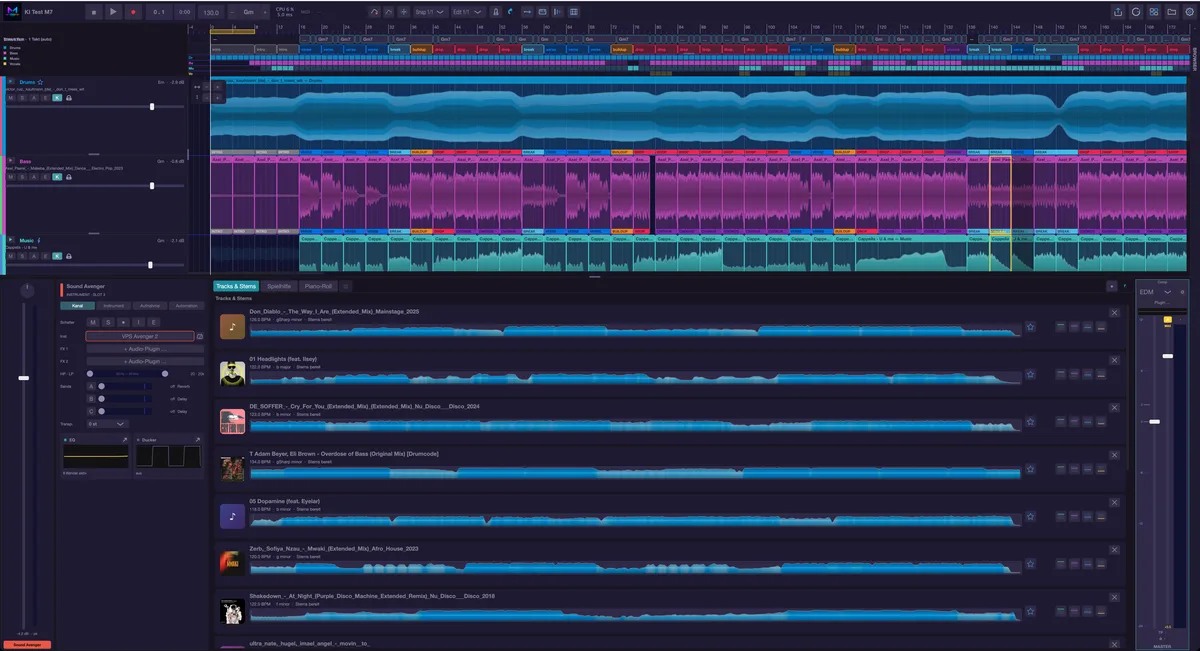
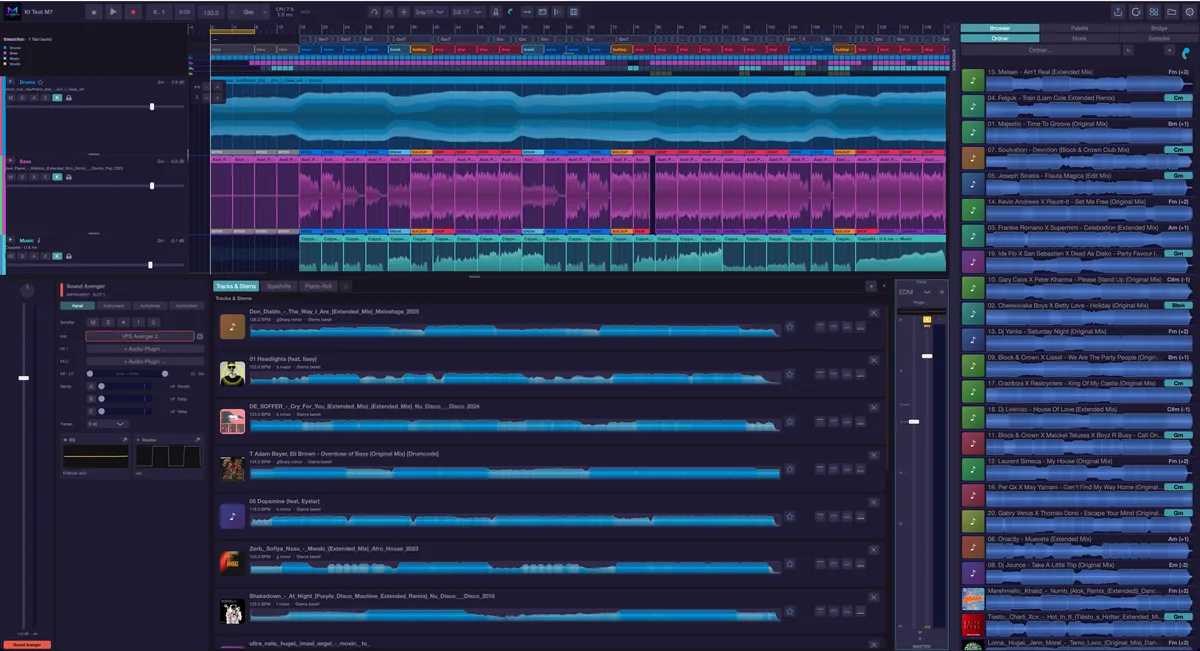
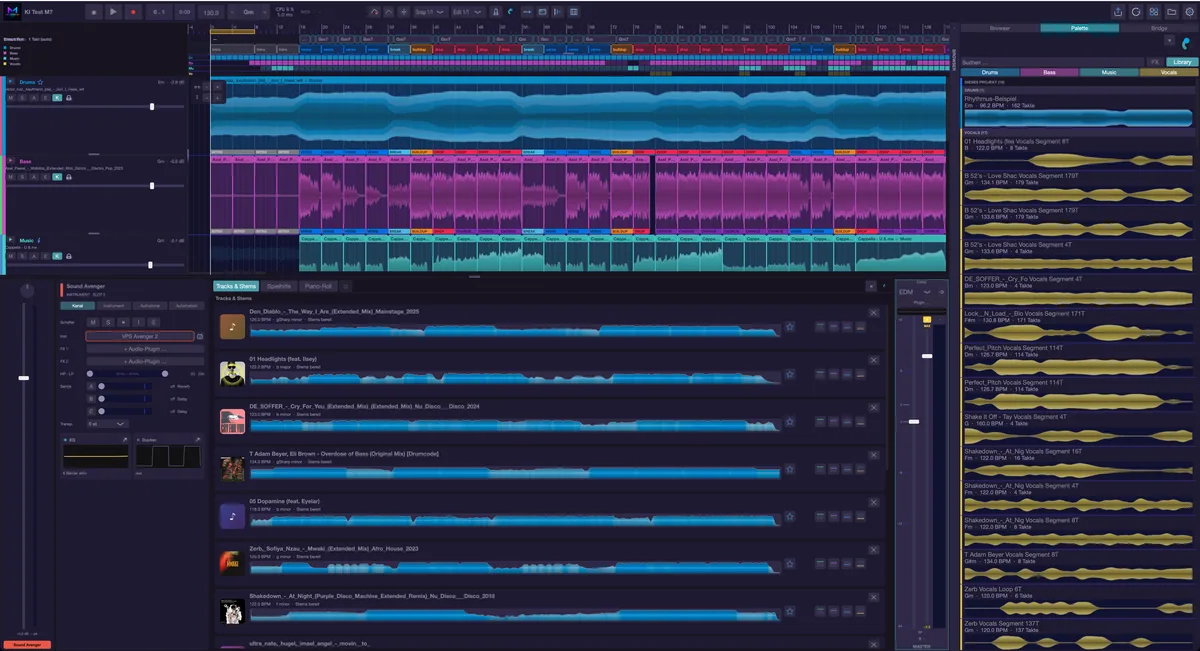
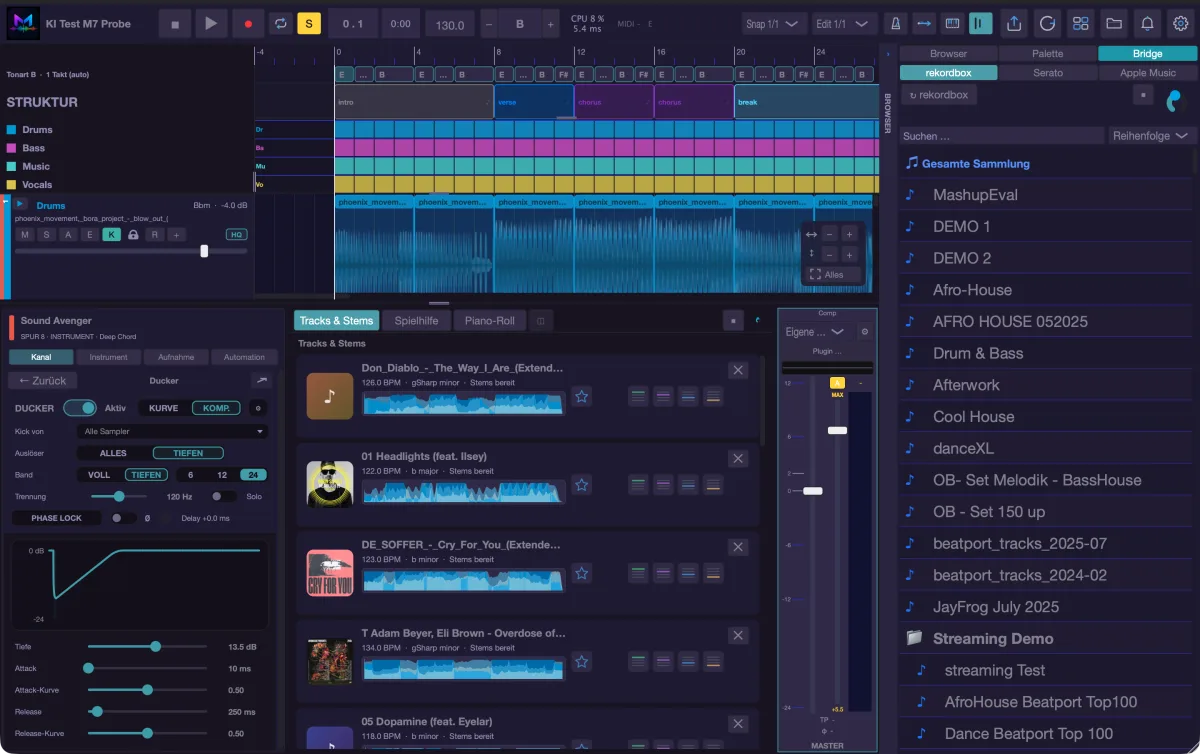
The window always has the same layout: the transport bar at the top, the browser on the right, the arrangement in the middle with the track headers on its left, and — when you show it — the lower area with the track environment, the mixer and the piano roll. This chapter walks through those areas and tells you what the symbols mean.
The transport bar
The buttons are icons; what they do is in the tooltip when you hover over them. From left to right:
- Project name — double-click renames the open project (Return confirms, Esc discards). While demo tracks are downloading, the progress is shown here.
- Stop and Play — stop jumps back to the beginning. The space bar also starts and stops.
- Record (●) — records the selected instrument track. From standstill the metronome counts in first; the length of the count-in is set in the track environment on the “Recording” tab. If the transport is already running, recording starts at the current position. musaik does not record audio tracks.
- Loop — loop on/off (key C). Off remembers the range, on restores it. If there is no range yet, the section at the playhead is looped, otherwise 4 bars.
- S (Solo) — lights up yellow while any track is soloed, including one that is currently out of view. A click then clears every solo (like key S); if no track is soloed, it solos the selected track.
- Position — bar . beat; next to it the playing time up to the cursor in minutes:seconds. Bars count from 0, beats from 1.
- Tempo (BPM) — type a value, Return applies it. A red outline means you set the tempo by hand and the track is being stretched to it. To return to the original speed, right-click the field › “Original tempo”, clear the field or type the track’s own tempo again — the red outline then disappears too. In the DJ mix a red outline means the opposite — the tempo comes from the tempo lane and entries there have no effect.
- − key + — transposes the WHOLE arrangement in semitones, at most 6 up or down. The overlay and the original file stay untouched; a red outline shows that transposition is active, and back to 0 gives the original pitch. In the DJ mix the display is hidden.
- CPU — load of the audio engine. If plug-ins report latency, the compensated delay is shown next to it in milliseconds, plus “LL” while low latency is active.
- MIDI display — lights up while notes come in and shows the last note played as well as the chord that currently applies. If it stays dark, nothing is arriving (device, channel, or no track selected). Double-click = MIDI reset (all notes off, same as Cmd+Option+period).
- What musaik is computing in the background is no longer shown here but per lane in the track header (badge and ring, see “The track headers”).
- A-REC — record automation. Only while this is on do fader moves during playback write curves.
- A — shows all automation lanes and zooms out to the overview.
- CENTER — centered playhead: during playback the playhead stays in the middle and the arrangement scrolls beneath it. After you scroll by hand the view eases back in. Applies in mashup and DJ mix.
- Snap grid and edit grid — two separate pickers: snap decides what clips snap to when moved; the edit grid applies to the cursor and the guide lines.
- Metronome with its level knob next to it.
- Low latency — for playing in: the armed track bypasses its latency-causing inserts and does not wait for the slowest track. It sounds different and runs ahead of the rest — switch it off afterwards. The limit in milliseconds is in the settings.
- Keyboard — shows and hides the on-screen keyboard (Cmd+Shift+K). While it is shown, the keys A S D F G H J K and W E T Z U O P play notes; shortcuts on these keys without a modifier pause meanwhile.
- ECHO — Echo Out: stem parts ring out at their end. Double-click (or Shift-click) opens the settings for level, decay and the window before the edge.
- GRID — opens the adjustment window for the track's bar grid. In the DJ mix there is no such button; there, Shift+double-click on a deck clip opens the same correction.
- On the far right: export, arrange (in Edit: “Restore original”; not present in the DJ mix), Tracks & Stems (mashup only), projects (folder icon), news (bell with a counter, only when there are messages) and settings.
If the window is too narrow, A-REC, A, CENTER and GRID move into a “⋯” menu after ECHO; it also holds “Echo-out settings …”. The metronome knob is hidden then.
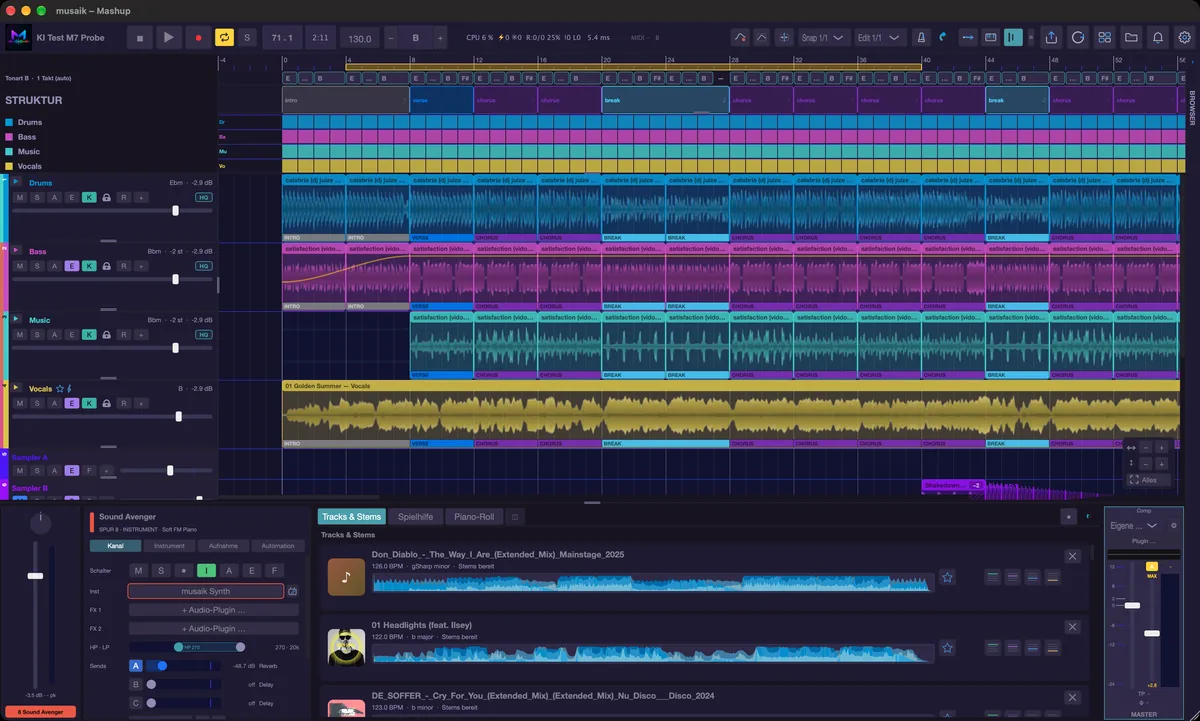
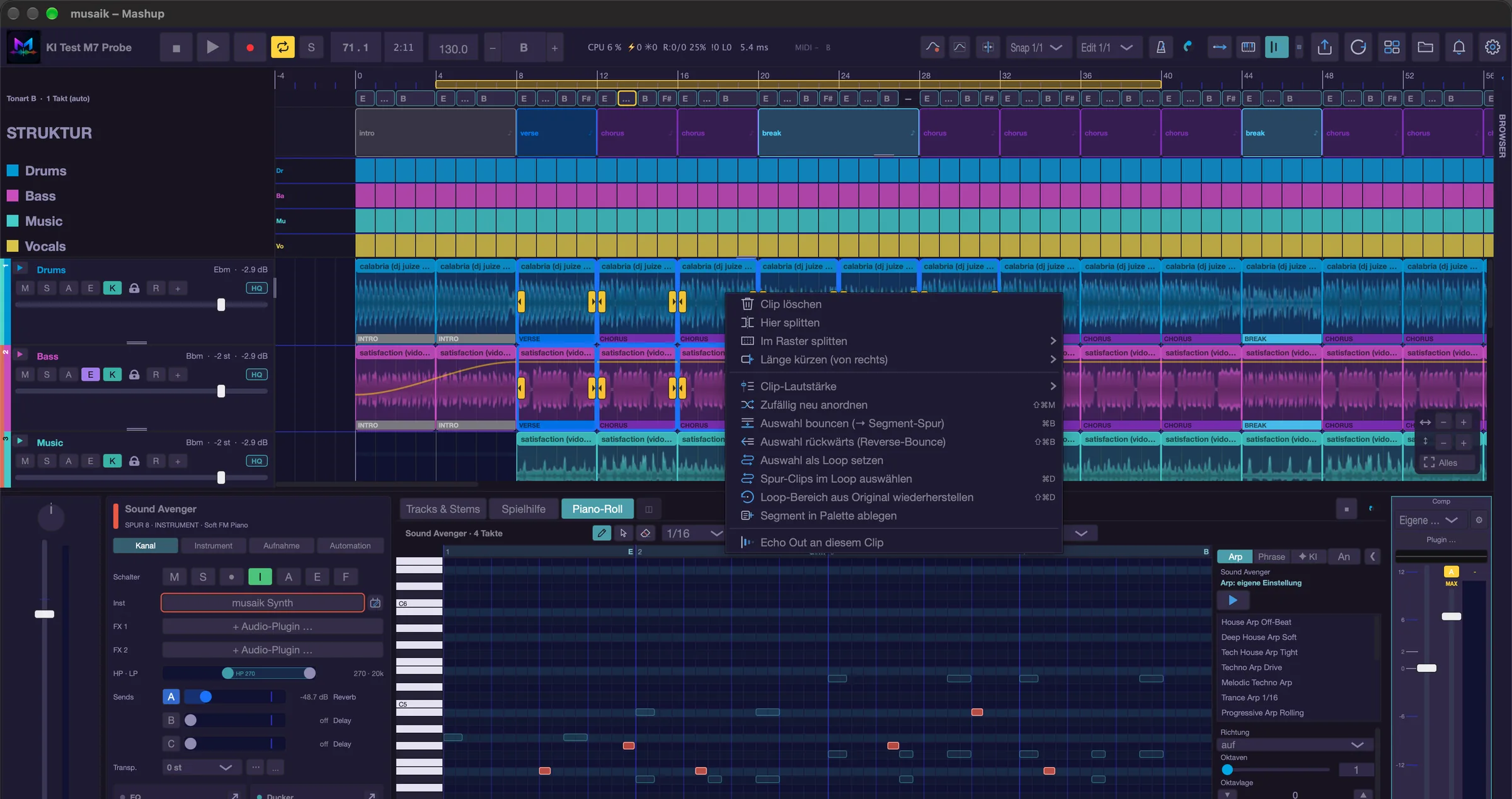
The arrangement
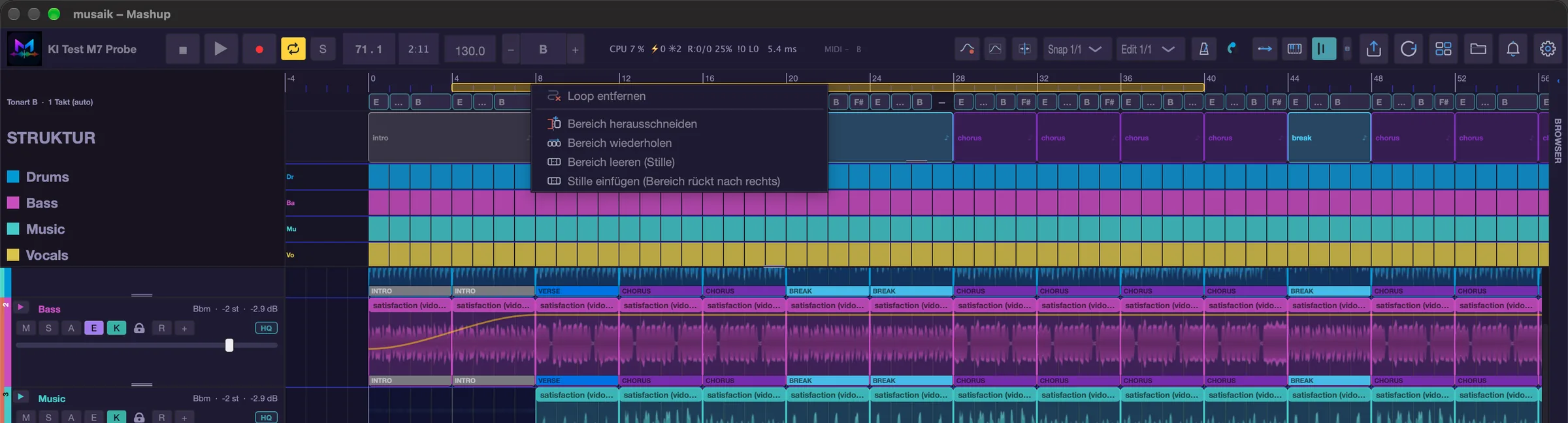
The ruler with the bar numbers is at the top. A click sets the playhead (in the DJ mix it snaps to the edit grid, otherwise not). Dragging creates a loop range — yellow, repeated during playback. Dragging from right to left with Shift held creates a skip range instead — hatched black on yellow, skipped during playback and on export. The edges of both ranges can be dragged afterwards. Grab the yellow loop band in the middle to move the whole loop; its length stays the same. When there is a loop or skip range, a right-click in the ruler offers “Remove loop”, “Remove skip range” and the range actions (“Cut range out”, “Repeat range”, “Clear range (silence)”, “Insert silence (range moves right)” – the range and everything after it move right by the loop length, leaving silence in the loop).
Below it are the lanes with their clips, over a grid of bar and subdivision lines (spacing = edit grid). The playhead runs along as a vertical line.
Zooming and scrolling:
- Cmd+wheel zooms horizontally (time axis), Cmd+Shift+wheel vertically (lane heights).
- On a trackpad a pinch gesture zooms horizontally.
- The zoom pad sits in the bottom right of the arrangement: the row marked ↔ zooms horizontally, the one marked ↕ vertically. Below, “Fit all” turns on auto fit: the whole arrangement – length and all tracks – stays in view and is refitted when the window, the tracks or the length change. In the DJ mix the switch reads “Height” and fits only the height; the whole mix across the width would be too small. Zooming by hand (buttons, wheel, pinch, keys) turns it off. Command: View › “Zoom: auto fit” (Ctrl+0).
- Cmd++ and Cmd+− zoom horizontally, Cmd+0 fits the whole project into the window.
- The wheel scrolls — including over the track headers, where it is explicitly passed on to the arrangement. That is why the volume in the track header and the transpose control of an instrument track only react to clearly SIDEWAYS swiping, not to vertical scrolling.
The track headers
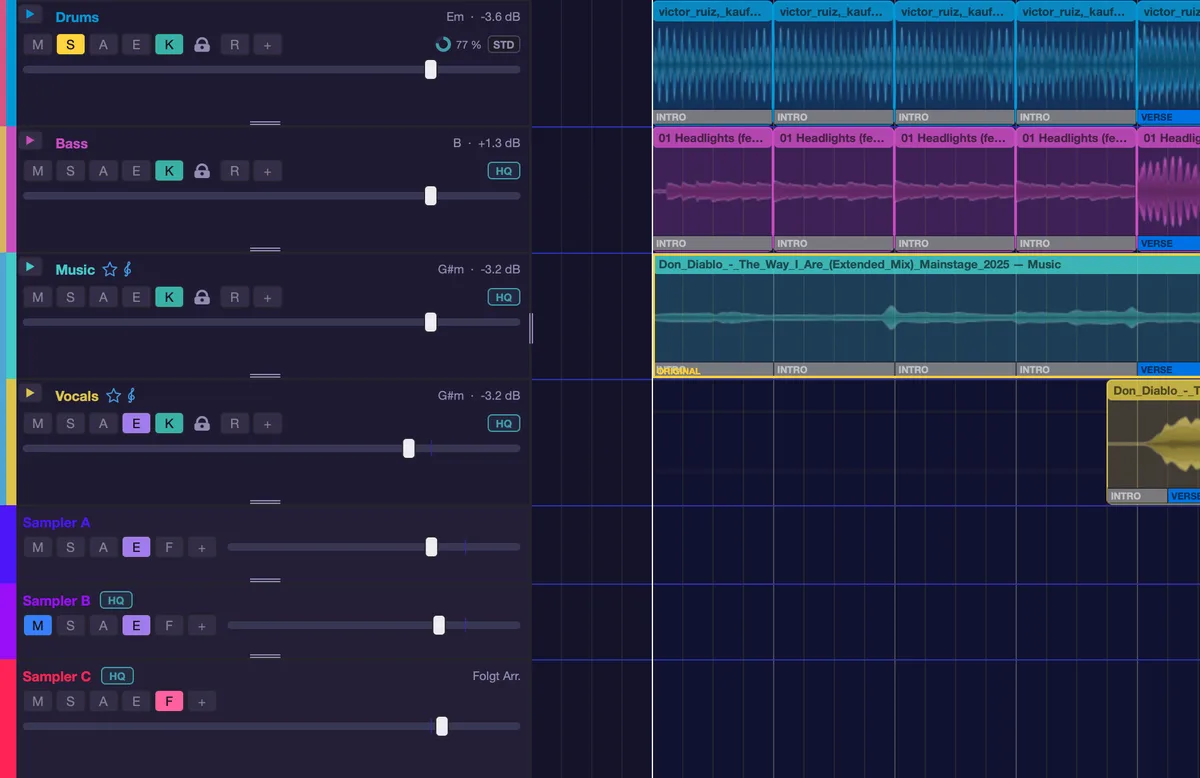
All track headers — stem, sampler and instrument — share one layout in three heights, decided by the lane height. In every height the switches start on the left at the same edge below the name:
- full (from 90 px): row 1 the name and on the right the info (key and level for stems, sound for instruments, “Follows arr.” for sampler tracks with F), row 2 the switches, row 3 the volume.
- compact (44 to 89 px): name and info on top, below them the switches on the left and the volume to their right.
- mini (below 44 px): everything in one row — name, switches, volume.
If the width is too small for all switches, the rear ones are left out (they stay in the context menu and the track environment); the volume keeps its place. The colour strip on the left has the same width on every header.
Sampler and instrument tracks are as tall as the stem tracks as long as you don't drag their height at the bottom edge yourself. View › Equal height for all track headers (Ctrl+Alt+G) removes dragged heights again.
On the left of the header are two colour strips: the outer one is the track's colour band (which lanes belong to the same track), the inner one the colour of the element or lane. “Change colour …” in the context menu changes it. The strip carries the track number, written vertically: every row is numbered from top to bottom — stem rows, sampler and instrument tracks, each on its own; bus and master have no number. Move a track and it takes the number of its new position, with everything below shifting along. The same number sits above the channel strip in the mixer and in the header of the track environment (“Track 7 · Instrument”); the edit mode counts its rows the same way. The DJ mix has no numbers — those are decks. Behind the name, two symbols show the roles: the star marks the structure master (arrangement, grid, tempo, loudness reference), the treble clef the harmony reference (key, chord lane, chord follow).
Preparation status (badge and ring). On the right of the switch row (in Edit mode, at compact height and in the mix header on the right of the name line) a small badge shows which version the lane is playing from: STD = standard quality, HQ = highest stretch quality (accent colour), HQ with a pulsing dot = highest quality computed live (Edit mode or changing tempo, needs more CPU). In front of it sits a ring: dashed means “queued” (the better version is waiting its turn), filled it shows the progress in percent until the version is finished and swapped in inaudibly. Nothing shown means the lane is not stretched or the “Highest” level is off. At mini height only the ring or an HQ dot remains; the tooltip says it exactly, a click opens Settings › Audio. Sampler headers, and in a DJ mix the title clip and the deck header, show the same for the whole track. If playback is waiting for a computation (e.g. after changing the pitch by hand), the ring of the affected lane shows that and the play button stays locked until it is done.
The switches on stem lanes:
- M — mute.
- S — solo.
- A — automation mode. With exactly one automation value, its curve sits in the lane itself and a chooser for the value replaces the fader in the header. + adds another value; from two values on, each gets its own row below the lane (chooser and ×), and the lane then shows only the clips.
- E — Echo Out for this lane. Off is off; then only clips that ask for it explicitly ring out (clip context menu).
- K — keep settings. On (default): when this lane's source is swapped, volume, EQ, filters, sends, ducker, insert plug-ins and this lane's automation curves move along. Off: the new source starts from default values.
Which of these five switches appear in ALL track headers is your choice: right-click a track header and use “Switches in track headers”, or the View menu; whatever a lane type does not have is simply missing. Sampler lanes show M, S, A and E (no K) plus F (follow arrangement): on, their clips move along when the arrangement gets longer or shorter; off, they stay at their bar. The track environment always shows all of them. Instrument tracks carry M, S, ● (armed), I (monitor, live playing audible), A (show automation rows), E, F (follow arrangement) and + (add automation row); a pencil button opens the instrument editor as soon as an instrument is loaded.
Every switch has the same colour of its own everywhere – track headers, mixer and environment: M blue, S yellow, ● red, A orange, E violet, K teal, I green, F pink. With A off, the automation rows are only hidden; the curves keep working. musaik remembers per project which lanes show their automation and which extra rows are open.
At the very bottom of the lane list there are two large buttons side by side: “+ Instrument” and “+ Sampler lane”.
Stem lanes additionally have the lock: a locked lane is left untouched when arranging. In the mini height the button no longer fits — there a red frame shows the state.
Clicking a header selects the lane (the track environment follows), ↑ and ↓ select the lane above or below. The lower edge of a header can be dragged to change the lane height. A right-click on a stem header opens the track menu with “Source: …” (which track feeds this lane, or “None”), “Set as structure master”, “Used stems”, “Lock lane”, “Re-detect structure”, “Re-analyse (tempo, key, structure)”, in the mashup “Reset lane (original arrangement)”, “Remove track”, “Tracks & stems …”, “Change colour …” and “Switches in track headers”; if the lane has automation curves, the entries for deleting automation are there too. A lane without a source that still holds clips offers “Remove this lane's material”.
Tempo lane
If a track has real tempo changes, a narrow tempo lane with the derived curve appears under the ruler. In mashup and edit it is display only — you change the tempo through the BPM field or through GRID. In the DJ mix it is a tempo plan of its own: while it is off it shows “Tempo plan off” with a [+]; a click on it switches the plan on, [−] switches it off again. Switched on, nodes can be dragged; a double-click on an empty spot sets a new node, a double-click on a node opens a small window for typing the value exactly (with “Delete”). The right-click offers “Delete node” and “Delete entire tempo curve”. See the chapter “DJ mix”.
The lower area
- E shows and hides the track environment: everything about the SELECTED lane — channel, instrument, recording, automation, plus EQ and ducker.
- Shift+M shows the mixer with all channel strips, the busses and the master.
- The same key again folds the area away; Cmd+Option+P switches the lower area between mixer and piano roll.
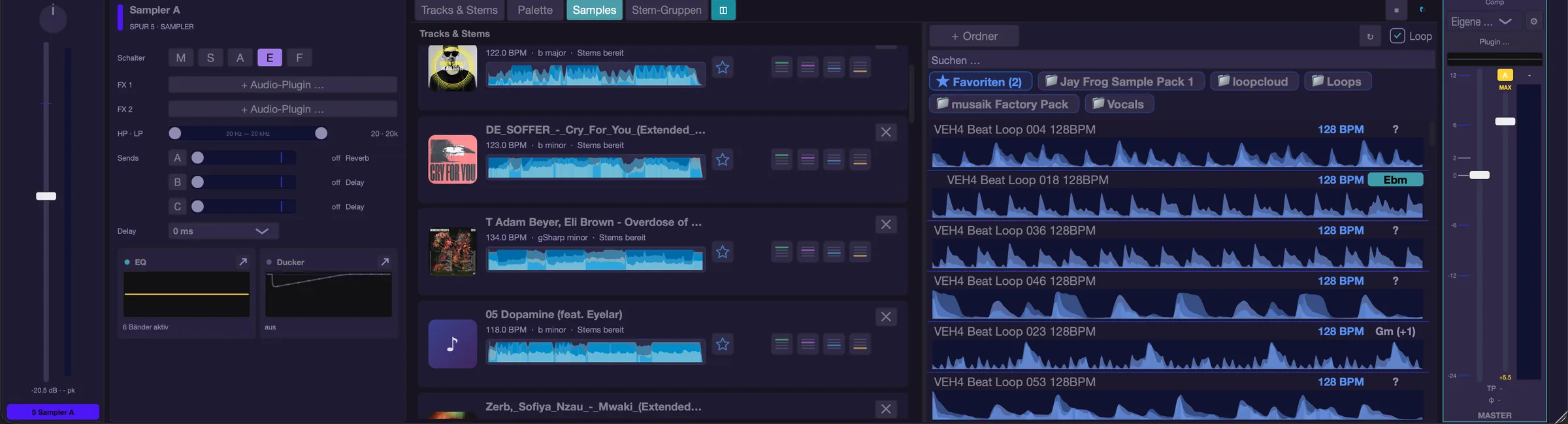
- In the centre of the lower area are tabs that follow the lane type: “Tracks & Stems” is always there, stem lanes add “Stem groups”, sampler lanes “Palette”, “Samples” and “Stem groups”, instrument lanes “Play assistant” and “Piano-Roll”. In edit mode there are only “Palette” and “Samples”. The ◫ button next to them splits the centre so two areas sit side by side; ■ stops the preview, and the knob is the preview volume.
Details are in the chapters “Environment & mixer” and “Piano roll”.
Browser
B folds the browser on the right side open and closed; its left edge can be dragged. What is inside is explained in the chapter “Browser & library”.
Shortcuts
- Space – start/stop playback
- C – loop (cycle) on/off
- R – MIDI recording on/off (selected instrument track)
- K – metronome on/off
- O – Echo Out on/off
- G – open the grid correction
- A – record automation (A-REC)
- S – clear all solos
- P – stop preview
- M – mute the selected lane
- E – track environment, Shift+M – mixer, Cmd+Option+P – switch the lower area
- B – show/hide the browser
- ↑ / ↓ – select the lane above/below
- Cmd+wheel – zoom horizontally, Cmd+Shift+wheel – zoom vertically
- Cmd++ / Cmd+− / Cmd+0 – zoom in, out, fit project
- Ctrl+0 – auto fit on/off
- Ctrl+Option+G – equal height for all track headers
- Cmd+Shift+K – keyboard on/off
- Cmd+1…4 – in Edit mode: stem on/off inside the selected range (drums, bass, music, vocals)
- Ctrl+1…4 – lock lane
- Cmd+Option+period – all notes off (MIDI reset)
Browser & library
The browser on the right is your material box: your own files, the excerpts you collected, and your DJ collection. This is where you drag tracks and samples into the arrangement — and where you preview things before taking them. B folds it open and closed, and its left edge can be dragged.
The three areas
Three areas sit at the top, exactly one of them active at a time:
- Browser — your own files, with the sub-areas “Folder”, “Musik” and “Samples” (the music tab is still labelled in German).
- Palette — the excerpts (loops and segments) you put aside yourself.
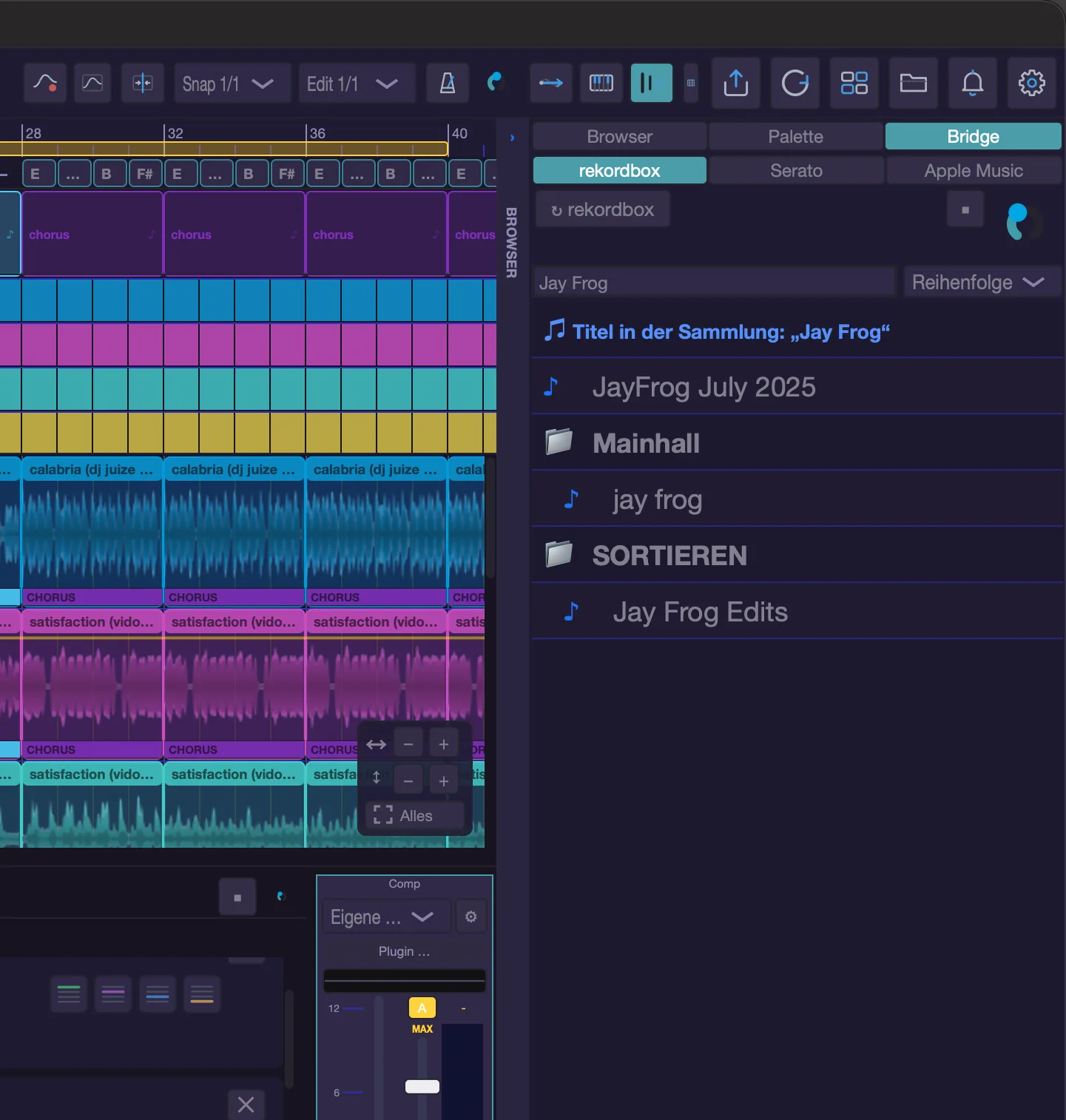
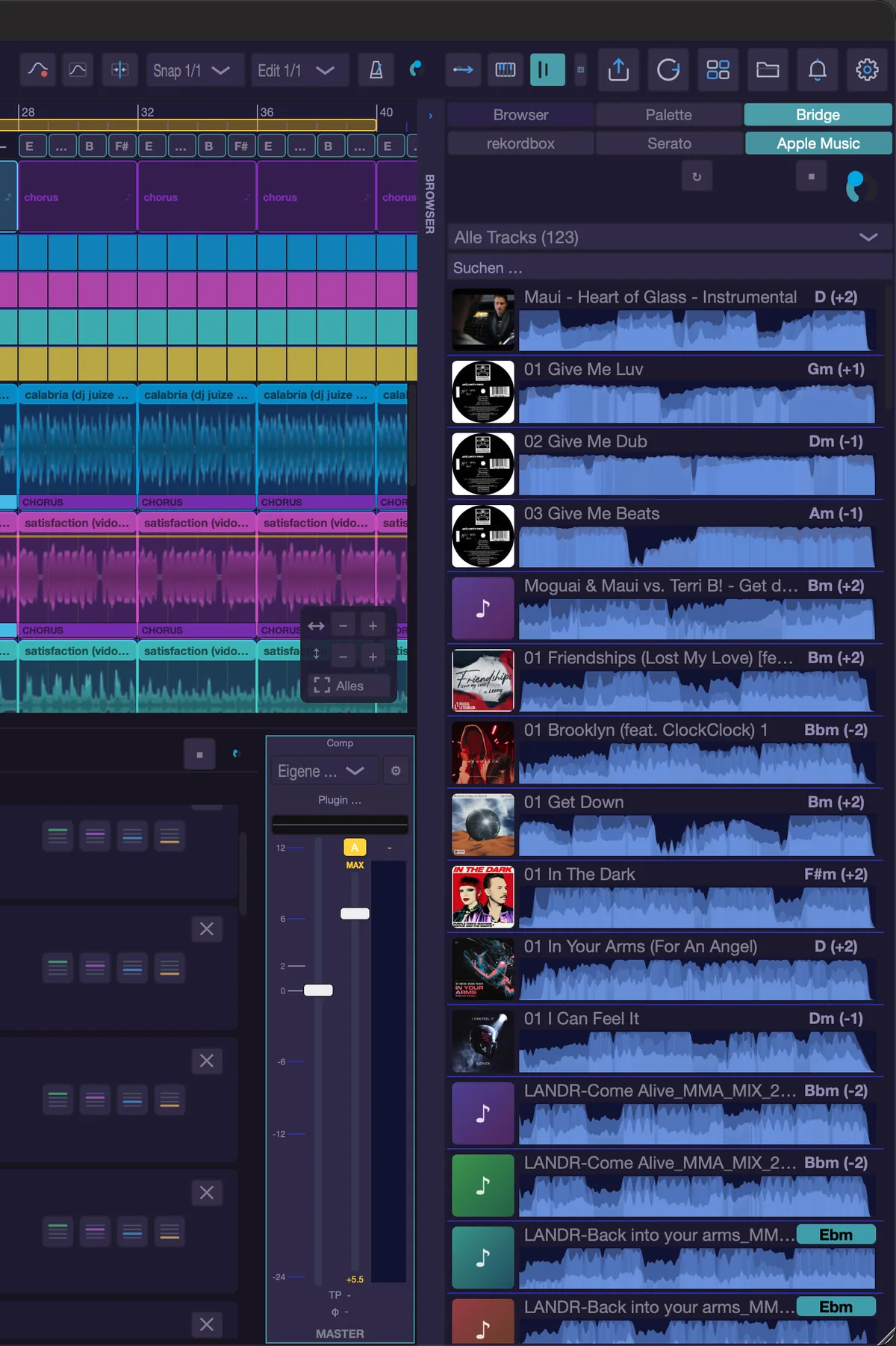
- Bridge — your rekordbox, Serato or Apple Music collection, with the sub-areas “rekordbox”, “Serato” and “Apple Music” (Mac only).
- Tracks (mashup only) — the project's “Tracks & Stems”: its titles with roles (structure, harmony) and stems, the same view as in the centre and in the window (Cmd+T). Drag titles from “Browser” or “Bridge” straight into it.
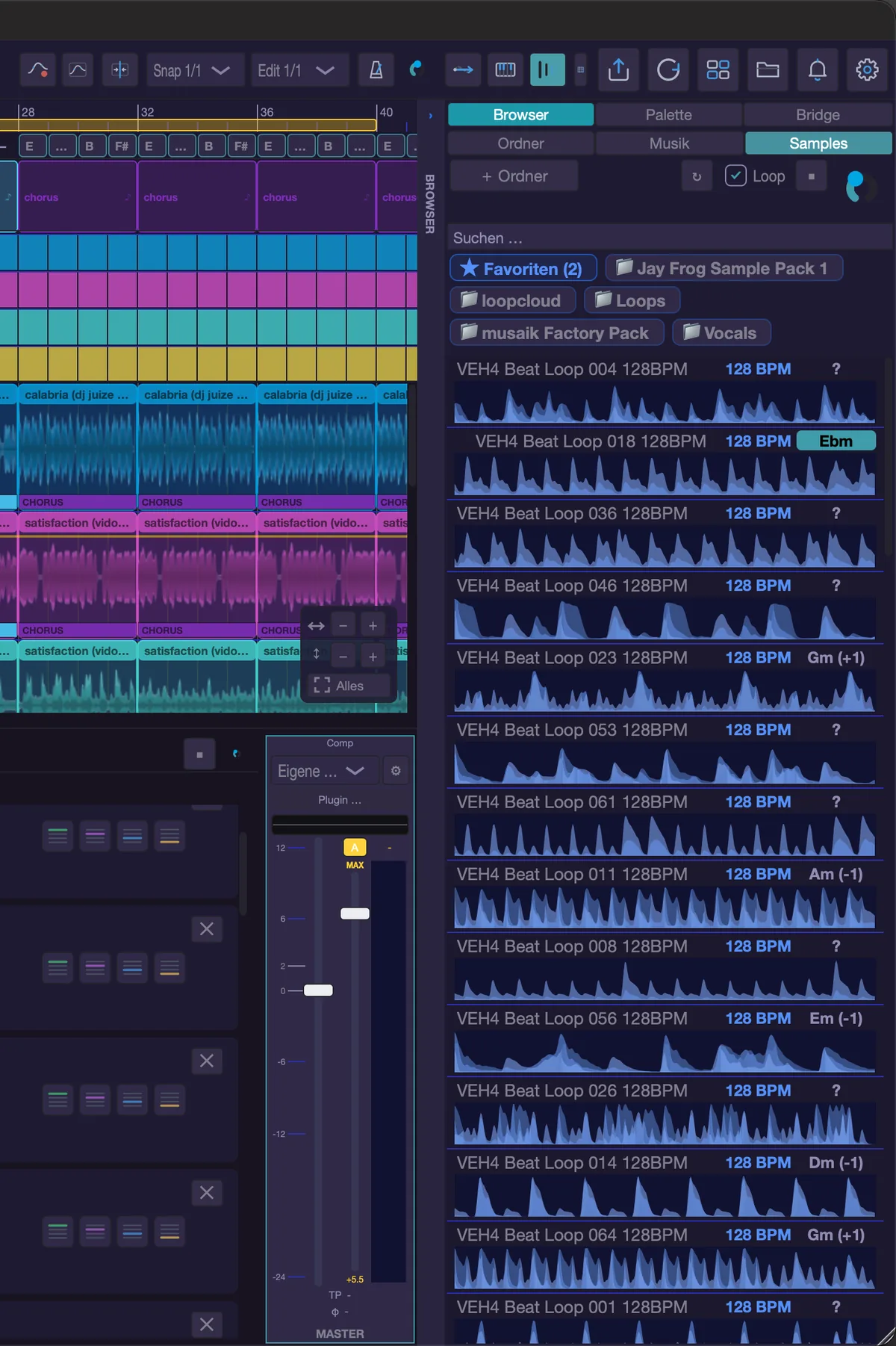
Folders, Music, Samples
Folder shows a music folder of your choice. The “Folder…” button picks it, the “↻” symbol reads it in again.
Musik shows your library — the folder musaik manages itself. Out of the box that is “musaik” in your music directory; you can change it in the settings under “General” (row “Library folder”). Files dragged in from the Finder are copied there.
Samples shows the “Samples” subfolder of the same library — loops and one-shots. Only here do you additionally get:
- a search field: empty it shows the current folder, with text it searches the WHOLE samples tree for file and folder names (the subfolder is then shown dimmed in front of the title),
- the folder chips below the search: a click opens a folder, as does a double-click on a folder row; the yellow favourites chip on the far left shows every sample marked as a favourite, grouped by folder,
- the “+ Folder” button, which creates a real subdirectory inside the currently open samples folder,
- the “Loop” switch: previews play as a loop,
- the detected BPM in the row.
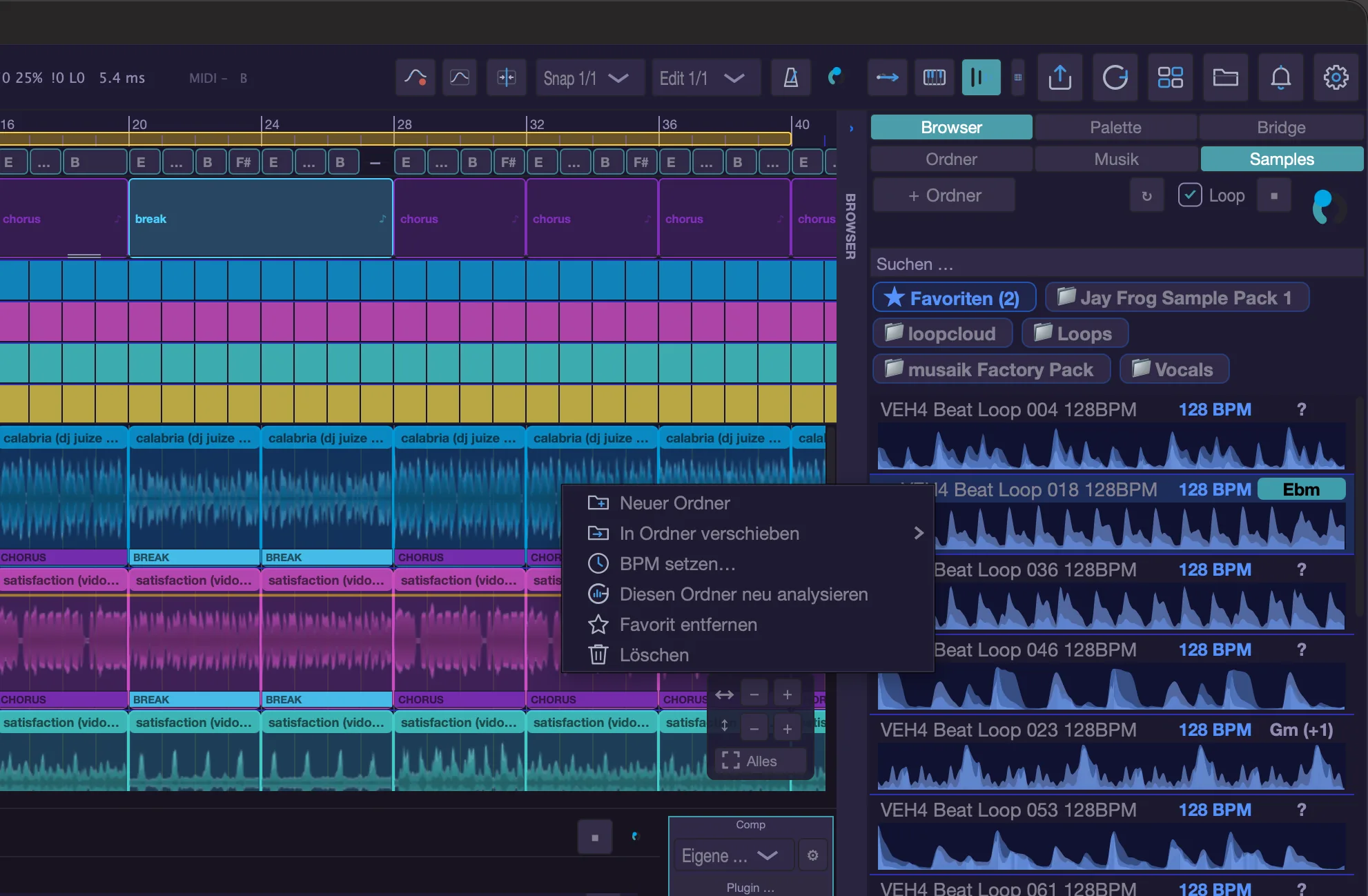
A right-click on a sample row or a folder offers: new folder, rename folder, move to folder (applies to the whole selection), set BPM, re-analyse this folder or the folder with its subfolders, mark as favourite or remove the favourite, and delete to the trash. “Set BPM” is the manual correction when musaik reads a loop's tempo wrongly; values you set are also applied to clips of the same sample that are already placed.
Every list shows the cover on the left (read from the file, otherwise a coloured tile), the name in the middle and the key on the right. A green background on the key means the track fits the project key without transposing. Otherwise the number of semitones musaik would have to shift it by is shown in brackets, for example “(+2)”. How far it may shift is set under Settings › Music & analysis › Key matching. Whether keys appear classically or as Camelot is decided by the key display under Layout.
There is no sorting in “Folder”, “Musik” and “Samples” — the list follows the folder. Sorting is available in the rekordbox view.
Previewing
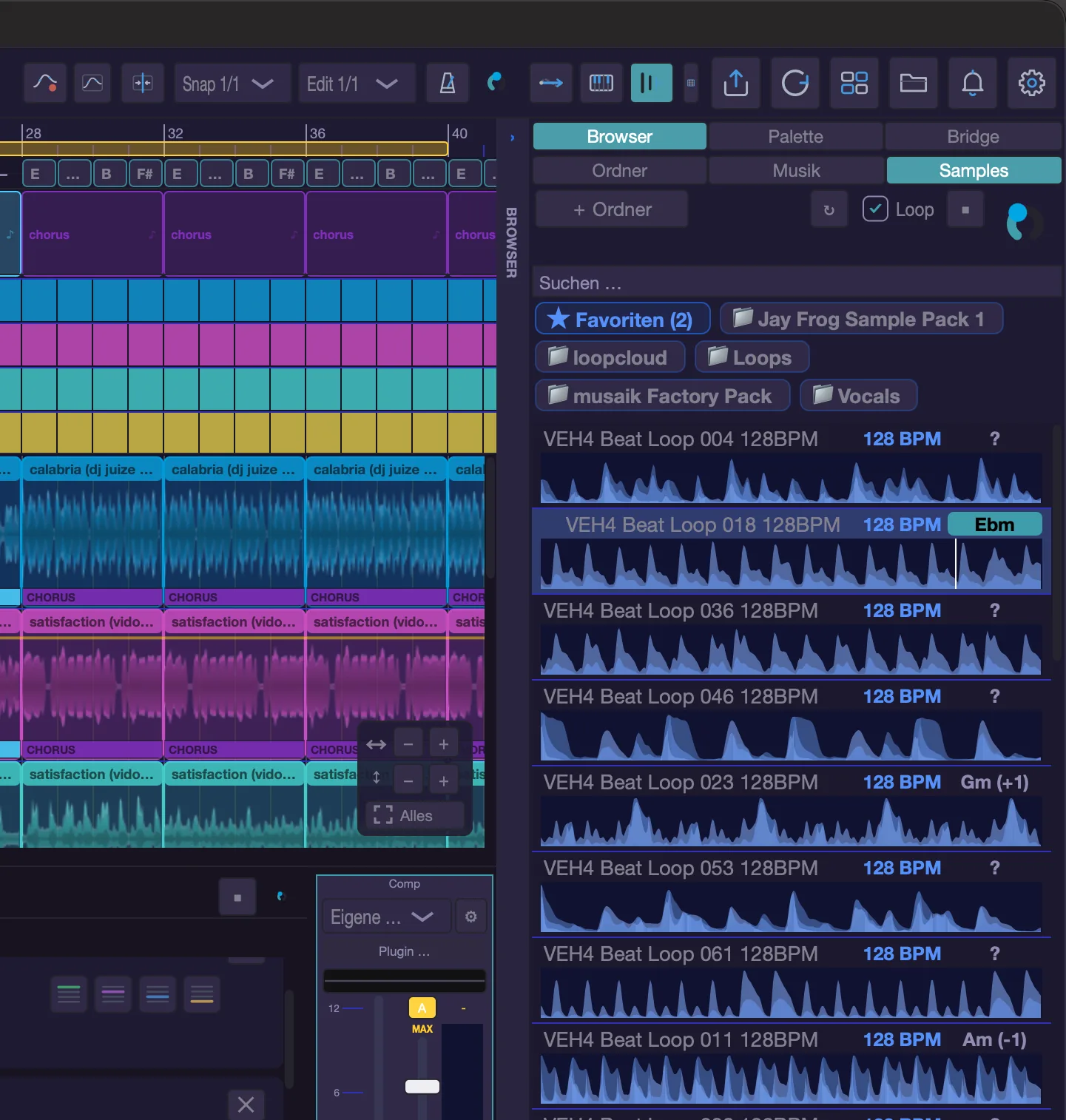
Every row carries a small waveform on the right. Clicking into it starts the preview, with a vertical line running along: in “Folder”, “Musik” and the bridge from the point you click, in the samples area always from the start. The ■ button in the header stops, and so does the P key. The large knob at the top right is the preview volume; it applies to the browser and to the palette.
If the arrangement is playing and you click a loop in the samples area, the preview runs in sync with the arrangement — the sample comes in on the next downbeat, at the project tempo. When you stop the arrangement, this preview ends with it. Everything else plays raw through the audio device. Starting the arrangement silences the preview.
Taking material in
- Double-clicking the name (not the waveform) adds the track to the project.
- Dragging drops it wherever you drag it; several selected files travel together.
- A file dragged onto a sampler lane is imported as a sample.
- In “Folder”, “Musik” and “Samples”, Delete moves selected entries to the trash after asking (never folder, “..” or favourites rows). In the bridge, Delete does nothing.
Palette
The palette is your own collection of excerpts. A search field sits at the top, below it the filters “Drums”, “Bass”, “Music” and “Vocals” — all on means unfiltered. The list has two sections: “THIS PROJECT” with the excerpts from the open project and “LIBRARY” with those from all other projects. The “Library” switch shows and hides the second section. The “FX” switch decides how material is stored: on renders through the complete effect chain when you drop it (exact, slower), off takes the original stems (fast). A right-click on a segment offers “Rename …” and “Delete segment from palette” (with several selected, “Delete selection from palette”); Delete also removes the selected segments after asking. How you collect and play excerpts is described in the chapter “Sampler & palette”.
Sample packs
Above the samples list there is a row for the free packs, for example “Load free musaik drum loops” (if there are several packs the button reads “Sample packs ▾” and opens a choice; if a newer version exists it reads “Update: …”). A click shows the name, number of files, size and target; “Load” starts the download in the background, and the progress is shown in the row. “Cancel” stops, and calling it again resumes. When all packs are installed and up to date, the row disappears. The same packs are in the Library menu › “Sample packs” (entry “Load free musaik drum loops”), together with “Remove: …” for installed ones. The loops land in the library, not in the project.
Bridge: rekordbox, Serato and Apple Music
rekordbox: When you select it, musaik opens your collection by itself (it decrypts the database; a spinner shows the progress). If that fails, the “Connect” button at the top tries again. If rekordbox has changed something since, musaik refreshes quietly the next time you select it; “↻ rekordbox” refreshes by hand. After that you see folders and playlists; “Entire collection” shows everything. At the top there is a search field and the sorting “Order”, “Title”, “Artist”, “BPM” and “Key”. In the playlist overview the field searches playlist and folder names (matches appear with their folders, a match in a folder name shows the whole folder); “Entire collection” then reads “Tracks in the collection: …” and searches the term across all tracks. Inside a playlist it searches title and artist. Each view keeps its own search term. Double-clicking a track adds it to the project, and dragging works too. The “Select” switch shows checkboxes in front of the titles; “Apply” adds all ticked ones at once. Below each waveform a thin strip shows the cues from rekordbox: hot cues as coloured dots, memory cues as red rings; after the BPM the count is shown, for example “6 Hot Cues · 1 Memory” (short “6 HC · 1 M” when space is tight). An active search term is shown in the list header (“Filter …”) and stays when you switch playlists. New cues appear after “↻ rekordbox”.
A right-click on a track offers “Add to Library” (copies the file into your library; if it lives only in the cloud, it is downloaded first), “Copy path”, “Reveal in Finder” and, if the file cannot be reached, “Request access”.
A right-click on a playlist offers two things:
- “Playlist “…” – add all tracks to the project”; afterwards a message tells you how many tracks were added and how many were skipped because their file could not be reached,
- “Learn structure from …”: musaik reads the phrases rekordbox stored for these tracks and improves its priors for structure detection, separated by genre. Tracks without a rekordbox analysis or without phrase data are counted and skipped; genres with too few tracks are dropped. See the chapter “Corrections & community”.
If musaik cannot find the database, enter the path to master.db in the settings under “DJ software”. If your collection lives in a cloud folder, “Request access …” there helps as well.
Serato shows your crates through the picker at the top; “All tracks” shows everything. The search field below finds tracks of the chosen crate by file name, album and artist folder. The path to the “Serato” folder is also set under “DJ software”.
Apple Music (Mac only) reads the library of the Music app – formerly iTunes – through Apple’s own interface, read-only. The first time you select it, macOS asks whether musaik may access your library. The first read runs in the background and takes a few seconds for large libraries (“Reading Apple Music library …”); after that musaik shows the last state at once and refreshes quietly in the background. Then pick “All tracks” or a playlist at the top; playlists inside folders appear as “Folder > Playlist”, each entry shows its count. Smart playlists are included. Only tracks with a file on your Mac appear – cloud-only tracks, copy-protected purchases, tracks downloaded from an Apple Music subscription and entries whose file is gone cannot be loaded and are left out (also from the counts); the picker’s tooltip shows how many. The search field below the picker finds tracks by file name, album and artist. Artwork comes from the file or, if it is only stored in Apple Music, from the library. “↻” reads the library again. If you declined access, allow it under System Settings > Privacy & Security > Media & Apple Music, then press “↻”.
Shortcuts
- B – show/hide the browser
- P – stop preview
- Delete – move selected entries to the trash (Folder, Musik, Samples) or delete selected segments from the palette
- Double-click – add the track to the project
How musaik analyses tracks
Every track is analysed when you add it. musaik listens to it and writes down what it finds: tempo and bar grid, key, chords, sections, vocals, loudness and the four stems. Everything else builds on that. This chapter tells you, for each area, how the detection works, how good it really is and how you correct it. Where we do not know, it says so.
Which technology does the work
- On macOS 27 and later, Apple's on-device music analysis provides tempo, bars, key, loudness and sections.
- On older macOS versions and on Windows, musaik's own built-in models do the job.
- Stems and chords always come from musaik's own models, identically on both systems.
- Everything runs on your computer. Your music is never uploaded, not even an excerpt.
Tempo and bar grid
musaik looks for the beats and the downbeats and lays a grid over the track. That grid is the timeline for everything: clips snap to it, stems are stretched to it, the arrangement counts in its bars. Detected grids are straightened into even bars; a real tempo change only survives if it lasts over many bars. A grid you corrected by hand is never touched again.
musaik sets the first bar by the overall structure: if the entries of drums, bass, music and vocals sit one bar beside the 8-bar phrase throughout, a bar is missing in front, and the grid gets it – even if, on a tightly cut track, it starts slightly before the beginning of the file. Silence before the first beat never gets a bar; a pickup after which the structure starts cleanly stays lead-in. Older projects are checked once when you open them; if something changes, a backup of the project file is placed next to it first (“… .vor-takt-vorn-date”).
- How well it works: The BPM figure is usually right. In a small sample it was correct on every track. How precisely the individual beats sit has never been measured against a reference — and neither has Apple's analysis.
- Typical failures: the track runs at “half speed” or at double speed. The downbeat sits a whole beat or two off. Real tempo changes and half-time parts get straightened out. For live recordings without a steady tempo we have no experience at all.
- If something is off, musaik says so by itself with “Grid is inconsistent” as soon as several downbeats sit clearly beside the beats. A downbeat shifted by whole beats cannot be caught by that warning.
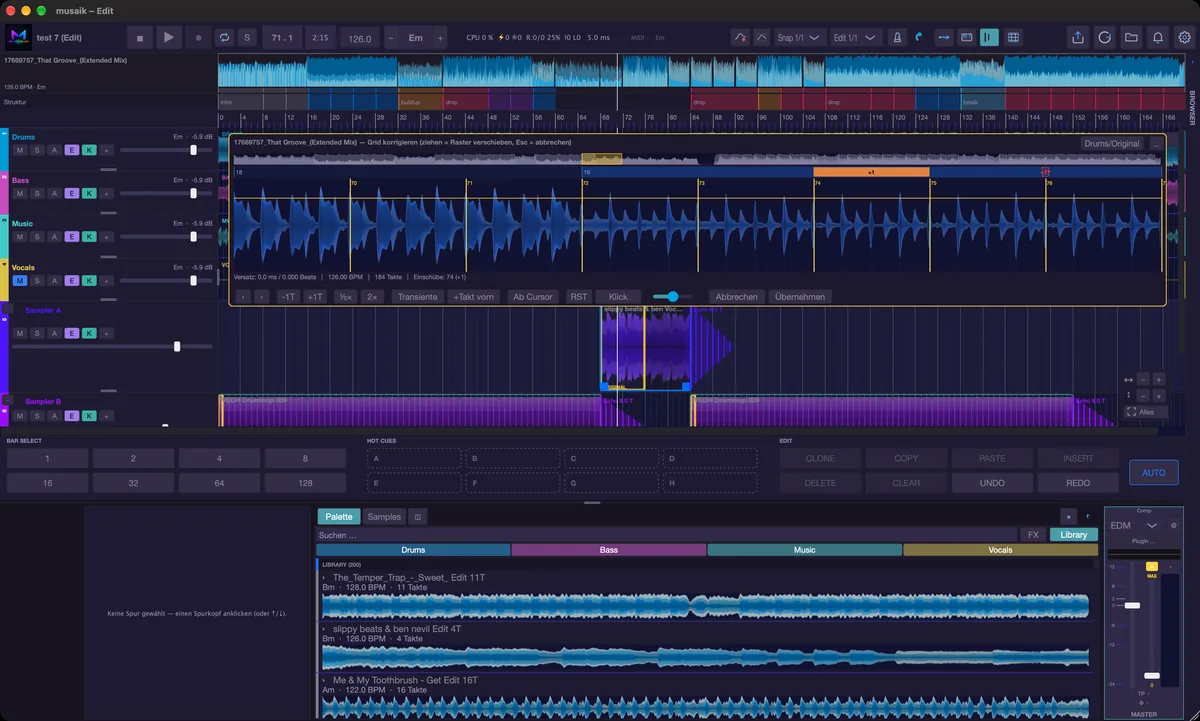
- How to correct it: Press G for the grid tool – in a mashup for the track of the selected stem lane (if none is selected, for the master), in edit mode for the track you are editing. You can drag the grid directly in the waveform. Use ‹ and › (or the arrow keys; with Shift finer, with Option by one bar) to nudge the grid in fine steps, “-1T” and “+1T” for whole bars, “½×” and “2×” to halve or double the bar length. “Transient” puts the grid line nearest the playhead on the actual hit in the drum stem, “+Bar in front” adds a first bar the analysis swallowed, “From cursor” freezes everything before the playhead, “RST” resets the grid to the analysis result, “Click” (or the space bar) adds the metronome, “Drums/Original” switches what you hear. “Apply” (Return) writes it in, “Cancel” (Esc) closes without a change.
- The phrase strip above the waveform shows the track's four-bar phrases and marks inserted bars (“+1”) and missing ones (“−1”). What the analysis suspects is shown dashed next to it; one click accepts it. The E key sets an inserted bar at the bar under the mouse (otherwise at the playhead) or removes it again, a set spot can be dragged, and the right-click menu lets you mark an inserted or a missing bar at that spot and remove one or all offsets. The strip is locked while you have changed the bar length with “½×” or “2×”.
- In the DJ mix, right-click a clip in a deck and choose “Correct grid…” to open the same tool. With DJ edit switched on (the “Edit” button above the playlist), Shift+double-click on the clip works too.
Key
From macOS 27 the key comes from Apple's analysis. Otherwise musaik estimates it itself: it counts which notes occur in the middle section of the track and compares that distribution with major and minor patterns. The project key does not come from the structure master but from the harmony reference — the track that provides key, chord lane and chord follow.
- How well it works: There is no measurement for this. The built-in estimate is rather coarse and good enough for the DJ question “do these two fit?”. Apple's result is probably better, but we have not checked it.
- Typical failure: major and its relative minor get swapped, C major instead of A minor. Both use the same notes, so this is the classic mix-up.
- If the chord progression contradicts the detected key, musaik switches the lane over and shows “Key Am (detected: C)” in yellow. That affects chord names, degrees and chord follow — not the transposition of your tracks.
- How to correct it: There is no field to type a key into. The way there is the harmony reference: in “Tracks & Stems” (Cmd+T) the “Harmony” button picks another track as the source, or you step through with Ctrl+Option+H. Individual tracks are re-tuned with “Pitch” in the track environment.
Chords
Chords are detected by a dedicated model, from the music and bass stems of the harmony reference; without stems it listens to the full mix. The result is smoothed onto a grid — a quarter bar, half a bar, one bar or two bars per field, decided per track by the automatic setting. The head of the lane tells you what applies, for example “Key Eb · 2 bars (auto)”. Uncertain fields are dashed, fields changed by hand carry a yellow dot.
- How well it works: Checked against one clearly harmonic pop track, the root note was right in about nine out of ten places, and major or minor almost as often. That is one track, not a collection.
- Other styles have not been checked. On dense club tracks without clear harmony the detection tends to be shakier — but we cannot back that up with numbers.
- Typical errors: the fifth instead of the root, minor heard as major (Am becomes A), and spots with no chord at all.
- How to correct it: Cmd+Shift+C shows the chord lane. Clicking a field opens the chord picker with “No chord (rest)” and “Undo correction (detect again)”. Edges are dragged with the mouse. Right-click offers “Detect chords again”, “Delete chord (gap — the key applies)”, “Split here”, “Merge with the field on the left”, “Merge with the field on the right”, “Insert chord progression here”, “Discard all corrections”, the display as name, degree or Camelot and, under “Grid”, the field size: “Automatic per title” or a fixed 1/8, 1/4, 1/2, 1 or 2 bars.
- Shift+Delete removes the selected field. Cmd+Shift+G inserts a ready-made progression from the playhead on.
Sections and vocals
The boundaries between sections come from Apple's analysis on macOS 27, otherwise from a model that works on the stems. Without stems only a rough guess from the mix remains; it is marked “~ estimated”. The names — intro, verse, chorus, drop, break, build-up, outro — are then assigned by a rule set that rates the energy of the stems bar by bar. Whether a section has vocals is measured on the vocal stem; your own setting always wins.
- How well it works: The boundaries are right more often than not, but far from always. The names are right about every other time.
- Drops and build-ups are the hardest class — they get mixed up most often. That is not a musaik problem: naming sections is the hardest of these tasks in research too, and even the best methods stay clearly behind what a human hears.
- Tracks with a clear verse and chorus do better than continuous club tracks without vocals. Without stems the names are barely usable.
- For Apple's analysis on macOS 27 we have no measured comparison. In our experience you need to touch up the sections in segment correction more often without it; we cannot prove that. If musaik runs on an older macOS, it tells you so once at the first start.
- If a track has one or two extra bars from some point on (a DJ edit with two empty bars before the drop, say), those bars become a section of their own and the sections after them stay in place. This applies automatically as long as you have not corrected the track's structure by hand; segment correction marks the inserted bars orange with “+2”. If you have already corrected it, musaik asks with “Inserted bar detected”: “Adjust”, “Not now” or “No, leave it”. By hand, right-click the track in “Tracks & Stems” › “Inserted bar…” (also in the Project menu). Undo with Cmd+Z.
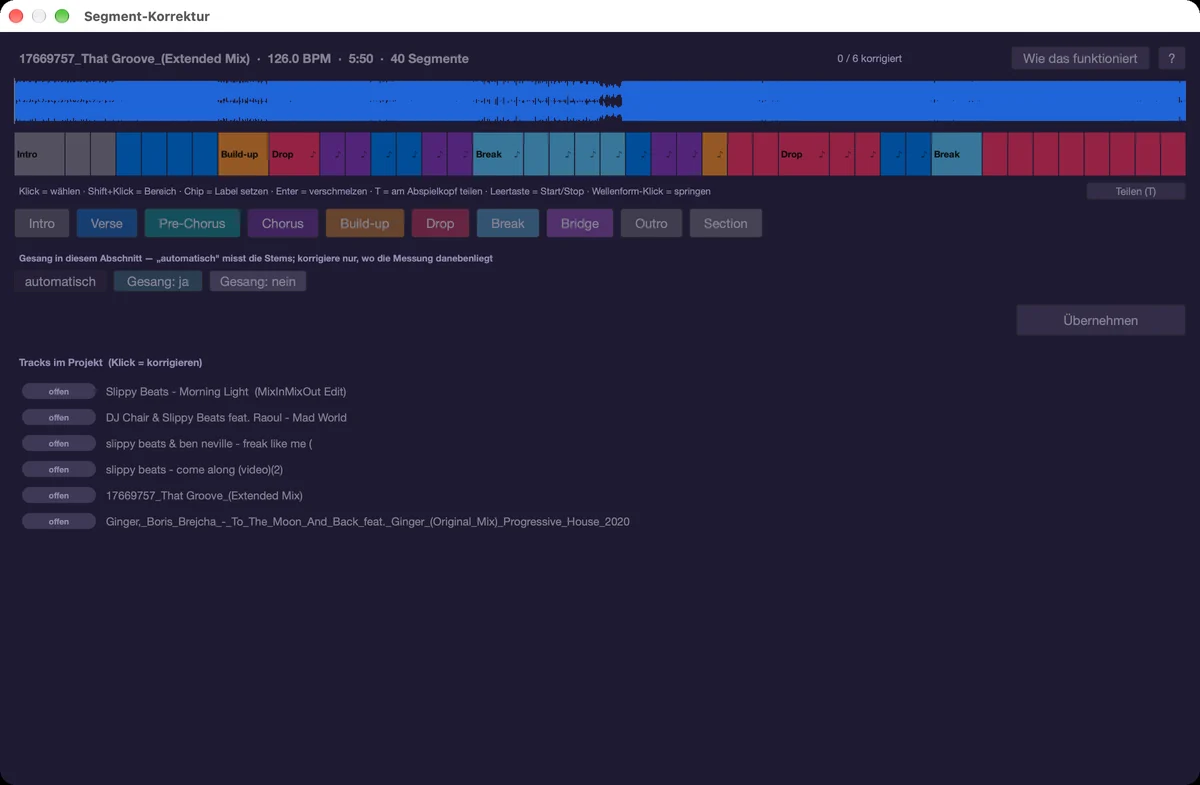
- How to correct it: Cmd+K opens the segment correction. You listen in, set labels as chips, merge ranges (Return), split a section at the playhead (T or “Split (T)”) and set “Vocals: yes” or “Vocals: no”. For the structure master it also works directly in the structure band of the arrangement: double-click a label to open the list of labels, right-click for “Split at this position”, “Merge with next” and “Remove section (ripple)”, and drag the boundaries. Afterwards “↻ Recalculate arrangement” appears.
Stems
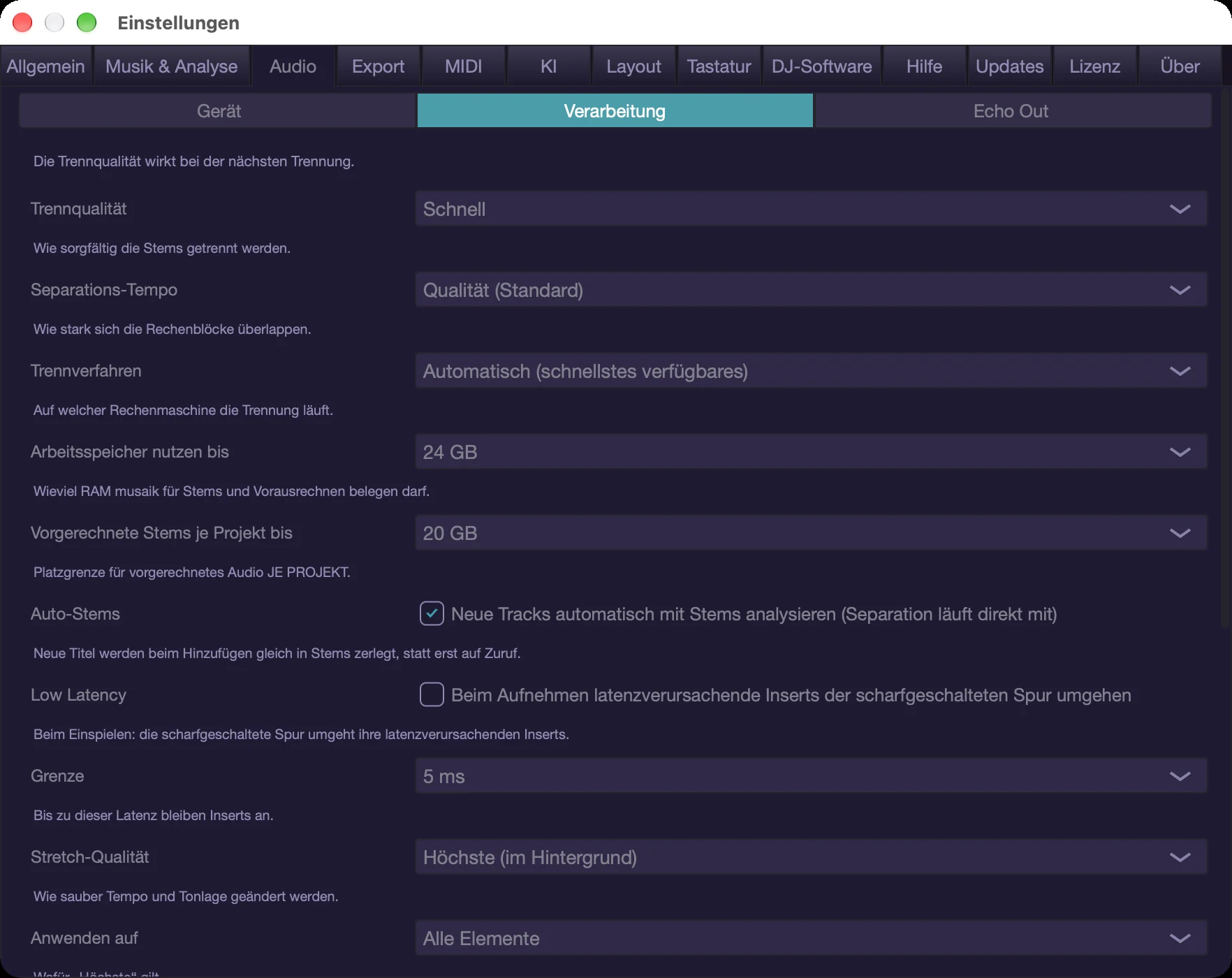
musaik splits every track into four parts: drums, bass, music and vocals. The fast method is used by default; in the settings under “Audio” you can set the separation quality to “Best quality (clearly slower)”. It takes effect on the next separation. Which engine separates is set right below; on Apple silicon the automatic setting picks the fastest available one, on Windows the processor does the work. This too happens entirely on your computer.
- How well it works: Separation quality has not been checked systematically. Typical for this method is bleed: reverb and pads end up in the vocal stem, hi-hats in the music stem.
- The duration has been measured: a track just under four minutes was separated in a few seconds on an M1 Max, while the processor alone took a good minute.
- How to correct it: Separation cannot be touched up, only repeated. In “Tracks & Stems” the right-click menu on a track offers “Re-create stems (separation runs again)” — useful when you have switched the method. For all tracks at once the Project menu has “Re-create all stems”; depending on the project that can take many minutes, so it has no shortcut.
Loudness and stem activity
Loudness is measured with the usual broadcast standard; from macOS 27 it comes from Apple's analysis. It feeds the loudness match, so one track does not bury the others. In addition musaik measures bar by bar which stem is doing something — the basis for arranging and for naming the sections.
- How well it works: Neither has been checked for accuracy. Loudness follows a fixed measuring standard, so we expect no surprises there; activity per bar is a helper value for comparisons inside one track.
- If Apple's values and musaik's own measurement disagree, musaik continues with the more reliable one. Anything you set by hand always wins.
What your corrections do
- Your handiwork survives a new analysis: an applied grid, corrected sections and hand-set chord fields all stay.
- Chord fields also survive “Detect chords again”. They only disappear with “Discard all corrections” or “Discard chord corrections”.
- Corrected sections apply on this computer in new projects as well. musaik recognises the same recording by its sound, not by its file name — so moving, renaming and re-tagging make no difference.
- You take back a correction of the sections in segment correction: right-click the track in the list and choose “Discard my correction …”. The track then gets the structure from the analysis again.
- If you like, you can share your corrections with others. That is off by default and entirely voluntary. What is sent and what never is, is in the chapter “Corrections & community”.
Keyboard shortcuts
- G – open the grid tool (correct the bar grid)
- In the grid tool: arrow keys – nudge the grid, E – set/remove an inserted bar, Space – click, Return – apply, Esc – cancel
- Cmd+K – segment correction (sections, vocals)
- Cmd+Shift+C – show/hide the chord lane
- Shift+Delete – delete the selected chord field
- Cmd+Shift+G – insert a chord progression from the playhead
- Ctrl+Option+H – step to the next harmony reference
- Cmd+T – open Tracks & Stems
- Cmd+Shift+A – re-analyse all tracks
How it fits together
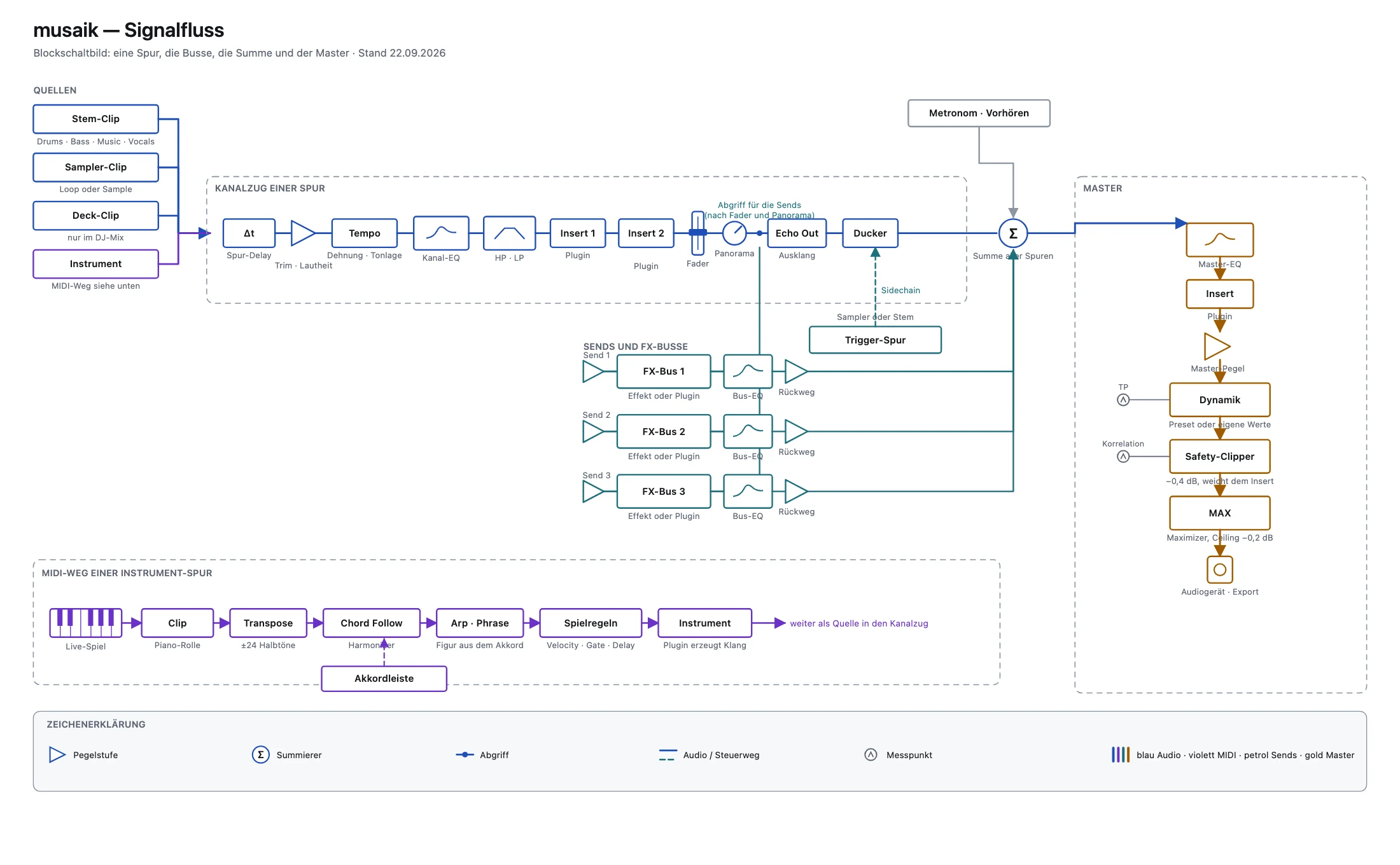
musaik has a lot of switches but only one thread running through them: the analysis builds a frame, the frame carries an arrangement, and inside the arrangement every note travels the same path to the output. Once you know that path, you find every control on your own.
This chapter tells the story from front to back. The details live in the chapters for each part.
First: the analysis
Every track is analysed when you add it: tempo, bar grid, key, chords, sections, vocals, loudness, stems. This runs in the background and on your computer. “Tracks & Stems” (Cmd+T) shows you how far each track has got.
From that data musaik picks two reference points, and they do different jobs.
- The structure master provides the frame: arrangement, bar grid, tempo and the loudness reference. It carries a star in the track head; in “Tracks & Stems” you set it with the “Structure” button.
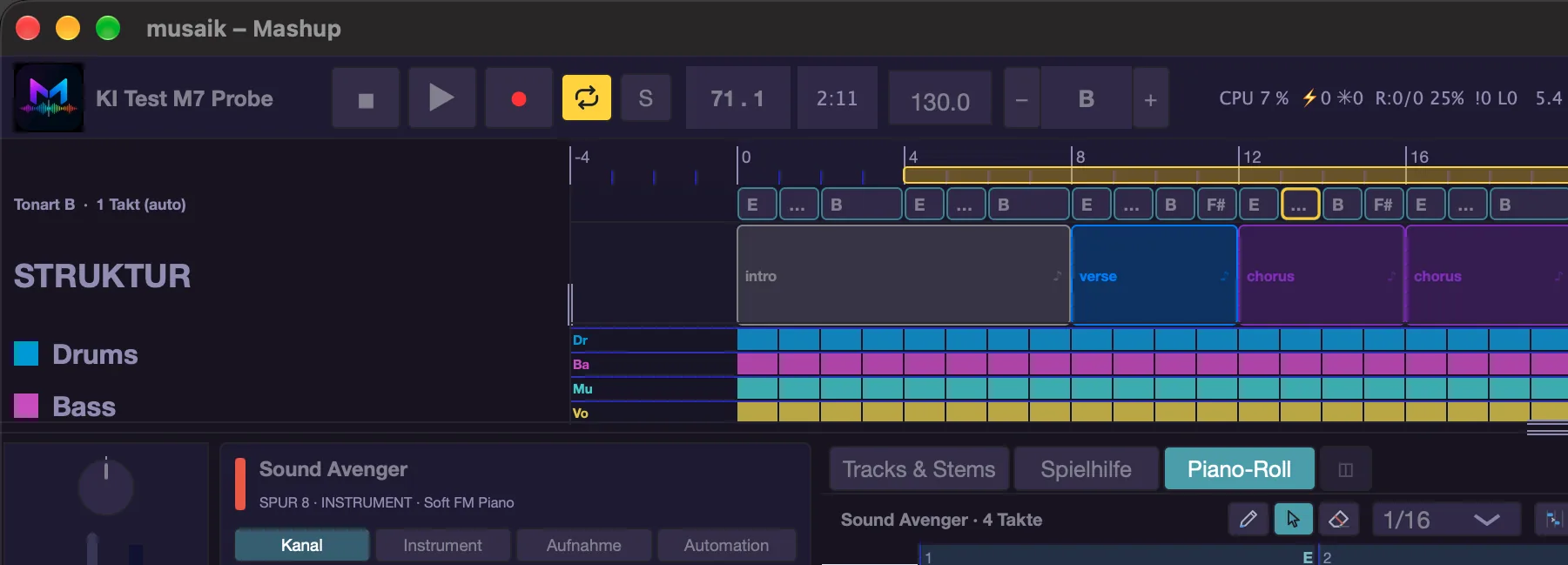
- The harmony reference provides the harmony: key, chord lane and chord follow. It carries a treble clef in the track head, is set with the “Harmony” button, and Ctrl+Option+H steps to the next one. Any track that supplies music, bass or vocals can be chosen. Pick a track of which only the vocals play and the vocals stay in their key while the other lanes follow; key and chords then come from that track even though its music is not heard.
- Without your choice the automatic picks, in this order: a track you chose by hand, otherwise the structure master if it has music or bass, otherwise a track with music, otherwise one with bass, otherwise the master after all. The button then reads “Harmony (auto)”.
- Both may be the same track, but they need not be. The song with the best beat is rarely the one with the clearest harmony.
Arranging
“Rearrange” (Cmd+R) spreads the stems of your tracks across the sections of the structure master. Which stem may go where is written in the rulebook — a window of its own, opened from the settings menu with “Rulebook…”, with tabs for DJ mix, mashup, structure and edit. The rulebook is where you change the result for good instead of tidying up by hand every time.
What you built yourself is protected by the padlock in the track head: a locked lane is not redistributed when arranging (Ctrl+1 to Ctrl+4). That way you can rearrange as often as you like without losing your handiwork.
Key and transposition
While arranging, musaik tunes the tracks to each other. How far a vocal may be transposed for that is set in the settings under “Music & analysis” in the “Key matching” section: “Max. key correction (vocals)”, “Related keys” and “Vocals above limit”. Major and minor are taken into account: a minor song goes to the relative minor of the project key (A minor fits C major unchanged), a major song in a minor project to its relative major. If that is not enough, re-tune a single track with “Pitch” in the track environment. The whole arrangement is shifted with the − and + buttons in the transport bar, by up to six semitones up or down. The display between them names the key with the offset, e.g. “Am (+2)”, and its frame turns red as long as you are not at zero.
The chord lane
The chord lane (Cmd+Shift+C) is the harmonic map of the project. It comes from the harmony reference and shows on the left what applies, for example “Key Eb · 2 bars (auto)”. Everything that thinks harmonically reads from this lane: chord follow, arp, phrase, the degree display and the AI. Correct a field here and what your instrument tracks play changes at once.
The path of a note
Every note takes the same path, whether you play it live or it sits in a clip.
- Input. Live from your keyboard (“Input” and “Channel” in the track environment) or from a MIDI clip on the track.
- Track transposition. “Transp.” in the environment shifts the track in semitones — before everything else, so the harmony helper keeps the last word.
- Arp and phrase. They turn held keys or the chord lane into a figure. What they build from the chord lane is already harmonically correct and passes straight on; what grows out of your keys still runs through the harmony helper.
- Chord follow. It steers notes onto the chord currently in the lane. For clips this is the “Follows chords” switch in the header of the piano roll (on by default). For your live playing it is “Live playing follows too” — off by default, so a pressed key sounds exactly as you play it. Choosing “Melody” or “Chords” under “Mode” in the play assistant (harmonizer) switches it on for you.
- Performance rules. Velocity, dynamics, gate, delay and the input grid sit at the output of the track and apply to everything that happened before. With a MIDI clip selected, velocity, dynamics, gate and delay apply to that clip; the input grid stays with the track.
- Instrument plug-in. Only here does the note become a sound.
- Channel. EQ, then the insert effects, then level and pan, plus sends, ducker and echo.
- Buses and master. The master carries dynamics, the maximizer and the safety clipper that keeps the level in check as long as no master plug-in of your own is loaded.
- Export. Cmd+E writes exactly what you hear.
What applies in which mode
- In mashup mode everything in this chapter applies: structure master, harmony reference, chord lane, instrument tracks, arranging.
- In edit mode you work on a single track. The harmony always comes from the master there, not from a freely chosen reference. Shift+E switches between edit and mashup.
- In the DJ mix there is no chord lane and no transposing of the arrangement. Order, transitions and the grid are what count; the grid tool opens with a right-click on a deck clip and “Correct grid…”, and with DJ edit switched on also with Shift+double-click.
Where you see what
In the piano roll, ghost notes show what is about to happen without being in the clip. The legend at the bottom left names only what is really on screen.
- Blue: the arp.
- Accent colour: the phrase.
- Yellow: chord follow — that is where it steers the notes.
- Violet: an AI suggestion.
- Normal note colour: what actually sounds.
Four typical workflows
Building a mashup
- Drag tracks into the browser and wait for the analysis.
- In “Tracks & Stems” (Cmd+T) set the structure master and check that the harmony reference suits you.
- Walk through the sections with Cmd+K and fix the obvious mistakes — this is the step that improves the arrangement most.
- Rearrange with Cmd+R, listen, sharpen the rulebook, rearrange again.
- Lock the lanes you like, then do the fine work on clips, mixer and master.
- Export with Cmd+E.
Playing a melody over the song
- Cmd+Shift+I adds an instrument track; pick a plug-in under “Instrument” in the environment.
- Check that “Input” names your keyboard and “Monitor” is on.
- In the play assistant under “Play”, choose the mode “Melody”, then under “Help” how much help you want: “Wrong notes” (only avoid wrong notes), “Fitting” (always fit the chord) or “Musical”. That also lets your live playing follow the chords.
- Play. When it fits, record with R — what is recorded is what you played, not the result of the harmony helper.
- Touch it up in the piano roll; fine-tune performance rules and velocity in the environment.
Running an arp or phrase over the chords
- Select the instrument track, open the piano roll, show the generator panel with Shift+A.
- On the arp or phrase page switch “On” and choose a preset or a phrase.
- For the arp set the source to “chord lane” or “held, else chord” so it runs without keys.
- Put a clip in the arrangement wherever the figure should sound — an empty clip is enough, it is the gate.
- To try it out while stopped, press Shift+S: the roll's clip loops until the arrangement starts.
- If you like the result, “Into this clip” writes the figure as notes into the open clip (existing notes stay), “As new clip” creates it as a new clip at the playhead.
Getting an idea from the AI
- In the settings under AI choose a path and check it with “Test connection”.
- Select the instrument track and the target range, open the AI page of the generator panel with I.
- Enter the task and what you want, choose a length, press “Create”.
- Step through the variants with the bracket keys, audition with ▶.
- The draft already sits in the roll as a normal clip and stays there if you do nothing else. For an arp or phrase suggestion, “As the track's arp” or “As the track's phrase” (Cmd+Option+Return) turns it into the track's generator, as long as you have not edited the draft by hand. “Discard” (Option+Backspace) deletes it.
Keyboard shortcuts
- Cmd+R – rearrange
- Cmd+T – Tracks & Stems
- Ctrl+Option+H – step to the next harmony reference
- Cmd+Shift+C – show/hide the chord lane
- Cmd+Shift+I – new instrument track
- E – track environment, Shift+M – mixer
- Cmd+Option+P – switch the bottom area between mixer and piano roll
- Shift+A – generator panel, I – AI page, Shift+S – start/stop
- Shift+E – switch between edit and mashup mode
- Cmd+E – export audio
Mashup
In mashup mode you build one new song out of several titles. One title provides the skeleton, the others provide the material. This chapter shows how you hand out roles, let musaik arrange, and reshape the result by hand.
The principle
A mashup project holds several titles. Exactly one of them is the structure master. It sets the bar grid (timeline bar 1 = its first downbeat), the tempo, the loudness reference and above all the arrangement: it decides when something plays.
Every title is split into four stems: drums, bass, music, vocals. Which title supplies a stem is called its role. The guests provide the material — what is heard in that spot.
Key and chords do not come from the structure master but from the harmony reference, a title of its own that supplies music or bass. Ctrl+Alt+H steps on: automatic, then each title supplying music or bass in turn, then automatic again. See the chapter “Chord lane & key” for details.
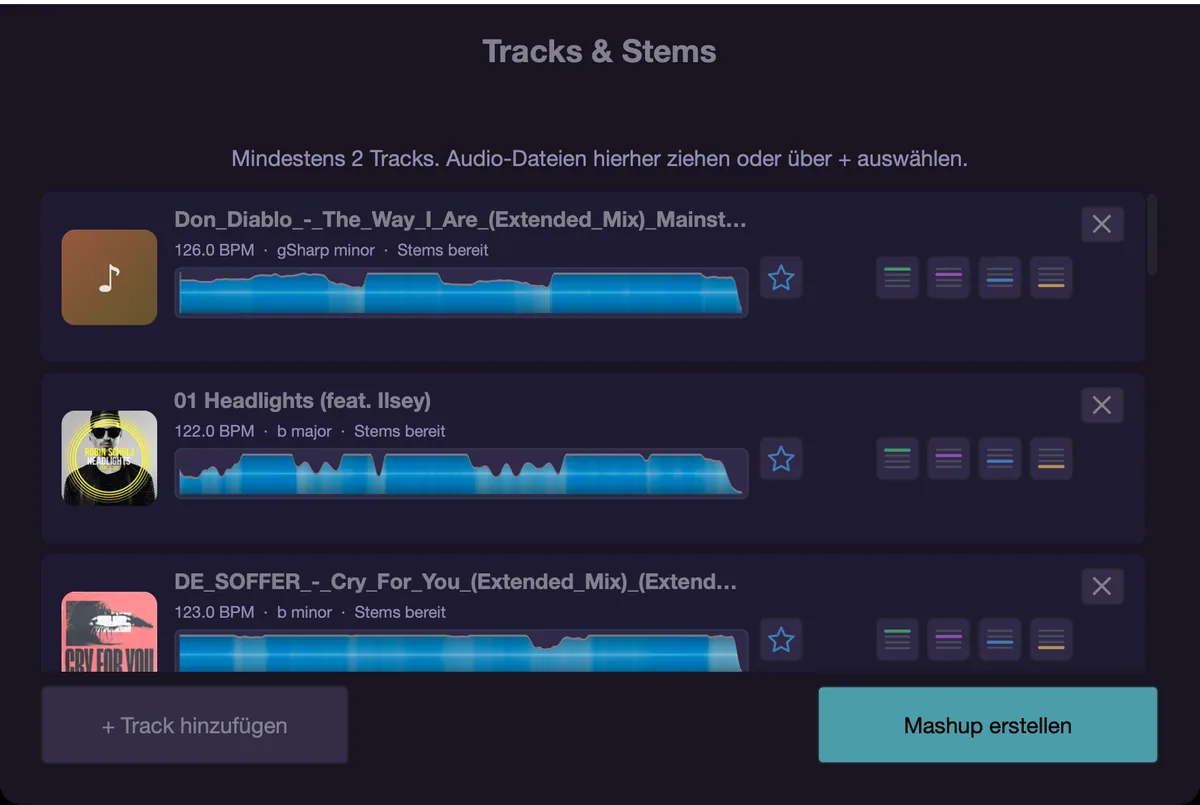
Tracks & stems
Cmd+T opens the window “Tracks & stems…”. It is a separate, freely movable window and does not block the app: playback, mixer and track headers stay usable while it is open; musaik remembers its position and size. The same view is available as the tab “Tracks & Stems” in the centre of the lower area, where it stays put while you work, and in a mashup as the “Tracks” tab of the browser on the right, into which you drag titles from “Browser” and “Bridge” directly.
- Each row shows cover, name, BPM and key. Clicking the cover previews the title, clicking the waveform previews from that point.
- The button “Structure” makes the title the structure master. There is always exactly one.
- The button “Harmony” sets the harmony reference by hand; if it reads “Harmony (auto)”, musaik picked it itself. Clicking your own choice again releases it. The button only appears on titles that supply music or bass.
- The four symbol buttons next to it hand out the roles drums, bass, music and vocals. Rest on a button for a moment and its name unfolds.
- “✕” removes the title with its clips and automation, “+ Add track” brings in a new one. You can also drag audio files straight into the list.
- Right-click a row for “Re-detect structure”, “Re-analyse (tempo, key, structure)”, “Segment correction”, “Inserted bar…” (see “Editing a range”), “Re-create stems (separation runs again)” (separated titles only) and “Phrase length” with 2, 4, 8 or 16 “bars”. The phrase length caps how long an excerpt taken from this title may be; the default is 8 bars.
The role is exclusive. Give drums to another title and the previous one loses them at that moment — and its drums clips are cleared. That is intended: otherwise the change of source would have no effect. Solo and mute of the old channel are reset; the channel settings (volume, EQ, filters, sends, ducker, insert plug-ins, automation) travel along as long as the lane's “K” switch is on. Cmd+Z takes it all back.
Switching a role off releases it together with its clips. The lock does not protect against this — it only protects during arranging.
Changing while playing. If playback is running, a change no longer stops it — neither for a role nor for the structure master or the harmony reference. The arrangement keeps playing and the change takes effect at the current position: the new source comes in where the playhead is; whatever did not change plays on without interruption. Switch the structure master and its tempo and arrangement come with it — the playhead stays on its bar. It takes about half a second until the change is audible. In edit mode (“Restore original”) playback still stops.
Role or extra material
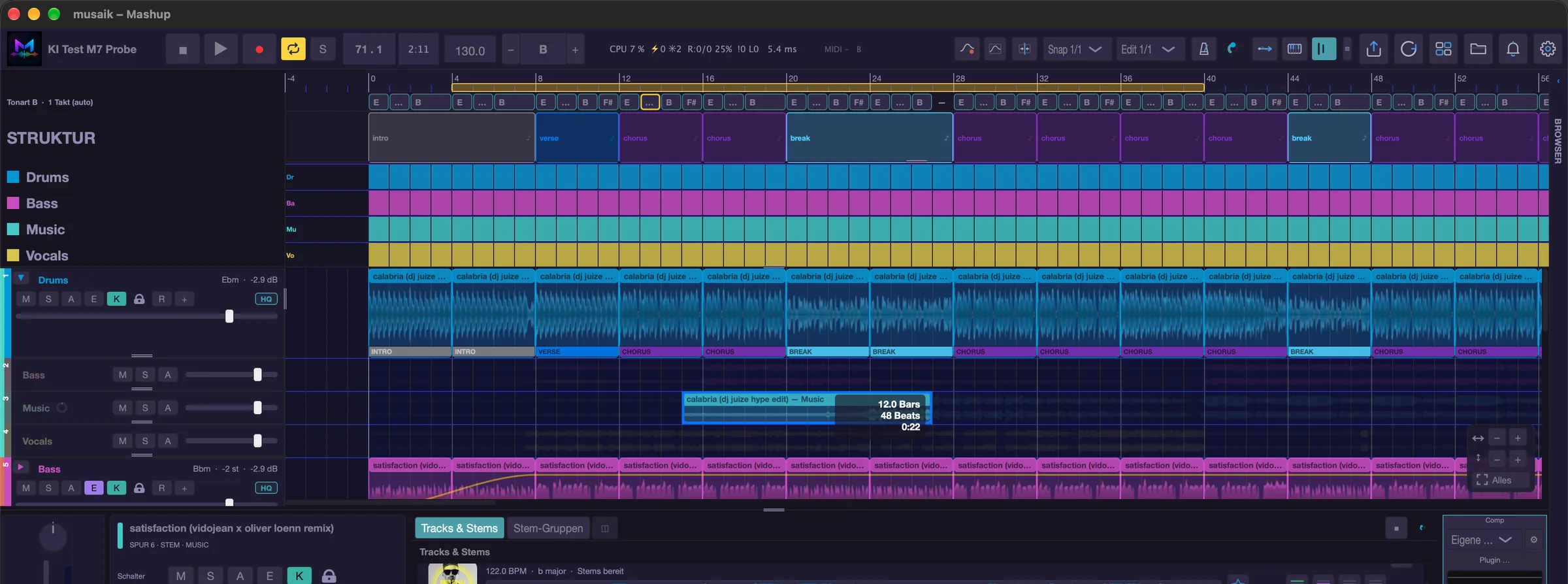
The chevron on the left of the track header reveals the title's remaining stems as sub-lanes, dimmed and indented. Whatever you drop there is extra material:
- It does not change any role. Roles are set in “Tracks & Stems” or in the track header menu under “Source: …”.
- It still plays and gets its own channel strip in the mixer.
- It survives every arrange — the arranger only rebuilds the roles.
- The stem matrix still cuts into it: the matrix goes by stem, not by role.
When you collapse again, sub-lanes that carry material (an activated range, say) stay visible – only the empty ones disappear. If you pick another source for the title's role, its sub-lane material rests: it is neither shown nor heard, and it comes back with all its clips as soon as the title has a role again. Sub-lanes only exist for titles that are already separated. If a lane without a role carries material you want to get rid of, use the track header menu, “Remove this lane's material”.
Arranging
Cmd+R, or the circular-arrow button on the right of the transport bar (tooltip “Rebuild arrangement”), rebuilds the arrangement. After a change to the structure band or the stem matrix the yellow button “↻ Recalculate arrangement” appears as well. If playback is running it keeps going; the new arrangement takes over at the current position. If you changed the structure master's arrangement by hand (inserted silence, cut out a range … – see “Editing a range”), musaik asks once before rebuilding, in the dialog “Structure master changed” – also when you switch a role or the structure master, since those rebuild the arrangement too. Keep master remembers your changes (inserted silence, ranges cut out) and repeats them after every rebuild at the same spot in the master's song; the guests follow them, and you are not asked again for this state. The master's own lanes are rebuilt by arranging – other hand edits on a master lane only stay if the lane is locked. Reset master lays the master out in its original course again. Cancel leaves everything as it is and rebuilds nothing. Only a new change to the master brings the question back. At any time, without the question: menu “Project”, “Reset master” (Ctrl+Cmd+R) discards the remembered changes and rearranges.
This is how the arranger works:
- It reads from the master when anything plays at all and cuts the song into segments.
- Stems the master supplies itself play their original 1:1 — no rule set applies to them.
- For every segment it looks for the most similar window in the source (groove to groove) and trims it to size.
- Vocals land on the master's vocal spots; passages that are too short get extended, longer segments loop their window.
Left untouched: locked lanes, palette and sampler clips, extra material, automation curves and all mixer settings. An undo point is set beforehand.
Locking a lane: the small padlock in the track header, the menu entry “Lock lane”, or Ctrl+1 to Ctrl+4 (drums, bass, music, vocals). A locked lane is not redistributed when arranging, so anything you built by hand stays.
Redistributing just one lane: track header menu, “Reset lane (original arrangement)”. It rebuilds only this one stem lane the way arranging would lay it out – even if it is locked; the lock stays on afterwards. All other lanes stay as they are. Cmd+Z takes it back.
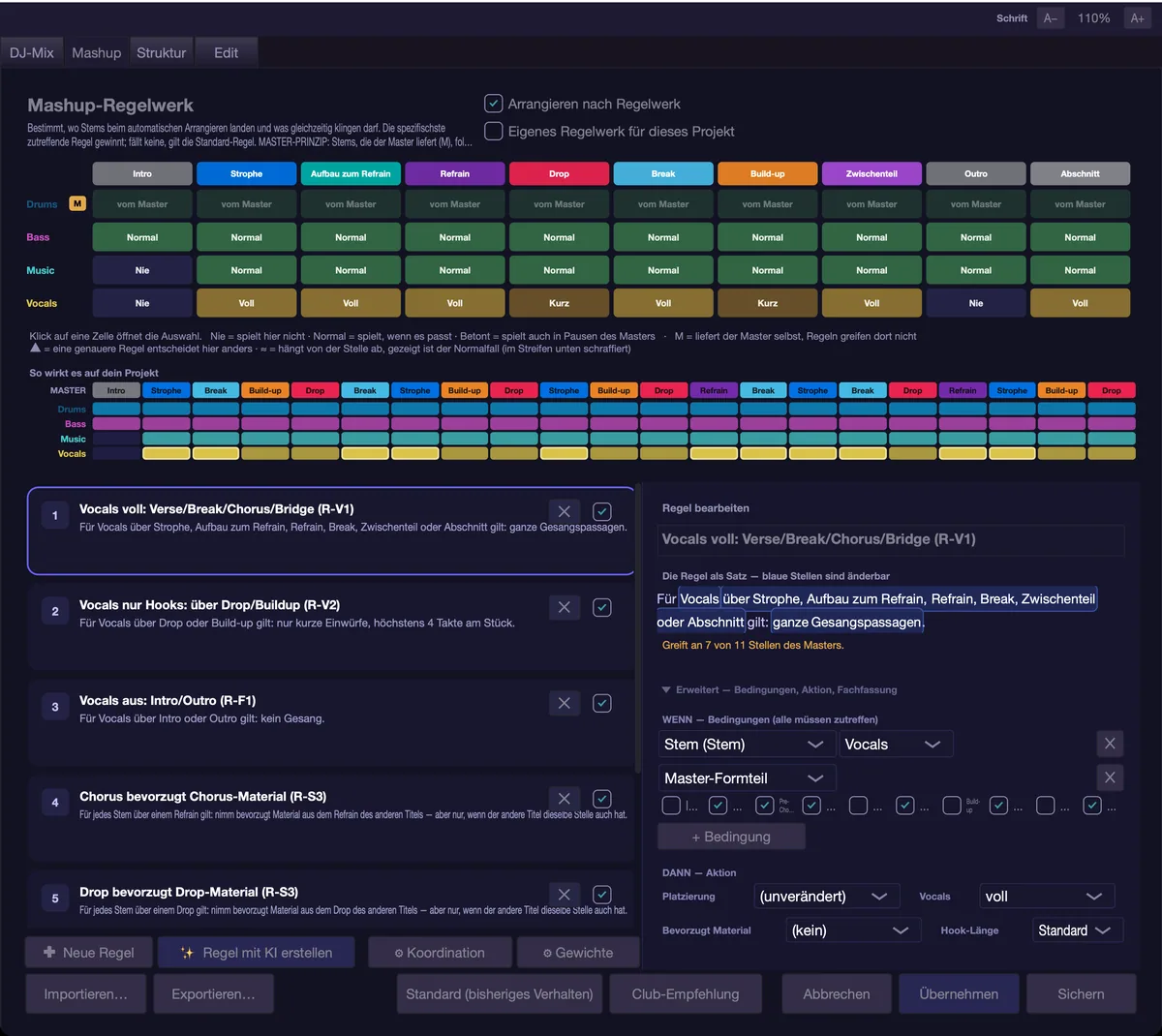
The mashup rule set
Menu “Settings” › “Rulebook…”, tab “Mashup”. This is where you decide where a stem may land and what may sound at the same time: per song part and stem allow, forbid or prefer, plus the vocal mode (off, hooks only, full), the coordination of lead and background, and the matching weights. There are the presets “Standard (current behaviour)” and “Club recommendation”.
Two things matter: rules only apply to guest stems, never to the master's own stems. And they never change an existing arrangement — first “Apply” (or “Save”), then Cmd+R.
Structure band and stem matrix
Above the arrangement sits the structure band with the master's song parts (intro, verse, chorus, drop, break …). It only shows what the structure master gives at that spot: where silence was inserted it stays empty; put master material there and its song part appears. Guest material does not change the band. Double-click a label to change it. Right-click offers “Split at this position”, “Merge with next”, “Remove section (ripple)” and “Open segment correction …”; hold Shift to select several sections and merge them in one go.
Below it lies the stem matrix: four rows (drums, bass, music, vocals), one cell per bar. The fill shows where the element actually plays in the arrangement, whichever track it comes from. A click steps the cell's setting — off, reduced, full —, dragging paints that state across bars and rows; in an edited row (white label) a thin bar at the top of each cell shows the setting while the fill still shows the result.
The setting always belongs to the structure master. A hole applies to the whole stem: clear drums in the break and every drums source falls silent there, extra material included. A row only takes effect once you have touched it; before that the master plays its original there at full length.
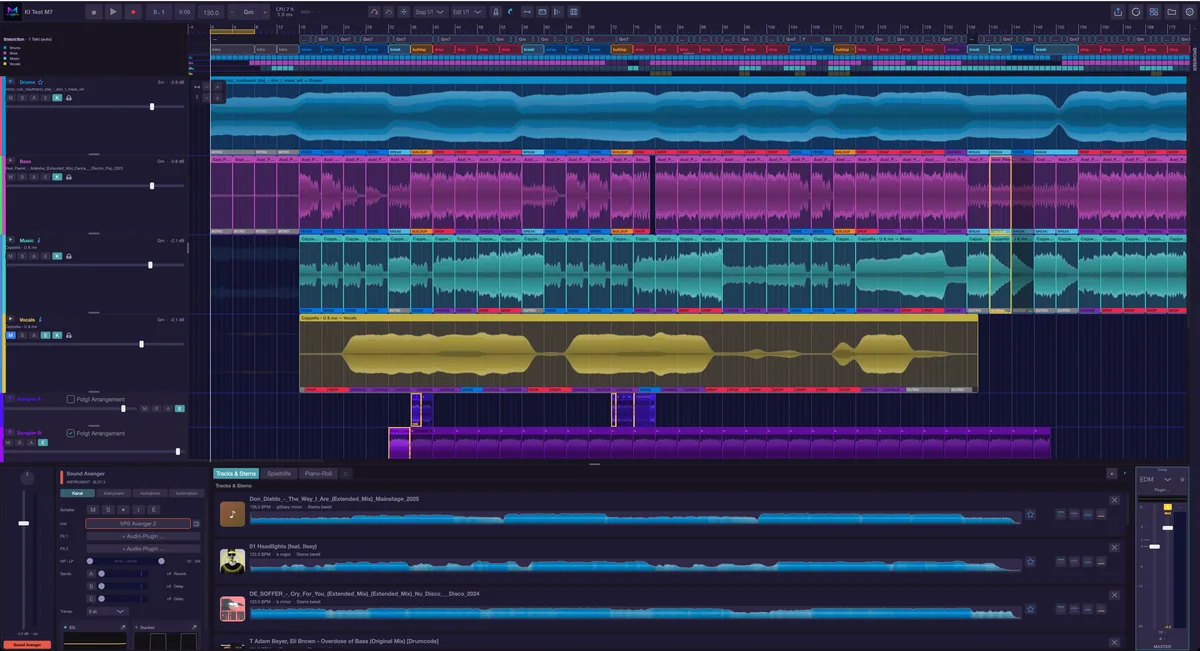
Source song parts
Menu “View” › “Source song parts in the clips”: every stem clip gets a strip at the bottom showing the song parts of its own title at the position the material comes from. You see at once whether a chorus really was used.
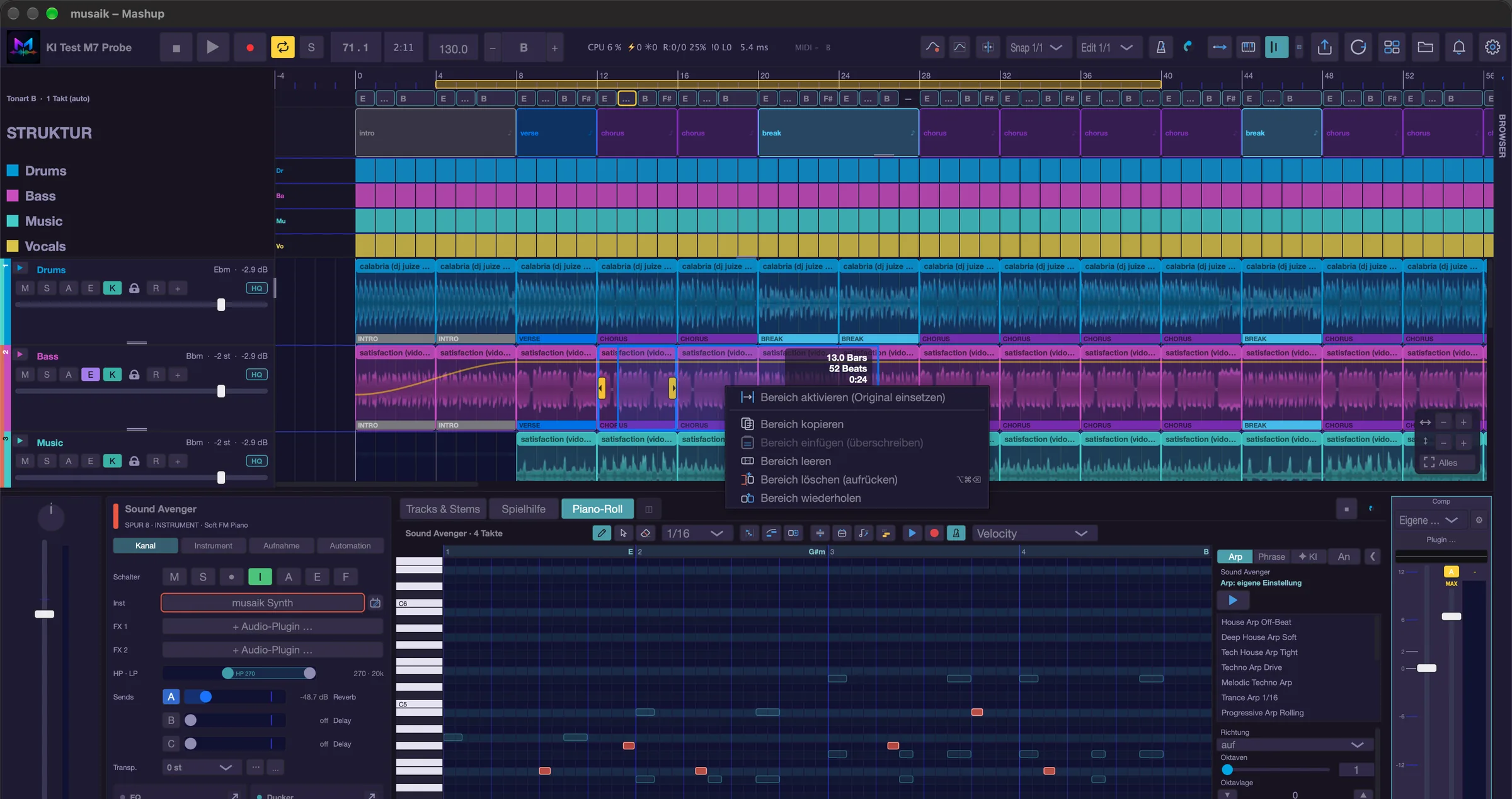
Editing a range
Hold Shift and drag a range on a stem lane. Start and end snap to whole bars, and the info box gives bars, beats and length.
Right-click inside the blue area:
- “Activate range (insert original)” fills the range with the source's original — timeline bar X plays source bar X.
- “Copy range”, “Paste range (overwrite)”, “Clear range” and “Repeat range” act on this one lane only. Nothing shifts, the arrangement keeps its length. Copying from one lane and pasting into another is allowed.
Cmd+← and Cmd+→ move the selected range within its lane. One keypress is one step of the snap grid from the transport bar — with snap at 1/1 the range moves bar by bar, at 1/4 in quarters. The material goes with it, the old spot is left empty, and whatever sits at the target is overwritten. The selection travels along, so you can keep pressing; it stops at the start of the arrangement. Every step is its own undo point. If the range holds no material, only the selection moves.
You can also drag the blue area with the mouse. It stays attached to the mouse where you grabbed it, and the insert line shows its front edge, snapping to the snap grid. Let go in the same lane and the range moves exactly as with Cmd+←/→: the material goes along, the old spot is left empty, the target is overwritten, one undo point. Dropped on a sampler lane, the range lands there as a sample starting at the front edge.
“Delete range (close gap)” (right-click the blue area, or Cmd+Option+⌫) takes the range out of this lane, and the material after it moves up by its length – to the end of the lane. The clips themselves stay where they are: their edges and lengths do not change, only the audio inside moves up. Other lanes stay put. It is meant for older titles with an inserted bar – from there on the material runs off the four-bar scheme. Afterwards the app asks whether the title's song parts (verse, chorus, break …) should be moved back by the same length from that point. If the analysis finds the inserted part earlier, the dialog offers both places. With yes, the title's other clips from that point on follow as well (all lanes, edges stay), so clips and song parts match again. The correction is stored with the title and also applies when you re-arrange; the chord lane follows by itself. The cut and the song-part correction are two separate undo steps.
Inserted bars without a cut. After loading and after analysis, the app checks every title: if its song-part boundaries sit one or two bars off the four-bar scheme from some point on, the inserted bars apply automatically as long as you have not corrected the title's structure by hand. The inserted bars become a section of their own, the song parts after them sit right again, and segment correction marks the spot orange with “+1” or “+2” (dashed “+2?” while it is only detected). With a hand correction, a notice “Inserted bar detected” names the source bar instead. Adjust places the song parts correctly from there; for a guest title its clips follow (edges stay, the material inside moves up), for the structure master re-arrange with Cmd+R afterwards. Not now asks again next time, No, leave it remembers the answer for this title. By hand: right-click the title in “Tracks & stems” → “Inserted bar…”, or menu “Project” › “Inserted bar…” (for the title of the selected clip, otherwise for the structure master): enter the source bar and the bars, +1 = one bar inserted, −1 = one missing. You can see and move the spot in the grid tool (key G), in the phrase strip above the waveform. Everything can be undone with Cmd+Z.
A range across all lanes (loop). Anything that changes the length of the whole arrangement does not go through the blue selection but through the loop: drag a loop range in the ruler and right-click it. The menu offers “Remove loop”, “Cut range out” (the range disappears from all lanes, everything after it moves up), “Repeat range” (the range is inserted once more right behind it, everything after it moves on), “Clear range (silence)” (the content goes, the length stays) and “Insert silence (range moves right)” (silence of loop length appears where the loop is, the range and everything after it move right by that length). The same commands, plus “Copy section” and “Insert section (at playhead)”, are in the “Edit” menu. Without a loop the app reports “No loop range set”. Each command is one undo point. If this touches the structure master, the next arrange asks first (see “Arranging”).
From the same blue selection you can drag the range into the palette or onto a sampler lane; the command “Selection to sampler lane” does the same. A single clip goes to the palette via right-click, “Add segment to palette”.
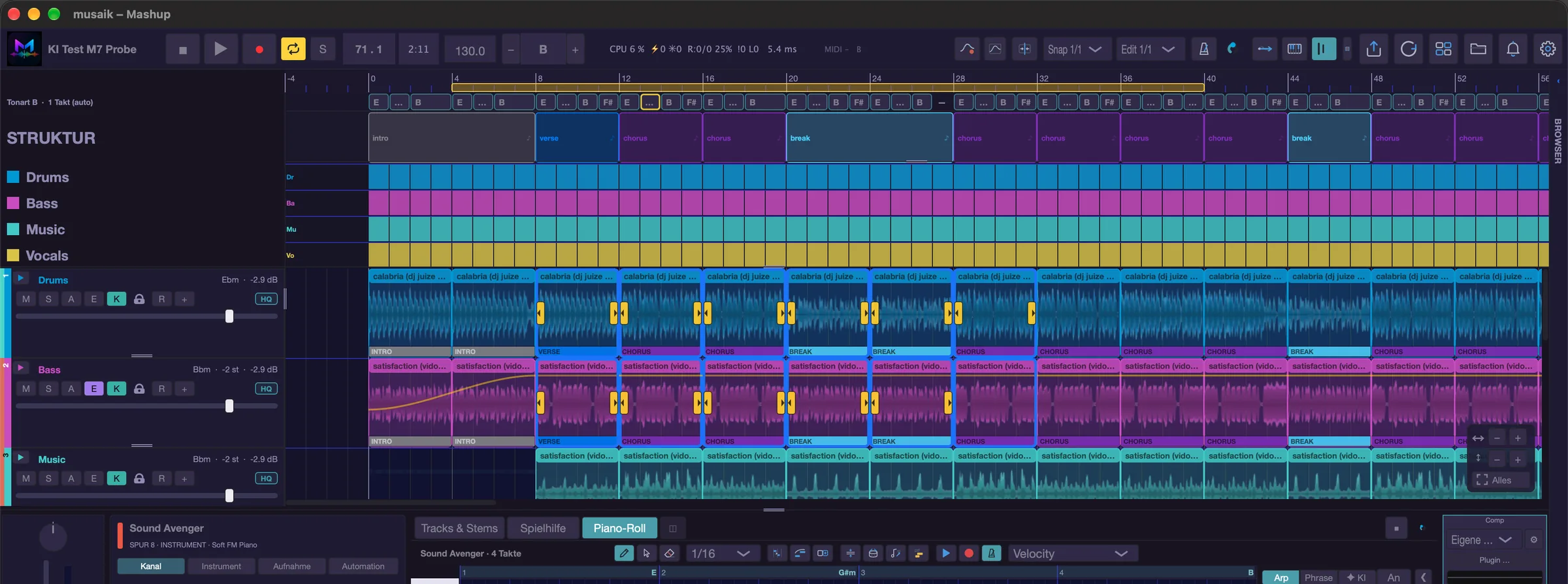
Editing clips
- Dragging an edge makes the clip longer and repeats the same material (loop). Repeats are dimmed, the original carries a yellow frame.
- Shift + dragging an edge moves the excerpt taken from the original instead, from either side. Clip length and excerpt stay the same size, so nothing loops. While Shift is held, yellow grips appear.
- Option + drag drops a copy at the target, the original stays.
- Selecting several clips: Cmd+click adds a clip or removes it again. Where there is room in the arrangement, drag a frame with Shift: Shift-dragging starts as the usual blue range selection of the lane – as soon as the mouse leaves the lane upwards or downwards, it becomes a dashed frame and every clip it touches is selected.
- Moving the selection: drag one of the selected clips by its body and all selected clips move along – horizontally, each stays in its lane. Whatever they cover at the target is split as with a single move. A click without dragging selects just that clip.
- Set as loop (right-click a clip): the loop runs from the start of the first to the end of the last selected clip and is active right away.
- Double-click opens the source region editor: it shows the source's complete stem lane with the window in use marked, and you can move it bar by bar without changing position or length in the timeline.
- Cmd+double-click (or Ctrl+double-click) opens the stem groups.
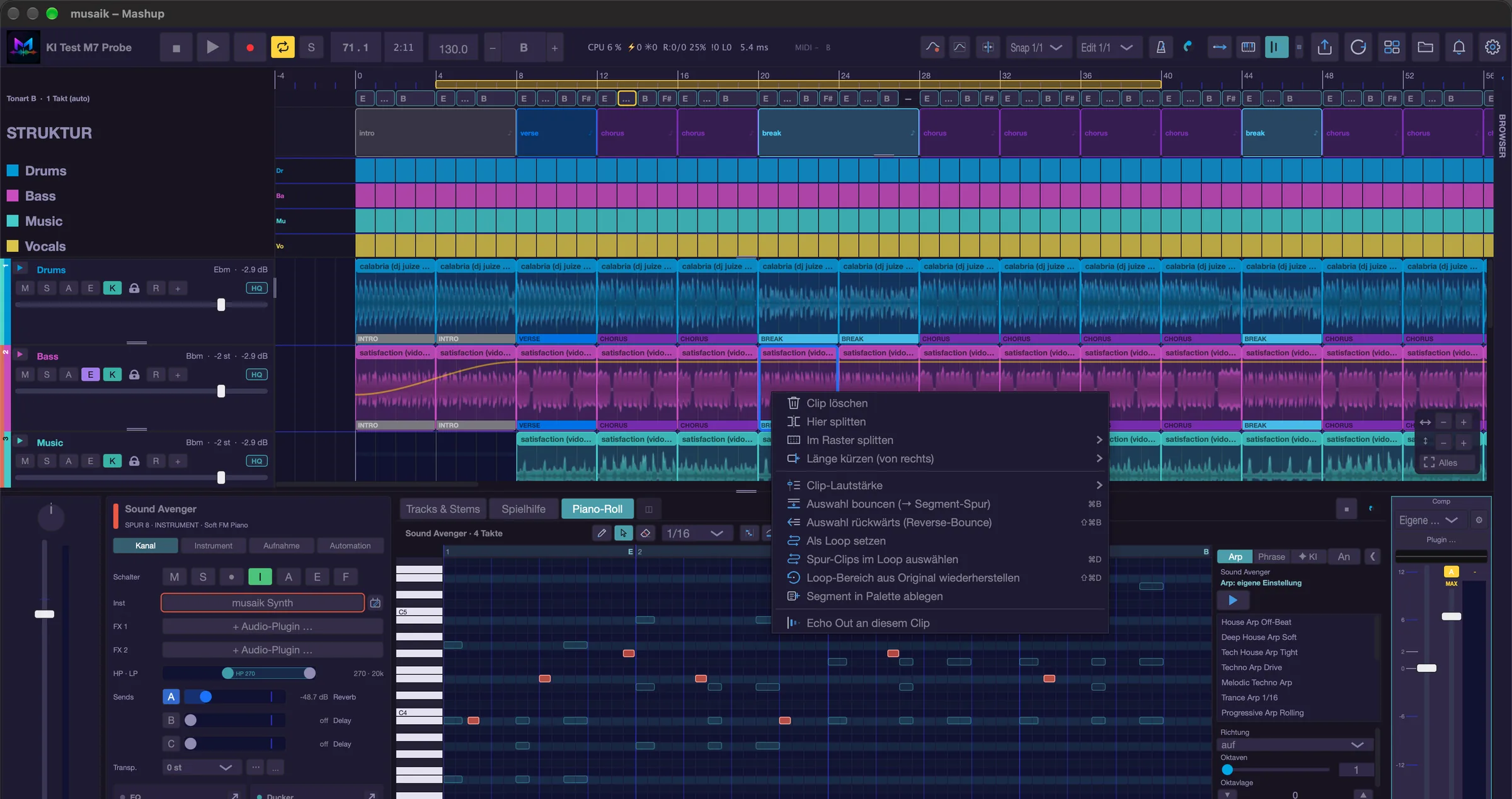
Clip commands
- Cmd+B bounces the selected clips into one audio file: it replaces the clips and lies as one clip on the first sampler lane that is free at that spot, and also as a card in the palette. This only works with stem clips from one lane; otherwise the app says “Please select stem clips from ONE lane only”.
- Cmd+Shift+B does the same backwards (reverse bounce).
- Cmd+Shift+M shuffles the selected clips into a new order — gapless, per lane.
- Cmd+D selects all clips of that lane inside the loop range, Cmd+Shift+D replaces them with the uncut original.
Right-clicking a stem clip also offers “Delete clip”, “Split here” (at the click position), “Split to grid” (1/2 to 1/16 bar), “Shorten length (from right)” (90 % to 10 %), “Clip volume” (+10 to −10 dB, “0 dB (reset)”), “Set as loop”, “Select lane clips in loop”, “Restore loop range from original”, “Add segment to palette” and “Echo out on this clip”. The clicked clip joins the selection; the submenus act on all selected clips. With several clips selected, “Shuffle order” appears there as well.
Stem groups
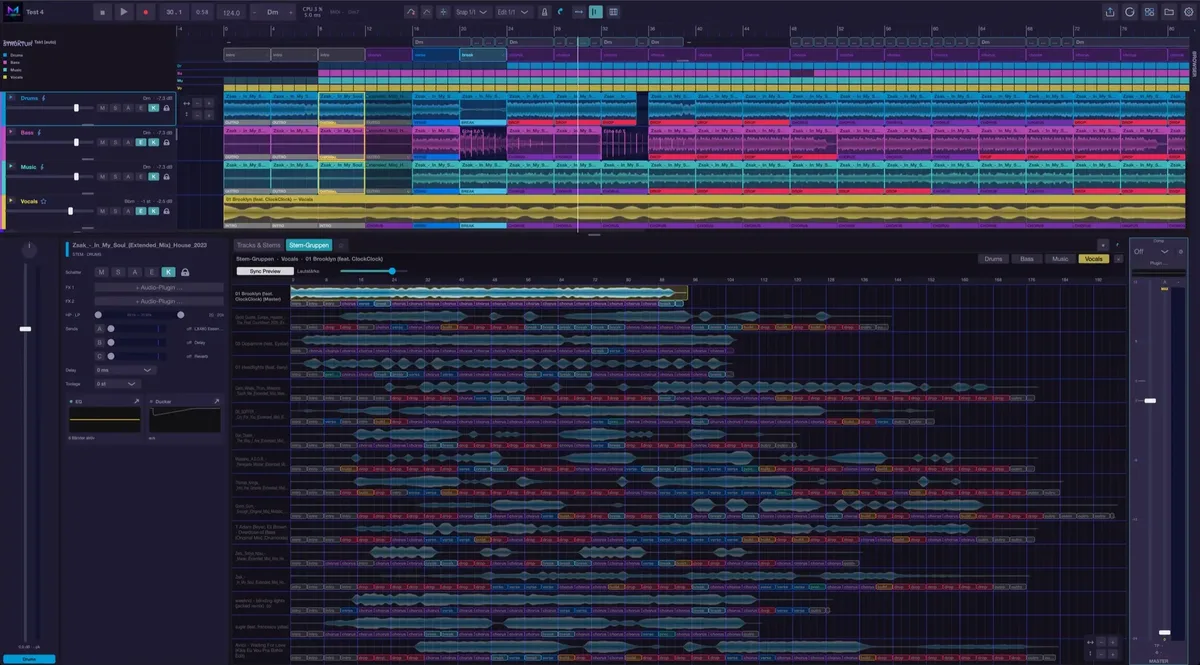
The stem groups show, for one stem, what every title has to offer at that spot. On top is the main lane with the clips from the arrangement; below it one dimmed row per title in its original run, divided by its own song parts, master first. A title without a stem file shows the mix waveform and the note “not separated”; nothing can be dragged out of it.
- Open it with Cmd+double-click on a stem clip (its own window), with the “Stem groups” tab in the centre, or with the command “Open stem groups”.
- Switch the stem at the top — keys 1 to 4 do the same.
- The playhead-coloured line shows the position in the arrangement, with “Sync preview" too. While playing, the view turns the page as soon as the line reaches the edge. Clicking the bar ruler sets the position: if the arrangement is playing it continues from there, otherwise the cursor sits at that spot in both views.
- Clicking a song part plays it once, clicking again stops. With “Sync preview” it runs as a beat-accurate loop alongside the playing arrangement instead. Cmd+click builds a chain of several song parts.
- Drag a song part onto the main lane and it replaces exactly its own length there — the clip stays in the main lane, only the material now comes from the other title.
- Dragged onto a sampler lane the range is rendered as a sample. Esc closes the view.
- Grab a row by its name and you take the title’s whole stem lane with you – dragged onto a stem lane it runs in sync and in the project key, dragged onto a sampler lane it is placed as one long sample. Cut pieces out of such a sample with Split; “Section as loop” in the right-click menu makes a piece the loop unit.
Pitch and transposing
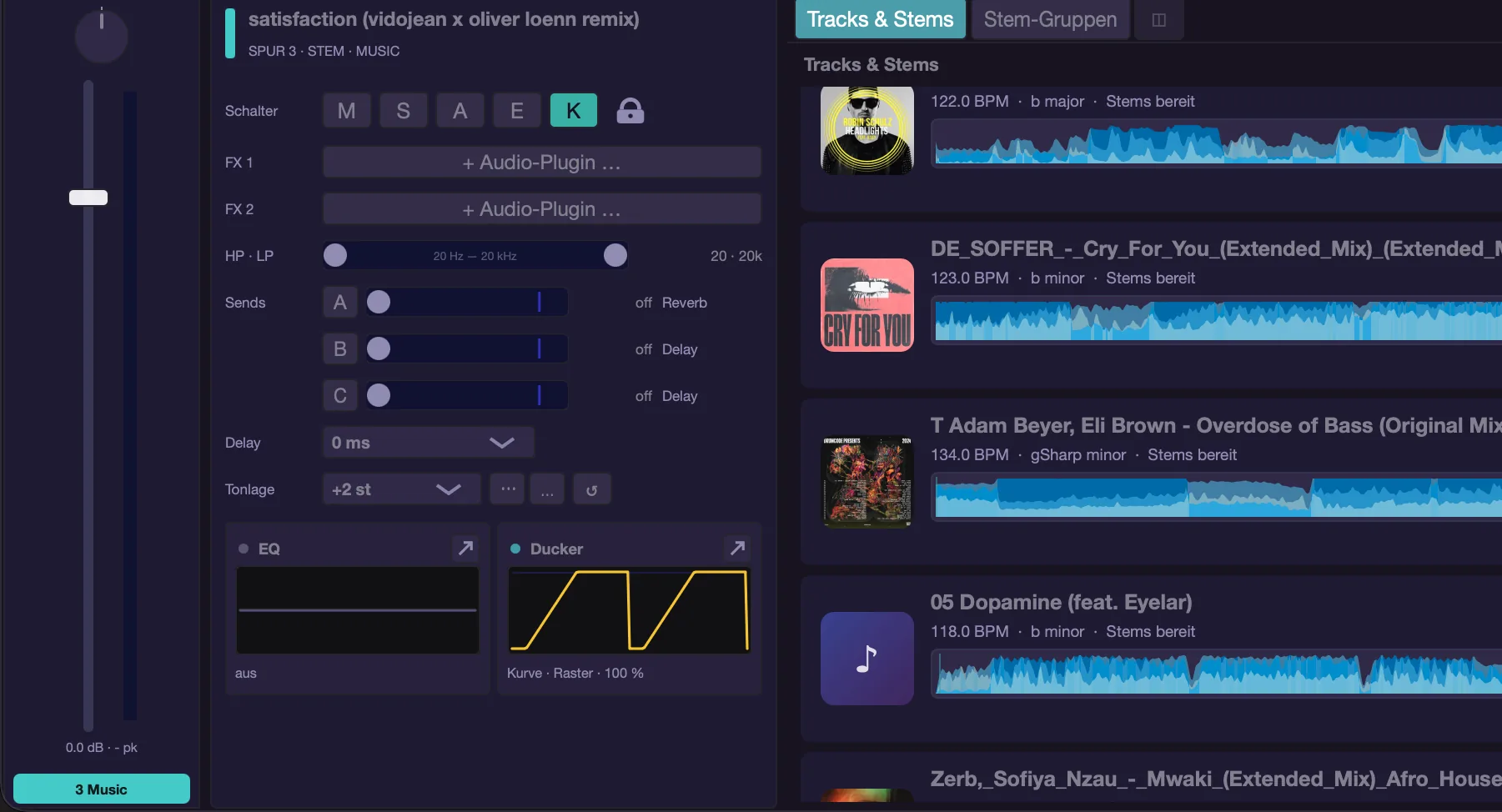
A lane's pitch sits in the track environment on the “Channel” page under “Pitch” (−12 to +12 semitones). It applies to the whole row and comes in addition to the automatic match to the project key: musaik keeps transposing by itself, you only shift the result. “↺” or Option+0 resets it to 0.
The whole arrangement is transposed with the “−” and “+” buttons in the transport bar. Back to 0 means original pitch.
Merging duplicate titles
If the same file sits in the project more than once, the command “Merge duplicate tracks” cleans up: clips, automation and mixer channels move onto one title and the duplicates disappear. They are recognised by file name and size. The command has no factory key; assign one under “Settings” › “Keyboard”.
Keyboard shortcuts
- Cmd+T – open “Tracks & stems…”
- Cmd+R – rearrange
- Ctrl+Cmd+R – “Reset master” (discard remembered changes, rearrange)
- Ctrl+Alt+H – change the harmony reference
- Ctrl+1 to Ctrl+4 – lock lane: drums, bass, music, vocals
- Cmd+Option+1 to Cmd+Option+4 – Echo Out on this stem lane on/off
- Cmd+← / Cmd+→ – move the selected range within its lane
- Cmd+Option+⌫ – delete the selected range, material moves up (clips stay)
- Cmd+B – bounce selection
- Cmd+Shift+B – reverse selection (reverse bounce)
- Cmd+Shift+M – shuffle selection order
- Cmd+D – select lane clips in loop
- Cmd+Shift+D – restore loop range from original
- Cmd+Shift+A – re-analyze all tracks
- Cmd+K – open segment correction
- Cmd+Z – undo, Cmd+Shift+Z – redo
Sampler & palette
Sampler lanes carry individual pieces: loops, one-shots, excerpts you cut yourself. They run in sync on top of the arrangement. The palette is where your own excerpts live. Both exist in mashup and in edit mode.
Sampler lanes
- New lane: Cmd+Shift+T (“Add sampler track”) or the “+ Sampler lane” button at the bottom of the lane list. More than eight sampler lanes are not possible.
- Rename: F2 renames the active sampler lane; the track header menu offers “Rename …”. Out of the box they are called “Sampler A” to “Sampler H”.
- Move: Cmd+Option+↑ and Cmd+Option+↓, the menu entries “Move track up” and “Move track down”, or drag the lane header to its new place with the mouse. This only changes the display order — channel, colour and automation stay where they are.
- Delete: Cmd+Shift+Delete or “Delete sampler track”. The lane's segments go with it. One sampler lane always remains – the last one cannot be deleted.
- In every lane header: volume, M, S, A (automation, as on stem lanes: one value inside the lane, from two values on rows of their own), + (another automation value), E (Echo Out) and F (follow arrangement). With F on, the clips move along when the arrangement gets longer or shorter; off, they stay at their bar. The same is in the track menu (“Follow arrangement”) and available as the command “Sampler track: follow arrangement”. Clips with “Assign segment” (right-click) are placed at every matching section on re-arrange, whatever F is set to. Set the height at the lower edge; there is no collapsing any more.
- Key: clips on sampler lanes – from the palette as well as from the stem groups – play in the project key. The key of the song they come from is stored with them; major and minor are taken into account. Drums are never transposed. A small badge at the right of the clip header shows the shift, e.g. “+2”; if there is none, the clip already fits. Orange means a vocal clip is shifted further than “Max. key correction (vocals)” recommends – it is still adjusted but may sound artificial. The badge's tooltip gives the details.
The palette
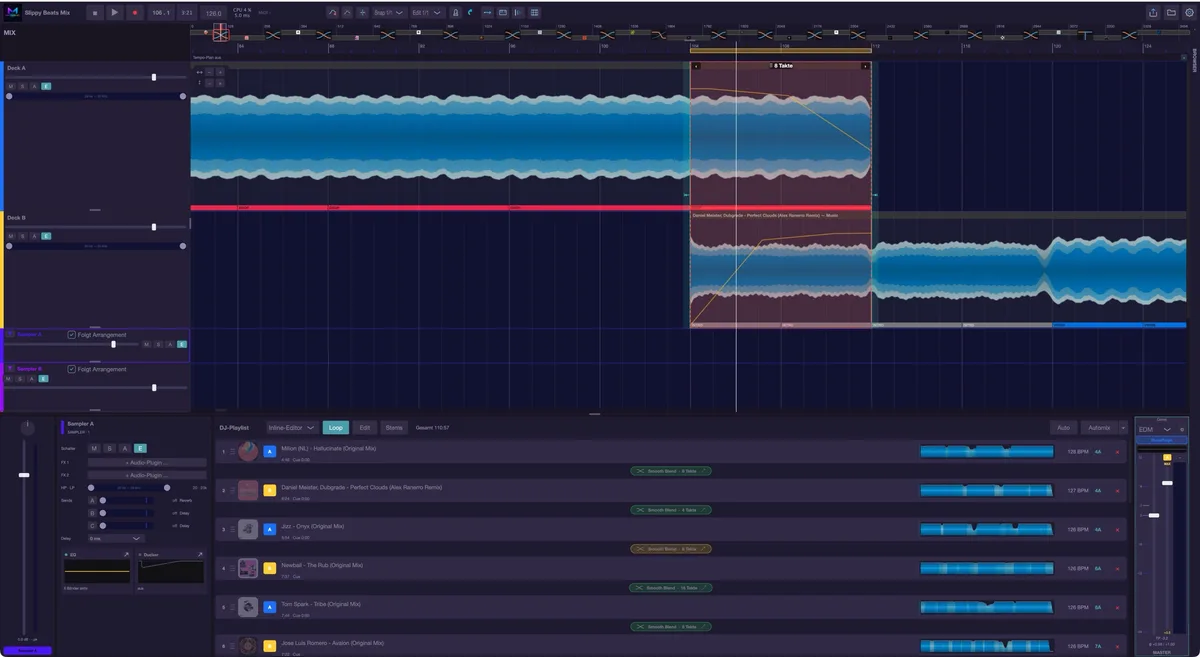
The palette is your own collection of excerpts. It belongs to the app, not to the project: once something is in there, it is available in every project.
- You reach it in the browser under the main category “Palette” and as the tab “Palette” in the centre of the lower area. In mashup mode the tabs in the centre follow the selected lane: “Palette” and “Samples” are only there while a sampler lane or no lane at all is selected. With a stem lane selected you only see “Tracks & Stems” and “Stem groups” – click the header of a sampler lane then.
- Every card shows name, key and length in bars. At the top are the excerpts from this project (“THIS PROJECT”), below them those from all others (“LIBRARY”); within each part cards are grouped by stem category (original, drums, bass, music, vocals).
- Above the list: a search field, the “FX” switch (on: render through the complete FX chain when dropping, exact but slower; off: the original stems, fast) and the “Library” switch, which shows or hides the “LIBRARY” part. Below them the buttons drums, bass, music and vocals filter which categories are shown.
- One click previews a card, another stops it. Right-click offers “Rename …” and “Delete segment from palette”; Cmd selects several cards, and Delete removes the selection after a prompt.
- Drag cards straight onto a sampler lane in the timeline. A vertical line shows which bar the leading edge will land on.
This is how material gets in:
- Drag a Shift selection: hold Shift, drag a range of bars on a stem lane and drag it into the palette. The title has to be separated; otherwise musaik reports “Track has no stems yet (separation is running or missing).” The name is built automatically, for example “Nightdrive Bass Loop 8T”.
- Take a clip: right-click a clip, “Add segment to palette”. The clip stays in the arrangement, the palette gets a copy.
- From the stem groups: drag a song part from a comparison row onto a sampler lane — the range is rendered and inserted there.
- Selection straight onto the lane: drag the blue selection onto a sampler lane, or use the command “Selection to sampler lane”. The range is rendered and then sits as a card in the palette and as a clip at the target.
The “Samples” tab
Next to the palette there is the “Samples” tab — your sample library from files.
- Folder chips above the list walk through the folder tree, “+ Folder” creates a new one. The search field searches the whole tree, not only the open folder.
- “Loop” plays the preview as a loop. While the arrangement is playing, detected loops are previewed tempo-synced to it.
- The key on the right of each entry shows the harmonic fit with the project key: if it fits directly, it has a green background. Otherwise it is shown in grey, with the shift needed in semitones in brackets, e.g. “Am (+2)”.
- Right-click: “New folder”, on a folder “Rename folder” and “Delete folder”, on files “Move to folder”, “Set BPM…”, “Mark as favourite” (or “Remove favourite”) and “Delete”; plus “Re-analyse this folder”, or on a folder row “Re-analyse folder (with subfolders)”. Cmd or Shift selects several files; the commands then act on all of them. As soon as there are favourites, a “Favourites” chip sits on the left above the list; it narrows the list down to favourites. Samples dragged onto the chip are marked as favourites.
- Dragging a file onto a sampler lane imports it as a sample.
- A whole track (longer than 60 seconds, for example from the rekordbox section) is not treated like a loop: musaik takes its beatgrid – in edit mode with the setting “Edit mode: take tempo and beatgrid from rekordbox (instead of musaik's analysis)” switched on, the rekordbox grid, otherwise its own analysis – and builds the sample so that it starts on a bar line. The track then runs in time with the master.
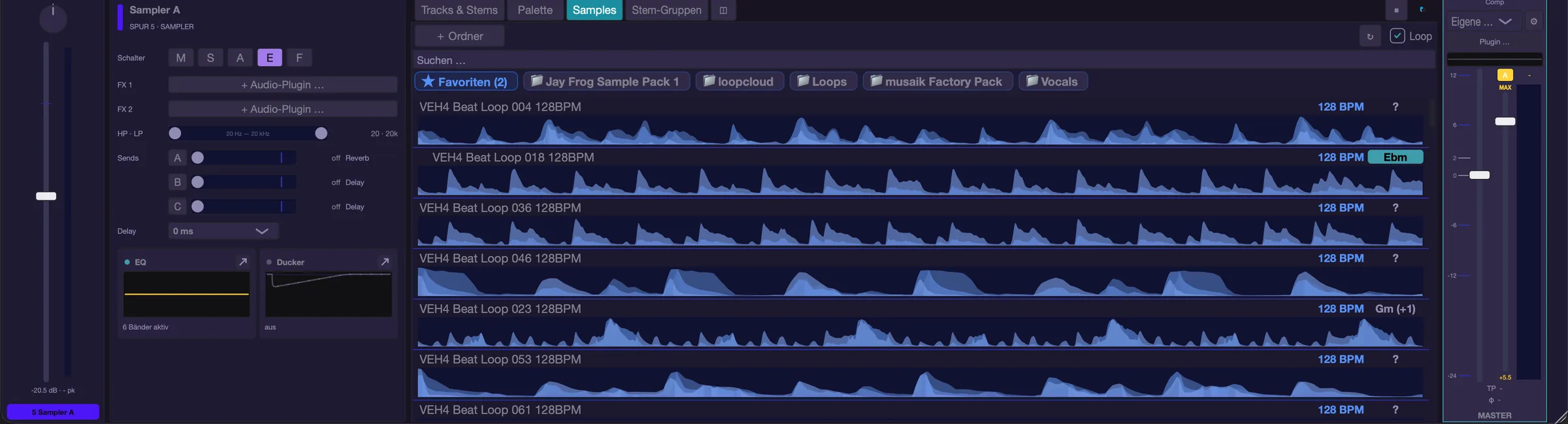
Two areas side by side
The “◫” button in the header of the centre splits the area. In edit mode the palette (left) and samples (right) then sit side by side. In mashup mode “Tracks & Stems” sits on the left and the selected tab “Palette” or “Samples” on the right; “Tracks & Stems” and “Stem groups” on their own cannot be split. It costs width: the mixer's channel strips start scrolling sooner, and if the centre is too narrow only the left area stays visible and “◫” is greyed out.
Clips on sampler lanes
- Dragging an edge makes the clip longer or shorter; the same material repeats (loop). Repeats are dimmed and marked ↻, the first full pass carries a yellow frame labelled “ORIGINAL”.
- Shift + dragging the inner yellow edge (the right edge of the ORIGINAL frame, marked with a yellow bar) changes the length of the loop unit; the repeats adapt, the clip's length stays (if the loop unit gets longer than the clip, the clip grows with it). On a clip that does not loop yet, this edge is the right border. While dragging, a label shows the length in bars.
- Section as loop (right-click or Cmd+Option+Shift+L): A clip taken from a long original – for example a whole stem lane grabbed by its name in the stem groups and dragged onto a sampler lane – first reveals more of the original when lengthened, until the original ends. If you have cut a piece out of it with Split and want to loop exactly that piece, this command makes the visible section the loop unit. What plays does not change; the next drag repeats the piece.
- Dragging up or down past the lane border moves the clip to another sampler lane. Hold Option while doing so and you get a copy; the insert line shows the target bar.
- Option + drag inside the same lane also drops a copy.
- Right-click a sampler clip in mashup mode: “Delete clip”, “Split here”, “Split to grid”, “Shorten length (from right)”, “Clip volume”, “Set as loop”, “Select lane clips in loop”, “Requantise…”, “Echo out on this clip”, “Assign segment” and – for a section of a long original – “Section as loop”. “Requantise…” (grid, swing, transients) creates a new palette segment; the original is kept.
- Nothing ever lies on top of anything else on a sampler lane: dropping, moving, looping and trimming overwrite whatever was there. Drop onto an occupied spot and musaik asks “Add”, “Replace here” or “Replace everywhere” — that swaps a loop at every position in one go.
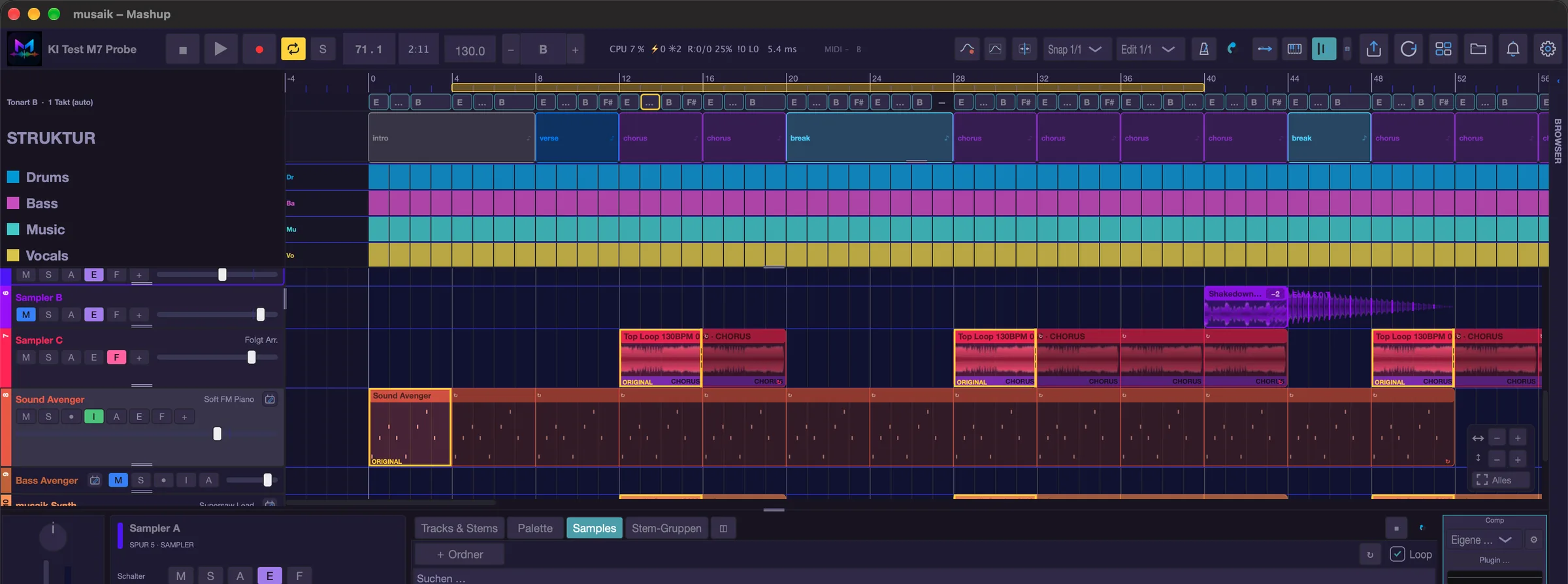
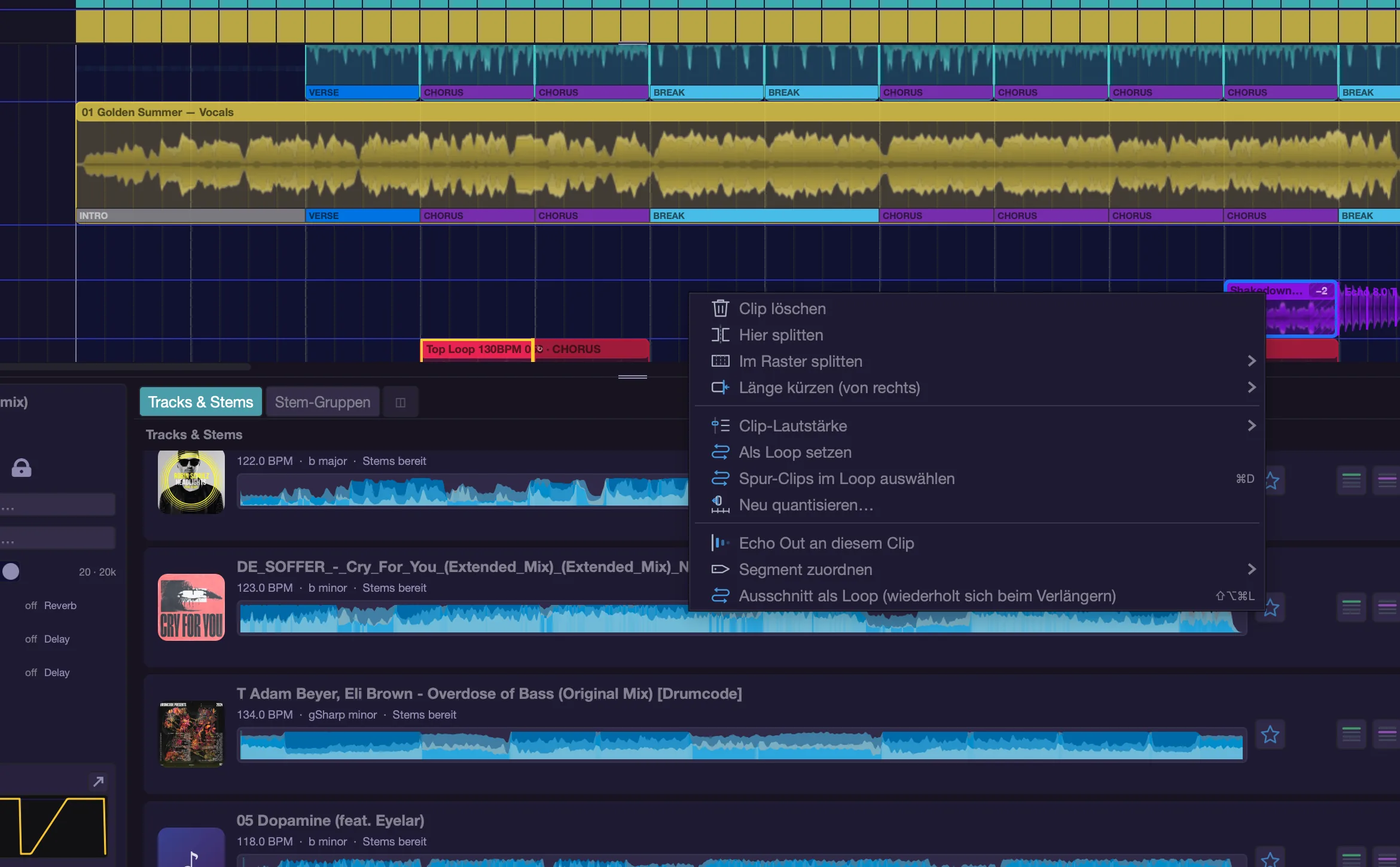
Rendering instead of cutting
“Selection to sampler lane” and dragging into the palette render the range into an audio file of its own. That is the difference to the arrangement: a stem clip points at the title and follows every role, a sample is a finished file. This is why sampler clips survive every rearrange and are never cut by the stem matrix.
The other way round, Cmd+B bounces selected stem clips from one lane into one file: it replaces the clips, lies as a clip on the first sampler lane that is free at that spot, and as a card in the palette. Cmd+Shift+B does the same backwards. Sampler clips themselves cannot be bounced.
Echo Out and ducker
- Every sampler lane has its own “E” switch in the track header. With it off, only clips carrying “Echo Out on this clip” (clip context menu) still ring out.
- Another lane's ducker can be triggered by the samplers: under “Kick from” the ducker offers “All samplers”, plus “All drums”, the drums of single titles and each single sampler lane. The lane's own channel is never on offer — a channel does not duck itself. See the chapter “Environment & mixer” for more.
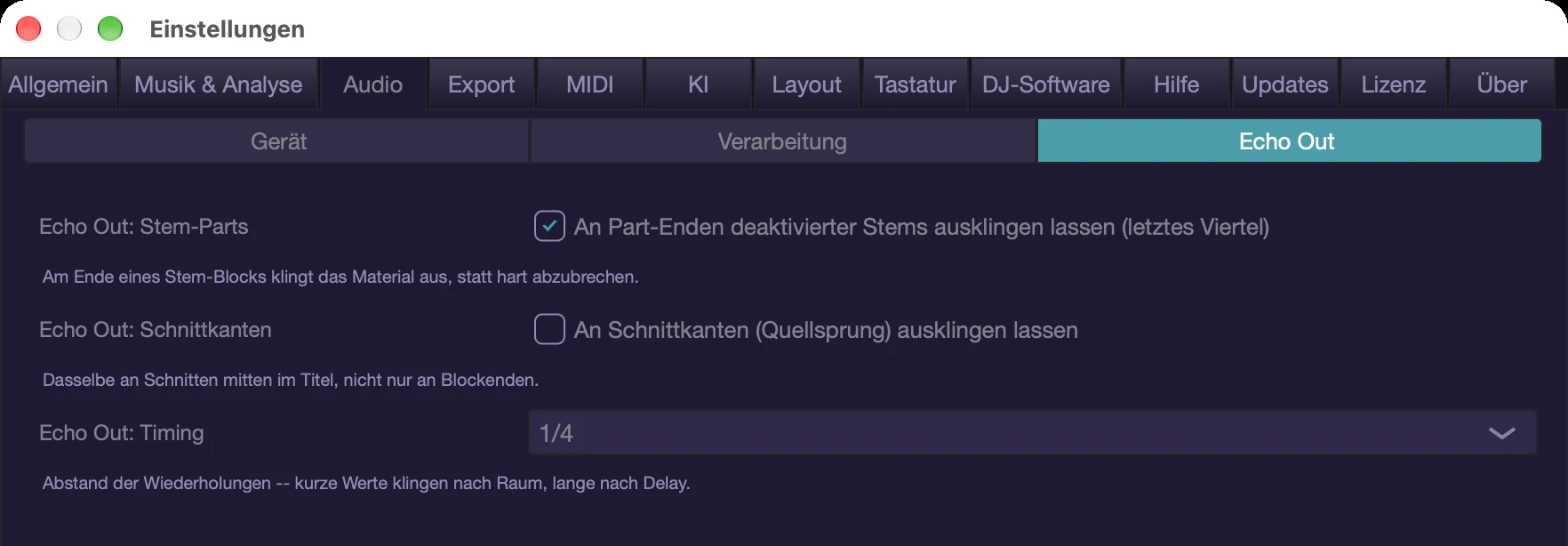
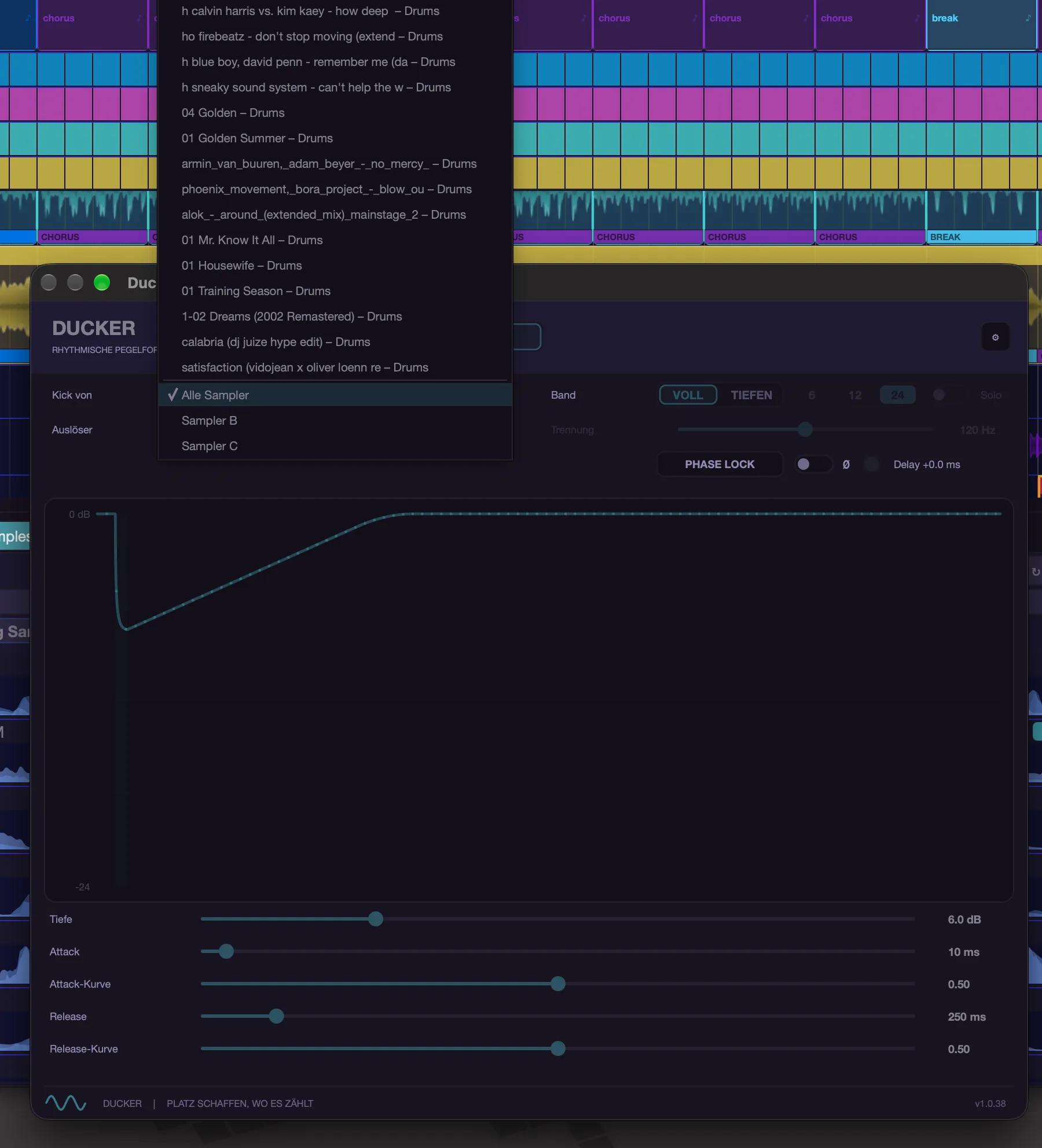
Keyboard shortcuts
- Cmd+Shift+T – add sampler track
- F2 – rename the active sampler track
- Cmd+Option+↑ / Cmd+Option+↓ – move sampler track up/down
- Cmd+Shift+Delete – delete sampler track
- Cmd+B – bounce selection, Cmd+Shift+B – reverse bounce
- Cmd+Shift+M – shuffle the selected clips
- Cmd+Option+Shift+L – sampler clip: section as loop
- Delete – delete selected clips or selected palette segments
- P – stop preview
Instruments & MIDI
Instrument tracks let you play your own notes into a project – with a connected keyboard or with the on-screen keys. This chapter covers creating a track, loading an instrument, recording, and turning the result into audio.
Everything about notes lives in the piano roll; everything that describes the track lives in the track environment.
Creating an instrument track
- Cmd+Shift+I creates a new instrument track. The same thing happens when you click the “+ Instrument” button below the tracks in the arrangement. The instrument chooser then opens right away (see “Loading and opening an instrument”).
- Instrument tracks exist only in mashup projects; in edit mode and in a DJ mix the command is disabled.
- More than eight instrument tracks are not possible – musaik tells you instead of silently swallowing the ninth.
- “Rename instrument track”, “Delete instrument track” and “Move instrument track up/down” are available as commands. A right-click on the track header offers the same (“Rename”, “Move up”, “Move down”, “Delete track”). You can also rename by double-clicking the header and move a track by dragging its header. Moving only changes the display order: clips, automation and the channel stay where they are.
- An instrument track header carries M (mute), S (solo), ● (record-armed), I (monitor), A (show automation rows), E (echo out), F (follow arrangement) and + (add automation row), plus the volume. With an instrument loaded, the pencil button (open editor) sits to the right of the name. Which letter switches appear is set under View, “Switches in track headers” – or with a right-click on the track header.
Automation rows
- + in the track header adds a row. At the top of every row sits a subtle chooser: one click opens the list of all targets – the channel first (volume, pan, high-pass, low-pass, sends), then every parameter of the instrument. Typing filters the list, ↑/↓ select, Return confirms. Each row remembers its target in the project.
- A new row without a target says “Choose parameter – or touch a control”: you can also fill it by moving a control in the instrument.
- With exactly one row, the curve sits in the instrument lane itself and the chooser replaces the volume in the track header. From two rows on, each value has its own row.
- A hides and shows all rows of the track. Hidden curves keep working. × removes a row; the curve is kept.
- Deleting: right-click the track header → “Delete automation” lists every value of the lane and “All on this track”. A value disappears together with its curve and row – including the only one that sits as a field in the header. Command: “Track: delete all automation”. Undo with Cmd+Z.
- Drag the lower edge of a row to change its height. Commands: “Instrument track: show automation rows” and “Automation row: choose parameter”.
Loading and opening an instrument
- You pick the instrument in the track environment (key E), tab “Instrument”: a click on the slot opens a menu with “Choose instrument …” and “Open editor”, a double-click opens the window of the loaded instrument directly. The same slot is on the “Channel” tab (row “Inst”) and in the mixer's channel strip; “Choose instrument …” is also in the track header's right-click menu.
- “Choose instrument …” opens the chooser: a search field and ↻ (rescan plugin folders) at the top, below them the AU and VST3 instruments by manufacturer. One click on an entry loads the instrument, and its window opens right after.
- At the very top of the list is the included musaik Synth (block “MUSAIK INSTRUMENTS”). It has its own chapter: “musaik Synth”.
- Without an instrument the “Instrument” tab says “no instrument”, the “Channel” tab and the mixer say “+ Instrument …”. As a command the entry is called “Choose instrument …”.
- Open the editor with the pencil button (next to the slot in the environment and channel strip, next to the name in the track header) or with Cmd+Option+E. Without a loaded instrument there is no button.
- Plug-in windows open centred. If you move one, musaik remembers that position for that plug-in.
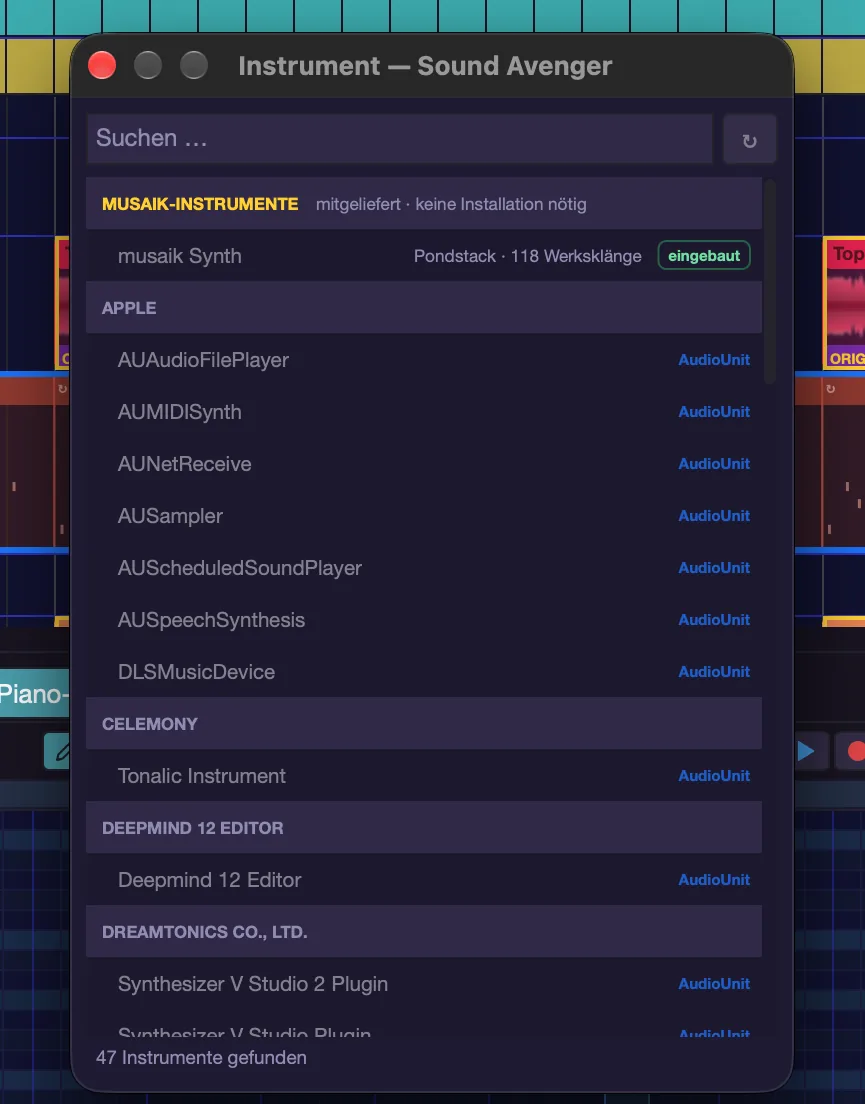
How you play
The “Instrument” tab has a block called “HOW YOU PLAY” below “PERFORMANCE”. These four rows decide where your live playing goes.
- “Input” – which keyboard plays this track. The default is “All devices”: whatever is plugged in plays. When you plug a device in or out, the list updates by itself.
- “Channel” – “All (omni)” or a fixed channel 1–16. Only change this if your keyboard sends on a fixed channel.
- “Monitor” – on by default. You hear what you play, even while the transport is stopped. In the track header this is the I switch.
- “Record-armed” – off by default. This track records as soon as you press R. In the track header this is the ● switch.
- Below them is the “All notes off” button for stuck notes on this track (see “Hanging notes”).
- Where does your playing go? Always to the selected track, plus every record-armed track. To play on a track without selecting it, arm it.
- “Arm instrument” and “Monitor instrument” also exist as commands without a shortcut (for the selected track).
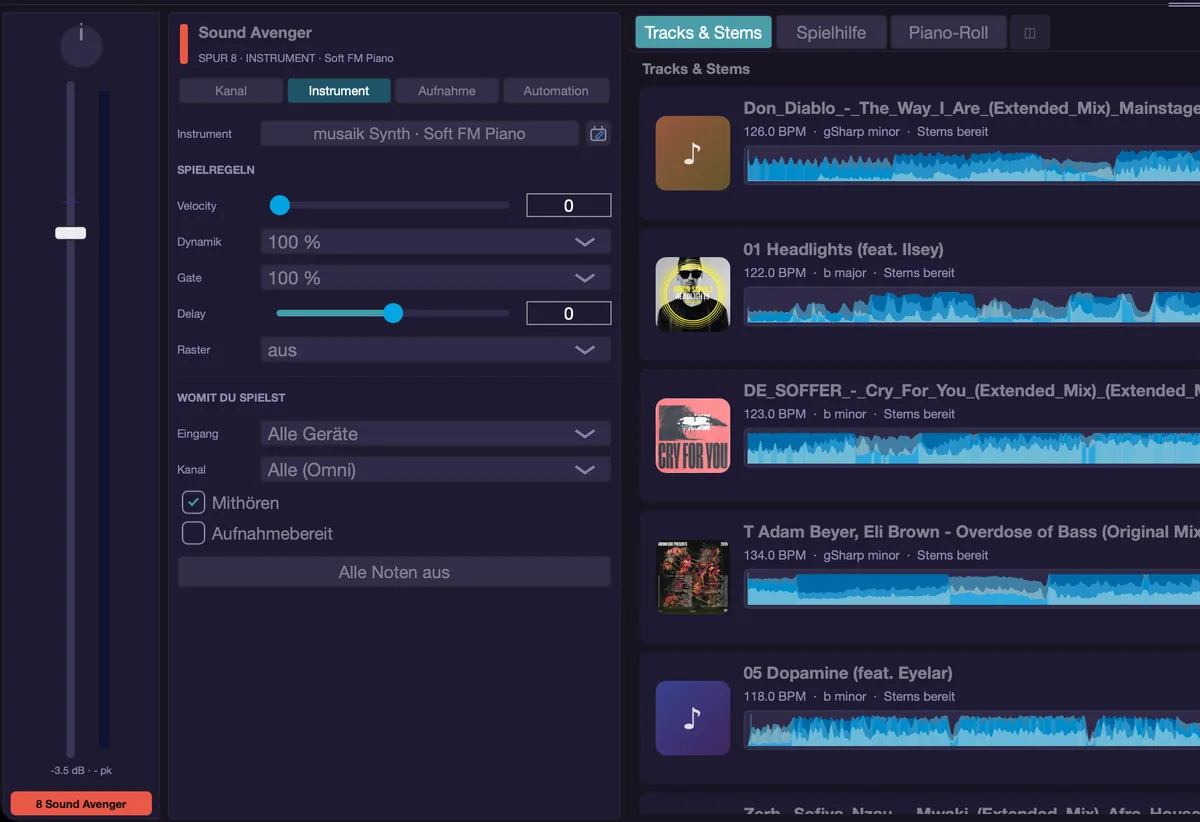
Recording in the arrangement
- R or the record button (●) in the transport bar starts and ends recording on the selected instrument track. The command is “Record MIDI”, and “Stop recording” while it runs; it is also in the View menu.
- From standstill, musaik counts in first (length under “Count-in” on the “Recording” tab). If the transport is already running, recording starts at the current position.
- What gets recorded is what you play – not what the harmony assistant (harmonizer) makes of it. That way you can have the same take steered differently later.
- The take is rounded up to whole bars and lands as a MIDI clip on the track.
The recording settings
They sit in the track environment under “Recording” and apply to every recording, not just this track.
- “Quantisation” – “off (as played)”, 1/8, 1/16 or 1/32. Only the start of each note is snapped; lengths stay as played. If the track has a “Quantise” value under “PERFORMANCE”, that one applies instead.
- “Strength” – 0 to 100 per cent. 100 snaps hard to the grid, 50 moves only halfway there.
- “Count-in” – off, 1, 2 or 4 bars (1 bar by default). The transport starts that many bars earlier with the metronome clicking, even when it is otherwise off; recording still begins at the cursor position. This only applies when you start from standstill.
- “Loop” – off, “Overdub” or “Replace”. Only effective with a loop set: overdub layers every pass, replace discards the previous one.
- “Offset” – −50 to +50 ms on top of the automatic correction. Only needed if your playing still lags audibly; no driver reports the input latency of USB or Bluetooth keyboards.
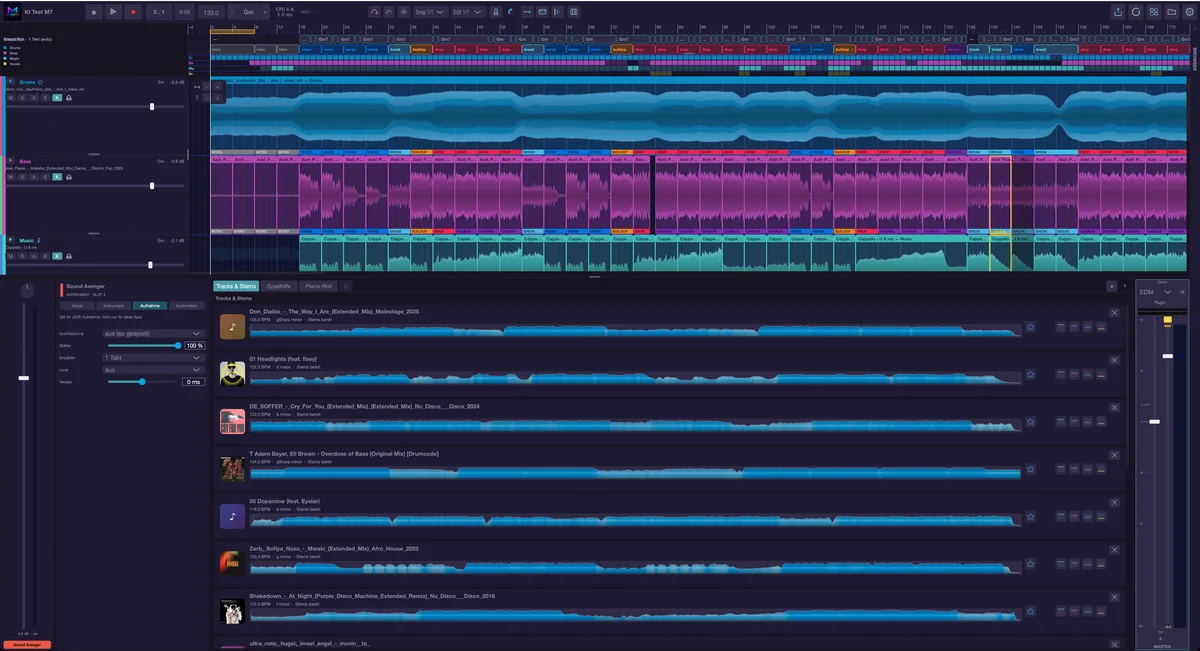
Recording backwards in time
- The capture always runs, even without recording. “Keep what I just played” (View menu) turns it into a clip – the last four bars.
- The command has no factory shortcut and is disabled while a recording runs. If you have not played anything yet, musaik says so.
Recording in the piano roll
- For quick ideas without the arrangement there is recording right in the roll: the red dot in its title bar or Shift+R (the metronome always clicks). Just playing: the triangle or Shift+P, add the metronome with Option+Shift+R.
- It needs an open clip and a stopped transport. Details are in the chapter “Piano roll”.
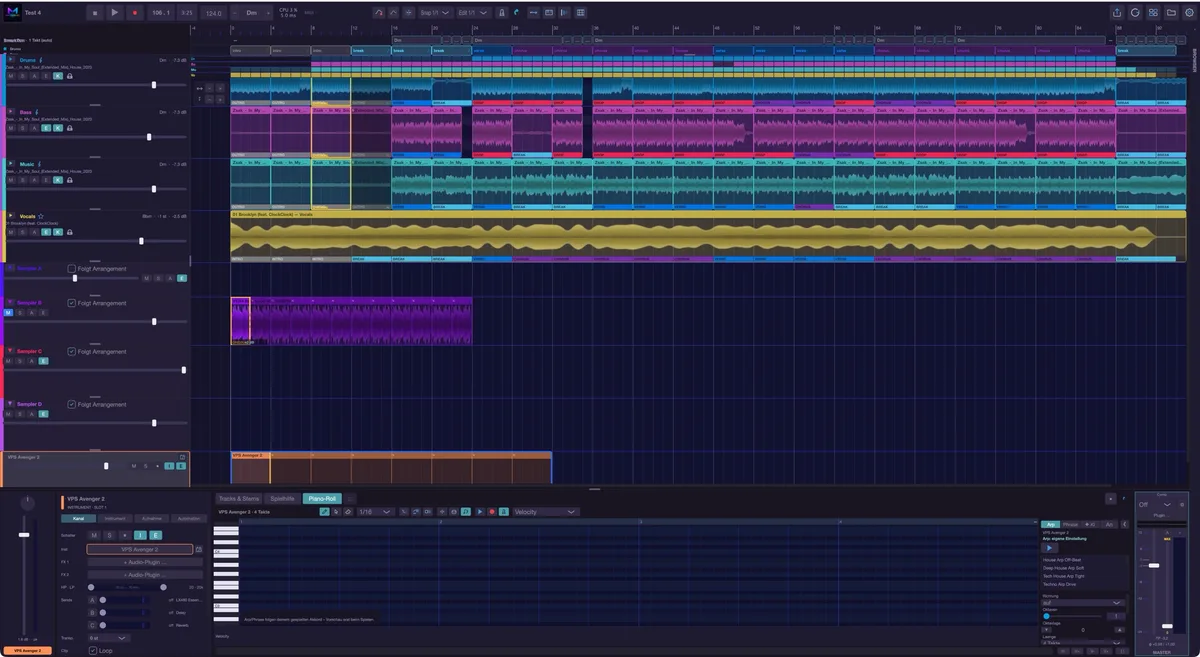
The on-screen keyboard
- Cmd+Shift+K, the keyboard symbol in the transport bar or View › “Show/hide keyboard” shows the keyboard at the bottom of the window, so you do not need hardware. The symbol lights up while it is shown.
- The white keys sit on A S D F G H J K from C upwards (L plays the D above), the black ones on W E T Z U O P. Use the − and + buttons to move by octaves (also as the commands “Keyboard: octave down” and “Keyboard: octave up”, no shortcut); the slider next to them sets velocity.
- While the keyboard is shown, these letters always play notes – even after you clicked into the timeline or the piano roll. Shortcuts on the same keys without Cmd, Shift or Option pause meanwhile. Shortcuts with modifiers, arrows and the space bar keep working; in text fields (search, names) you type as usual.
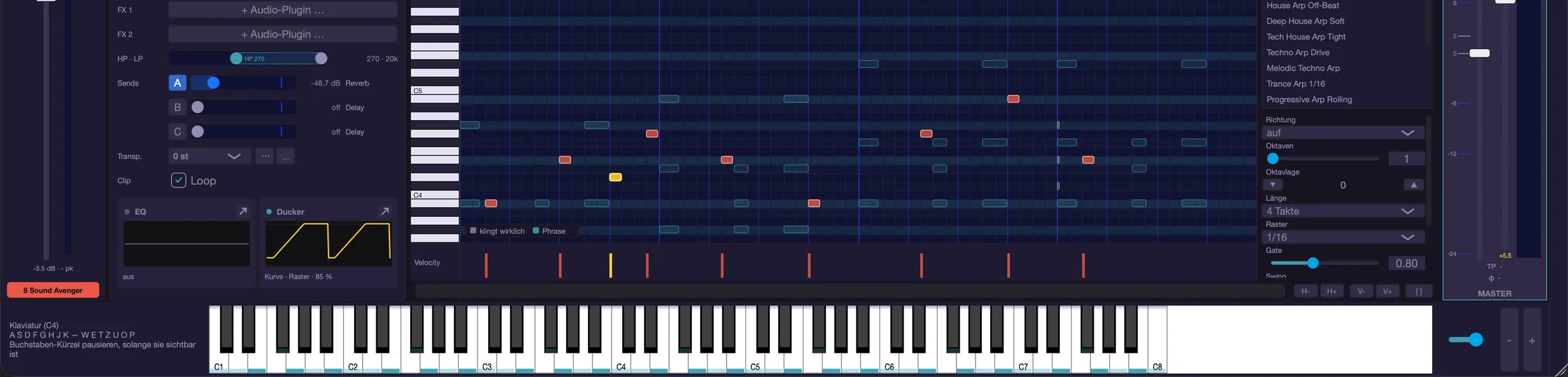
Transposing the track
- You set the transposition in the track environment on the “Channel” tab, row “Transp.”. The list runs from +24 to −24 semitones (plus at the top). ▲ and ▼ next to it jump one octave (Shift+Option+↑/↓), ↺ resets to 0 (Option+0); ↺ only appears when something is changed. With the list focused, + and − step one semitone.
- Transposition acts before arp, phrase and chord follow. That is why the notes still fit the song even with odd intervals. With chord follow off it applies literally.
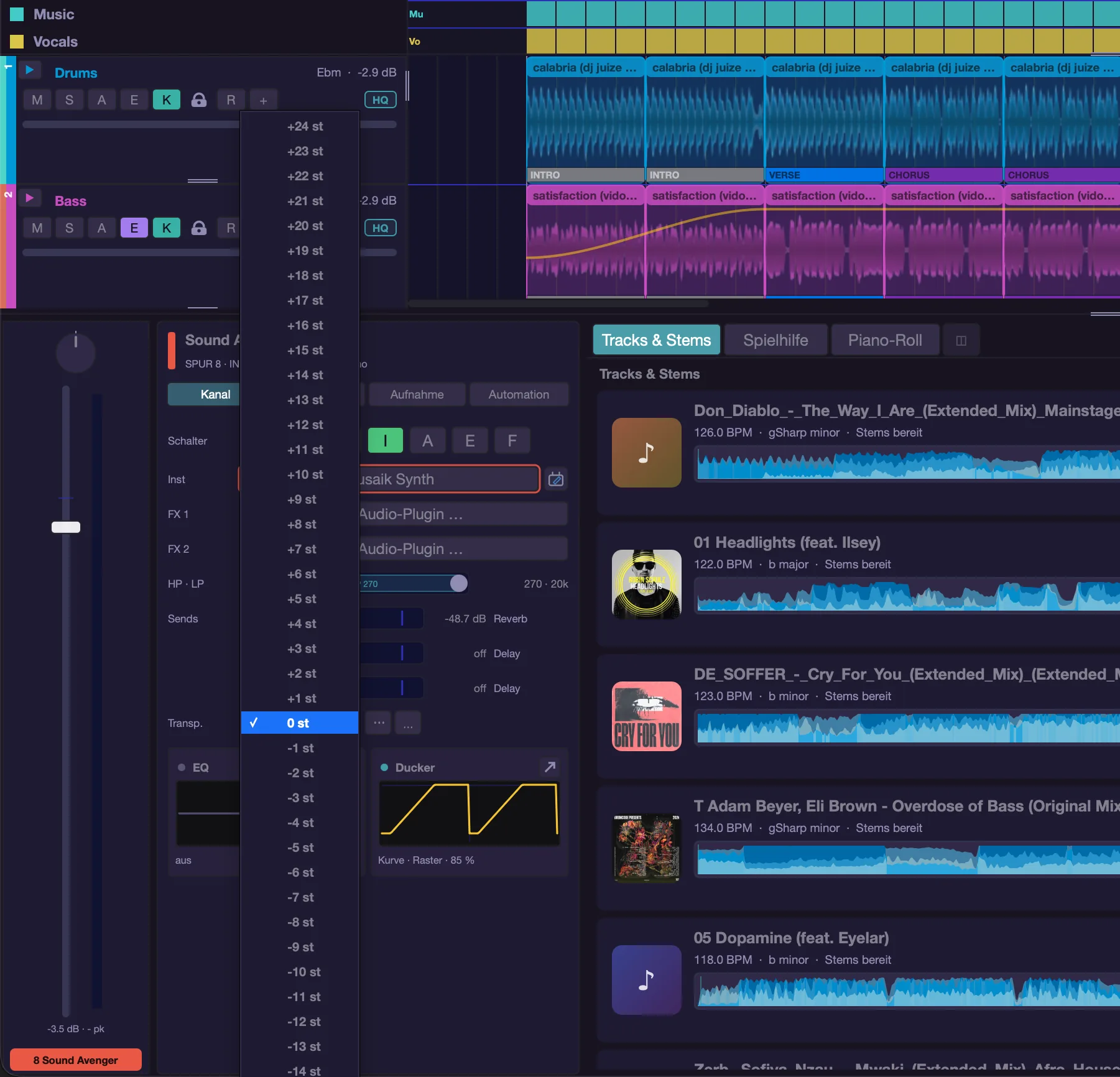
Performance settings
- “Velocity”, “Dynamics”, “Gate”, “Delay” and “Quantise” sit in the environment on the “Instrument” tab under “PERFORMANCE”. They turn the same pattern into a different feel. “Quantise” puts live notes on the next grid point and records them that way – ahead of the quantisation on the “Recording” tab.
- With a MIDI clip selected, velocity, dynamics, gate and delay apply to that clip instead of the track; “Quantise” is hidden then. “Track values” or Esc clears the clip selection, and the environment shows the track values again. The full story is in “Environment & Mixer” and “Piano roll”.
Lengthening a MIDI clip and loop
- Dragging the right edge of a MIDI clip only makes it longer – the new space is empty and editable in the piano roll, as in Logic.
- If the pattern should repeat when lengthening, switch on Loop: in the environment (tab “Channel”, row “Clip”, as soon as the MIDI clip is selected), in the clip's context menu (“Loop (pattern repeats when lengthening)”) or with Cmd+Option+L. Repeats are dimmed, the original carries a yellow frame.
- Clips from older projects that already loop have the switch on.
- Audio clips are not affected – there the right edge extends as a loop as before, Shift + edge changes the excerpt.
Assigning a segment
Right-click a MIDI clip → “Assign segment” → INTRO, VERSE, PRECHORUS, CHORUS, DROP, BREAK, BUILDUP, BRIDGE or OUTRO. Afterwards the menu entry reads “Segment: …” with the chosen name. When you re-arrange (Cmd+R), musaik places the clip at every section of the structure master with that name, each as long as the section; a shorter pattern repeats inside it. This also applies when “Follow arrangement” (F) is off – F only decides whether clips move along when the arrangement gets longer or shorter. Clips without a segment stay where they are. Every instrument track has its own segment clips; “none” removes the assignment.
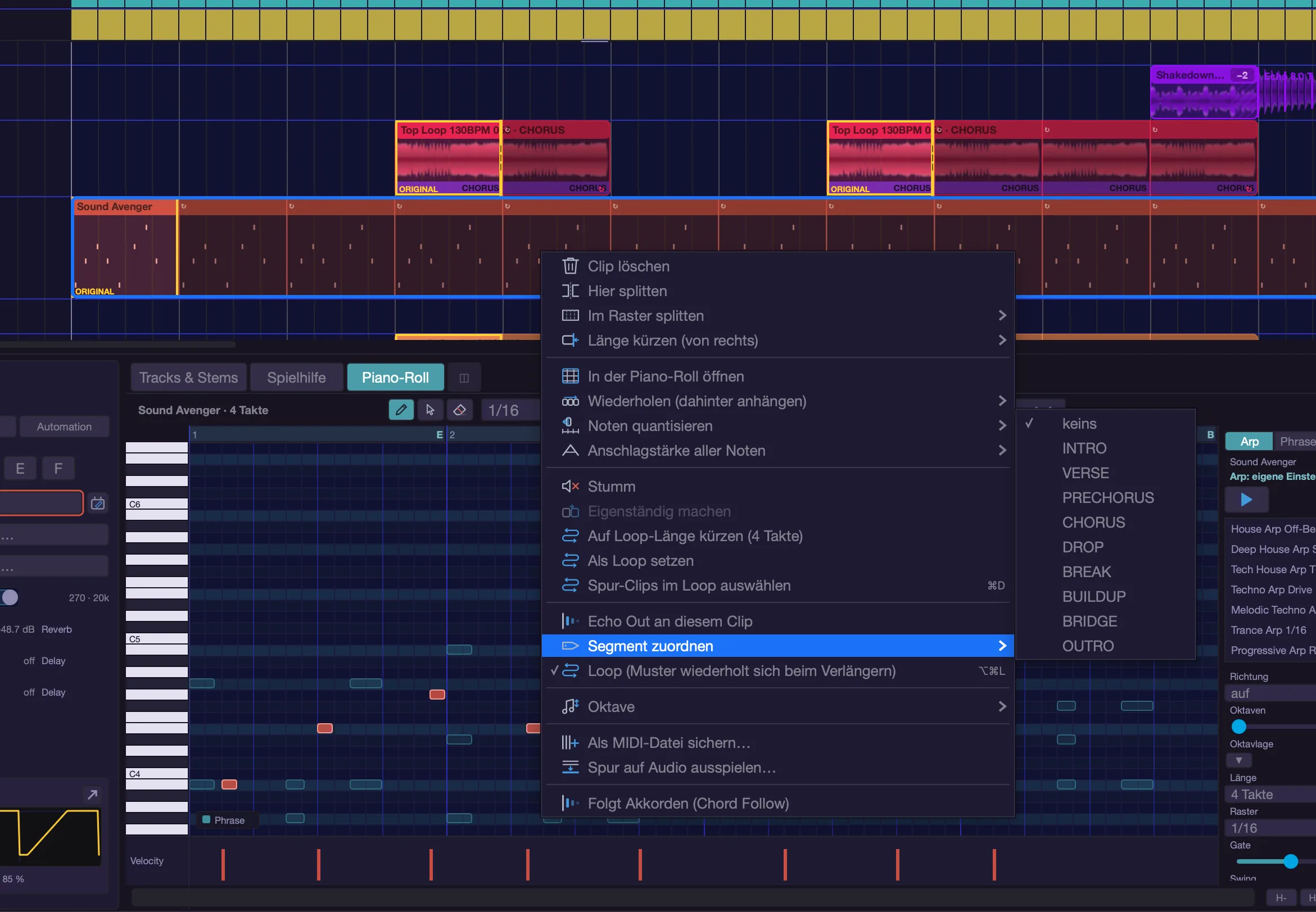
Bouncing to audio and MIDI export
- “Bounce instrument to audio…” (View menu) or “Bounce track to audio…” in a MIDI clip's right-click menu renders all MIDI clips of this track into one audio segment on a sampler track, with one bar of ring-out; the segment is then also in the palette. The instrument track is muted, its notes are kept. The piece then plays without the plug-in.
- If the track has no notes (only a phrase, for example), the entry is grey; in the clip menu it then ends in “(no notes on this track)”.
- The instrument is bounced as it sounds – with arp, phrase, chord follow and transposition. Beforehand musaik asks what else goes in: automation (track curves, plug-in parameters too), channel (EQ/filter, insert effects, volume, pan) and effect buses (reverb, delay via the sends). Tick the boxes, then “Bounce”. The choice is remembered.
- “Save MIDI clip as file…” (View menu) writes the clip from the piano roll as a .mid file for other programs; in a MIDI clip's right-click menu the same thing is called “Save as MIDI file…”. If the clip contains AI notes, the file carries a note saying so.
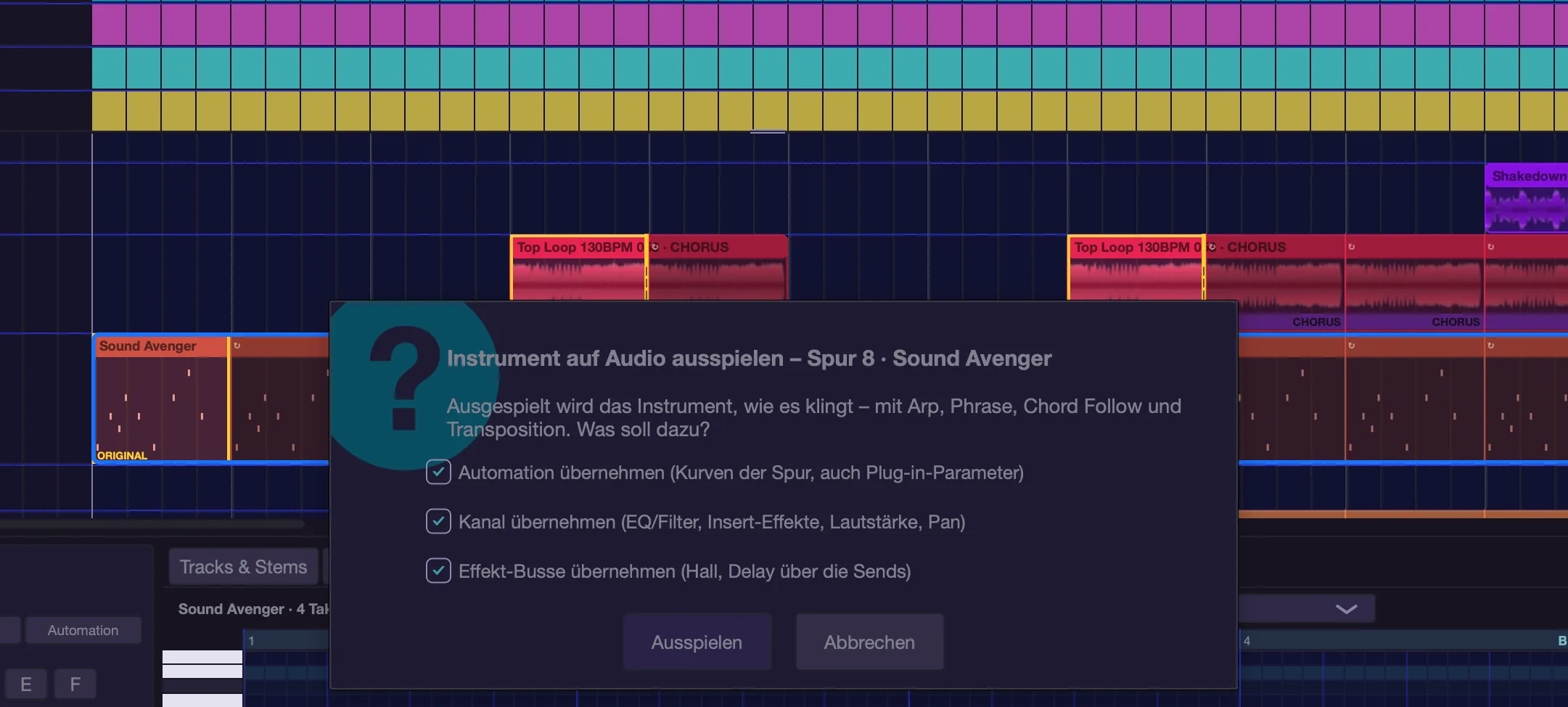
Hanging notes
- If a note stays stuck, the “All notes off” button in the environment (“Instrument” tab, below “HOW YOU PLAY”) helps – that applies to this track only.
- Cmd+Option+. (“All notes off”) is the big reset: all notes, all 16 channels, all instruments. A double-click on the MIDI indicator in the transport bar does the same.
Latency while playing in
- The low-latency button is a symbol in the transport bar next to the metronome; hovering over it shows “Low Latency beim Aufnehmen” (the tooltip is not translated yet). The armed track then bypasses its latency-causing inserts and does not wait for the slowest track.
- It sounds different and runs ahead of the rest – meant for playing in, then off again. The same switch and the threshold in milliseconds (“Limit”, 2–30 ms; inserts stay on up to that) are under Settings › Audio › Processing.
- If your playing still lags, use “Offset” in the “Recording” tab.

Keyboard shortcuts
- Cmd+Shift+I – New instrument track
- Cmd+Option+E – Open instrument editor
- R – Record MIDI / stop recording
- Shift+R – Record in the piano roll
- Shift+P – Play in the piano roll
- Option+Shift+R – Metronome while playing in the roll
- Cmd+Shift+K – Show/hide keyboard
- Cmd+Option+. – All notes off (MIDI reset, all tracks)
- Option+0 – Reset the track's transposition
- Shift+Option+↑ / ↓ – Transpose the track one octave up/down
- Cmd+Option+L – MIDI clip: loop on/off
- Esc – Deselect clips (performance settings show the track again)
- E – Show/hide the track environment
- Shift+M – Show/hide the mixer
- Cmd+Option+P – Switch the bottom area between mixer and piano roll
- ↑ / ↓ – Select the track above or below
musaik Synth
musaik comes with its own synthesizer: the musaik Synth. It is there right away – no installation, no plug-in scan – and sounds the same in the export as while you play. 118 factory sounds cover basses, keys, pads, leads, plucks, chords, brass/strings, arp sounds and effects – nine of them are made of several layers. Every sound knows its genres and its role, so it fits the phrases of the library.
Putting the synth on a track
- In the track environment (key E), click the slot on the “Instrument” tab and choose “Choose instrument …”. On a new instrument track this chooser opens by itself. At the very top of the list is the “MUSAIK INSTRUMENTS” block (included · no installation needed) with the musaik Synth; one click on the row loads it, and its window opens right after.
- When you put a phrase on an instrument track that has no instrument yet, musaik suggests a matching sound in the “Suggest a sound” window (genre and role of the phrase). “Use it” puts the synth with this sound on the track; “No thanks” leaves everything as it is. You are asked only once per track and phrase while musaik is running.
- Later you open the window like any instrument, with the pencil button or Cmd+Option+E.
Simple view
The simple view shows what matters most: sound name and genres, the category buttons (BASS, KEYS, PAD, LEAD, PLUCK, FX), four large macro knobs, a row of the most important controls (cutoff, resonance, decay …) and the keyboard.
- The macros are set per sound, for example “Brightness”, “Bite”, “Length” or “Space”. One macro moves several controls at once – you don't need to know which.
- ‹ SOUND and SOUND › step through the sounds of the same category (Cmd+Option+[ and Cmd+Option+]).
- ★ FAVORITE remembers the sound (Cmd+Option+Shift+F).
- PANIC silences all notes of the synth at once.
- SIMPLE | FULL at the top left switches the view (Cmd+Option+V). Next to it the MIDI symbol, at the top right of the name plate the gear (settings).
- With MIDI on, every macro card shows its assignment (“CC 71”, “free” or “LEARNING …”), the small controls show “CC n” instead of the value; the MIDI bar with LIST is at the bottom left.
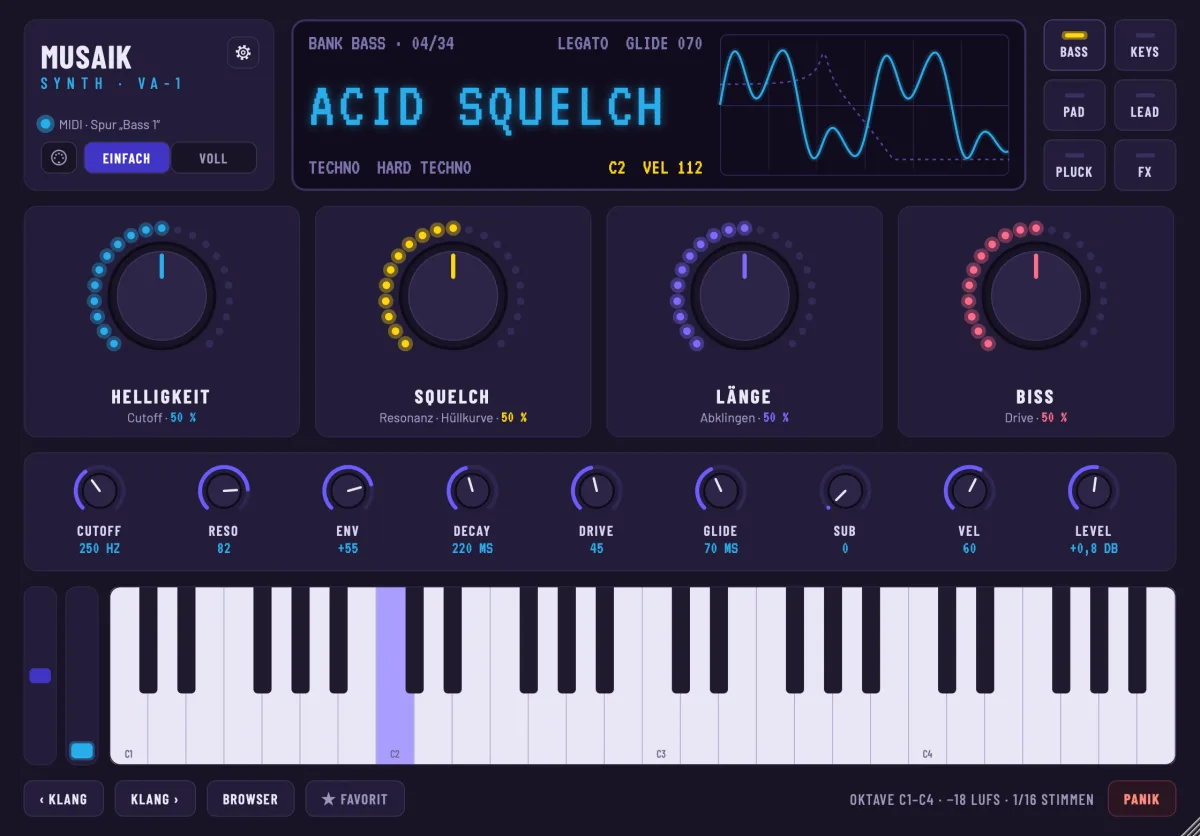
Sound browser
BROWSER (Cmd+Option+B) opens the list of sounds – in the full view also a click on the sound name at the top (▾).
- On the left are the categories with the number of their sounds, below them Layer sounds (all sounds made of several layers) and User sounds; at the very bottom ★ Favorites and Piano packs.
- At the top you search by name, genre or character; the genre chips filter the list.
- “Match track” shows only sounds in the genre of the phrase on this track. Without a phrase the button is off.
- Space or “Preview” plays a short figure that fits the role of the sound (bass, chords, melody) without changing the sound that is set. Return or a double-click loads the sound, Esc closes the browser.
- On the right you see the description, the macros, the library phrases the sound fits, and the engine.
Managing user sounds. Below the details on the right: for a user sound Clone and Rename, for a factory sound Copy as user sound. “…” (and a right-click on a row) also offers Delete, Export, Import and Show in Finder.
- Delete (also Del) asks first and moves the file to the Trash – you can put it back from Finder. Tracks playing the sound keep it.
- Export writes a .json file (factory sounds too); Import takes one or more such files. Anything musaik cannot read is rejected; equal names get a number, nothing is overwritten.
- A clone sounds exactly like the original and is called “… Kopie” or “… (eigen)”. When you SAVE under a name that is taken, musaik asks whether to replace the old sound.
- All of it is also a command: “musaik Synth: user sounds”, “clone sound”, “rename sound”, “delete sound”, “export sound”, “import sounds”, “show sound in Finder” (no default key, assignable in Settings › Keyboard).
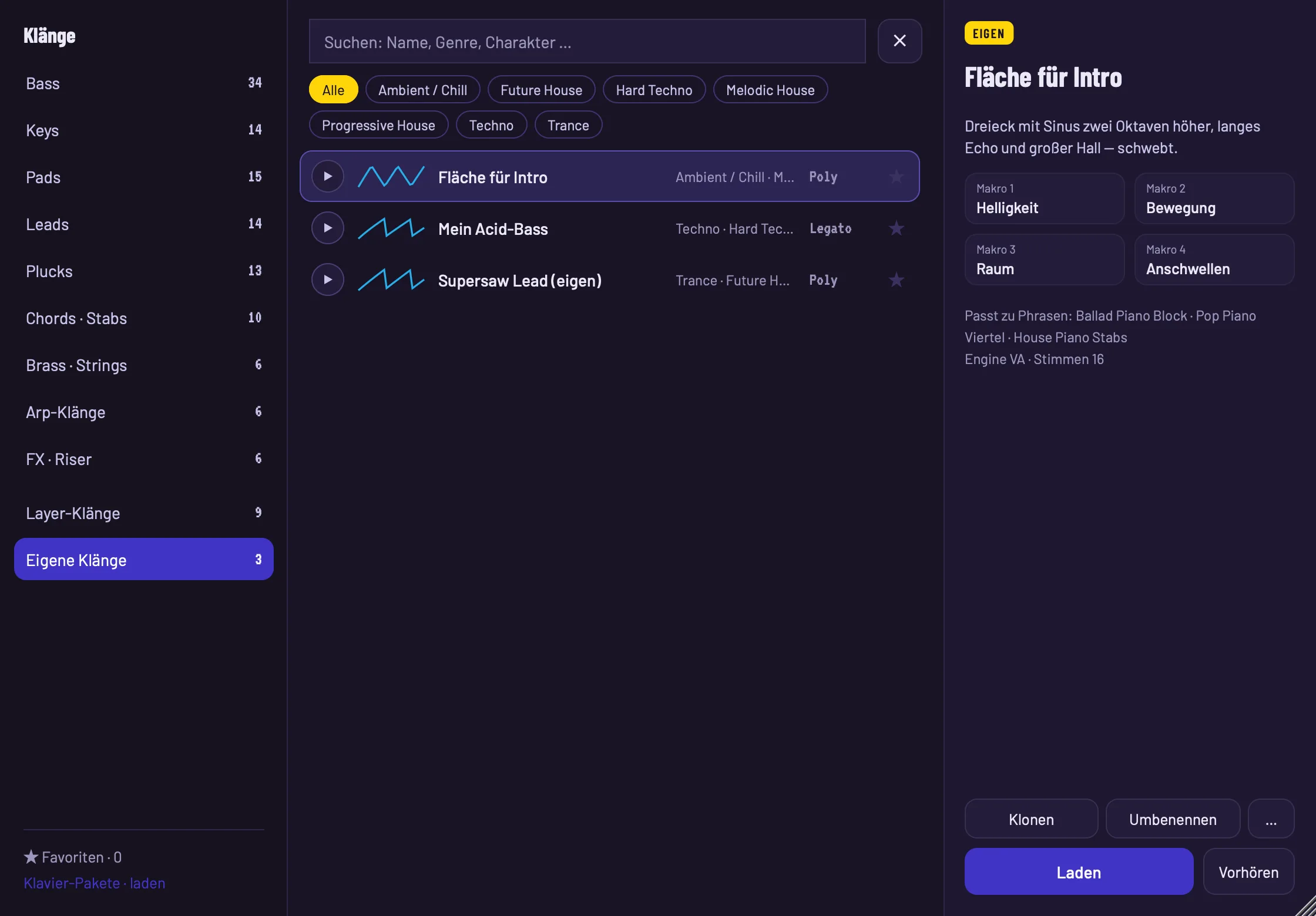
Full view
The full view has tabs at the top: M for the whole sound and 1 to 8 for the layers. A layer is a complete synthesizer; several layers play together (bass + sub, pad + choir) or on separate key and velocity ranges.
- Tabs 1–8: a click opens the layer, the box on the left switches it on or off. Right-click: copy, paste, rename, reset, engine (VA, FM; sample only in layer 1) and “Load sound” – a factory sound is loaded into this layer.
- Oscillators A, B, C: per row unison (drag the number), detune and width, semitone, cent and phase (FREE, or RESTART on every note). The display shows the wave: classic (sine, triangle, saw, pulse) or one of 14 wavetables – click the name or use ◀ ▶. MORPH moves through the frames of the table (for pulse: pulse width), PHASE and RANDOM set the start. The box in front of “OSC” switches the oscillator on or off.
- Bottom row: sub (click: −1/−2 octaves, drag: level), noise, SYNC (e.g. B → A: A restarts its cycle with B) and FM (e.g. C → A, drag: amount).
- FILTER: 18 types in the selector (low-pass, ladder, acid, high-pass, band-pass, notch, peak, comb, formant) with cutoff, resonance, drive, envelope and key tracking. The cutoff control is logarithmic: equal distances are equal numbers of octaves (centre ≈ 630 Hz).
- INSERT: an effect for this layer only; click “INSERT” for all its controls. MIX: voice mode and limit, pan and level of the layer.
- ENVELOPE A–D and LFO A/B: A = volume, B = filter, C and D are free: choose the target (pitch, cutoff, morph, level, pan, FM …) and the amount at the top right of the display. All envelopes have a delay and a curve shape. LFO B has a target as well.
- FM layers show the two FM pairs, carriers and voices instead of the oscillators; piano sounds (sample) are only possible in layer 1.
In tab M:
- Layer table: on/off, name (click opens the layer), level and pan (drag), key range (drag the ends), velocity range, voices, bus (click: A, B or direct), S (solo) and M (mute).
- Macros: eight controls that move several values at once; they act on all layers.
-
Effect chain: BUS A, BUS B and SUM with six slots each. Click the name to choose the type (saturation, distortion, bitcrush, stereo delay, reverb, chorus, ensemble, phaser, flanger, EQ, compressor, trancegate, filter, stereo width), the box switches the slot on or off, double-click or the symbol on the right of the row shows all controls; the small knob next to it is the slot's mix. The stereo delay has separate left and right times (note value or ms), ping-pong, cross, filters in the feedback path, ducking and twelve presets.
-
Header: symbols instead of words – die = Random (Cmd+Option+Z), DIN socket = MIDI mapping (Cmd+Option+K), disk = Save (Cmd+Option+S), at the far right the gear (Cmd+Option+,). Hover over a symbol to see its name and shortcut.
- Save (“Save as user sound”) stores your setting under “User sounds”. The factory sound stays unchanged.
- Automatable: every control of layer 1, the macros, the mix of the effect slots and, for layers 2–8, level, pan, cutoff, resonance and morph. Touching a control selects it in the automation row of the track (new rows with “+” in the track header).
- Commands: tab M (Cmd+Option+0), next/previous tab (Cmd+Option+N / with Shift), layer on/off (Cmd+Option+O).
- Earlier sounds (without layers) sound unchanged; their chorus, delay and reverb stay adjustable in the simple view.
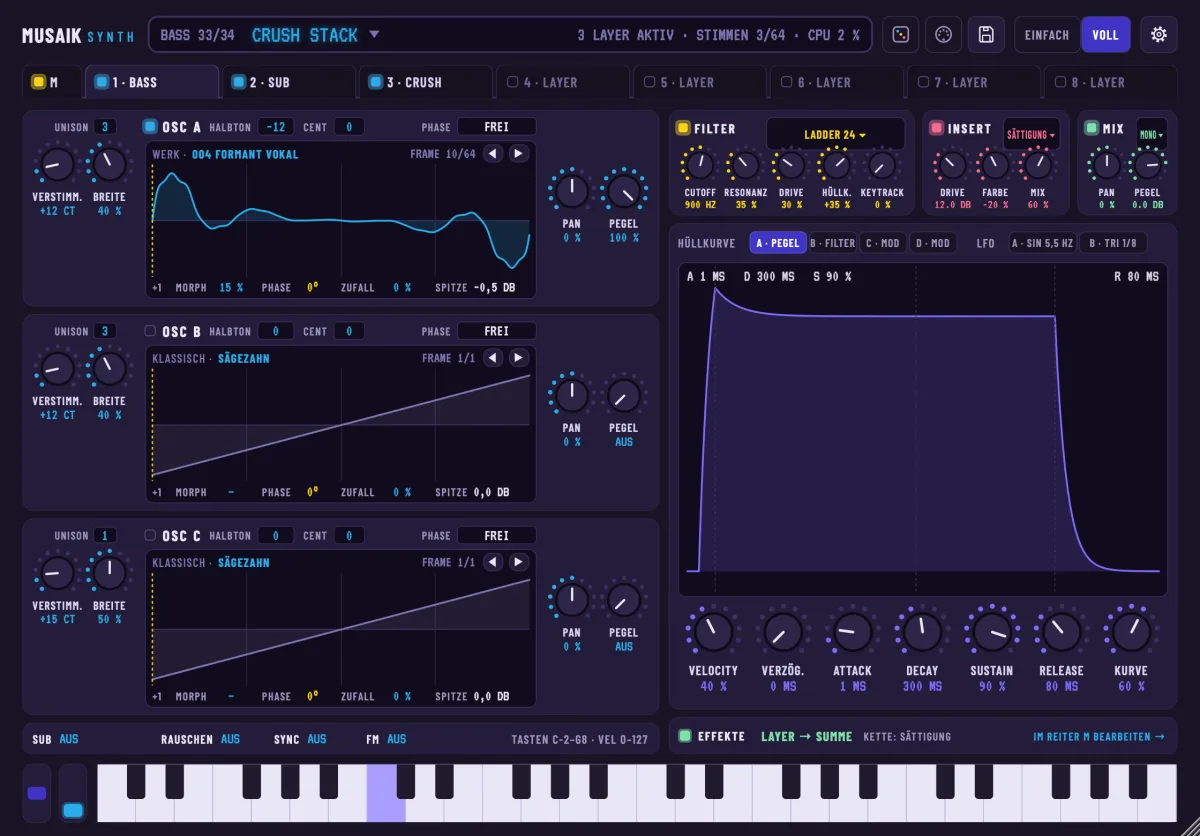
Random
The die in the header of the full view (or Cmd+Option+Z) opens a panel that rolls new sounds – single or with up to four layers, with filter, LFO, envelopes and effects.
- Role: bass, keys, pad, lead, pluck, chords · stabs, brass · strings, arp, FX or “As current”. The role sets range, envelope, filter and effects – the ranges come from the factory sounds of the same role.
- Structure: SINGLE or MULTI with AUTO, 2, 3 or 4 layers. Additional layers are building blocks with a job, e.g. sub, bite, air, octave, choir, width, tail, bell.
- Character: dark ↔ bright, calm ↔ moving, narrow ↔ wide, soft ↔ hard. The centre means “any”, double-click resets. The sliders set a direction, not fixed values – for the effects too.
- Locks: oscillators, filter, envelopes, modulation, effects, structure. Locked parts stay as in the loaded sound.
- Description (AI, optional): e.g. “dark, floating pad with movement”, then ✦ TRANSLATE. The AI sets role, structure, character, building blocks, up to four effects and a name; the synth then rolls the values. Without AI access the field stays grey; rolling always works, offline too.
- MUSAIX (Cmd+Option+R) builds a new sound. While musaik rolls and listens, mosaic tiles in the musaik colours flash and the button glows; once a sound is found, the tiles come together once from left to right. A second click cancels. VARY (Cmd+Option+Shift+R) changes the loaded sound – LIGHT or STRONG; the layer structure stays.
- Effects: musaik picks from all 14 effect types per role – up to four on the sum (e.g. compressor, phaser, delay, reverb), saturation, distortion or bitcrush directly in the layer. With several layers, airy layers get their own echo or room via BUS A, the bite of a bass its own grit via BUS B. The character sliders steer this: moving = phaser, flanger, trancegate, filter sweep; wide = stereo width, ensemble, ping-pong, bigger reverb; hard = saturation, distortion, bitcrush, compressor; bright = brighter highs in EQ, reverb and delay. The result line names every effect, e.g. “Bus A: Hall”.
- Every roll is listened to in the background first: silence, clipping, pure noise, the wrong register for the role or a too-long tail are rejected and rolled again (up to 8 times). The test keeps sounding for up to 3 seconds after the keys are released: anything that builds up (“feeds back”) or does not die away (“does not decay”) is thrown out. Randomness keeps feedback within safe limits anyway — delay feedback at most 0.7, flanger 0.8, phaser 0.75, filter resonance 0.6, reverb size 0.95 — even after many clicks on VARY. Locked effects stay as you set them. The sound is then levelled to the loudness of the factory sounds. The bottom line shows the result, e.g. “✓ checked · −18 LUFS · 2. try (1 rejected: too bright)”.
- History ‹ ›: the last 20 rolls. The display shows “ROLL 7” and the name; the sound counts as CHANGED until you store it with SAVE as your own sound.
MIDI mapping
Every control of the synth can be put on a knob, fader or wheel of your MIDI controller.
- The MIDI symbol (DIN socket) in the header – in the full and the simple view – or Cmd+Option+K shows the MIDI layer. In the full view every assignable control has a violet frame, assigned ones are green with their controller number (e.g. “CC 74”). In the simple view the macro cards show their assignment and the small knobs “CC n”; LIST at the bottom left opens the list.
- Click a control, then move your controller – done. The chosen control blinks yellow (“MOVE …”) until a controller message arrives; click again to cancel. Tabs and effect windows stay usable, so you can reach every layer.
- Right-click a control (also without the MIDI layer): “MIDI learn”, “Remove MIDI assignment” and “All MIDI assignments …”.
- At the bottom is the MIDI ASSIGNMENTS bar. Click “… ASSIGNMENTS ▴” to open the list: per assignment MIN and MAX (value at controller 0 and 127, drag), REVERSE and ✕ to remove it.
- Pick-up: if the controller is somewhere else than the control, nothing changes until the controller reaches or passes the current value – the sound does not jump. This also applies after a sound change, after automation or when you turn the control with the mouse.
- SAVE AS TEMPLATE remembers the assignments of this track; every newly chosen musaik Synth track gets them automatically. APPLY TEMPLATE copies the template to the current track (same controllers are replaced).
- Assignments belong to the track and are saved with the project. One controller steers one control per track, and a control listens to one controller. Like playing, controller messages reach the selected track and every record-armed one; an assigned controller only moves its control, not the sound in addition.
- Control only, no recording: to record, use automation (touch the control, automation row of the track).
Synth settings
The gear opens the SETTINGS page. It applies to all synth tracks and takes effect immediately; FACTORY VALUES resets everything.
- Open: view (SIMPLE, FULL, AS LAST TIME), window size when it opens (75–150 % or as last time; still freely resizable afterwards) and whether the browser opens at the current sound or at the last chosen category.
- Performance: voices per layer, max. (4, 8, 12, 16; pianos four times that). Quality while playing: ECONOMY computes the voices at single instead of double rate – about half the processing time, a little rougher in high registers. The switch takes effect at the next pause; export always uses standard. Read piano packs ahead: 1, 2 or 4 seconds per note.
- Tuning: concert pitch A (415–466 Hz, steps of 0.1 Hz) and transpose (±24 semitones) for all synth tracks. Double-click the value to reset.
- Preview: length 2, 4 or 8 seconds and volume 0, −6 or −12 dB.
- Operation: tooltips on/off, confirm before deleting user sounds on/off.
- At the bottom: how much memory the piano packs currently use, and the synth's processing load.
Downloading the pianos
The two pianos – Grand Piano (concert grand) and Upright Piano (a warmer piano) – are large recordings and are downloaded once, separately.
- If a piano is not downloaded yet, its row in the browser says “not installed” with the button “Download”; instead of the play button the circle shows a down arrow. With such a piano selected, the button at the bottom also reads “Download” (instead of “Preview”), and so does the space bar. In addition, the bottom left of the browser says “Piano packs · download”. A click shows size and destination and, once you confirm, downloads both packs from musaik.info. The command “musaik Synth: download piano packs” does the same.
- While downloading, the progress is shown in percent in the row (ring around the circle, bar in the button) and at the bottom left; a click (or the command) cancels. A cancelled download continues next time.
- The packs go into your library, folder Instruments. The pianos play right away – also on tracks that had already chosen a piano sound.
- If a pack is missing, the piano sound stays silent; the browser tells you with the sound.
- Sustain pedal: with the pedal down, the pianos play their own recordings or a resonance layer – the strings ring along, as on a real piano.
- Licences: Upright Piano (Osiris Piano) is CC0, Grand Piano (Splendid Grand Piano) is public domain. The texts are under Settings › About › Open-source licences and in each pack folder.
Good to know
- All factory sounds are matched to the same loudness (−18 LUFS). When you change the sound, the volume does not jump.
- The synth reports its latency to musaik; tracks stay in sync.
- The project saves the sound – including your own settings without “Save”.
- The synth shortcuts act on the synth window that is currently active, otherwise on the synth of the selected instrument track; its window opens in the process.
- Without a shortcut, but assignable in Settings › Keyboard: “musaik Synth: transpose +1” or “−1” (all synth tracks), “ECONOMY quality”, “tooltips”, “panic”, plus “next roll” and “previous roll”.
- Cmd+Option+. (“All notes off”) reaches the synth too.
Chord lane & key
The chord lane sits under the ruler and shows what happens harmonically in your project: key, chords and how long each one lasts. It is the basis for the harmony assistant (harmonizer), for arp and phrases – and you can correct every field by hand.
A DJ mix has no chord lane.
What the lane shows
- One box per chord, starting in the bar where it begins. Bright means: sounding right now.
- A yellow dot on the right edge means: set by hand. Those fields survive every rebuild.
- A dashed box means: detection is so unsure here that chord follow does not follow the chord (see “minimum confidence”). A thin line instead of a box is a gap – the key applies there.
- The header column on the left shows the key and the chord grid, for example “Key Eb · 2 bars (auto)”.
- With nothing detected yet it says “Chords not detected yet — click here”; during analysis “Detecting chords …”.
- Cmd+Shift+C shows and hides the lane.
Where key and chords come from
The chords are not guessed from the mix; they are read from the music and bass stems of one title: the harmony reference. Only if those stems do not exist yet does musaik fall back to the mix – the result is then less accurate.
- musaik picks the harmony reference in this order: a title you chose, otherwise the structure master if it supplies music or bass, otherwise a title with music, otherwise a title with bass, otherwise the master.
- By hand you can also choose a title of which only the vocals play. The vocals then stay in their key, the other lanes follow them, and key and chord lane come from that title – even if its music cannot be heard.
- The structure master is a different thing: it provides arrangement, grid, tempo and loudness. Key and chords come from the harmony reference.
- In a mashup you change it in “Tracks & stems” (Cmd+T) with the buttons “Structure” and “Harmony” (symbols; point at one briefly and its name unfolds). The “Harmony” button only appears on titles that supply music, bass or vocals. If it reads “Harmony (auto)”, musaik chose it; one click sets the harmony reference by hand, a second click on the same button hands it back to the automatic. Ctrl+Option+H steps on: automatic, then each eligible title in turn, then automatic again.
- In the track header you can tell them apart by the symbols: star = structure master, treble clef = harmony reference.
- In edit mode the master is always the reference.
Key derived from the chords
- musaik checks the detected key against the actual chord progression – which chord feels like home, where a dominant resolves, how the title starts and ends.
- If the progression fits the relative key better, musaik swaps the lane's key and says so in yellow: “Key Am (detected: C)”.
- Scale of the chords: If the chord tones lie in a major scale – major, natural minor or a church mode such as dorian or mixolydian –, the lane uses that major key (A minor → “Key C (detected: Am)”, B dorian → A major). The chords follow its scale: a detected A becomes Am in C major, a D becomes Dm. Chords outside the scale (Bb in C major) stay.
- If the chord tones fit harmonic or melodic minor clearly better (raised 7th, or raised 6th and 7th), the lane shows e.g. “Key Am harmonic” and the chords follow that scale: Em → E, in melodic minor Dm → D. The III stays major (C rather than C+).
- This applies to the chord lane, to degrees and to chord follow. It does not apply to transposing the titles: that still follows the detected key. Chords you set by hand stay as they are.
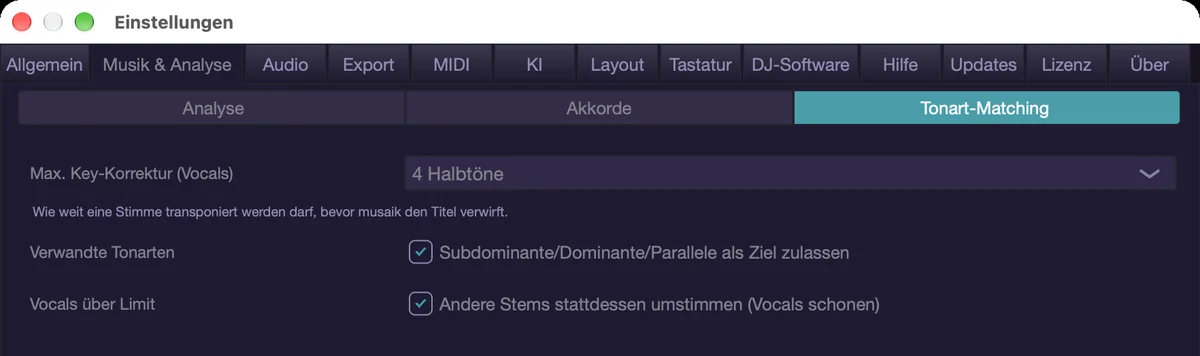
The chord grid
- The grid is the minimum length of a chord and decides where a change may sit at all. That is what smooths the lane.
- By default the analysis picks it per title: a quarter if many chords change on beat 2 or 4, half a bar if chords change mid-bar, two bars for slow pads, otherwise one bar. The choice is shown left of the lane with “(auto)”.
- If the result is not clear, the fallback grid from Settings › Music & analysis › Chords applies. With “Grid automatic” off, the same field is called “Smoothing (chord grid)” and always applies. The default is one bar.
- You can choose 1/8, 1/4, 1/2, 1 and 2 bars. The quickest way to try is a right-click on the lane, “Grid” (or the command “Chord lane: change grid”, which steps automatic → 1/8 → 1/4 → 1/2 → 1 → 2 bars): the lane rebuilds at once, without a new analysis – so you see right away whether the result gets better or worse.
- The choice in the right-click menu is the same setting as in Settings › Music & analysis › Chords: a fixed grid switches “Grid automatic” off, “Automatic per title” switches it back on. It applies to all projects.
- 1/8 and 1/4 are computed from fine data the detection stores per eighth. Titles detected before this version do not have it yet: the lane then says “fine data missing”, musaik re-detects the chords of that title once in the background, and until then the lane shows half a bar. The automatic never picks eighths – changes that fast are rare, and there a detection error could not be told apart from a change.
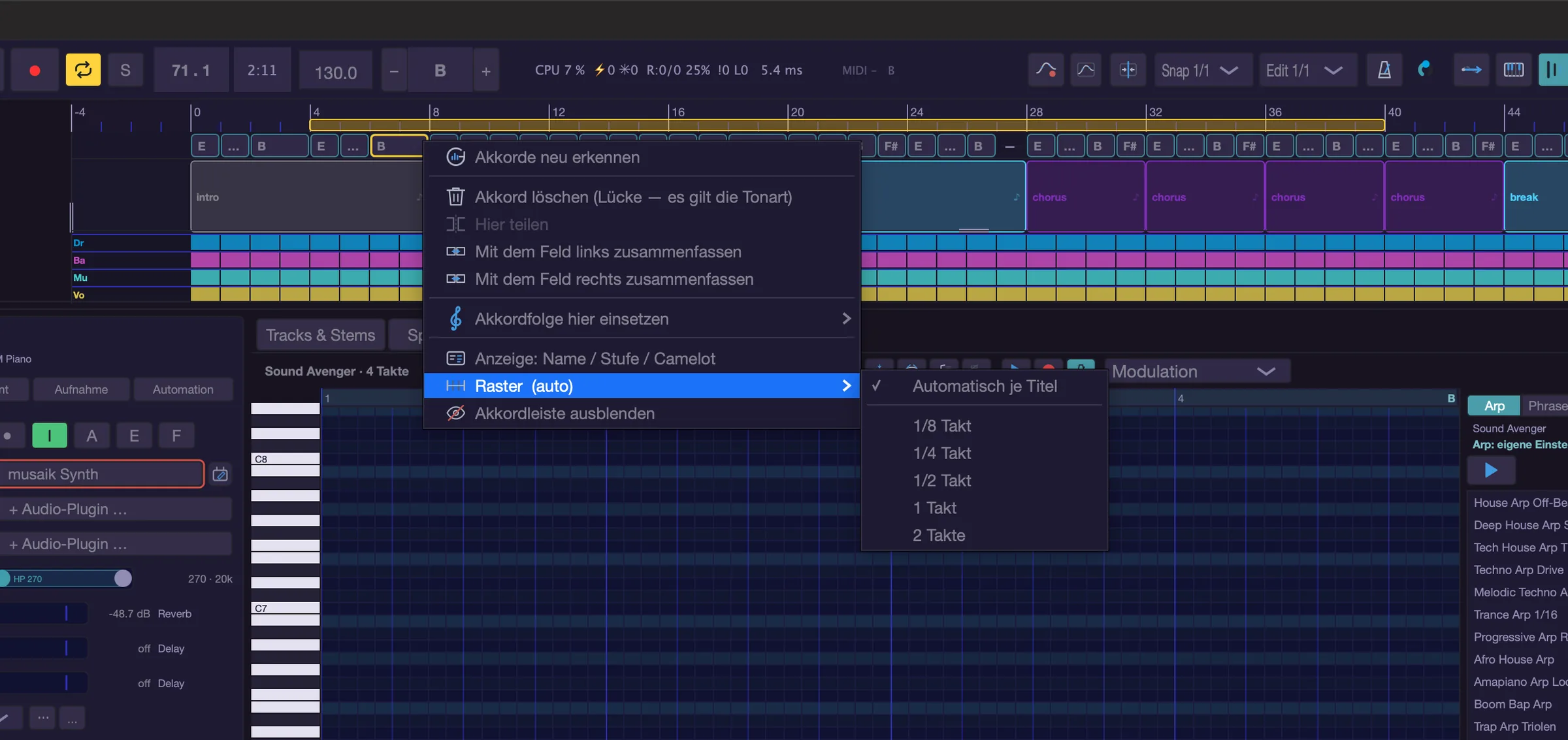
Spelling and display
- Spelling follows the lane's key: in E flat major you see Eb, not D#.
- Right-click › “Display: name / degree / Camelot” steps on with each call: chord names, degrees (I, ii, V …), Camelot code.
- The same choice appears as “Chord lane shows” in the play assistant, section “Advanced”.
- Degrees are relative to the key. Without a detected key they say nothing.
Gaps and unsure spots
- A gap is not a failure but a statement: no chord applies here, the key does. Chord follow steers onto scale tones there, and arp and phrase play the key's triad as long as “Key applies where no chord” is on.
- In “trigger” mode a gap produces no chord: there is nothing for the key to trigger, so the played note passes through unchanged. The same applies at spots below the minimum confidence.
- “Minimum confidence (chord follow)” in Settings › Music & analysis › Chords says how sure a chord must be before it is followed. The default is 0: where a chord was detected, it is followed.
- The number measures how unambiguous the name is, not how good the detection was. Related chords share notes, so even correct chords often sit around 0.2. Raise the slider and more fields become dashed – and there the key applies.
Correcting
- Click the middle of a field to open the menu “Chord from bar …”: one submenu per root with major, minor, 7, m7, maj7, sus4, dim and power. Plus “No chord (rest)” and “Undo correction (back to detected)” (only available on a field set by hand).
- The field you clicked last is selected and has a yellow frame – Shift+Delete acts on it.
- Drag an edge to move the boundary between two fields: point at the edge of a field until the pointer turns into a double arrow, then drag. The boundary snaps to the chord grid; hold Option to snap to quarter bars.
- Double-click a field to jump to its start.
- Right-click offers “Detect chords again”, “Delete chord (gap — the key applies)”, “Split here”, “Merge with the field on the left”, “Merge with the field on the right”, “Insert chord progression here”, “Discard all corrections” (only when there are corrections), the display switch, “Grid” and “Hide chord lane”. “Split here” splits the field where you clicked (rounded to the chord grid).
- “Insert chord progression here” is a submenu with eight common progressions and their length in bars. The chosen one is written into the lane from the clicked bar, one chord per bar – for places where no title plays. Without a detected key it stays greyed out, with “(detect the key first)” below it.
- Shift+Delete removes the selected field, Cmd+Shift+G opens the same list of progressions and inserts the chosen one from the playhead.
- “Detect chords” (and “Detect chords again” in the right-click menu) rebuilds the lane and discards your chord corrections in the process. “Discard chord corrections” does the same without a new analysis.
- Clicking an empty lane starts detection.
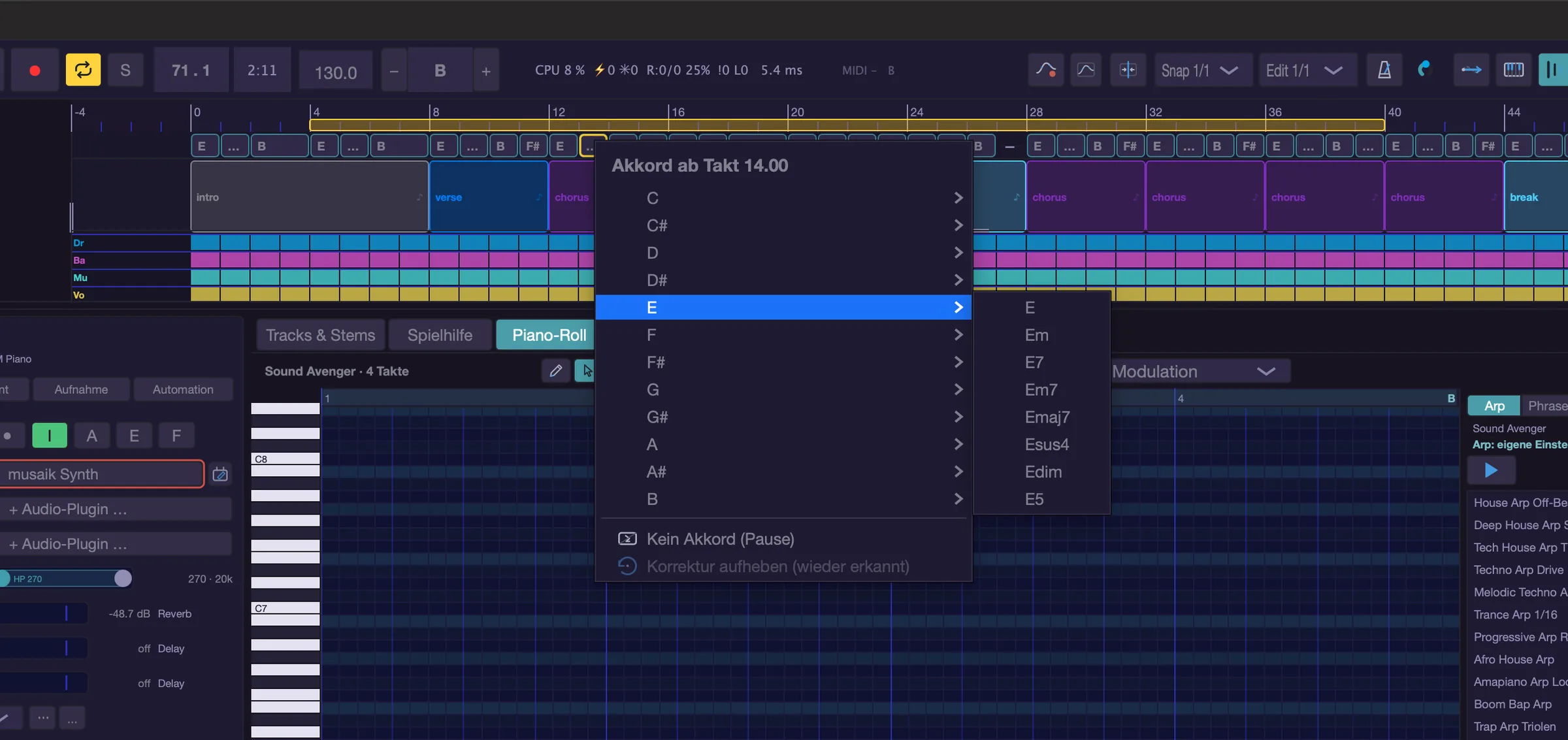
How good is the detection?
- The chords come from a dedicated model that runs on this computer. In one measured pop title the root was right in about nine out of ten places, major or minor almost as often.
- Typical errors: the fifth instead of the root, minor read as major, and places where no chord is found at all. On dense club tracks without clear harmony detection is less reliable; that has not been measured.
- So trust your ear and correct the few spots that bother you – a correction takes effect immediately for the harmonizer, arp and phrases.
- There is more on this in the chapter “How musaik analyses tracks”.
Keyboard shortcuts
- Cmd+Shift+C – Chord lane on/off
- Ctrl+Option+H – Change harmony reference
- Shift+Delete – Delete the selected chord field
- Cmd+Shift+G – Insert a chord progression from the playhead
- Cmd+T – Open Tracks & stems
- No factory shortcut: “Detect chords”, “Discard chord corrections”, “Chord display (name/degree/Camelot)”, “Chord lane: change grid”, “Harmony assistant on/off”
Harmonizer & Chord Follow
The harmony assistant (harmonizer) steers your notes onto pitches that fit the song. It knows the key and the chord that is running right now – from the chord lane – and moves every unfitting note to the nearest allowed pitch. That lets you play along on an instrument track without knowing any theory.
The same machinery is called chord follow in technical terms. The Play section offers a few buttons, the Advanced section the same values in plain settings – not two programs, but two levels of control over one set of values.
Where it lives
- In the centre area at the bottom: tab “Play assistant” (in a mashup, as soon as the project has an instrument track; also via the command “Center: play assistant”). It sits there as a column, with the track’s piano roll beside it – while you adjust, you see what is actually played.
- The column’s header has the “Active” switch on the right. Phrases are not in the column but in the phrase panel of the piano roll beside it – one place, so the two can never disagree.
- The column has sections you can open and close: Play, Chord change, Current song, Advanced and Chord map. A closed section shows its settings in the header (e.g. “Anticipation 1/16 · close · add9”). The first three are open by default.
- Explanations no longer sit under every control but in the info line at the bottom: point at a control and it says what it does.
- “Active” off means notes 1:1. Chord follow is then set to “Off”, the buttons stay pale and show what will apply again once you switch it back on.
- The settings belong to the track. Every instrument track has its own.
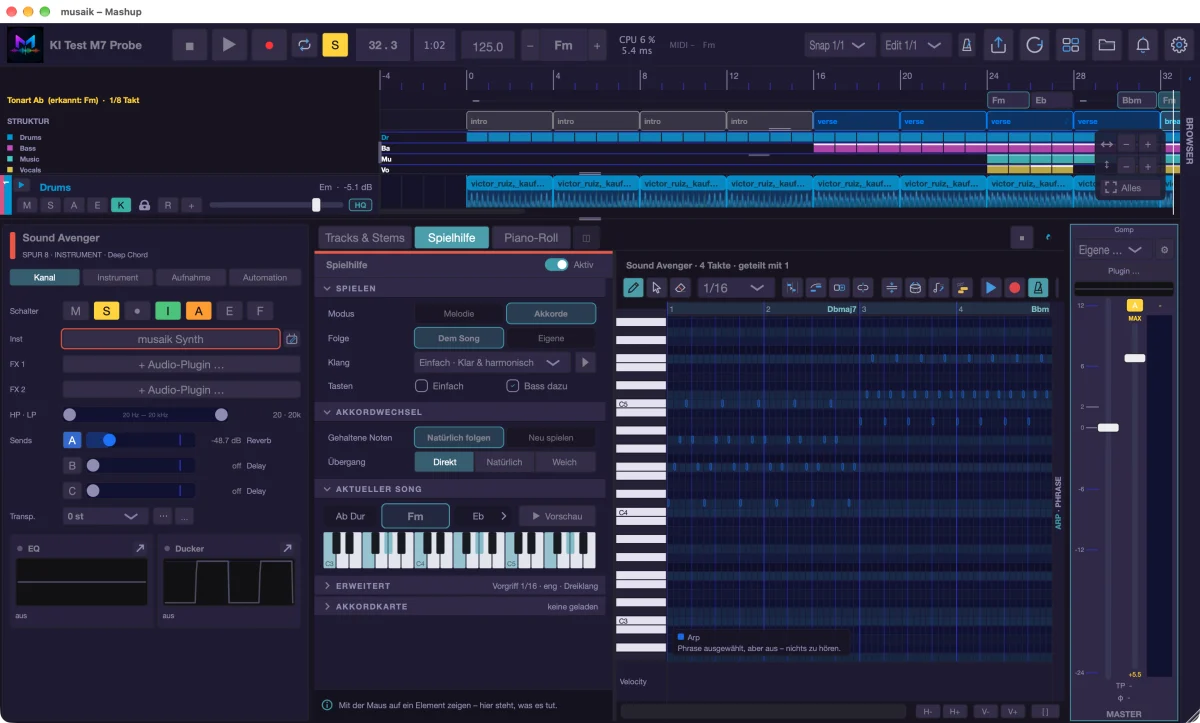
Live or clips – who follows what
- Clips always follow when “Follows chords” is on for the clip (piano-roll title bar, on by default). Off means the clip plays exactly its own notes.
- Your live playing only follows when “Live playing follows too” is on. Choosing “Melody” or “Chords” under Mode switches it on – whoever clicks them means their own playing.
- In the “Advanced” section it stays a separate switch. For new tracks it is off by default.
- A phrase (piano roll panel) changes nothing here: a phrase is material, not a mode.
- The “Chord map” mode always affects live playing, with or without the switch.
Step by step
Only what actually has an effect is shown – the rows change with your choice. In the Play section:
- Mode – “Melody” (single notes) or “Chords” (one key = a whole chord). Phrases are chosen in the piano roll’s panel beside it.
- Help (melody) – three levels: “Wrong notes”, “Fitting” and “Musical”, see below.
- Source (chords) – “The song” or “Own”, see below. With “Own” the progressions are listed below in the row “Chords”, each with a small ▶ that plays its first chord.
- Sound (chords) – the five characters in a menu, ▶ previews the chosen one.
- Keys – “Simple” and “Add bass”, see below.
- The Chord change section holds “Held notes” and the transition, Current song shows key, current and next chord, “▶ Preview” and a three-octave keyboard: it shows the notes sounding right now – what the assistant makes of your key. When you are not playing, the current chord’s notes are shown faintly.
The three levels of help for melodies
The column shows the three levels with short names; the full name appears in the info line when you point at the button.
- “Wrong notes” (Only avoid wrong notes) – your note is pulled to the nearest scale tone of the key. You stay as close as possible to what you played.
- “Fitting” (Always fit the chord) – your note is pulled to the nearest chord tone. This is the default.
- “Musical” (Play more musically) – a chord tone on the beat, a passing tone of the key in between. Sounds more natural because not every note sticks to the chord.
- Example: over a C major chord you press F. With “Fitting” you hear E – the nearest chord tone; with “Direction” set to “upwards” it becomes G. With “Wrong notes” F stays, because F belongs to the key of C major.
- Which way it rounds is set by “Direction” under “Advanced”: nearest note, always upwards or always downwards.
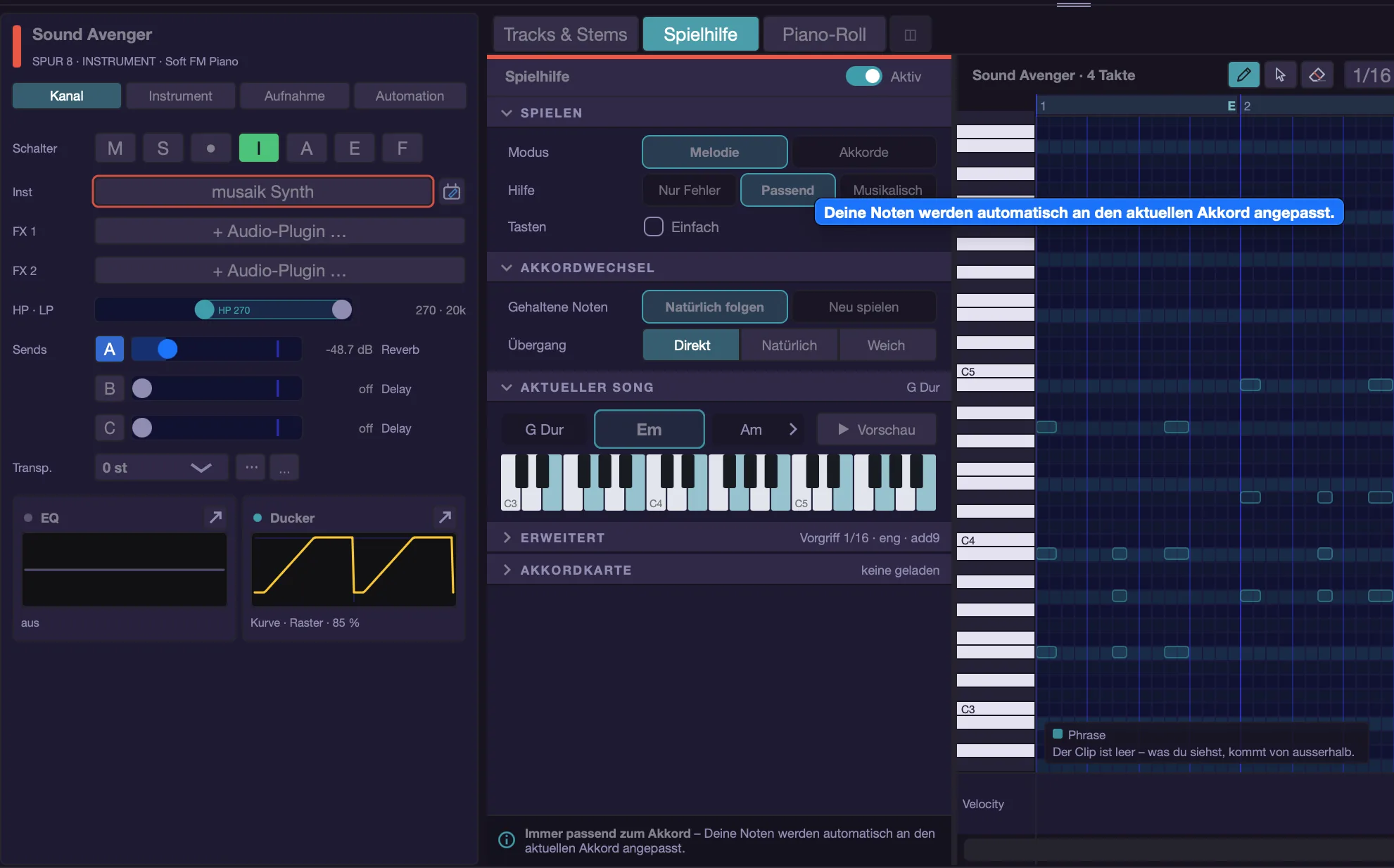
Playing chords: “Follow the song” or “Your own progression”
- “Follow the song” (button “The song”, trigger mode) – every key plays the chord that is currently in the chord lane. The key does not choose the chord, only its position: grab the root and you get root position, grab the third and you get the first inversion. Your hand moves up, the chord moves with it.
- “Your own progression” (button “Own”, degrees mode) – now the key chooses the chord and the song only supplies the key signature. The white keys C D E F G A B are degrees I to VII of the key; black keys fall back to the white key below.
- If you picked a progression, its first chord sits on C, the second on D and so on – identically in every octave. With “Free” every white key gets its own degree.
- Below the “Chords” list you see the key layout of the chosen progression, for “Pop” in C major for example “Keys: C = C · D = G · E = Am · F = F, then it starts again”. So the progression does not run over time by itself: without a key – played live or recorded in a clip – there is no chord of your own.
- Arp and phrase only play your chords when their source is set to “played chord” (arp: “More …” › source, phrase: “notes: played chord”). On “chord lane” they play the song's chords. If you choose “Own” while one of them is not yet on “played chord”, the app asks “Switch arp and phrase?” – “Switch” changes both, “Keep as is” leaves them as they are.
- With “notes: played chord” the piano roll shows the phrase fainter as an example against the song's chords (legend: “phrase (example: song chords)”): rhythm and position are right, the pitches depend on your key when you play. For the arp with “played chord” there is no preview; the legend says “The arp follows your played chord – preview only while playing.” While you play, “actually sounding” shows what really sounds.
- In the “Chords” list each button shows the chords you actually get (for “Ballad” in E major for example “C#m · A · E · B”); the style name appears in the info line when you point at it. Without a detected key the buttons only show the style names, and a line below says the chords must be detected first.
- Degrees do not work without a key. The played note then passes through unchanged.
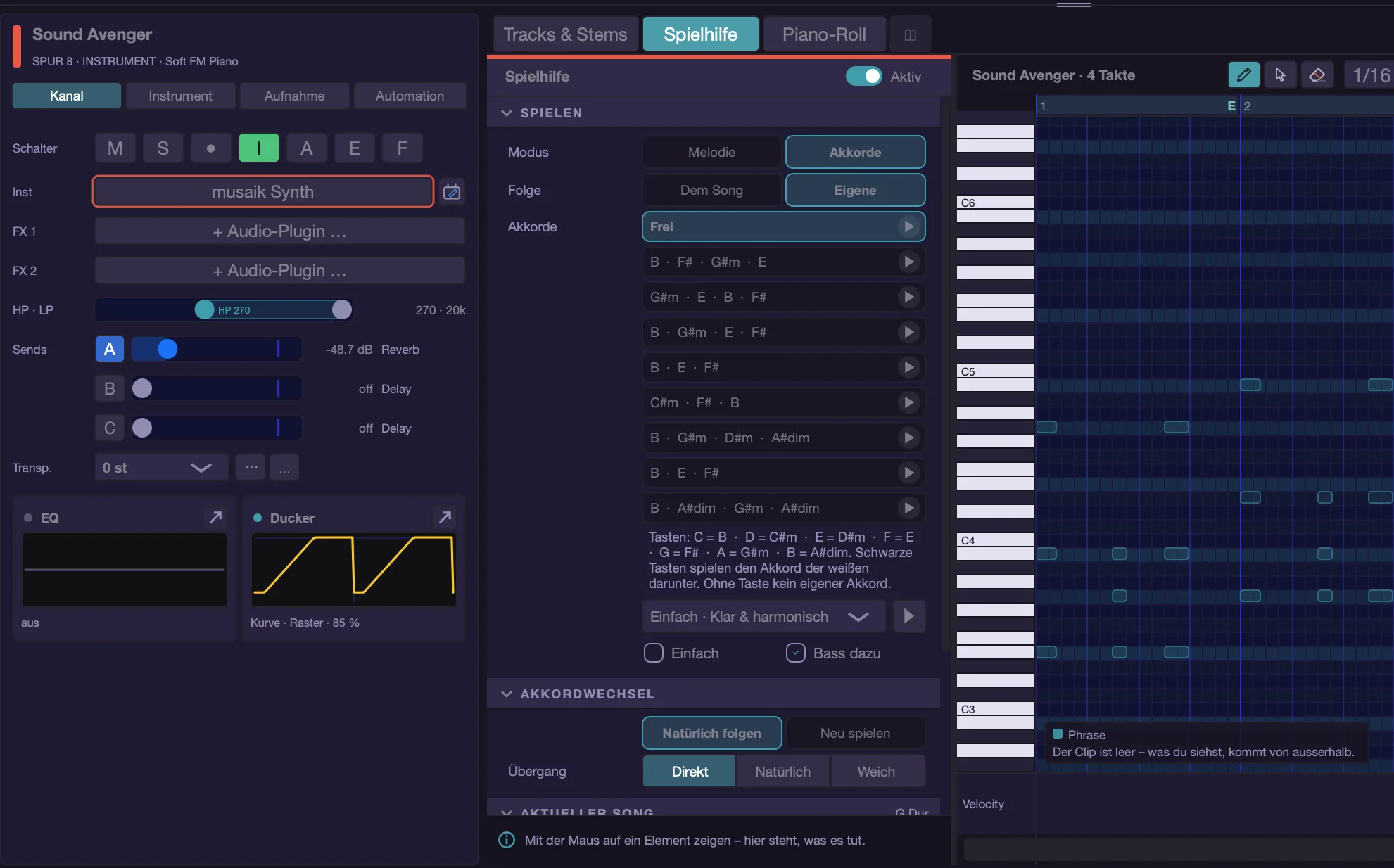
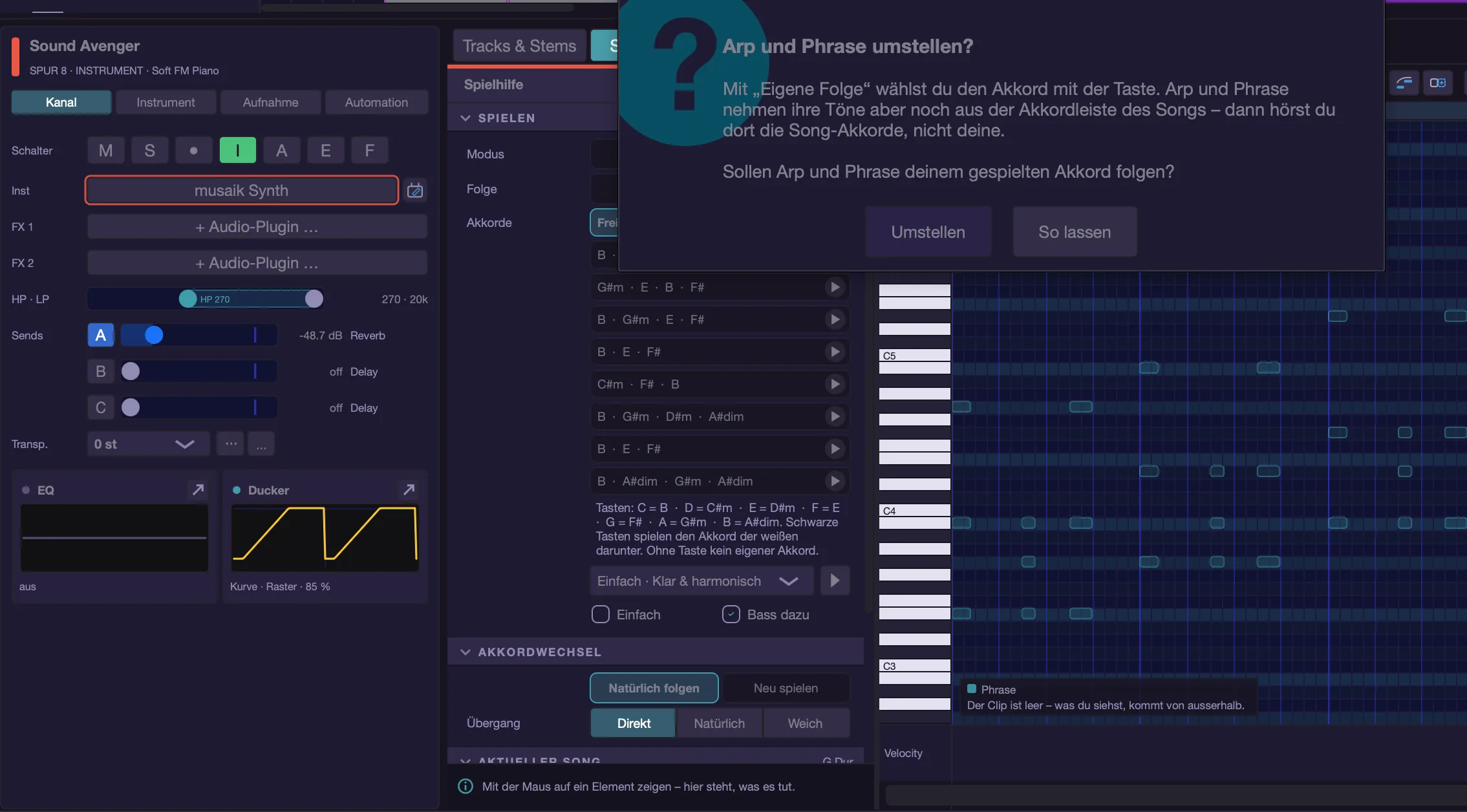
How should they sound?
The “Sound” menu only exists for chords – a melody key produces a single note, and there is nothing to stack. ▶ next to it previews the chosen sound.
- “Simple” – triad, close position, three notes. Clear and harmonic.
- “Pop” – add9, close, three notes. Modern and catchy.
- “Emotional” – major seventh, drop 2, four notes. Warm and melodic.
- “Open” – sus2, open position, three notes. Airy and wide.
- “Wide” – seventh, octave doubling, four notes. Full sound.
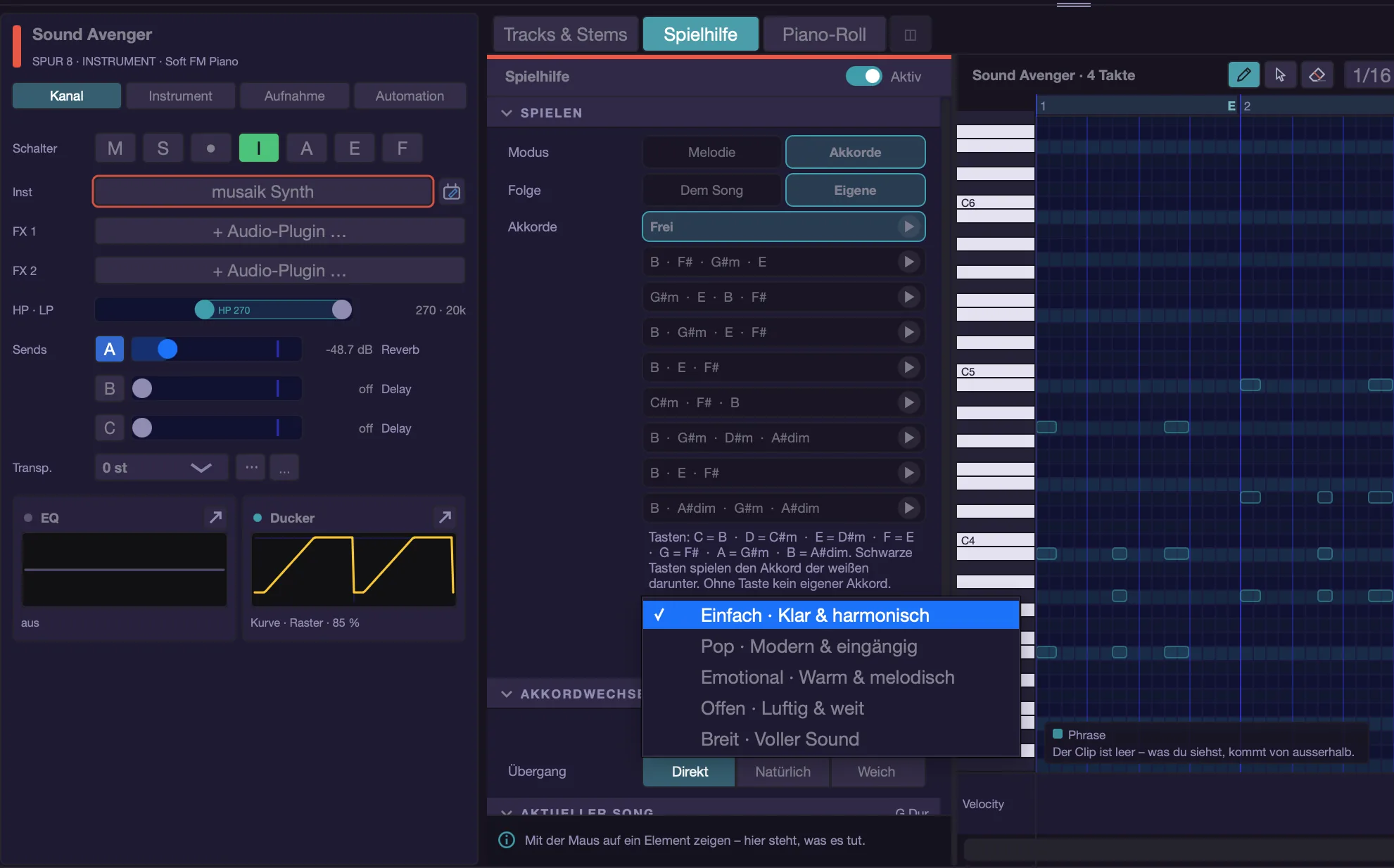
When the chord changes
- “Follow naturally” (button “Follow”) – held notes change with the chord, but only when the notes really differ. For pads and layers.
- “Play again” – every chord change strikes again, even when the notes stay the same. For piano and anything where the attack is the music.
- The buttons “Direct”, “Natural” and “Soft” set the transition: no overlap, 30 ms or 90 ms. A short overlap helps plug-ins that play a whole drum pattern with the chord – they see a legato and keep their groove.
Keys and current song
- “Simple” (keys) – every white key becomes a note of the key. Playing a wrong note is impossible.
- “Add bass” – chords only. Each chord also gets its bass note one octave below its lowest tone. On a slash chord like C/E that is the E, the note the song really has in the bass.
- The “Current song” section shows key, current (highlighted) and next chord. Clicking the next chord jumps there. “▶ Preview” next to it plays the current chord with your settings.
- The keyboard below shows what is sounding right now.
- If “Play” says “Custom”, the settings match none of the choices – usually because something under “Advanced” is set that is not offered there. Clicking one of the buttons switches to it.
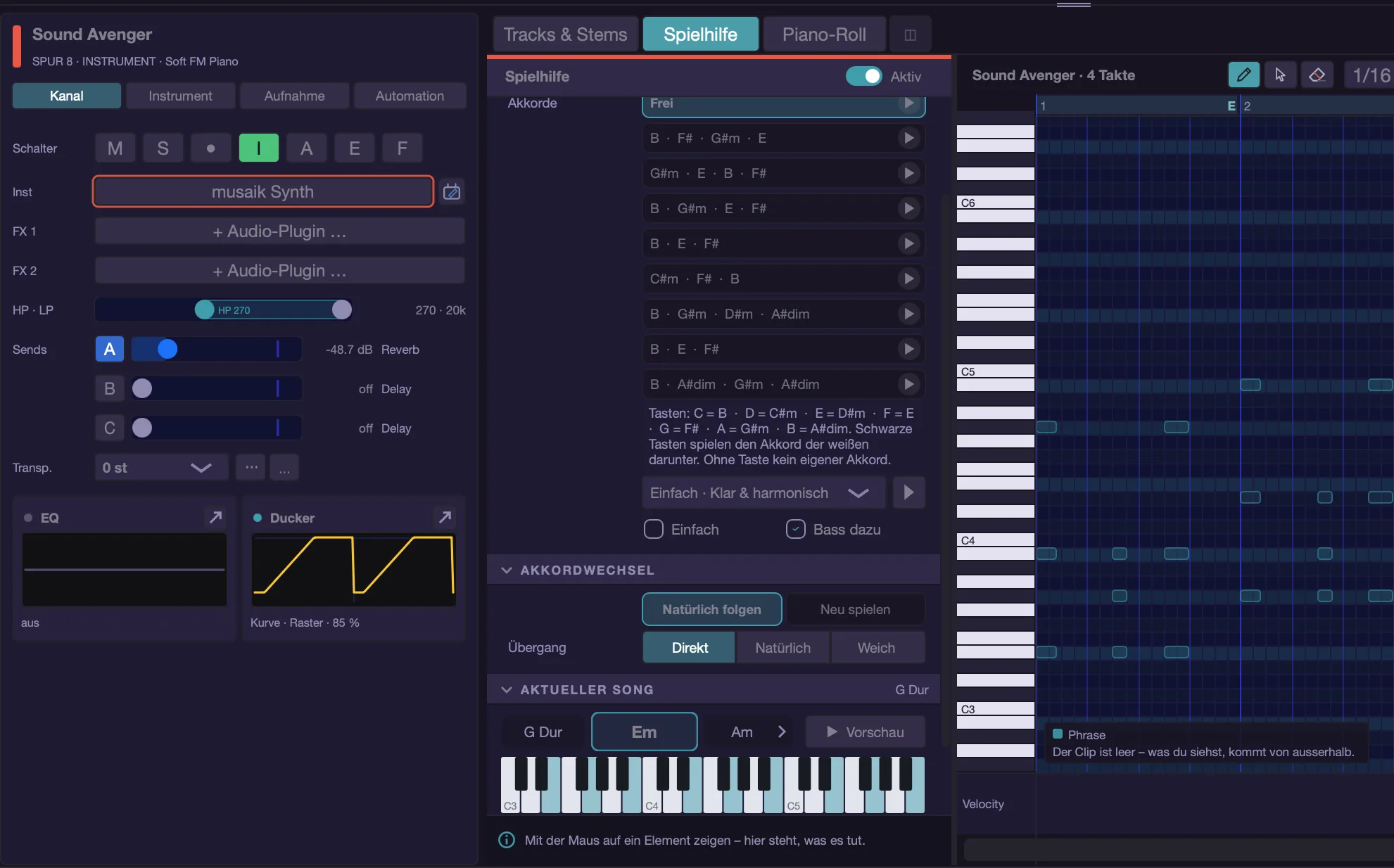
The “Advanced” section
- “Chord Follow” – “Off (notes 1:1)”, “Scale of the key”, “Chord tone” (default), “Chord + passing tones”, “Trigger (key = chord)”, “Degrees (key = your own chord)” and “Chord map (fixed assignment)”.
- “Direction” – “nearest note”, “upwards” or “downwards”. Where an unfitting note is moved.
- “Voicing (trigger)” – “close”, “open”, “Drop-2” or “octave doubling”. Applies to trigger and degrees.
- “Chord progression” – degrees mode only: “free” or eight common progressions (Pop I-V-vi-IV, Ballad vi-IV-I-V, Fifties I-vi-IV-V, Simple I-IV-V, Cadence ii-V-I, Minor pop, Minor classic, Minor drive).
- “Chord colour” – “as detected” (default), “triad”, “seventh (7)”, “major seventh (maj7)”, “sus2”, “sus4”, “add9” or “power (no third)”. Which chord plays does not change – only how it sounds. Major never becomes minor.
- “On chord change” – “keep held notes”, “retune held notes” (default for new tracks) or “always strike again”.
- “Overlap notes (multi-drum)” with “Overlap” (1 to 250 ms, 30 is usual). Ticking it sets “On chord change” to “retune held notes” if needed – without a change there would be nothing to cross-fade.
- “Look-ahead” – off, 1/32, 1/16 (default) or 1/8. Notes shortly before a chord change already belong to the new chord, otherwise the pickup sticks to the old one.
- “Colours in key (major reference)” (on) – seventh, ninth and suspension follow the degree in the key. In C major the colour “seventh” gives Cmaj7 on C and G7 on G. The detected chord itself stays as it is.
- “Scale tones only (strict)” (off) – even the notes of the detected chord are pulled to the nearest scale tone. An E7 in A minor then loses its G sharp. Strict, but never off.
- “Key applies where no chord” (on) – in gaps of the chord lane, arp and phrase play the key's triad instead of falling silent, and the roll shows them there too.
- “White keys = scale” – the same thing as “Simple” under “Keys” in the “Play” section.
- “Lowest note = root” – a low played note is steered onto the root, that is, replaced. Not to be confused with “Play bass one octave lower”, which adds a note.
- “Play bass one octave lower” – the same thing as “Add bass” under “Keys”.
- “Chord lane shows” – chord names, degrees or Camelot. Degrees only while the harmony assistant is in its advanced view (see keyboard shortcuts); otherwise the choice jumps back to “Chord names”.
- “Live playing follows too” – see above.
- “Load chord map …” reads a Ripchord preset (.rpc): every key gets a fixed chord. It takes effect in “Chord map” mode; “Clear map” discards it. Keys without an entry sound as played.
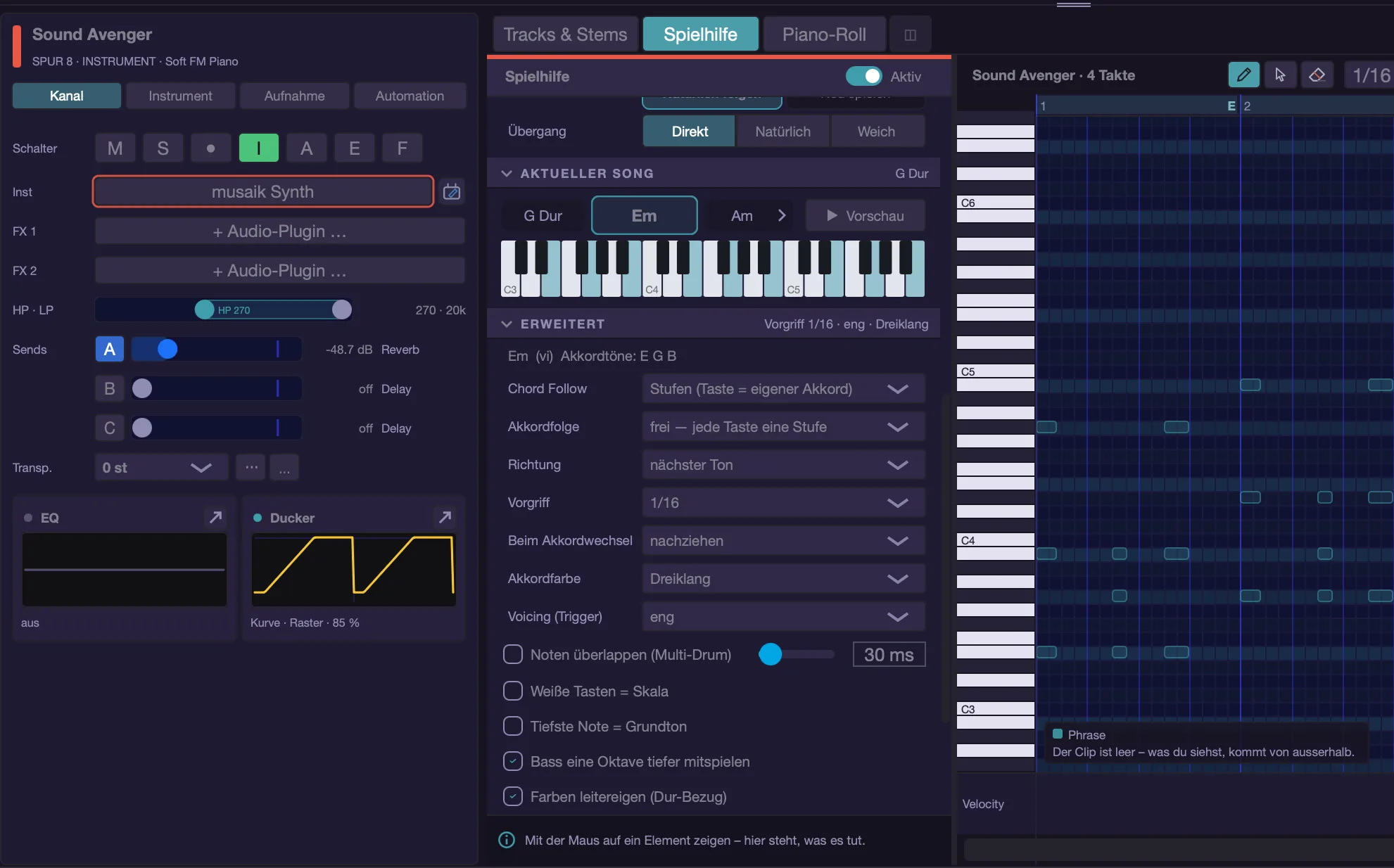
Reading the plain-text line
At the top of the “Advanced” section one line says what currently applies.
- “Cm (i) chord tones: C Eb G” – the running chord, its degree and the allowed notes.
- “Cm (i) plays Cm7: C Eb G Bb” – in trigger mode: if colour or the major reference make the played chord differ from the detected one, it is named. You see the reason instead of suspecting a bug.
- “No chord here -- the key applies.” – you are standing in a gap.
- “(unsure -- the key applies)” – detection is below the minimum confidence.
- “Degrees: the KEY picks the chord” – in degrees mode, with key and chosen progression.
- A yellow sentence warns that a live phrase is swallowing your keys: then you hear the song, not your playing.
What you see in the piano roll
- Yellow ghosts show where chord follow steers the clip's notes. They only appear when “Follows chords” is on for that clip.
- The switch next to “Follows chords”, “Show Chord Follow notes only”, hides the original notes and shows only the steered ones. While it is on, editing is locked; the legend says “Chord Follow notes only – originals hidden, editing locked.” It only acts while the clip follows chords.
- Blue is the arp, the accent colour the phrase (fainter when it is only an example), violet an AI suggestion. The legend at the bottom left names only what is actually visible.
The order of things
- Input → track transposition → chord follow → performance settings → instrument.
- Because transposition happens first, it cannot push you out of the harmony: chord follow is the last authority on which notes are allowed.
Common surprises
- “I play C and hear B.” Chord follow is steering your live playing. If you do not want that, switch off “Live playing follows too” or set the mode to “Off”.
- “I press a key and nothing is steered.” The opposite case: “Live playing follows too” is off. “Melody” or “Chords” under Mode switches it on.
- “Always the same chord.” In degrees mode that is correct – there the key chooses. The plain-text line under “Advanced” says so.
- “The chord does not fit the song.” Then it was detected wrongly: click the field in the chord lane and correct it. The change takes effect at once.
- “Nothing happens in some bars.” There is a gap there, or detection is below the minimum confidence. In trigger mode a gap or unsure spot lets the played note through unchanged.
- “Degrees do nothing.” The mode needs a detected key.
- “The chord is named differently than in the lane.” That is the chord colour or the major reference. The plain-text line names both.
Keyboard shortcuts
- Cmd+Option+P – Switch the bottom area between mixer and piano roll
- Cmd+Shift+C – Chord lane on/off
- Ctrl+Option+H – Change harmony reference
- Shift+A – Generator panel (arp, phrase, AI) on/off
- No factory shortcut, assignable under Settings › Keyboard: “Play assistant: advanced open/close”, “Play assistant: all sections open/close”, “Play assistant: harmony assistant on/off”, “Play assistant: next sound”.
- No factory shortcut, also assignable: “Center: play assistant”, “Piano roll: Chord Follow notes only” and “All instrument tracks: retune held notes on chord change”.
- No factory shortcut: “Harmony assistant on/off” switches between the simple and advanced view. With the play assistant column you notice it in the chord lane: it can only show degrees in the advanced view. In the menu the entry is ticked while the simple view applies.
Arp & phrases
Arp and phrase create notes without you writing them. The arp turns a chord into a figure, a phrase is a ready-made rhythm that takes its notes from the song. Both follow the chord lane – so they still fit after you swap the title or change the key.
Both belong to the instrument track, not to the clip: every track remembers its own arp and its own phrase.
The generator panel
- It sits to the right of the piano roll and has three pages: “Arp”, “Phrase” and “✦ KI” (the AI page). Shift+A opens and closes it (as does the “❮” button at the top right of the panel), the key I jumps to the AI page.
- If the roll is narrow (under 700 pixels), the panel overlays the roll instead of sitting next to it. Collapsed, a narrow handle stays on the right edge – click it to bring the panel back.
- The top line says which track you are adjusting, and below it in plain words what is selected on it: “Arp: Trance Arp 1/16” or “Arp: custom setting”, “Phrase: …” or “Phrase: none selected”. The panel follows the selected instrument track – you do not need to open a clip for that.
- “On” switches the generator shown on. The AI page has neither “On” nor start.
- The mouse wheel scrolls the panel vertically. Only a sideways swipe moves a slider – so scrolling never catches a slider by accident.
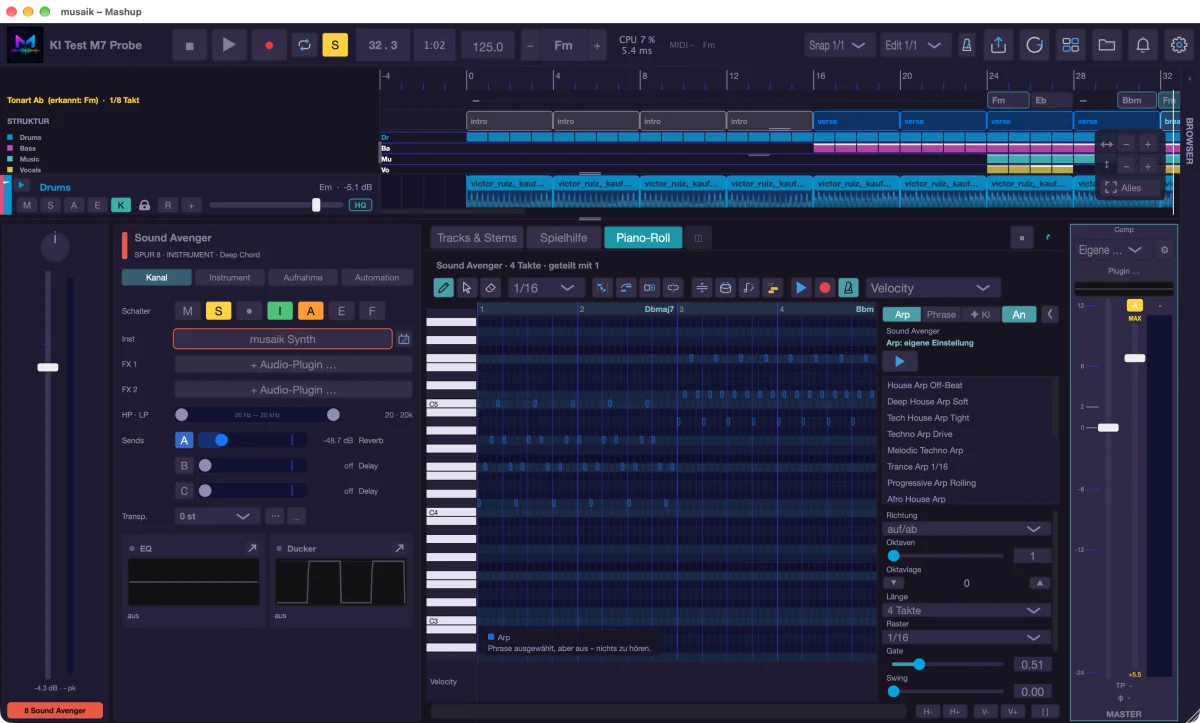
Start and stop
- The start button (Shift+S) plays the roll's clip from its start as a loop – with arp, phrase and chord follow, at the arrangement tempo. That way you hear your figure without starting the arrangement.
- It stops by itself as soon as the arrangement starts.
- If you pick a different arp preset or phrase while start is running – by click or with the arrow keys through the list – the loop restarts right away with the new choice.
- An empty clip is enough: the arp takes its notes from the chord lane and plays them.
- Live playing through the harmonizer always sounds, with or without start.
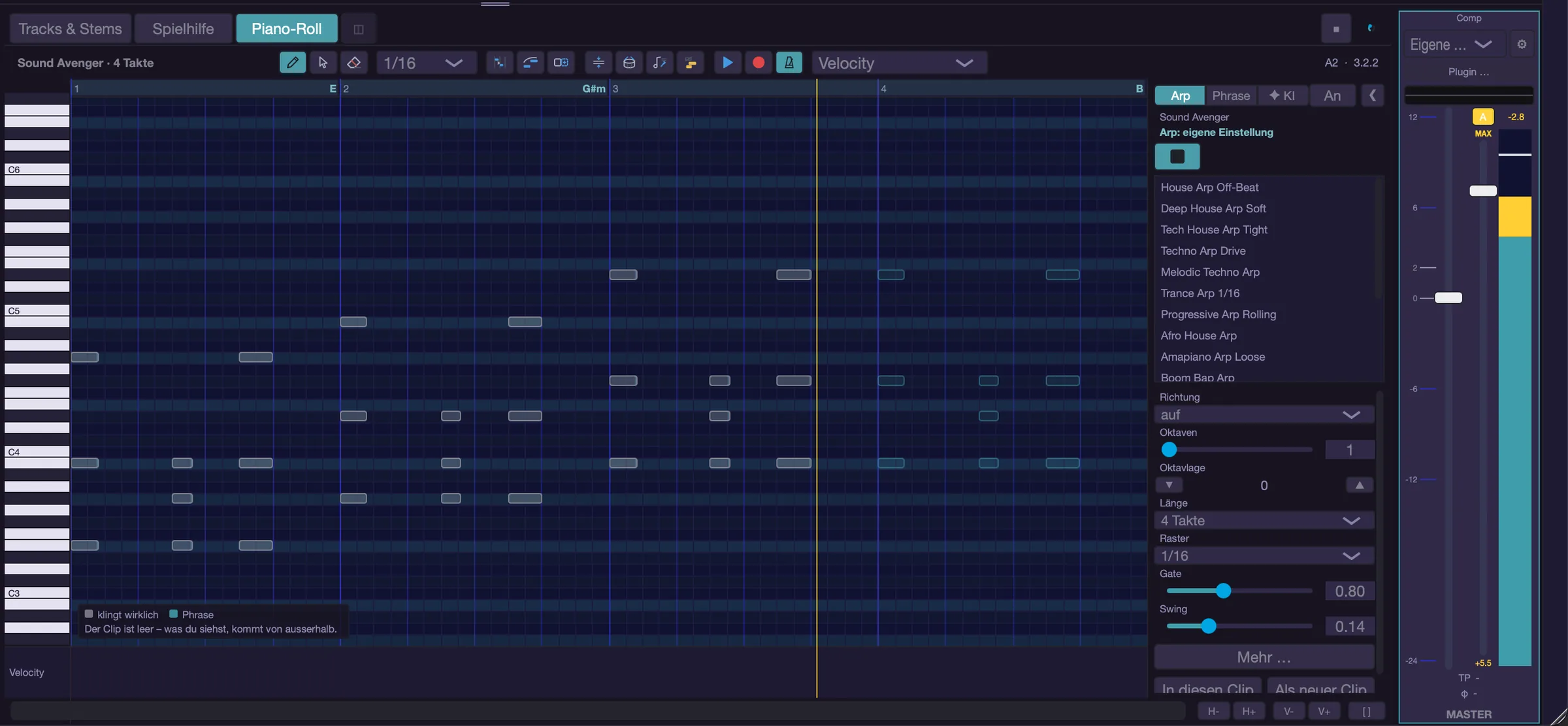
The arp
- At the top of the arp page is the list of 16 factory presets by genre (house, techno, trance, boom bap, trap, drum & bass and more). A click or the arrow keys load a preset and switch the arp on at the same time. “Length” and “Octave shift” belong to the track and stay as they are when you change presets. Turn any knob afterwards and the state reads “custom setting” – the preset name would be a lie.
- “Direction” – eleven runs: up, down, up-down, down-up, as played, chord, random, up-down inclusive, down-up inclusive, converge, diverge.
- “Octaves” – how many octaves the figure spans (1 to 4).
- “Step” – the distance between two hits, from 1/4 to 1/32T. T means triplet, a dot means dotted.
- “Gate” – note length relative to the step (0.05 to 2.0). Above 1.0 the notes overlap, which is legato.
- “Swing” (0 to 0.5) – how far every second step is pushed back. As soon as swing is above 0, the choice “eighths” or “sixteenths” appears below it.
- “Length” – 1, 2, 4, 8 or 16 bars (default 4). A new clip on this track gets this length, and start loops over it. Match it to the chord changes.
- “Octave shift” – moves the finished figure by whole octaves, −3 to +3 (Ctrl+Option+↑/↓).
“More …” on the arp page
- “Source” – where the notes come from: “held notes”, “chord lane”, “held, else chord” (default) or “played chord”.
- “held notes” arpeggiates only what you press. “chord lane” runs along with the song's harmony without any input. “held, else chord” uses your keys while you play and the lane otherwise. “played chord” uses the chord the harmony assistant makes of your key – in “Play chords” mode that is exactly your chord.
- “Octave order” – “octave by octave” (C E G, then c e g) or “each note at once” (C c E e G g), the dense techno sound.
- “Chord change” – “keep running”, “restart cycle” or “restart + retrigger”.
- “Repeats” – how often the same note is struck before the next one (1 to 8).
- “Keep playing” (latch) – the arp keeps running after you let go. The switch only appears when the source is not “chord lane”. When it is on, you choose below it between “new notes replace” and “new notes are added”.
- “Velocity pattern” – velocities per step, comma separated, cyclic. Empty means constant. This is what tells a lively arp from a sequencer grid.
- “Seed” – the seed for the “random” direction (only shown with that direction). Same value, same sequence, every time.
- Below the controls the buttons “Into this clip” and “As new clip” are always there – also with “More …” closed. “Into this clip” writes the figure over this clip's chords into it as notes (existing notes stay) and switches “Follows chords” off for that clip: the notes are already correct, a second redirection would bend them. “As new clip” places the figure as a new clip (as long as “Length”) at the playhead. In both cases the arp switches off afterwards – otherwise it would play the figure a second time.
- Notes in the clip (recorded, for example) are taken by the arp like held keys: a recording is arpeggiated anew on playback, the recorded note does not sound in addition.
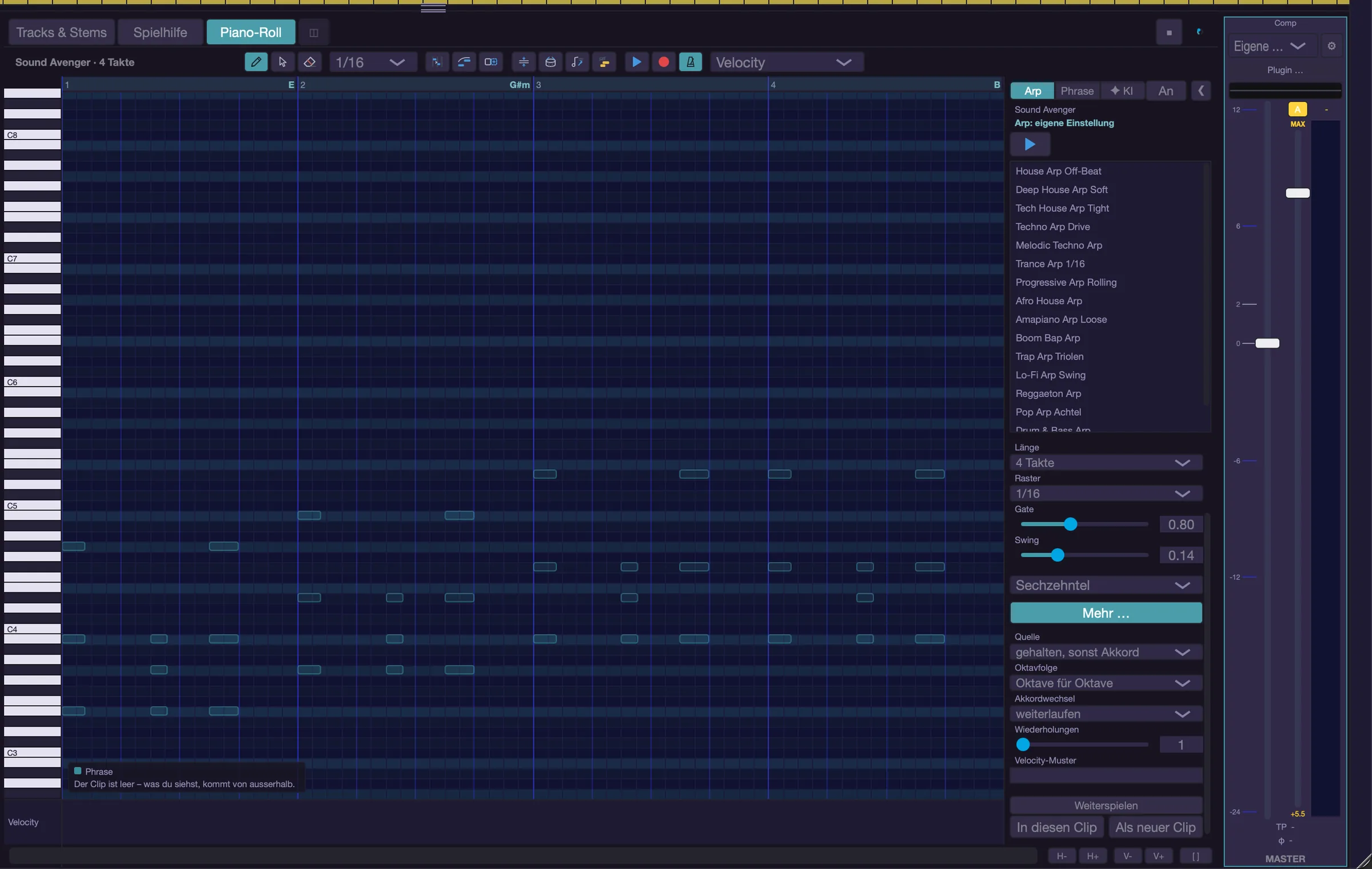
The phrase
- A phrase is a rhythm without fixed notes. While playing it takes its notes from the song. About 400 phrases in 56 genres ship with musaik.
- The phrase page of the generator panel has the search field at the top, below it side by side the pickers “All genres” and “All roles”, and then the list. Below the list follow “notes: chord lane” (default) or “notes: played chord”, “Octave shift”, “Keep playing”, a line with length and number of hits of the selected phrase, and “Into this clip” and “As new clip”.
- A click on a phrase (or the arrow keys in the list) selects it for the track and switches it on right away.
- “notes: played chord” puts the phrase on the chord the harmony assistant makes of your key. If the key yields no chord (melody modes, chord map), the chord lane applies again.
- The phrase runs while you hold a key – or permanently with “Keep playing”. With “notes: chord lane” it does not matter which key you press: it only starts it, the notes come from the song.
- “Into this clip” writes the phrase over the open clip's chords into it as notes (existing notes stay), “As new clip” places it as a new clip at the playhead. After that they are ordinary notes that no longer follow the harmony, and the track's phrase is off.
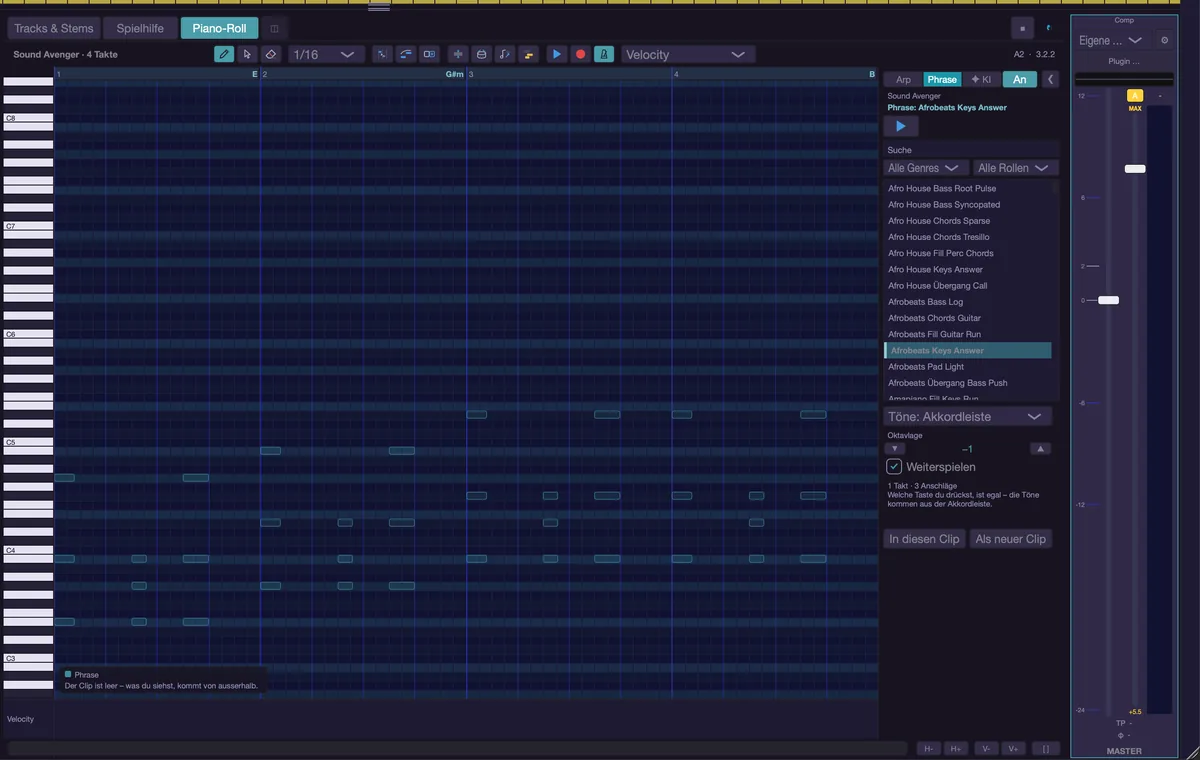
The phrase library
- The list sits in the piano roll’s phrase panel (panel set to “Phrase”): with search (in name, genre and tags), favourites on top, filters by genre and by role (“Chords”, “Bass”, “Melody”, “Pad”, “Keys / piano”, “Guitar”, “Stab / pluck”, “Fill”, “Transition”) and the “On” switch. Under “Play assistant” in the centre, the piano roll and its panel sit right next to the harmony column.
- The piano roll shows a switched-on phrase as ghost notes in the accent colour. If it is set to “notes: played chord”, your key decides the chord – the roll then shows the phrase fainter against the song chords, labelled “phrase (example: song chords)”: rhythm and register are right, the pitches may differ when you play.
- A click on a phrase selects it and switches it on. To hear it, hold a key, switch on “Keep playing” or press start (Shift+S). To place it as a clip use “Into this clip” or “As new clip”.
- Management lives in the menu “View” › “Manage phrases…”. It opens a menu with “Import package… (.musaikphrases)”, “Import folder of MIDI files…” (every .mid becomes a phrase, the folder name becomes the genre), “Export my phrases…” and “Save clip as phrase”, followed by the submenus “My phrases” and “Factory set”. There every phrase offers “Rename…”, “Favourite” or “Remove favourite”, “Delete” (your own) or “Hide” (factory ones), “Reset to factory version” and “Show in Finder”.
- Clip as my phrase: in the piano roll header, right next to “Velocity”, a button with a books icon (Alt+Shift+F) opens a small window with name, genre (pick from the list or type a new one) and role (chords, bass, melody, pad, keys, guitar, stab, fill, transition). “Save as my phrase” stores it among your own phrases; the role filter finds it afterwards.
- My phrases as standard MIDI: in the manage menu, “Export my phrases as MIDI…” writes all your own phrases into a folder, one subfolder per genre, one .mid per phrase (written out against C major or A minor). “Import MIDI files as phrases…” reads single .mid files; files exported by musaik bring back name, genre and role, others land in the genre “Mine”. The factory set is not exported.
- The same steps also exist as separate commands: “Import phrase package…”, “Import phrases from MIDI folder…” and “Export phrases…”.
- “Save clip as phrase” (also directly in the “View” menu) turns the notes of the open MIDI clip into a phrase of your own – relative to the chord, so it plays in any key.
- Factory phrases can be hidden, but not deleted.
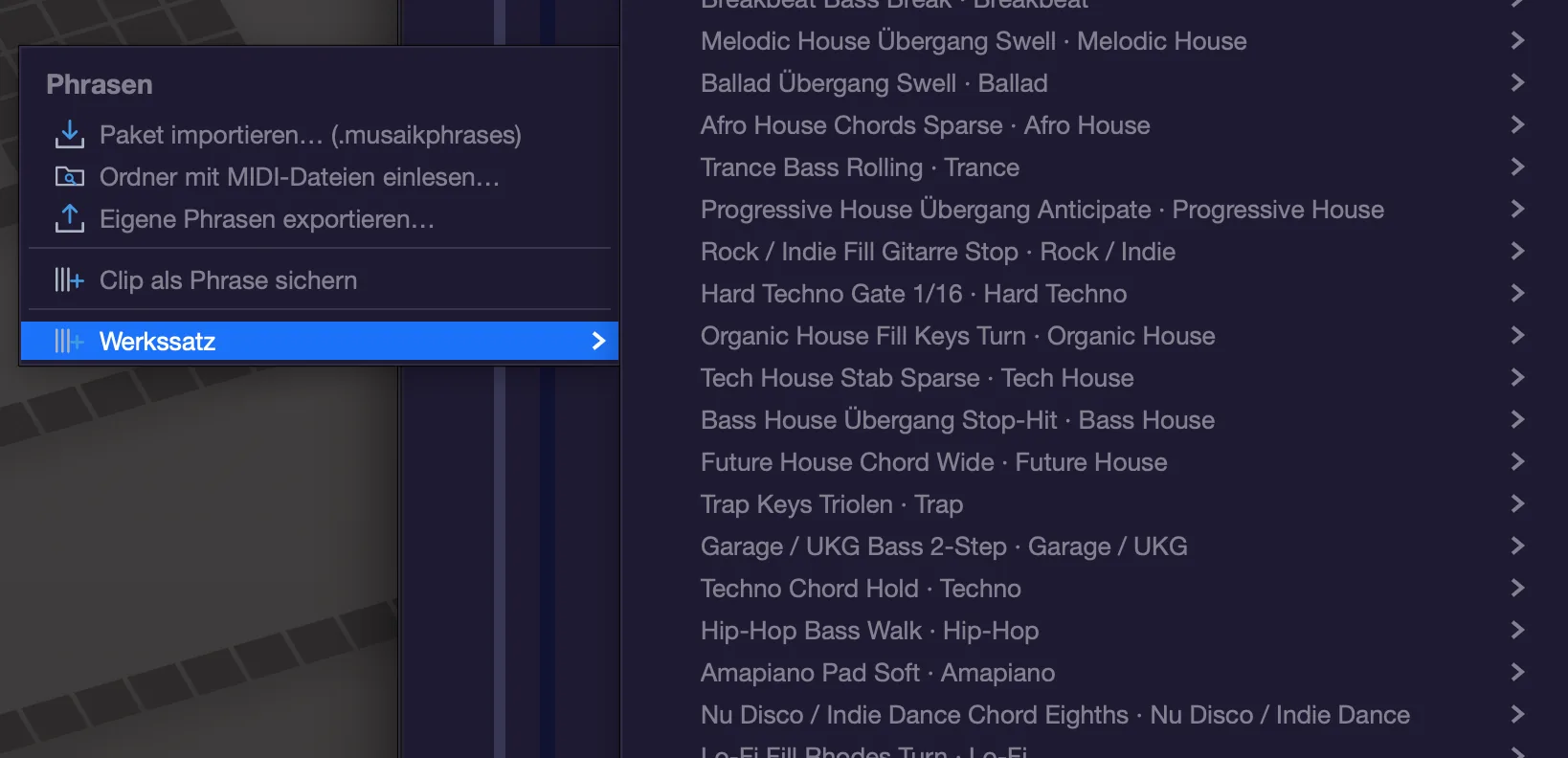
When arp and phrase sound
- While playback runs they only sound where this track has a clip – an empty one is enough. That way clips decide where the generator plays.
- A held key always opens that gate.
- While stopped your live playing drives arp and phrase. On their own they only run via start/stop.
- Where the lane holds no chord, both play the key's triad – as long as “Key applies where no chord” is on in the advanced harmony view.
The ghosts in the roll
- Blue is the arp. It only appears when the arp is on and its source is “chord lane” or “held, else chord” – with the other sources the roll cannot know what your fingers will do next, so it claims nothing. With the source “played chord” the legend says: “The arp follows your played chord – preview only while playing.”
- The accent colour is the phrase. It only appears when the phrase really plays live. If one is selected but off, the legend says: “Phrase selected but off – nothing to hear.”
- Yellow is chord follow, violet an AI suggestion. The legend at the bottom left names only what is visible.
- If the clip is empty it adds: “The clip is empty – what you see comes from elsewhere.”
Keyboard shortcuts
- Shift+A – Generator panel on/off
- Shift+S – Generator start/stop
- I – AI page of the generator panel
- Ctrl+Option+↑ / ↓ – Octave shift of the open page (−3 to +3)
- No factory shortcut: “Arp/phrase into this clip”, “Arp/phrase as new clip”, “Phrases: next role”, “Manage phrases…”, “Import phrase package…”, “Import phrases from MIDI folder…”, “Export phrases…”, “Save clip as phrase”
Piano roll
The piano roll is where you edit the notes of a MIDI clip: draw, move, lengthen, quantise. Next to that it shows, as coloured ghosts, what chord follow, arp, phrase and the AI make of those notes – so you see what will sound, not only what is written.
Opening it
- Double-click a MIDI clip to open it in the roll.
- Cmd+Option+P switches the bottom area between mixer and piano roll.
- “New MIDI clip” creates an empty clip at the playhead and opens it. You find it in the right-click menu of an instrument track's header; a right-click on an empty spot of the instrument track offers “New MIDI clip here”.
- The title bar names the track, the length in bars and – if several clips share the pattern – “shared with 2”.
The title bar
- Tools: pencil (key 1), select (2), eraser (3).
- “Grid” – 1/4, 1/8, 1/16 (default), 1/32, 1/8 triplet, 1/16 triplet. It applies to drawing and to quantising.
- Quantise – snaps all notes, or the selection, fully to the grid.
- Legato – extends every note up to the start of the next one.
- Double – doubles the pattern length and appends a copy of its content.
- Make unique – copies the pattern for this clip only. It then stops changing the others. The symbol only appears when several clips share a pattern.
- Fold (key F) – shows only the pitches used in the pattern. On a drum track that leaves six rows instead of 128, and they sit together.
- Drum names (key D) – shows GM percussion names instead of note names, “Kick” instead of “C1”. This is not automatic: musaik cannot reliably tell whether a plug-in is a drum kit.
- Follows chords and Chord Follow notes only – see below.
- Play (triangle), Record (red dot) and metronome – only with a clip open.
- At the far right the picker for what the lane below the roll shows: “Velocity” or a controller (see “The controller lane”).
- Zoom – the buttons “H−”, “H+”, “V−”, “V+” and “[ ]” sit at the bottom right next to the scroll bar. The same steps are on −, +, Shift+− and Shift++; 0 shows everything. Cmd or Option plus the mouse wheel zooms horizontally, adding Shift zooms vertically; on a trackpad a two-finger pinch zooms. The mouse wheel alone scrolls.
- When space is tight the title bar wraps into a second row. Every symbol has a tooltip.
Editing notes
- Draw: click into the grid with the pencil. The note sits on the grid and is one grid step long. Keep dragging to set its length.
- Move: grab a note and drag. Shift+click adds further notes to the selection. With the select tool (or with Shift) you drag a selection frame on empty space.
- Length: drag the right edge of a note. With several notes selected, all change by the same amount.
- Delete: eraser, Option+click, double-click on the note, or Delete for the selection. If the eraser hits a note that is part of the selection, the whole selection goes.
- Esc clears the selection, Cmd+A selects every note of the clip. Cmd+click on a key of the keyboard on the left selects every note of that pitch; a plain click on the keyboard plays the note.
- Velocity: in the lane below the roll, click a note's bar or drag it up and down. What the lane shows – “Velocity” or a controller curve – is set with the picker at the far right of the title bar.
- Octave: Option+↑ and Option+↓ move the selected clips one octave on playback, up to four up and four down. The pattern itself is untouched – two clones may sit in different octaves.
- Cmd+Backspace clears the whole clip content. If several clips share the pattern, all of them end up empty; the title bar says so beforehand. Undo with Cmd+Z.
- A right-click in the grid offers “Select all content” and “Clear clip content”.
- A click into the ruler or above the topmost note row only moves the playhead – up there no pitch is meant.
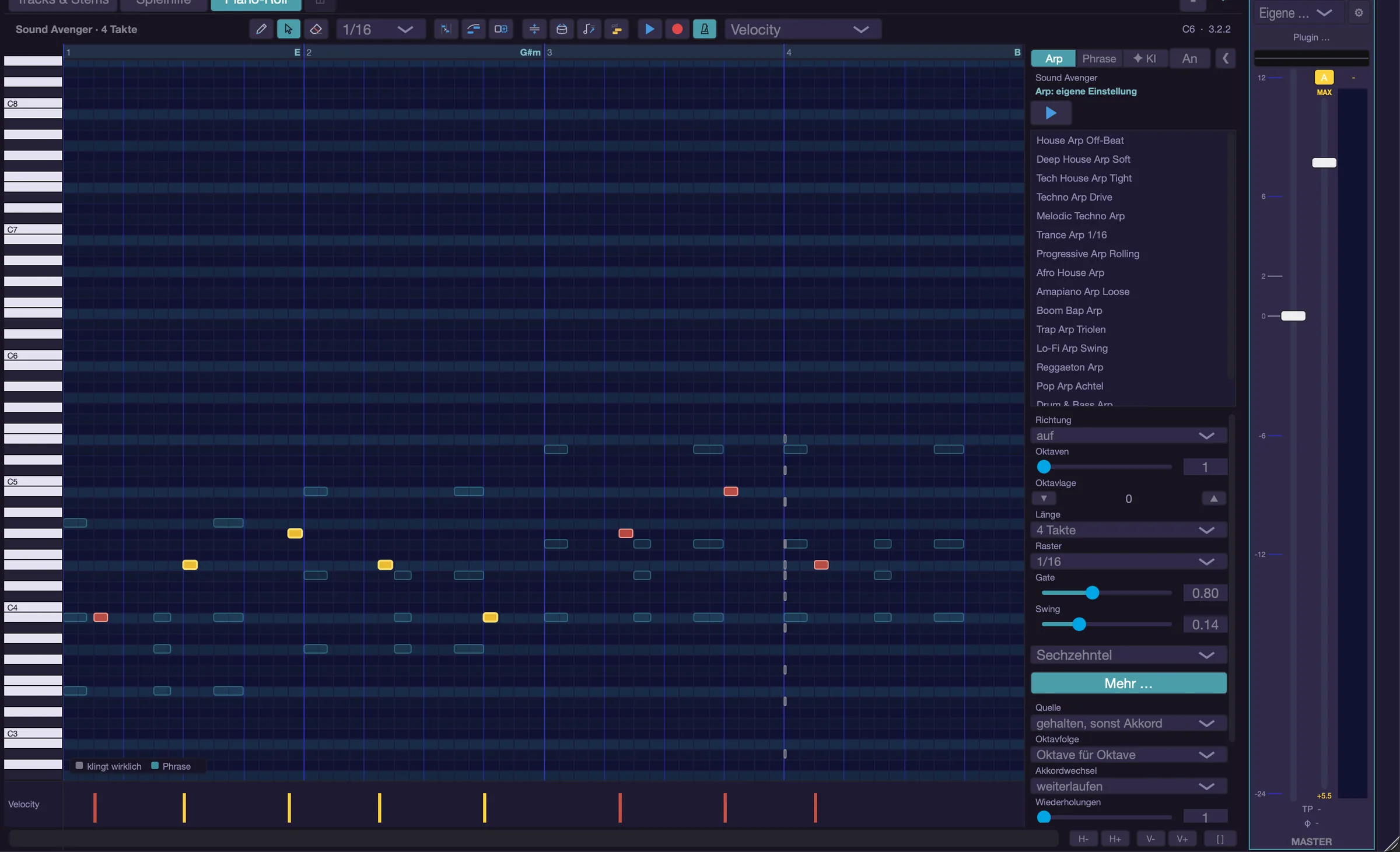
The controller lane
- Below the roll sits a lane that shows either velocity or a controller curve. The picker for it sits at the far right of the title bar. It always offers “Modulation”, “Expression”, “Sustain” and “Pitchbend”, plus every controller already used in the pattern.
- In a curve a click sets a breakpoint, dragging paints, right-click (or the eraser) deletes.
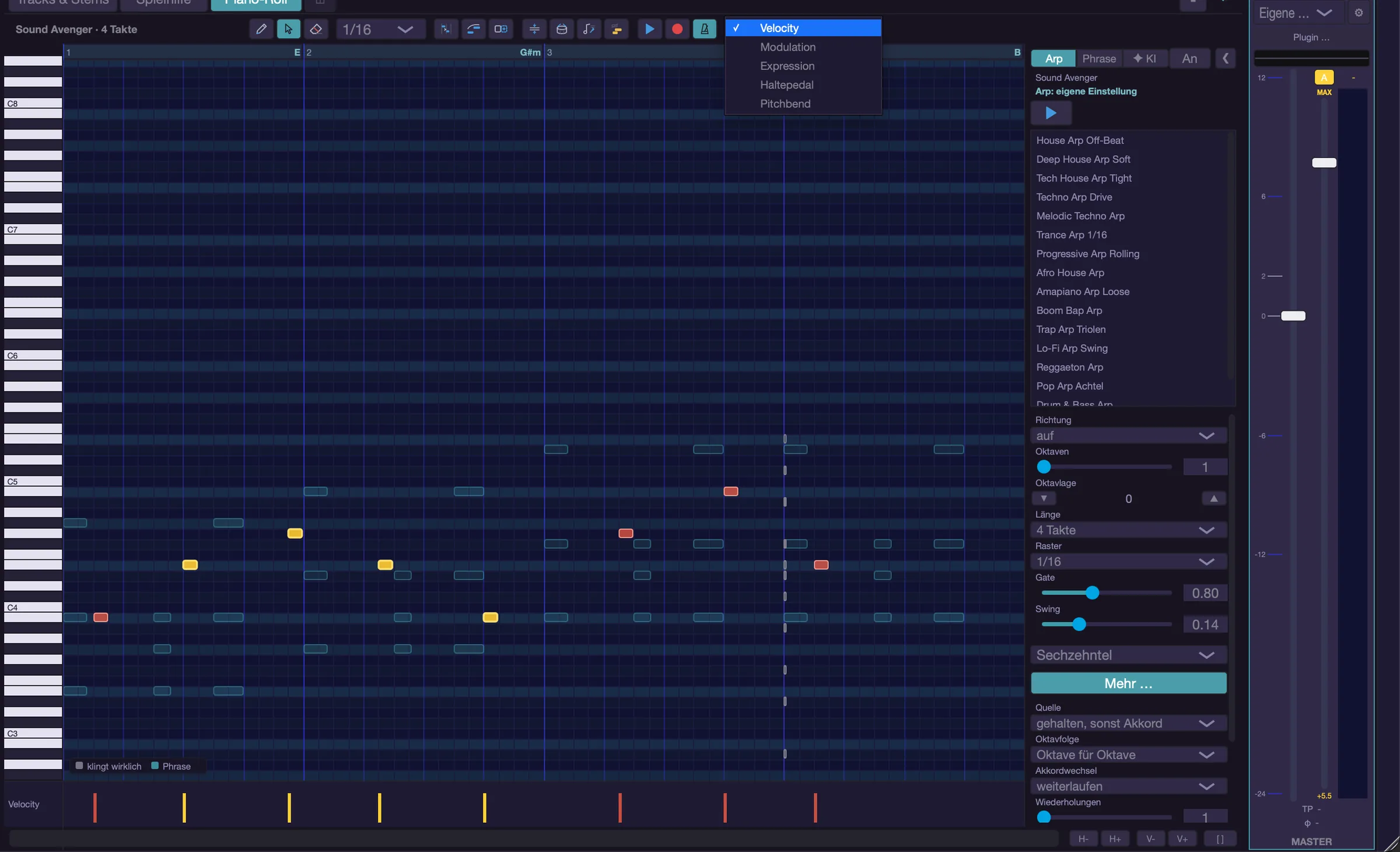
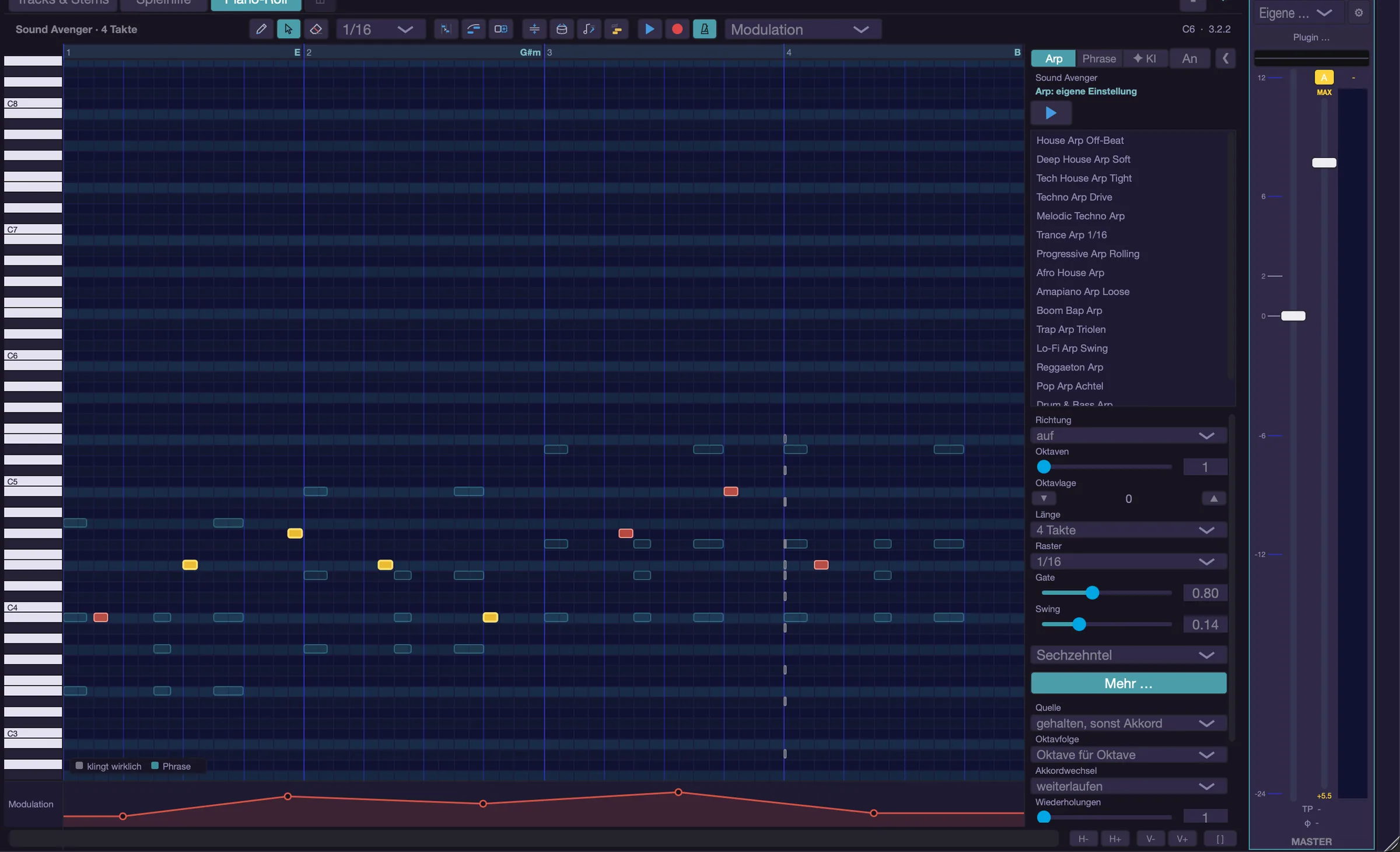
Follows chords
- The switch applies per clip and is on by default: this clip's notes run through the track's chord follow.
- Off means the clip plays exactly what the roll shows. That way a played-in bass figure stays as it is while the pad clip next to it follows the chords.
- “Into this clip” and “As new clip” on the arp and phrase pages switch it off by themselves – the placed notes are already calculated correctly. Both also exist as commands (“Arp/phrase into this clip”, “Arp/phrase as new clip”).
- Deleted notes also disappear from “actually sounding”: afterwards the roll only shows what really still sounds.
- Chord Follow notes only – the switch right of “Follows chords” hides the original notes and shows only the steered (yellow) notes, drawn solid. While it is on, editing is locked so you do not move invisible notes; a note at the bottom of the roll says so. It only acts on clips that follow chords and remembers its setting. Also as command “Piano roll: Chord Follow notes only”.
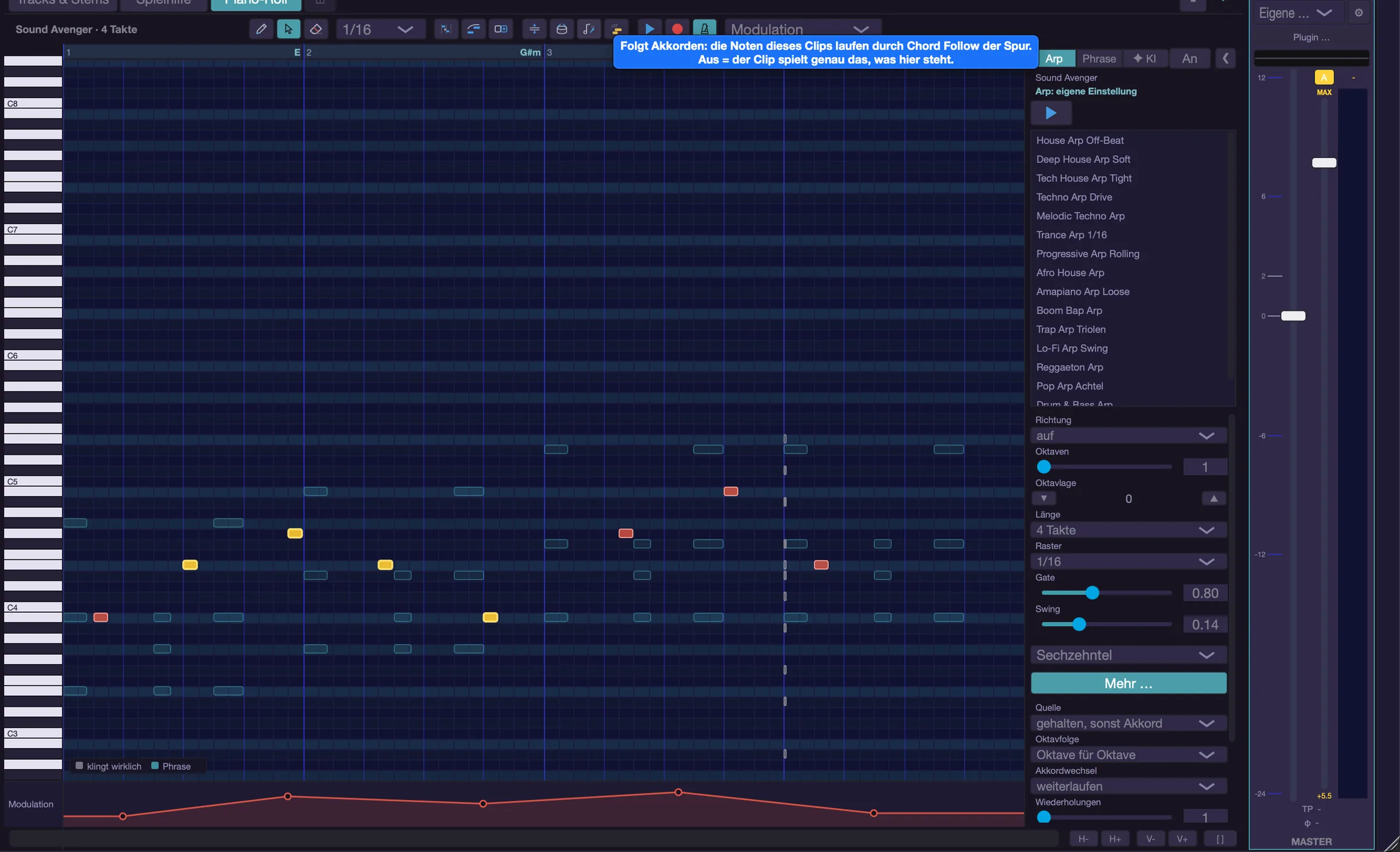
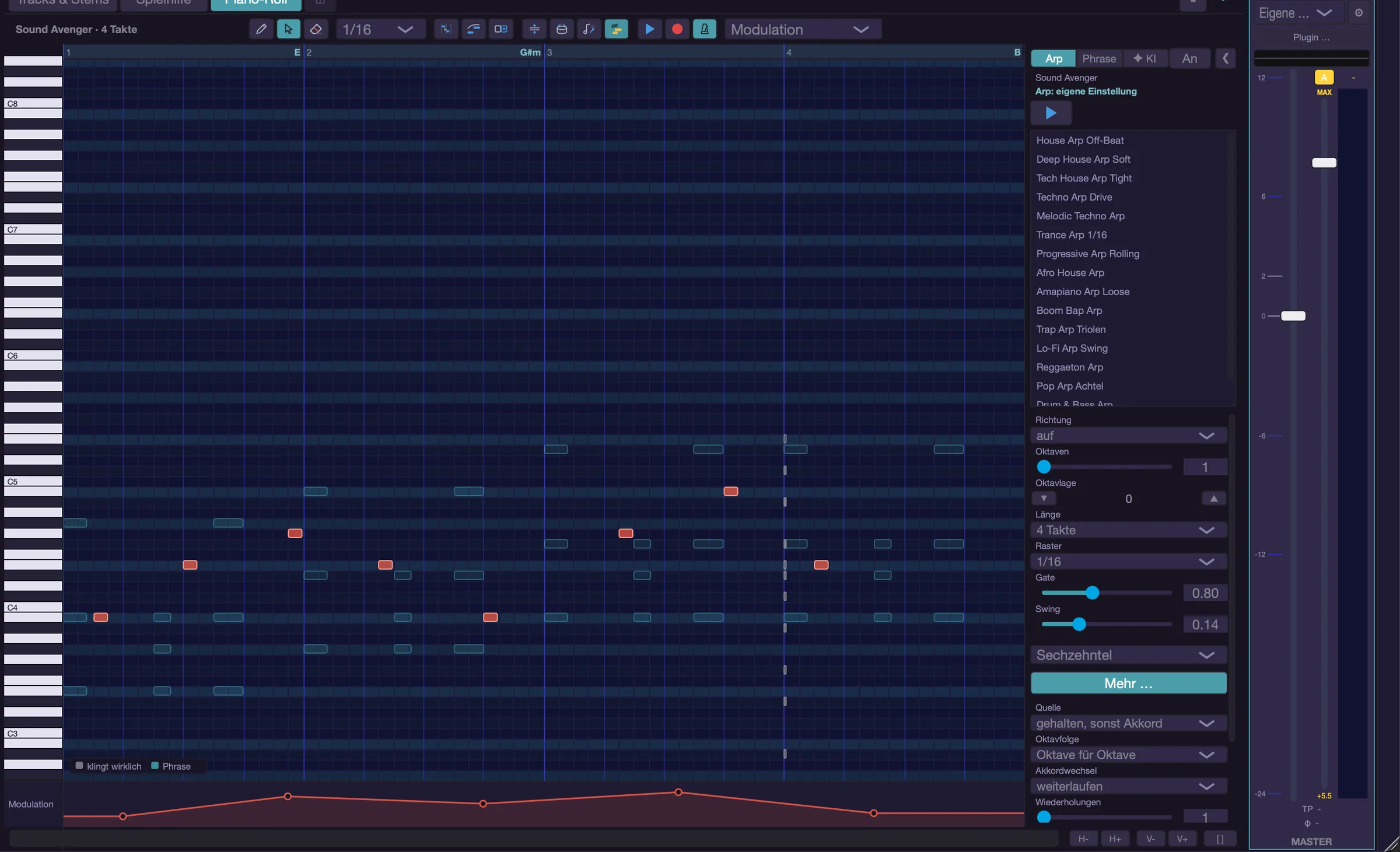
Recording in the roll
- Shift+R or the red dot starts recording without the arrangement. The metronome always clicks while recording.
- Shift+P or the triangle in front of it only plays the clip – the same loop, but without recording. The metronome is off by default here; the metronome switch next to it (Option+Shift+R) adds it. While recording, the switch is hidden.
- You switch directly between playing and recording: pressing the other button ends one and starts the other; the loop starts again at the beginning of the clip.
- It needs an open MIDI clip and a stopped transport. If the arrangement or a normal recording runs, musaik says so.
- The clip loops and every pass is added (overdub). The loop always runs over the whole length the roll shows – even if arp or phrase are shorter; they repeat within it.
- Recording ends by itself when the arrangement starts, when you close the roll or when you open another clip.
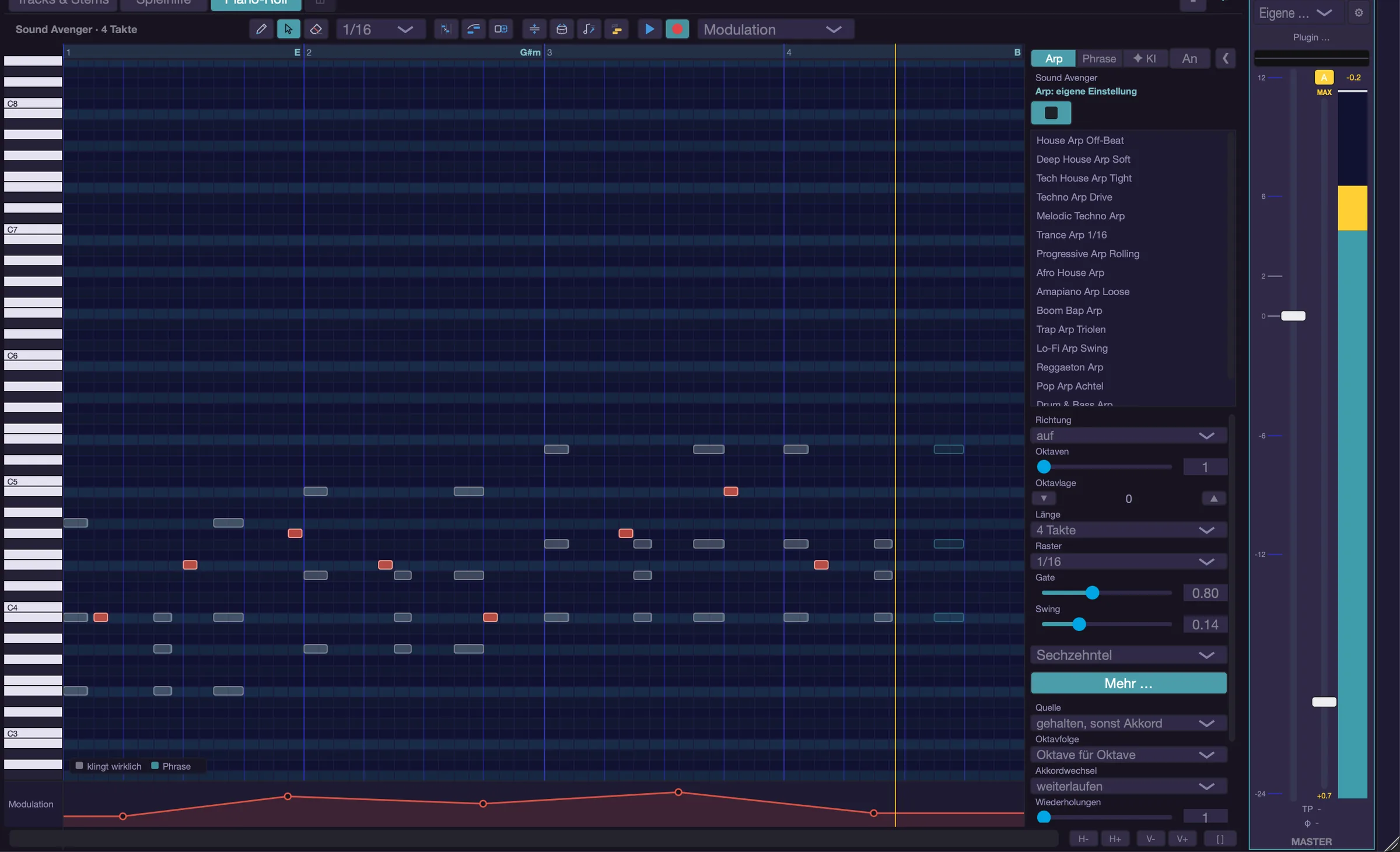
The ghost legend
- White means “actually sounding” – the notes playing right now.
- Blue is the arp, the accent colour the phrase, yellow chord follow, violet an AI suggestion.
- The legend at the bottom left names only what is visible. Below it a note appears when it applies: “Chord Follow notes only – originals hidden, editing locked.”, “Phrase selected but off – nothing to hear.”, “The arp follows your played chord – preview only while playing.” or, with an empty clip, “The clip is empty – what you see comes from elsewhere.”
Performance settings per clip
- With a MIDI clip selected, velocity, dynamics, gate and delay on the “Instrument” tab of the track environment apply to that clip instead of the track. A band shows “CLIP name · Bars a–b”, and the button “Track values” (or Esc) releases the clip selection.
- The clip's own values carry a dot; a click on the label resets the value, and the track value applies again.
- The input grid exists per track only, and your live playing always uses the track values. More on this in “Environment & Mixer”.
Keyboard shortcuts
- Cmd+Option+P – Switch the bottom area between mixer and piano roll
- 1 / 2 / 3 – Pencil, select, eraser
- 0 – Show everything
- F – Fold, D – Drum names
-
- / − – Zoom horizontally, Shift++ / Shift+− – zoom vertically
- Cmd+A – Select all content
- Delete – Delete selection, Esc – Clear selection
- Cmd+Backspace – Clear clip content
- Option+↑ / ↓ – Clip one octave up or down
- Shift+R – Record in the piano roll
- Shift+P – Play in the piano roll
- Option+Shift+R – Metronome while playing in the roll
- Shift+A – Generator panel on/off
- No factory shortcut: “New MIDI clip”, “Save MIDI clip as file…”, “Piano roll: Chord Follow notes only”
AI
musaik can suggest melodies, arps and phrases, and it can check your arrangement. The AI provides ideas, not notes – and it is optional: without a configured path it does nothing. “Create” then reports “AI is switched off.” with a pointer to Settings › AI, and “Check arrangement” only measures.
The principle: the AI chooses, musaik calculates
- The model receives a song card (tempo, key, chords, sections, target range) and answers with a blueprint: which rhythm, which register, which variation.
- musaik calculates the notes itself, with the same functions that arp, phrase and chord follow use.
- That is why suggestions are always in time and in key, even with a small model. A model that hallucinates note names can do no harm here.
Setting it up
The settings live under Settings › AI. The “Path” picker decides where answers come from; one path is enough.
- “Off” – no AI. The default.
- “Local AI model (Ollama / LM Studio)” – the model runs on this computer. Nothing leaves it, it costs nothing, and it works offline.
- “Your own API key” – under “Service” you choose OpenAI, Anthropic, Google Gemini or “Custom address (OpenAI compatible)” (which adds the “Address” field), enter the key under “API key” and pick the model under “Model” (“Load” fetches the list). The key is stored in the system keychain, not in plain text in a file.
- “OpenRouter” – one account, many models. Here too you enter an “API key” and pick the “Model”.
- “musaik credits (prepared)” – the purchase path is not decided yet, so this one stays off for now.
- “On this Mac (Apple, free, offline)” – only offered where the Apple model is available. Convenient, but small.
- “Test connection” sends a tiny request through the whole path and measures the time; the result appears under “Status”. “What is sent?” shows, via “Show example”, exactly the data a request carries.
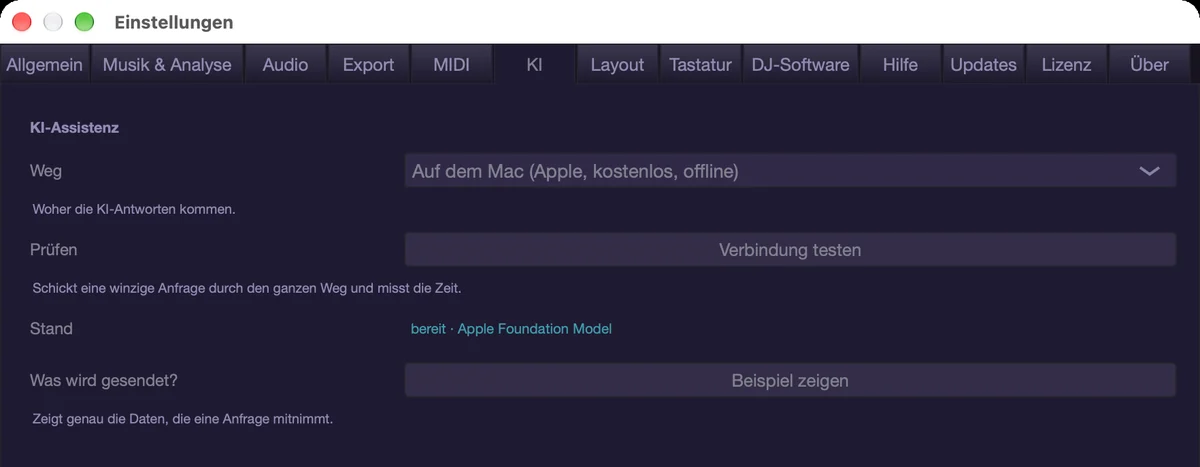
Using a local model
- Install an app: Ollama runs as a background service and is driven from the terminal. LM Studio has a window; there the server must be running in the “Developer” tab, otherwise nothing is reachable.
- Pull a model – with Ollama from the terminal, for example: ollama pull qwen3.5:9b
- Enter it in musaik: Settings › AI › path “Local AI model”, set “App” to Ollama or LM Studio and press “Search”. musaik probes both usual addresses (Ollama 11434, LM Studio 1234).
- “Load” fetches the model list from the service itself; then choose a model and press “Test connection”. - Context length: Ollama accepts little text by default, so musaik sets the value on every request. The “Context length” field (Ollama only) offers 4096, 8192, 16384 and 32768 – 8192 or more is the safe choice. - Memory: a model should fit into video memory, otherwise the processor joins in and a request takes minutes instead of seconds. On Apple computers processor and graphics share the memory. For 16 GB, qwen3.5:9b is a good start – a preliminary recommendation by size, not a measurement against musaik's tasks. - If it does not work: “No connection” almost always means the app is not running. An unusable answer usually means too small a model or too small a context – check the context length first, then try the next model size up.
Using the AI page
- The AI is the third page “✦ KI” of the generator panel next to the piano roll. The key I opens it.
- At the top you choose the task: “Melody”, “Arp” or “Phrase”. The tab decides what is created; your text only supplies the style.
- Write a sentence into “What should sound here?”; Return starts just like “Create”. The line below shows what the request carries (key, bars, track). The chips (“denser”, “calmer”, “darker”, “higher”, “more rests”, “like the intro”) append themselves to your text – nothing is created until you press “Create”.
- “Length” offers 4, 8, 16 or 32 bars (default 8). If a clip of this track is open in the roll, it is filled from its start, otherwise a new clip appears at the playhead. Next to it you set the octave shift (−3 to +3, also Ctrl+Option+↑/↓).
- “Create” starts, “Cancel” stops. You need a selected instrument track.
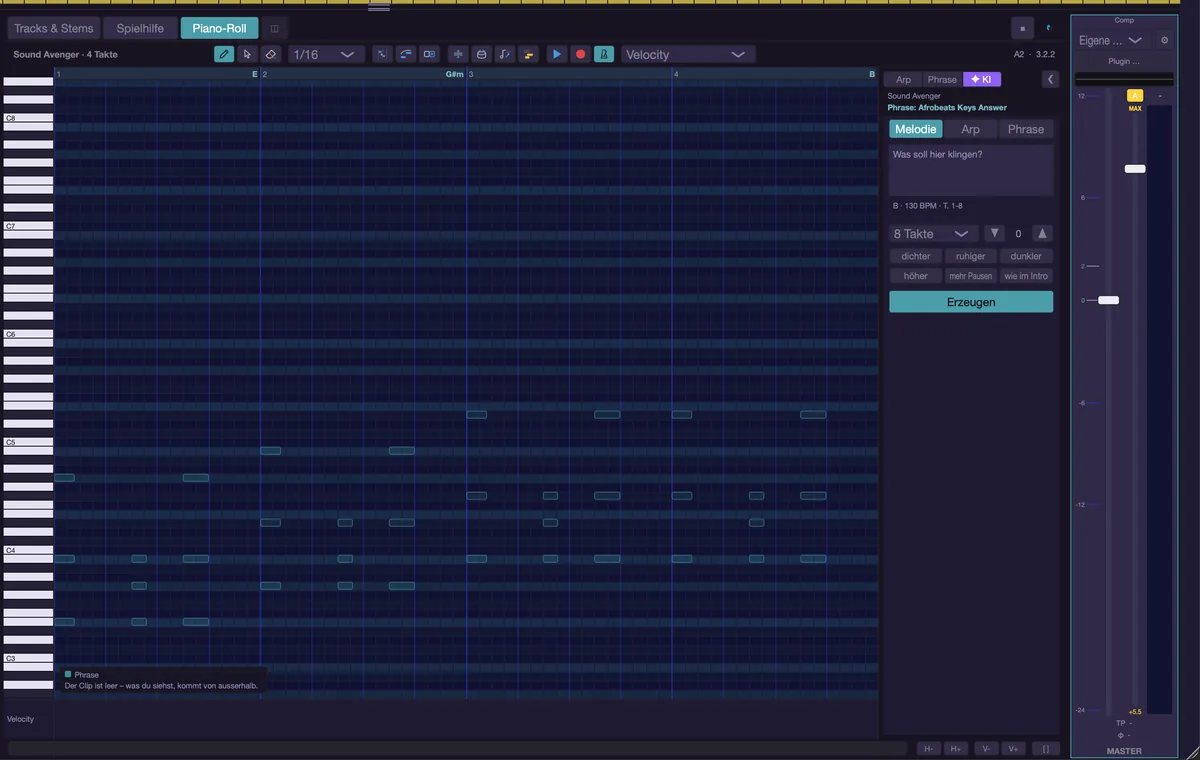
The AI draft
- The result is written right away as notes into an ordinary clip on the active track – visible, audible and editable by hand. The roll opens it and jumps to the first note. “Follows chords” is off for this clip, because the notes are already calculated against the chords. A violet spark marks it as an AI clip.
- One request yields three variants: A, B and C, switched with the buttons or with [ and ]. Each choice writes the variant into the same clip.
- “▶” previews the clip on its own, without the arrangement (a running transport is stopped for it); the same button stops again. The space bar plays it with the song.
- “Again” asks once more and builds on the suggestion shown. A new “Create” also writes into the same clip.
- There is nothing extra to do to keep it: the clip already is an ordinary clip, including your manual edits.
- With arp and phrase suggestions, “As the track's arp” or “As the track's phrase” appears (command “Apply AI draft as the track's arp/phrase”, Cmd+Option+Return). It takes the suggestion as the track's generator and takes the draft clip back like “Discard”; a phrase is saved to your library. This only works while the draft is unedited – the generator plays the figure, not the notes.
- “Discard” (Option+Backspace) takes the draft back: a newly created clip is deleted, a filled clip gets its old content back. Undo with Cmd+Z.
- If a draft is still open on the track and you have opened a different clip, “Create” does not fill it but asks you to decide about the draft first.
- The buttons A/B/C, “Again”, “Discard” and “As the track's arp/phrase” apply while the project stays open. The clip itself stays in the project like any other; instruction, task and length stay as well.
What the AI knows
- The song card holds measurements only: tempo, key, chords in the target range, sections, where vocals sit, which instrument tracks exist and – where measurable – the bass note per bar. When the AI fills an existing clip, its notes go along. Tracks are named by their role only (“Master”, “Gast 1”, “Instrument 3”). Titles and file names never go out – there is no switch for that, because it is not a setting.
- From your instruction musaik reads the genre and adds its own knowledge: eurodance, trance, techno, deep house, house, nu disco / funk, drum & bass, hip-hop, trap, synthwave and pop, plus the other genres of the phrase library (such as tech house, melodic techno, afro house). If the text names no genre, the project tempo helps.
- If you name a role model instead of a genre (“like …”), musaik first has a cloud path (“Your own API key” or “OpenRouter”) map it to a genre. Without a cloud path the status line says so, and it continues without a genre.
Harmony first
- If the target range holds fewer than two different chords in the chord lane, the AI would have nothing to build on. musaik then proposes a progression in the song's key before generating and shows it in the dialog “Suggest chords”.
- You choose “Generate with this progression” (Return), “With the detected chord” (if there is one) or “Cancel” (Esc).
- The progression is used for this generation only; the chord lane stays as it is. “Again” in the same range does not ask again. The arp does not need this – in gaps it falls back to the key anyway.
- If there are neither chords nor a key, the status line says so and you let the chords be detected first.
Checked results
- Every variant is measured before you hear it. If all of them fail, musaik asks up to two more times – with the shortcomings as a hint.
- In the end the best three variants of all attempts win. If none is really good, the status line says what is missing.
- The arp is not measured: its notes are calculated by the arp itself from the figure.
Melodies via the cloud
- Small models struggle with melodies. If your path is “On this Mac” or “Local AI model” and a cloud path is configured as well (“Your own API key”, otherwise “OpenRouter”), musaik uses the cloud for melodies and phrases – only the arp stays on the chosen path.
Log and labelling
- Every request and its answer land in the project folder under “KI-Protokoll”. You can read there what was sent and what came back.
- Clips with AI notes carry a violet spark. The context menu names the instruction (“From AI suggestion: …”).
- A MIDI export carries a note inside the file, so nobody has to guess later where the notes came from.
Checking the arrangement
- Cmd+Shift+P measures your arrangement: intro length, development, drops without a run-up, grid, doubled vocals or bass, idle stretches. It is not available in a DJ mix.
- The findings appear as pins under the chord lane. V shows and hides the suggestions row, , and . jump from pin to pin, a click opens the card.
- The card names the bars, the finding and a suggestion. “Go to bars” moves the playhead there. Where musaik can carry out the suggestion itself (intro too short, no development, drop without a run-up, off the grid, two vocals, bass against bass), the card shows “Apply” (also Return); afterwards it measures again, undo with Cmd+Z. Idle stretches stay manual work.
- The measuring is always done by the code, without network and without cost. If an AI path is set up, the model sorts the measured findings and writes one sentence for each; it cannot invent new ones. “Apply” is not AI either.
Privacy and honest limits
- Only song data and your instruction are sent – never audio, never titles or file names. With a local model nothing leaves the computer at all – unless you have also set up a cloud path: then melodies, phrases and the mapping of a role model go through it.
- Small models produce simpler ideas. For more variety, try the next model size up or a cloud path.
- Every result is a suggestion. It sounds in time and in key, but whether it carries your track is your call – and the piano roll is right there.
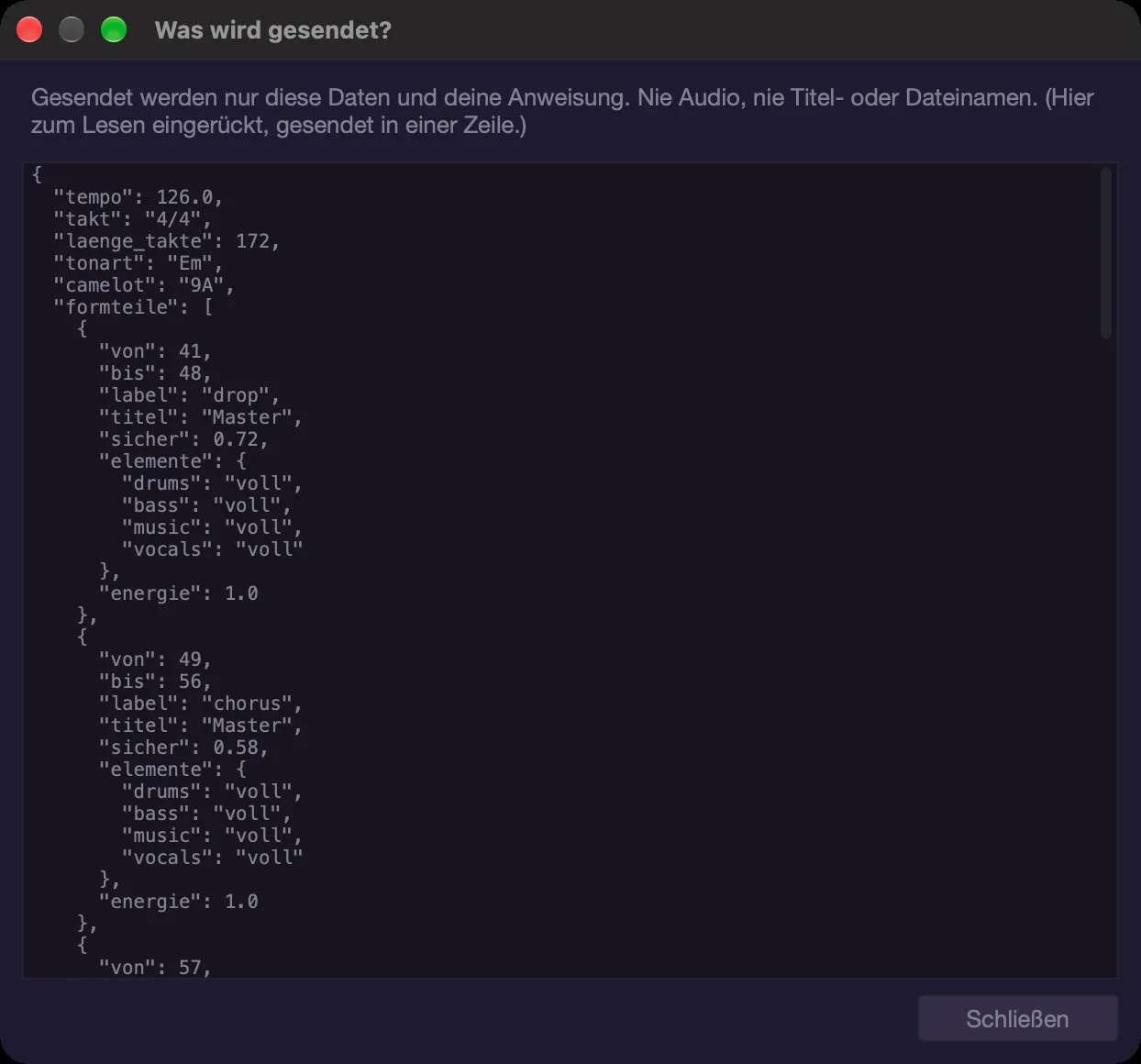
Keyboard shortcuts
- I – AI page of the generator panel
- [ and ] – Previous and next variant
- Cmd+Option+Return – Apply the AI draft as the track's arp/phrase
- Option+Backspace – Discard the AI draft
- Ctrl+Option+↑ / ↓ – Octave shift of the AI page
- Cmd+Shift+P – Check arrangement
- V – Suggestions row on/off
- , and . – Previous or next finding
- Shift+A – Generator panel on/off
Environment & mixer
The lower area has two faces: the track environment shows everything about one lane, the mixer shows all lanes side by side. In the environment the centre sits to the right of the column, with palette, samples, tracks & stems, stem groups, play assistant or piano roll; the mixer shows only channel strips, buses and master.
Opening the lower area
- E opens the track environment, Shift+M the mixer. The same key again folds the area away.
- Cmd+Option+P switches between the mixer and the environment with the piano roll.
- The environment always shows the selected lane. Click a track header (or a channel strip in the mixer) to select it; ↑ and ↓ move to the lane above or below. With nothing selected it reads “No track selected — click a track header (or ↑/↓).”
- The pages of the column can also be reached with the commands “Environment: channel”, “Environment: instrument”, “Environment: recording”, “Environment: automation”, “Environment: equalizer” and “Environment: ducker” (no key by default).
How the environment is built
- On the left the fader strip: pan knob (double-click = centre), below it the fader with its meter, below that the line “dB · pk”, at the very bottom track number and name in the lane's colour. A double-click on the fader returns it to 0 dB.
- Next to it the column with a header and the pages. The header shows colour and name, below them track number and lane type — e.g. “TRACK 7 · INSTRUMENT” (for instruments with the name of the loaded preset) or “TRACK 2 · STEM · DRUMS”. The number is the same as in the colour strip of the track header.
- To the right the centre and at the far right the master. The buses only appear in the mixer.
- When space runs short the fader strip folds away first, then the master. If the height does not suffice the column scrolls instead of squeezing.
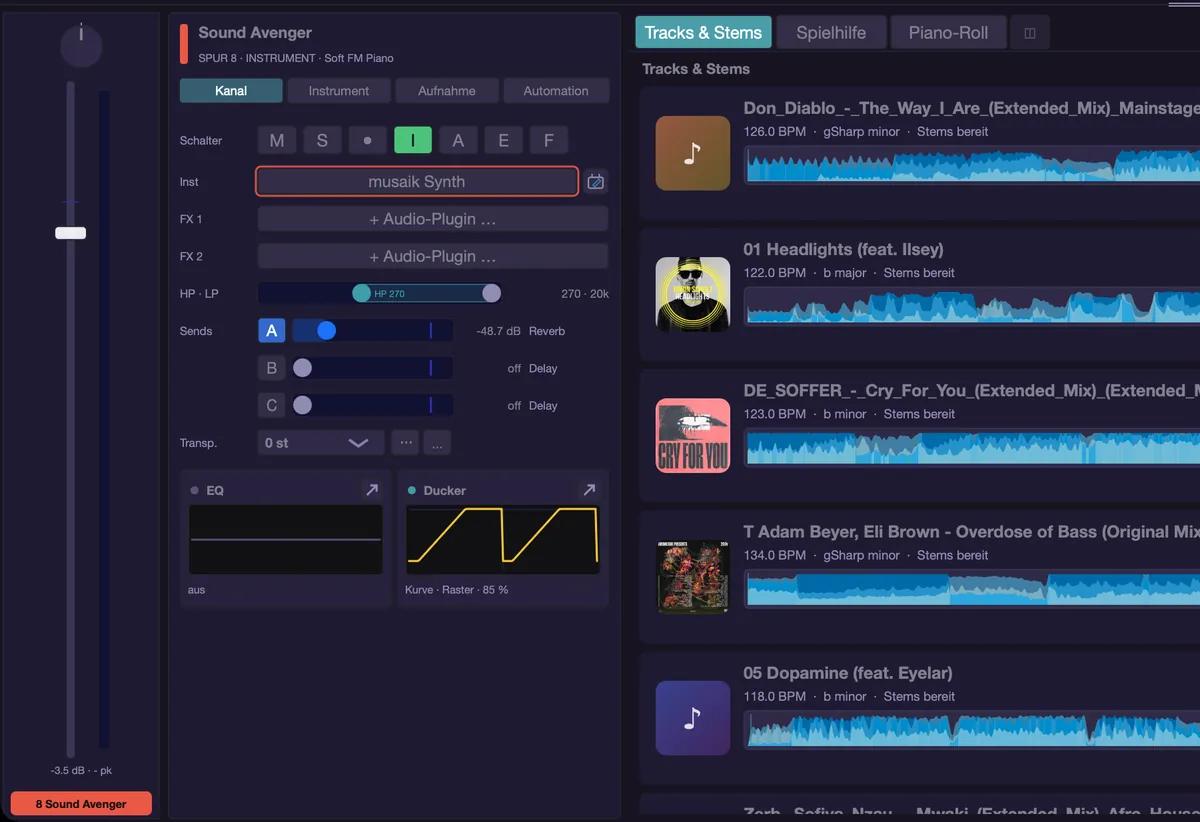
Tabs per lane type
Instrument lanes have four tabs: “Channel”, “Instrument”, “Recording” and “Automation”. Stem, sampler and deck lanes only have the channel page — there is nothing to play and nothing to record on them. Whatever a lane type does not have is simply absent; nothing is greyed out. Equalizer and ducker are sub-pages of the channel page (see below). The environment remembers per lane which page was open last, for as long as musaik is running.
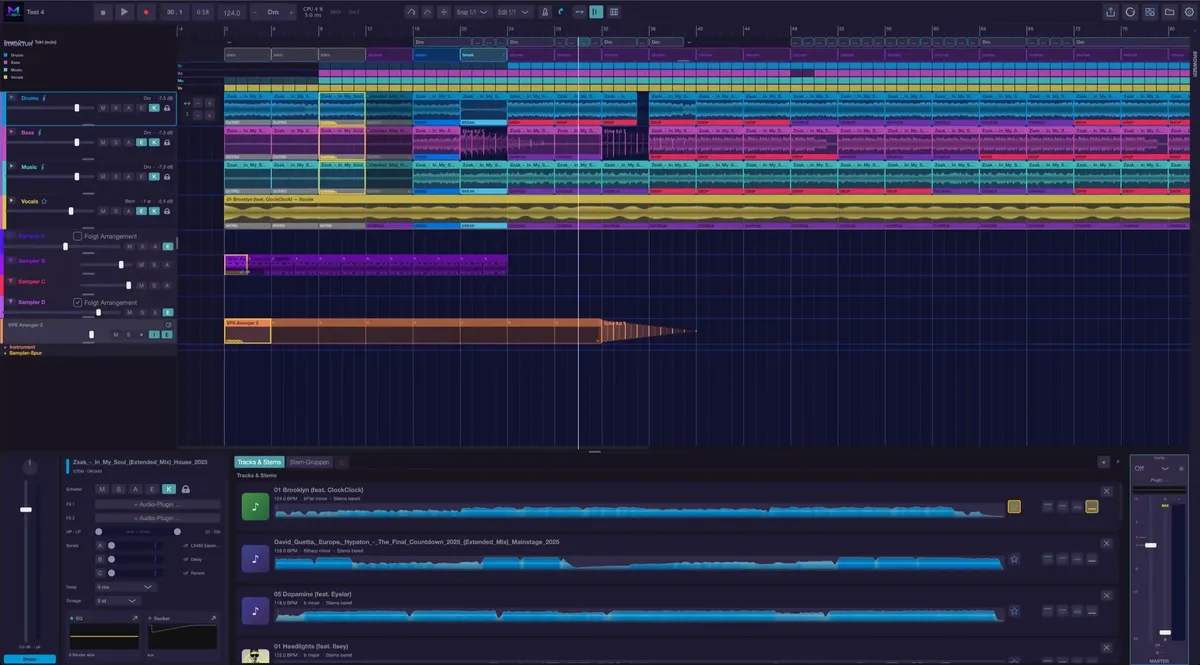
The “Channel” page
- Switches (from the left): M (mute), S (solo), on instrument lanes the record dot ● (“Record-armed”) and “I” (monitor), then A, E (Echo Out), on instrument and sampler lanes F, on stem lanes K and — except in edit mode — the lock.
- A shows and records the lane's automation. On stem and sampler lanes the target picker (Volume, Pan, HP Cutoff, LP Cutoff, Send 1 to 3) sits to its right while A is on; on instrument lanes A only shows and hides the automation rows.
- F means “follow arrangement”: on, the lane's clips move along when the arrangement gets longer or shorter; off, they stay at their bar.
- K means “keep settings” (on by default): when the lane's source is swapped, volume, EQ, filters, sends, ducker, insert plug-ins and the automation curves travel along. Off: the new source starts from default values.
- The lock locks the lane: arranging does not redistribute it, clips placed by hand stay.
- The environment always shows all switches of the lane, even if you have hidden some in the track headers (commands “Track header shows …”).
- Inst: the instrument slot (instrument lanes only; empty it reads “+ Instrument …”). Click opens the menu (“Choose instrument …”, “Open editor”), double-click the plug-in window. With an instrument loaded, the small button to the right of the slot also opens its window.
- FX 1 and FX 2: two insert slots for audio effects (empty: “+ Audio plug-in …”). Click = menu (“Choose plugin …”, “Open editor”, “Remove”), double-click = window.
- HP · LP: high-pass and low-pass on one rail, with the values to the right.
- Sends: one rail per visible bus. The letter (A, B, C) switches the send on and off (off is −100 dB, on brings back the last level), the rail sets the level from −60 to +6 dB, and value and bus name sit on the right. A double-click on the rail switches the send off (“off”).
- Delay (stem and sampler lanes): fixed steps from −500 to +2000 ms. On a stem lane the value applies to the whole title, that is to all of its lanes. If Phase Lock (see Ducker) has entered an odd value, that exact value is shown.
- Pitch (stem lanes, −12 to +12 semitones) or “Transp.” (instrument lanes, −24 to +24). The list has plus at the top. Pitch comes in addition to the automatic match to the project key; the arrows ▲ ▼ next to it change it by one octave (Shift+Option+Up/Down), “↺” or Option+0 resets it.
- Clip: when a MIDI clip is selected on an instrument lane, this row appears with the “Loop” switch: on, the pattern repeats when you lengthen the clip at its right edge; off, the clip only gets longer and the new space stays empty. The same is in the clip's context menu and on Cmd+Option+L.
- Pan is set with the knob in the fader strip; the column has no pan row of its own.
- At the bottom sit the cards EQ and Ducker with a real preview and their state below it (e.g. “3 bands active” or “curve · kick · 80 %”, otherwise “off”). A click opens the editor in place (“← Back” leads out again), the arrow opens it as a window of its own.
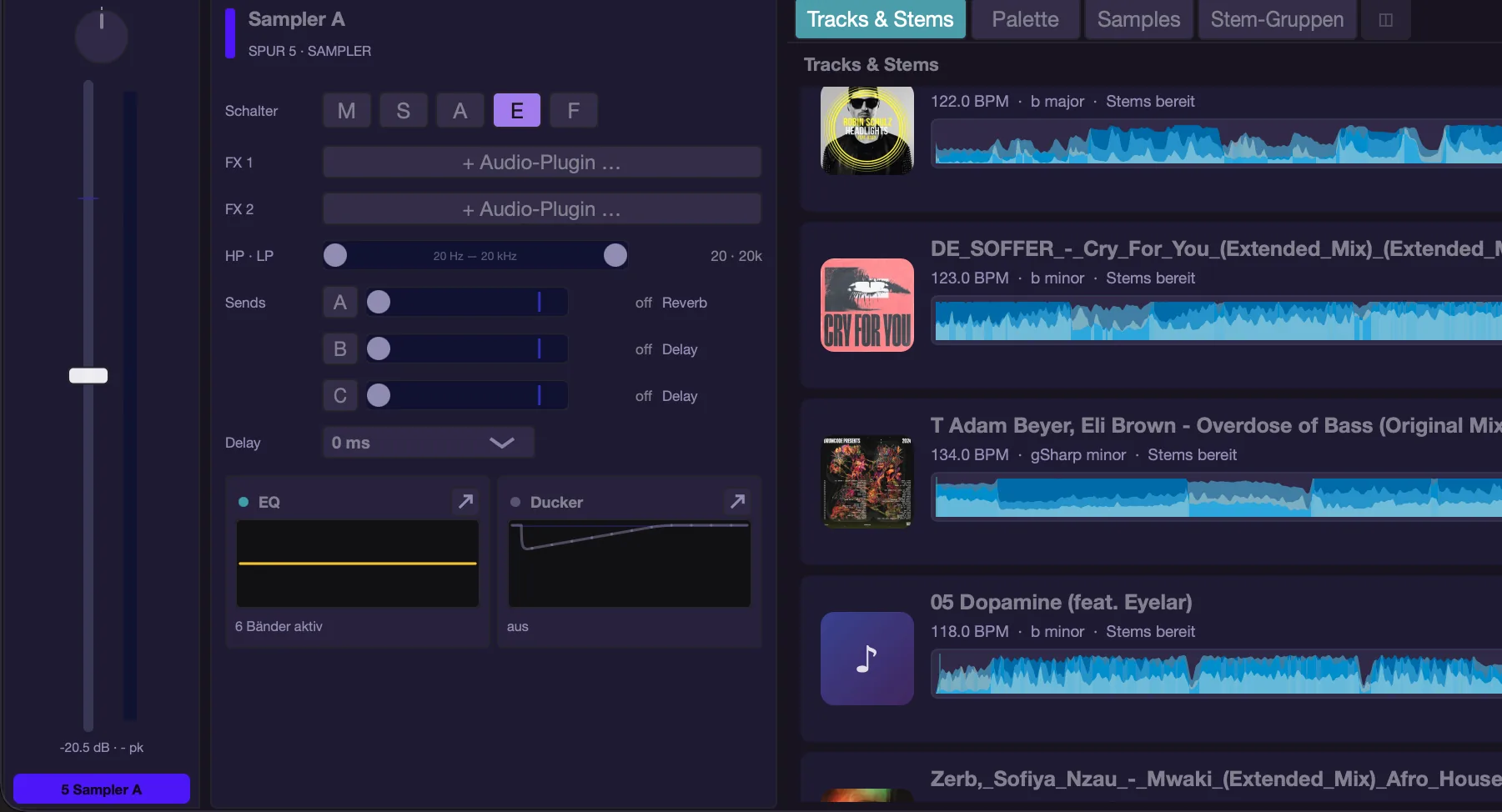
Equalizer
The EQ follows the Logic model: eight bands — HP, low shelf, bell 1 to bell 4, high shelf, LP.
- The “EQ” switch at the top left turns the whole equalizer on and off. Next to it sit the presets, “Save …” and the output level “Out” (−15 to +15 dB) — in the column as a value field in the header, in the window as a vertical slider to the right of the curve.
- Below that each band has a symbol switch in its own colour: a click turns the band on and off, the selected band gets a yellow frame. With no band active the curve reads “No band active — click a symbol above.”
- In the curve you drag the handle (frequency and gain), the area of the selected band (left/right = frequency, up/down = gain), the gain line, or the edges (bells = Q, shelves and cuts = corner frequency). The scroll wheel changes Q, Option+click on the handle resets the band's gain and Q. Gain ranges from −15 to +15 dB; HP and LP have a fixed slope of 12 dB/octave.
- In the column, every active band then has a column with frequency, gain and Q; in the window all eight bands sit side by side. Dragging on the number changes the value (Shift for fine steps), a double-click types it, Option+click restores the default.
- Presets: factory presets, your own (“Save …”) and “Neutral (reset)”.
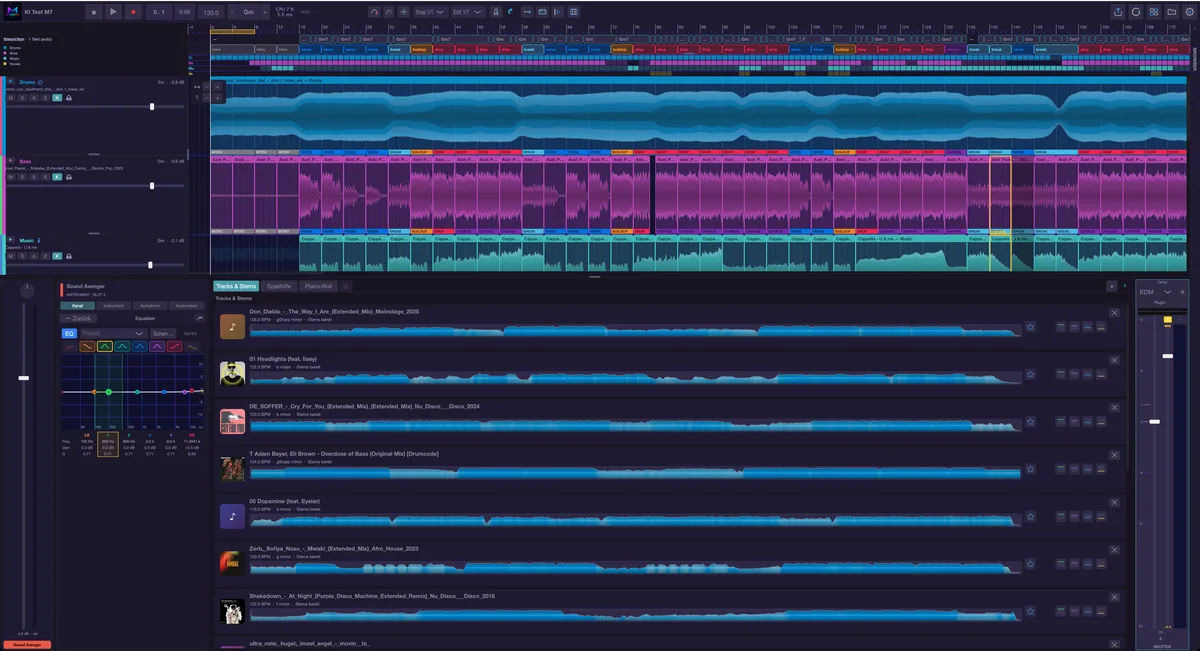
Ducker
The ducker pulls the lane down while something else is playing. At the top you choose CURVE or COMP.
- CURVE: an envelope with sixteen templates (their names stay German in the English interface, from “Klassisch” to “Umgekehrt”), note division 1/8, 1/4, 1/2 or 1/1 and “Mix” (how strongly the curve acts). The curve can be dragged directly; the gear offers reset, copy and paste as well as “Save shape…” and “My shapes”: a saved shape has a name, is available in all projects and can be loaded, renamed and deleted — loading gives you a copy, the saved shape stays as it is. What starts the curve is set by Start:
- GRID: the curve runs locked to the beat, cycle after cycle — also in breaks and passages without a kick. “Offset” shifts it on the grid (e.g. onto the offbeats).
- KICK: every kick of the kick lane starts the curve. It then runs once over the note division and stays at its end value; if the next kick arrives earlier, it restarts. Without a kick nothing pumps. “Sensitivity” sets how quiet a kick may be to start it (left: only loud hits, right: almost anything).
- COMP.: the classic sidechain as a compressor. Controls: “Depth” (0 to 24 dB, 0 = off), “Attack” (1–200 ms), “Attack curve” (0 hard to 1 soft), “Release” (25–2000 ms) and “Release curve” (0 quick with a soft tail, 0.5 linear, 1 stays down long — pumping). It follows the level of the kick lane.
Kick from. Here you choose whose kick counts: “All drums” (the drums of all titles), the drums of one particular title (e.g. “04 Golden – Drums”; mashup only), “All samplers” or a single sampler lane — never the channel itself. The choice applies to the start with KICK, to COMP. and always to Phase Lock. Next to it sits Trigger on: “Lows” filters the kick lane below 150 Hz before detection, so the bass drum triggers and not the hi-hats; “All” uses the whole signal. With GRID it has no effect and is dimmed.
Band. In both modes the ducking can be limited to the lows: below the crossover (40–400 Hz, default 120 Hz) the ducker acts, above it the lane stays as it is — the music stem of a guest title then only makes room for the kick in the bass while vocals and mids stay put. “6 / 12 / 24” is the crossover slope in dB per octave; at 6 dB the sum of low and high band is exactly the input, at 12 and 24 dB the split is sharper (Linkwitz-Riley). Solo lets you hear only the low band — a monitoring aid that is not saved.
Phase Lock. In a mashup the kick and the bass usually come from two titles — if they meet in the low band with shifted phase, the bass turns thin instead of fat. The row below (in the window, bottom right) shows the PHASE LOCK button (it measures against the lane under “Kick from”), the Ø switch (flip the lane's polarity), the lane's current Delay and a lamp: green when kick and lane sit together in the low band, yellow and orange in between, red when they cancel, dark without signal. Press PHASE LOCK while kick and lane play: musaik records the low bands of both for four seconds, finds the offset (up to ±20 ms) and the polarity at which they sit together best, and sets both — the delay in the channel page's delay field, the polarity in Ø, followed by the match quality in percent. Below 20 % (kick and bass share little in the low band, e.g. with unrelated root notes) musaik changes nothing and says so. One delay holds for one pitch; when the bass changes note, the picture may change.
Phase Lock step by step. This is how to set it up — what gets measured is always the lane whose ducker you opened (usually the bass), against the kick lane:
- Open the ducker of the bass lane (not the drums): the lane's environment (E) → Ducker, or DUCK in the mixer.
- Set “Kick from” to the drums the bass should sit against (in a mashup usually the structure master's drums) and the trigger to “Lows”.
- Start playback at a spot where kick and bass play at the same time — ideally a part with a steady kick and a calmly held bass note (drop or groove, not a break).
- Press PHASE LOCK. musaik records for four seconds (“MEASURING…”), then the result appears next to it, e.g. “+3.2 ms · Ø · 71 %”. Delay and polarity are already applied at that point.
- Check the lamp: green means kick and bass sit together in the low band. To hear it, switch on “low band solo” — with the kick, the bass now sounds fuller, not thinner.
- If it says “Too little relation” or “No match”, pick another spot (more kick, a held bass note, no vocals in the lows) and measure again. Pressing repeatedly at the same spot changes nothing — the measurement is relative to the current state and tells you when it is unsure.
- Repeat for every other lane that plays in the low band (e.g. music with low pads). Drums themselves need no Phase Lock — they are the reference.
To undo: set the delay on the channel page back to 0 and switch Ø off. The delay applies to the whole title, i.e. to all its lanes; it is saved with the project and included in the export.
The switch “Active” turns the whole ducker on and off. A muted kick lane does not trigger; soloing another lane does not interrupt the trigger. Playback and export run the same code in all modes; Ø also acts with the ducker switched off.
In the window the control rows sit in two columns — on the left what starts the curve (Start, Kick from, Trigger on, Sensitivity or Offset), on the right Band, Crossover and Phase Lock; they grow with the window. In the narrow environment column they are stacked. Double-click a slider to restore its default. The mouse wheel scrolls the column; only a sideways swipe turns a slider.
Keyboard (commands “Ducker: …” in the shortcut overview, acting on the open ducker editor): mode CURVE / COMP., start grid / kick, band full / lows only, solo low band, trigger on all / lows, phase lock, flip polarity, save shape, gear menu.
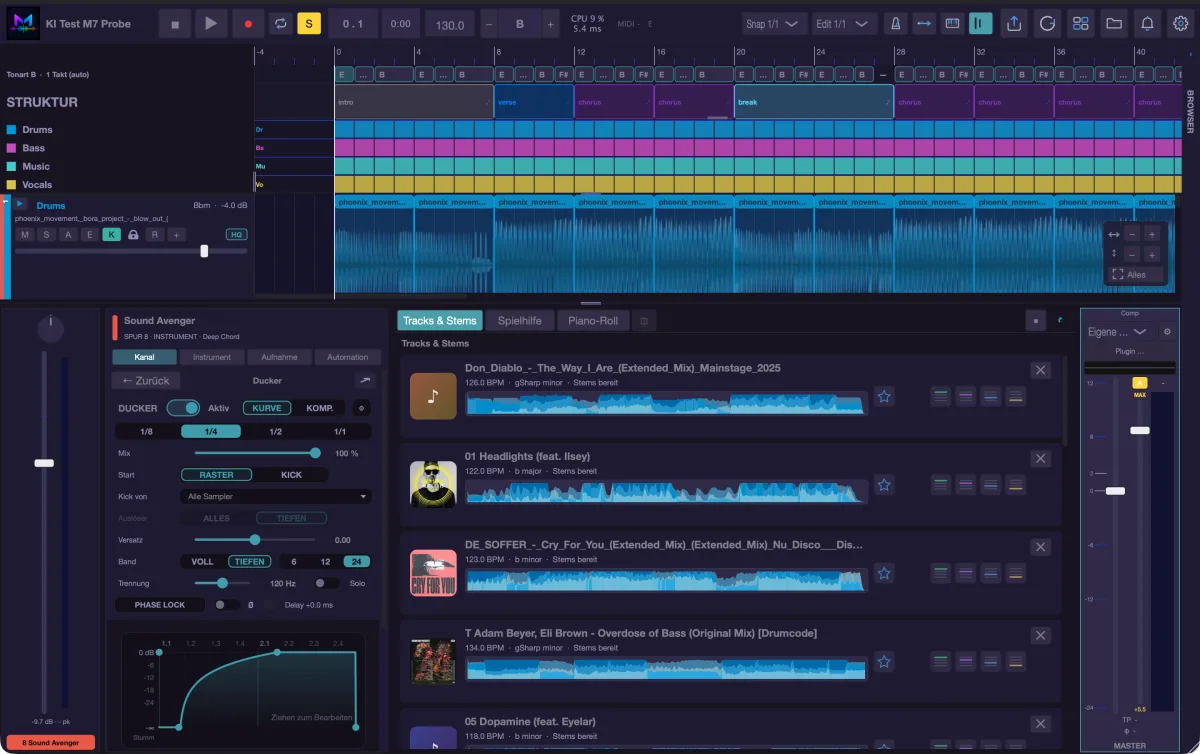
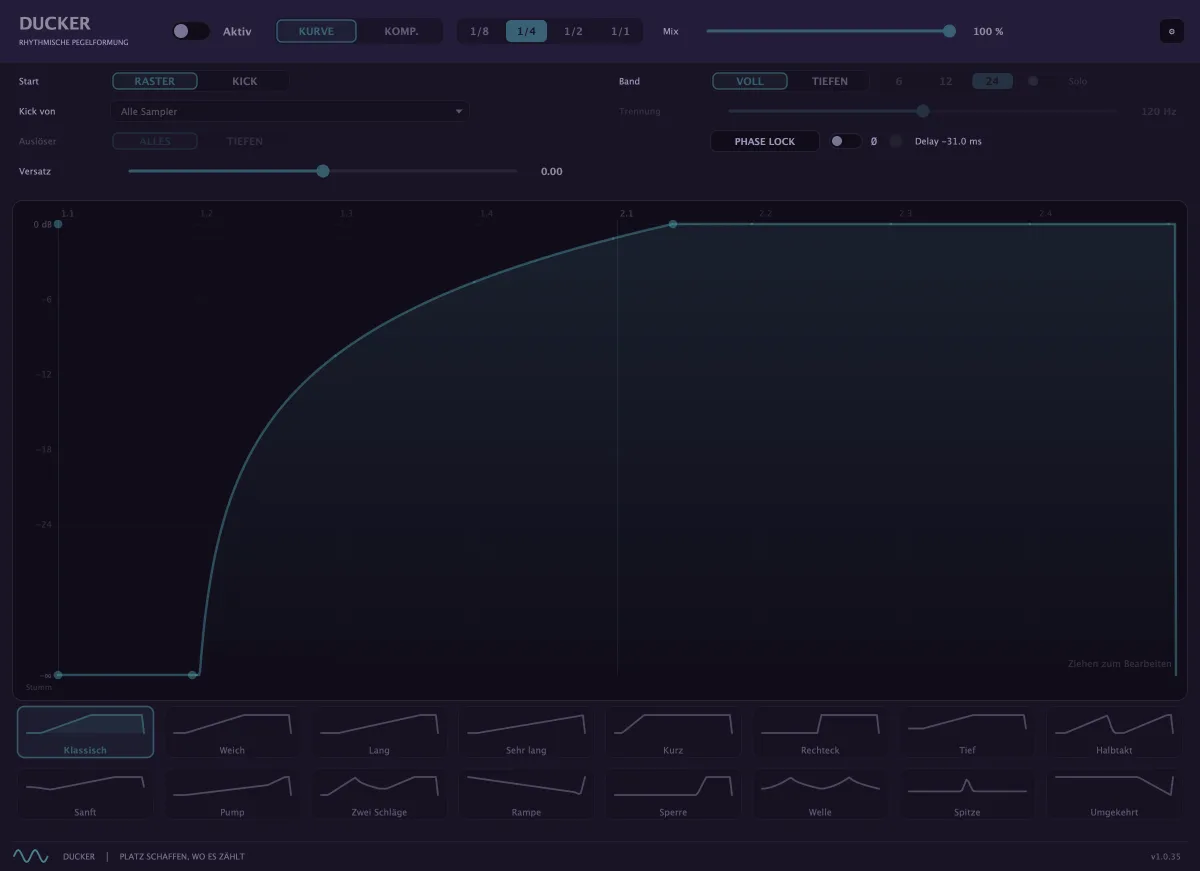
Instrument, play rules and recording
The “Instrument” tab carries the slot and the play rules (velocity, dynamics, gate, delay, input grid); with a MIDI clip selected they apply to that clip. The “Recording” tab holds the app-wide recording values (quantisation, count-in, loop mode, offset). Both are covered in detail in the chapter “Instruments & MIDI”.
Automation
The “Automation” tab belongs to instrument lanes: mode (“Read only”, “While turning (touch)”, “From first turn (latch)”), a search field for the plug-in parameters, the parameter list, “Close row”, “MIDI learn” and “Clear assignment”. Add more automation rows with “+” on the right of the instrument track header (or the command “Track: add automation row”); the new row reads “Choose parameter – or touch a control”; pick its target in the row's chooser. With the switch “Touching a knob opens the lane” (on by default), releasing a knob does this: if its parameter already has a row, that row is selected; otherwise an empty row takes it; otherwise the selected (outlined) row switches to it – its previous curve is kept and keeps working. Without any row, none is created.
In the arrangement itself:
- The A switch in the track header shows the lane's automation. The same rule applies to every lane type: with exactly one value the curve sits in the lane, and a chooser replaces the volume in the header. + in the header adds another value; from two values on, each one has its own row with chooser and ×, and the lane then shows only the clips. × removes only the row; the curve stays and keeps working.
- Deleting automation: right-click the track header → “Delete automation” lists every value of the lane – visible rows and existing curves – with “All on this track” above them. A value is removed together with its curve and row; if it was the only one, the header shows the volume again. Works on stem, sampler, deck and instrument lanes in every mode. The transition curves musaik manages in the DJ mix stay; reset those via the transition preset. Command: “Track: delete all automation” (selected lane). Undo with Cmd+Z.
- The chooser lists the channel first (volume, pan, high-pass, low-pass, send 1 to 3), then the automatable parameters of the channel's insert plug-ins, or of the instrument on instrument lanes. Typing filters the list. The command “Track: add automation row” acts on the selected lane.
- A click sets a point, dragging moves it, a double-click or right-click deletes it.
- Several points: Shift+click adds a point to the selection (or removes it), Shift+drag on empty space draws a frame. The selected points sit in a blue frame. Dragging the frame moves them all (time snaps to 1/4 bar). Dragging with Cmd copies: a line shows the front edge, and the copy replaces the points that were in its range. Delete removes the selected points, Esc clears the selection.
- A-REC in the transport bar records control movements during playback. The A button next to it shows or hides all automation rows.
- Thinning out: a control pass first writes a great many points. As soon as you let go (or nothing arrives for 0.4 s), musaik thins them out: only the nodes remain without which the curve would deviate by more than 3 % of its range (about 2 dB on the fader) – each section as an S-curve or a straight line, whichever fits better. Thin out older curves with a right-click into the empty area of the row → “Thin out curve”, all curves of the selected track with the command “Track: thin out automation”.
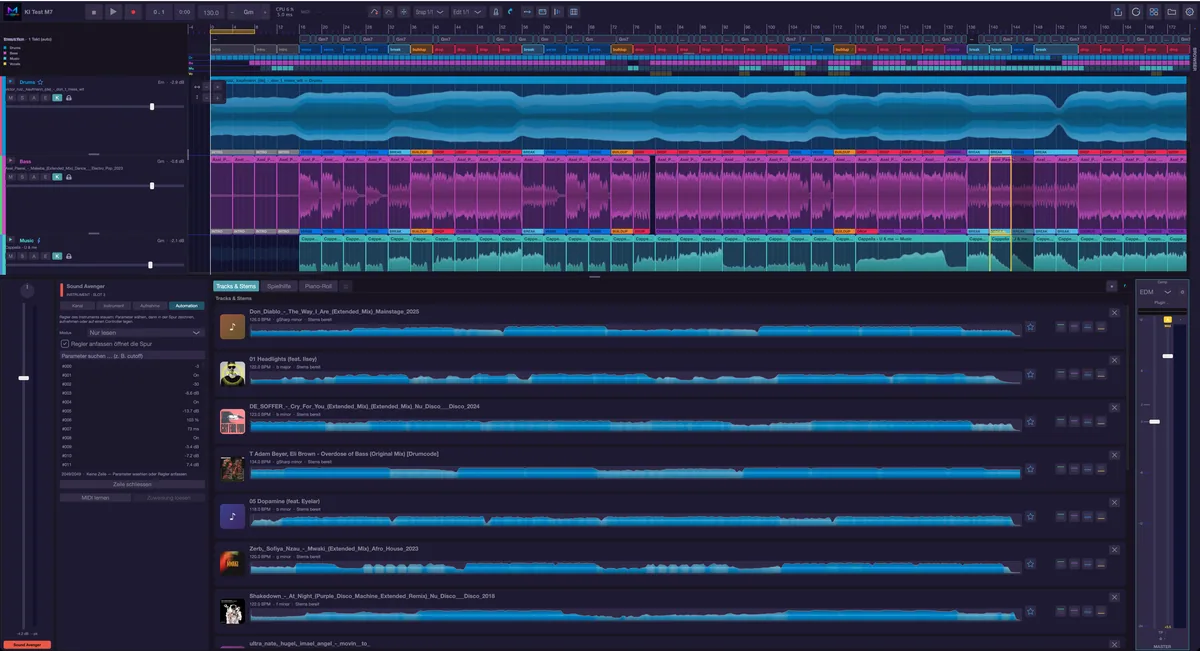
Mixer
The mixer shows the channel strips side by side, grouped by title (its name sits as a header bar above its strips), followed by samplers and instruments in the same order as in the arrangement, and at the far right buses and master. A strip holds, from top to bottom: colour bar with the track number (the same as in the track header), EQ image, instrument slot (instrument lanes only), two FX slots, the send cells, fader with meter, below it pan, then M, S, DUCK and the name. Clicking a strip selects the lane — the environment follows, and the selected strip gets a frame in the lane's colour.
- A double-click on the EQ image opens the channel's equalizer as a window, DUCK opens the ducker window.
- The FX slots and the instrument slot behave as in the environment: click = menu, double-click = plug-in window.
- Each send cell is a small knob (−60 to +6 dB) next to bus name and value; a double-click switches the send off (“off”).
- A double-click on the fader sets it to 0 dB, on the pan to centre.
If the height does not suffice, the send cells go first, then the slot rows; in the environment they are all still there. If not all strips fit the width, the channel strips scroll; buses and master stay put. Set the strip width under Settings › Layout › “Mixer channel width” (110 to 160 px).
Right-click a channel strip for the “Show buses” menu with one entry per bus (“Bus 1: Reverb” etc.). A click unticks the bus or ticks it again; a hidden bus disappears everywhere — with its bus strip, the send controls and the automation row, and it is no longer fed.
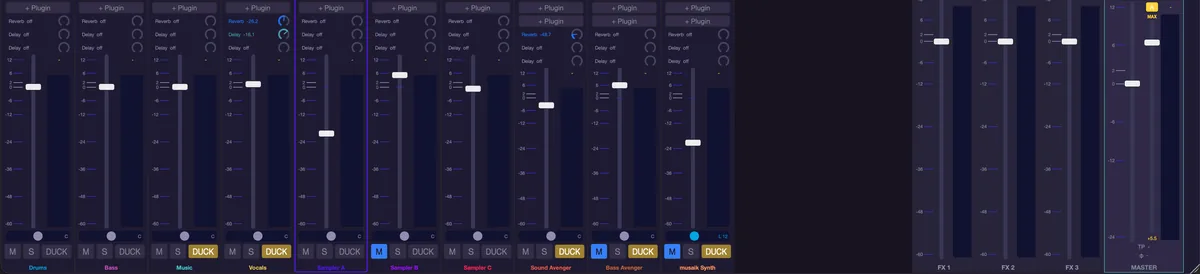
FX buses
There are three buses; in the mixer they sit between the channel strips and the master and are labelled “FX 1” to “FX 3” at the bottom. The send rails or send cells of the channels feed them.
- At the top you choose the type: “Reverb”, “Delay” or “Plugin…”.
- With Reverb and Delay a click on the “Parameters …” field below opens the controls with presets (“Load preset …”): for the reverb “Room”, “Damping” and “Width” (presets “Short”, “Room”, “Hall”, “Plate”), for the delay “Time (beats)”, “Feedback” and “Mix” (presets “Slap”, “1/8”, “1/4 dotted”, “1/2”). Changes take effect at once.
- “Plugin…” opens the plug-in picker; afterwards the field shows the plug-in name. A click on it offers “Open editor”, “Change plugin…” and “Remove plugin”, a double-click opens the plug-in window directly.
- Below sit the bus's own EQ image (double-click opens the equalizer) and the return fader (−60 to +12 dB, double-click = 0 dB) with a meter. A click on the peak value above the meter acknowledges an overload.
- The buses only appear in the mixer, not in the track environment. How to hide individual buses is described under “Mixer”.
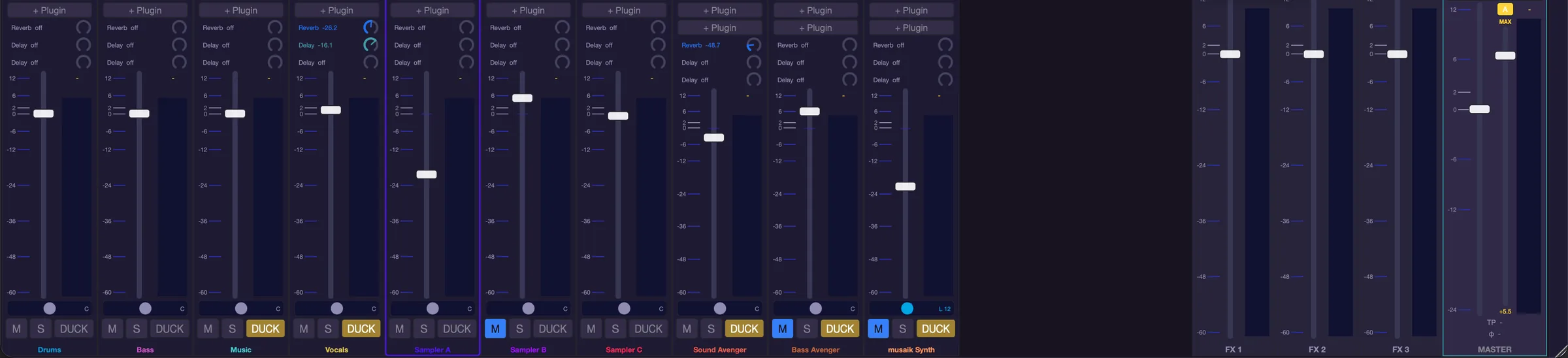
Master
- At the top the dynamics section with its preset picker (Off, Pop, Hip-Hop, EDM, Techno, Rock, Acoustic, Glue, Pump …) and “Custom …”. The gear opens the master dynamics editor: six coloured controls, a GR readout with IN / OUT / GR meters, a history of input, output and gain reduction (“Live View” 5/10/30 s, “Scale” 12/24/48 dB), your own presets, “Overwrite preset” and, under “•••”, factory values, neutral (Off) and default size. “Auto Gain” at the bottom right is the same switch as A on the master. The “?” button at the top right explains every control and meter in plain words (click anywhere or Esc closes).
- The safety clipper (“Safety clipper (−0.4 dB) — active even with preset Off”) keeps the level below 0 dBFS. Load a master insert and it switches itself off — otherwise a maximizer inside the plug-in would be clipped a second time. In the editor you can switch it back on at any time.
- The yellow MAX control is the maximizer: 0 to 6 dB, shaping the peaks onto the −0.2 dBFS ceiling, double-click = off. The A button next to it rides it automatically and deliberately slowly; the slider then shows the amount in effect.
- Below, TP (true peak) and the correlation meter measure the sum. The TP value latches; a click acknowledges it. From −1 dBTP on, MP3 or AAC can clip on the listener's side. On the correlation meter +1 means mono, 0 maximum width and −1 a phase inversion.
- Above the fader sits the field for the master insert: empty it reads “Plugin …” (a click opens the plug-in picker), otherwise the plug-in name; a click on it offers “Open editor”, “Change plugin…” and “Remove plugin”.
- Open the master EQ with a double-click on the EQ image below the preset picker or with the command “Master EQ …”. A double-click on the master fader sets it to 0 dB.
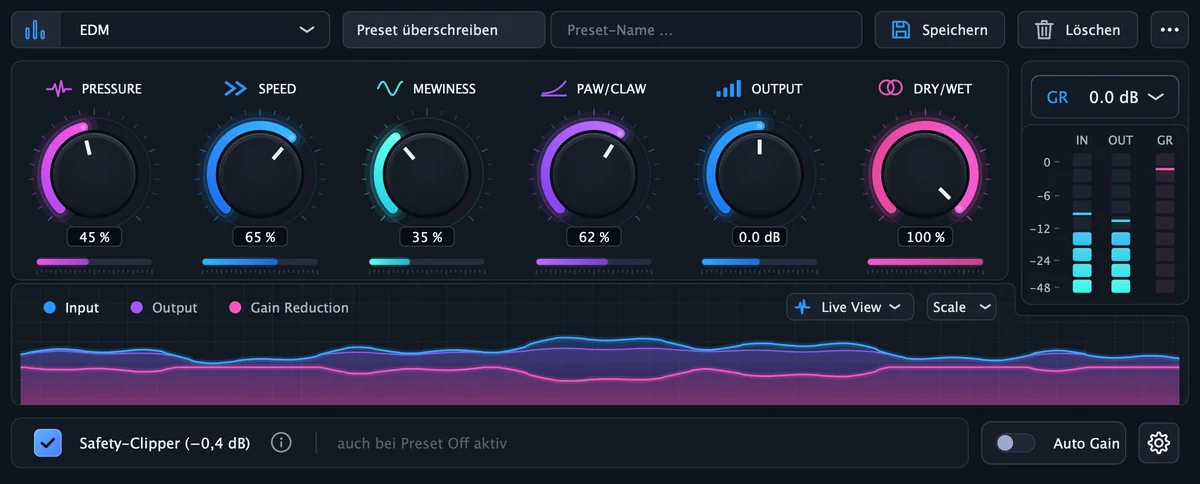
Echo Out
ECHO in the transport bar (key O) lets part endings and cut edges ring out in sync with the tempo instead of stopping hard. A double-click on ECHO — or Shift+click — opens the settings: “Echo level”, “Ring-out” in bars, “Repeat rate” (1/16 to 1/1) and “Lead-in before the edge” (1/4 to 1 bar). Per lane the header switch “E” applies, per clip the entry “Echo out on this clip” in the context menu.
Under Settings › Audio › “Echo Out” you set where Echo Out acts: “Echo out: stem parts” (ring out at part endings of deactivated stems), “Echo out: cut edges” (at cuts inside a title) and “Echo out: timing” (spacing of the repeats, the same value as “Repeat rate” in the popup).
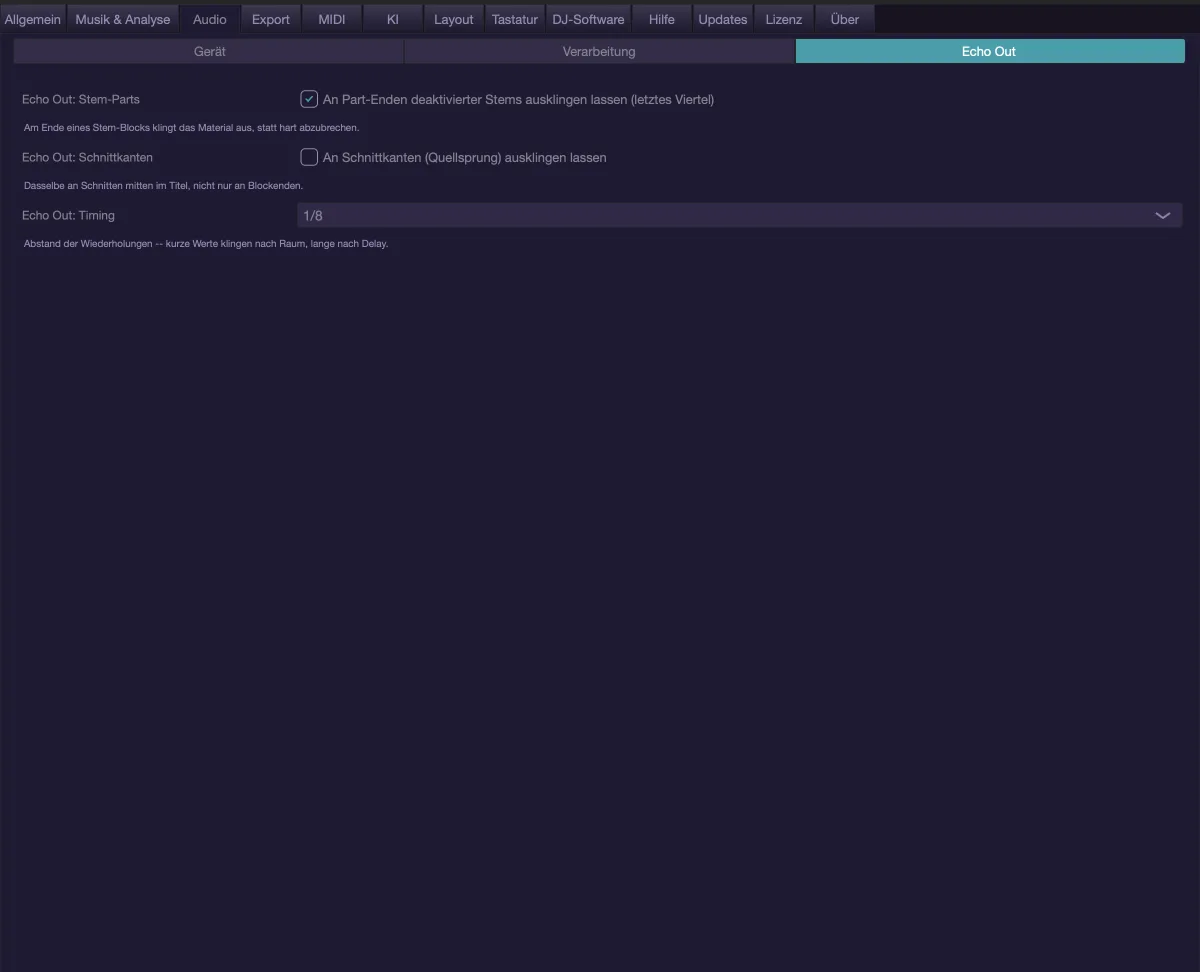
Plug-ins
AU and VST3 are scanned the first time you open the picker; the list fills up live, and “↻” rescans. The “Search …” field filters the list. The picker only shows what fits the slot: at the instrument slot instruments — with the built-in musaik instruments at the top, which need no installation —, at FX slots, buses and master only effects. A plug-in appears only once — the AU version wins, because AudioUnits run in a process of their own and a crash does not take the app down with it. The engine compensates the latency plug-ins report; if the transport bar shows a figure in milliseconds, that is exactly why. Plug-in windows open in the middle of the screen and remember their position once you have moved them.
Keyboard shortcuts
- E – track environment on/off
- Shift+M – mixer on/off
- Cmd+Option+P – toggle the bottom area (mixer / piano roll)
- ↑ / ↓ – select the lane above or below
- M – mute the selected lane, S – solo off everywhere
- A – record automation (A-REC)
- O – Echo Out on/off
- Cmd+Option+1 to Cmd+Option+4 – Echo Out of the stem lane on/off
- Cmd+Option+L – loop of the selected MIDI clip on/off
- Option+0 – reset the lane's pitch
- Shift+Option+Up/Down – pitch one octave up/down
- K – metronome (CLICK) on/off
Edit mode
In edit mode you rebuild one title: shorten it, extend it, swap parts, put a club intro in front. The title plays at its original speed and in its original key while you do so. Edit mode is a licence module of its own.
The principle
An edit project holds exactly one title. Its complete audio sits on the timeline, and bar 1 is its first downbeat. Whatever the file has before that — a vocal pickup or a clipped first bar, say — sits in the pre-roll before bar 1 and is played and exported too; nothing is cut off, neither at the start nor at the end. Older edit projects get the missing start and end added when they are opened, as long as the title is still untouched there; everything you do changes this one arrangement. As soon as the analysis is done, the title's original tempo sets the project BPM — as long as you do not change it yourself, nothing is stretched and nothing is transposed. If rekordbox knows the track and has analysed it, musaik takes tempo and beatgrid from there (can be turned off under Settings › DJ software). musaik measures and compensates, per track, the offset by which rekordbox sits next to the playback for MP3 (about 25 ms); if the rekordbox grid does not clearly fit the track, musaik keeps its own analysis. The waveform appears as soon as tempo and beatgrid are known; the remaining analysis steps continue in the background.
- You create an edit project in the project manager with the “+ Edit” button; musaik then asks for the file straight away (“Choose track for the edit”).
- Shift+E switches modes. It does not switch inside the running project but opens the project manager filtered to the other mode.
- Drag another title into the view and musaik asks “Replace the current track with: …” — the edits made so far are lost then (Cmd+Z helps).
- The arrange symbol in the transport bar (arrow, tooltip “Original wiederherstellen” — this tooltip is still German in the English interface) restores the untouched title here. musaik first asks “Restore original?”; “Restore” discards all edits (Cmd+Z brings them back).
The view
- At the very top the minimap with the whole file, the structure strip, the view frame and the playhead. A click sets the playhead, dragging scrubs.
- Below it the ruler, the structure band and the large, frequency-coloured waveform. If the structure was estimated without stems, the left reads “Struktur ~ geschätzt” (this label is still German in the English interface) and the sections carry a “~”.
- In the ruler you drag out a loop (Shift and dragging from right to left = skip range); a double-click removes it. Right-clicking the loop offers “Remove loop”, “Cut range out” (like DELETE), “Repeat range” (like CLONE), “Clear range (silence)” (like CLEAR) and “Insert silence (range moves right)”: silence of the loop's length appears in the loop, and everything from the loop start moves back. The Edit menu has the same.
- Clicking the structure band selects that section bar-accurately, Shift+click sets the loop onto it and plays from there. Right-clicking or double-clicking the band opens a menu with “Change label”, “Loop and play section”, “Split at this position”, “Merge with next” and “Open segment correction …”.
- At the bottom the sampler rows; the “+ Sampler track” button below the last track header adds new ones.
- Zoom: Cmd+wheel horizontally, Cmd+Shift+wheel vertically, Cmd+ and Cmd− as well as Cmd+0 (“fit project”). The zoom pad floats at the bottom right inside the waveform; its “Fit all” switch keeps length and height fitted until you zoom by hand.
- If the title has a changing tempo, the tempo lane appears above it. In edit mode it is display only: it is derived from the downbeat map. The tempo itself is changed in the transport field or through the grid correction.

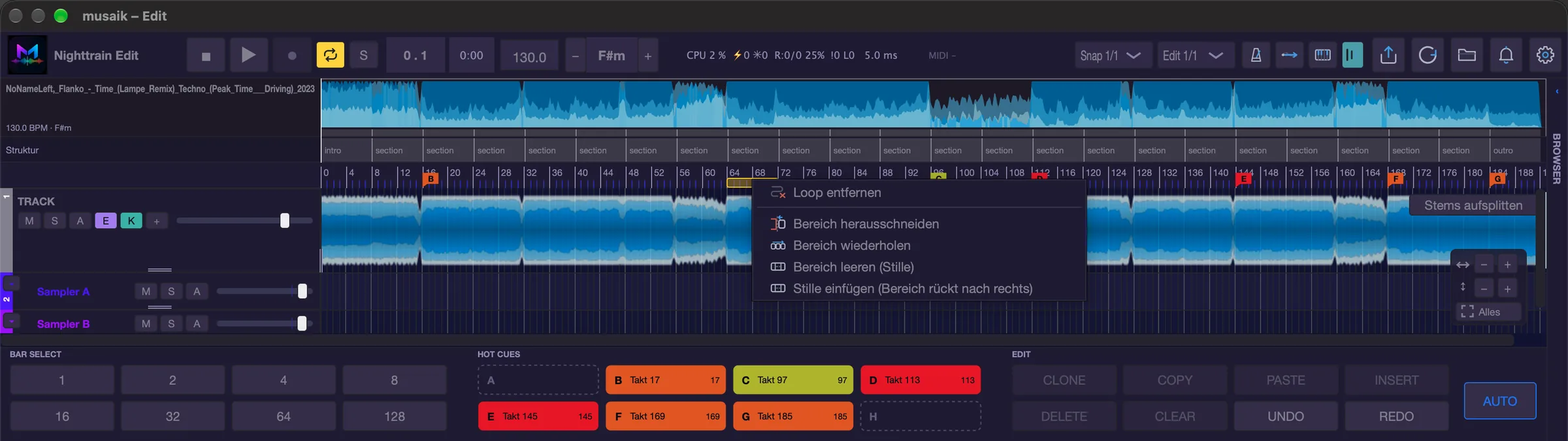
Selecting
- Click into the waveform and drag. The edges snap to the edit grid (1/32 to 1/1), the minimum length is one grid step. You set the edit grid in the “Edit 1/…” field in the transport bar (or in the settings under “Edit grid (cursor + grid lines)”). A plain click without dragging sets the playhead.
- The selection has grips on all four corners and on both side edges; next to it a box gives bars, beats and length.
- Esc clears the selection. Range selection and sample clip selection exclude each other, so Cmd+C is always unambiguous.
- In stem view Shift+drag selects only the one stem row under the pointer. Copy, clear and delete then act there only — and without ripple.
- The selected area can be dragged into the palette or onto a sampler lane.
- If, after a cut, material you want back is missing at the edge of the selection: hold Shift and drag the left or right edge of the selection. The clips whose edge sits there grow along and bring back the original material before or after it (with a stem selection only in that stem row).
BAR SELECT in the panel selects exact bar lengths from the cursor: 1, 2, 4, 8, 16, 32, 64 or 128 bars. If the selection runs past the end of the track, musaik asks “Extend outro by N bars?” and offers “Extend”, “Only up to the end” and “Cancel”.
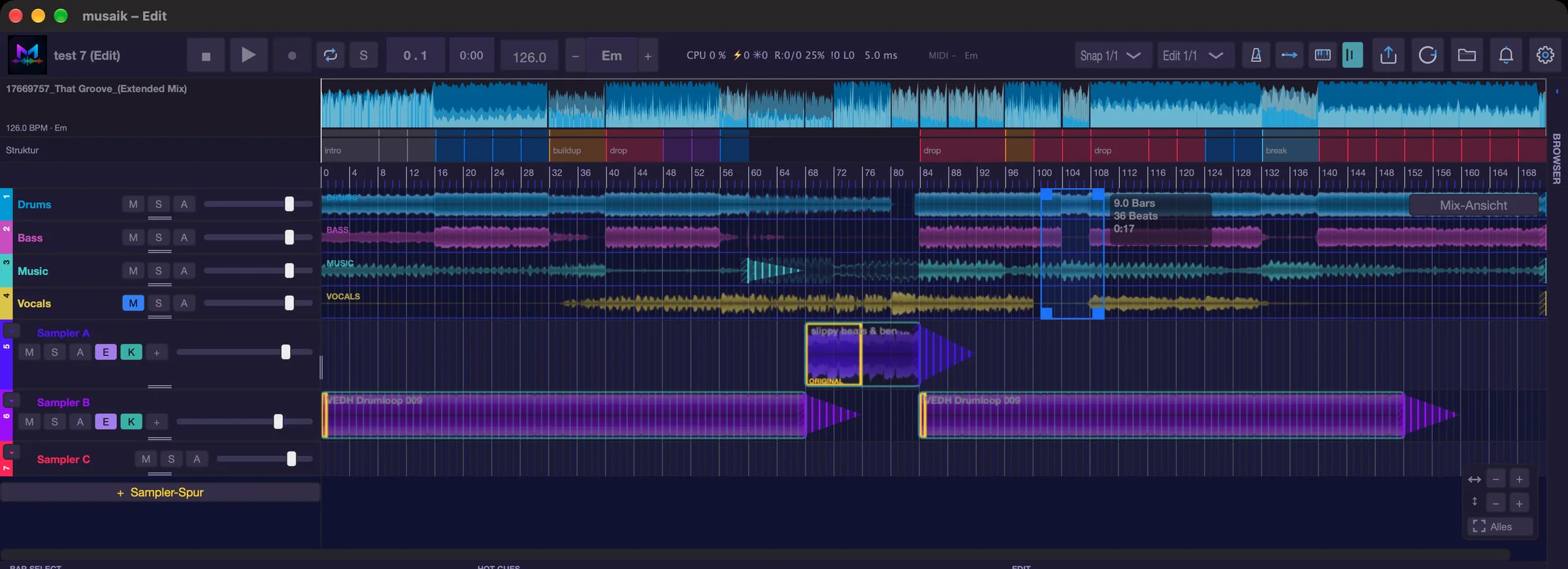
Actions
The function bar below the view carries “BAR SELECT” on the left, the “HOT CUES” pads in the middle and, under “EDIT” on the right, the eight buttons CLONE, COPY, PASTE, INSERT, DELETE, CLEAR, UNDO and REDO, plus the AUTO button (blue outline). CLONE, COPY, DELETE and CLEAR are only active with a selection, PASTE and INSERT only once something has been copied. The same commands are in the selection's context menu (right-click or double-click): “Clone — insert after”, “Repeat …”, “Copy”, “Paste — overwrite”, “Paste with ripple”, “Delete — ripple” and “Clear (no ripple)”.
- DELETE (Delete or Backspace) removes the range and everything after it moves up — the title gets shorter.
- CLEAR (Shift+Backspace) empties the range and leaves the gap.
- COPY (Cmd+C) puts the clips inside the range on the clipboard; the edges are cut in the process, which is why copying sets an undo point too.
- PASTE (Cmd+V) inserts the clipboard at the cursor position, overwriting there; the length stays.
- INSERT (Cmd+Shift+V) pushes the clipboard in at the cursor, everything after it moves back.
- CLONE (Cmd+L) copies the range and inserts it directly behind itself.
- “Repeat …” in the selection's context menu puts it behind itself 2, 3, 4, 8 or 16 times.
- UNDO and REDO share the history of Cmd+Z and Cmd+Shift+Z.
After every action the result stays selected so you can carry straight on.
If a sample clip on a sampler lane is clicked instead of a range, the commands act on that clip: Delete removes it, Cmd+L puts a copy directly behind it, Cmd+C copies it, and Cmd+V adds the copy at the cursor position without moving anything.
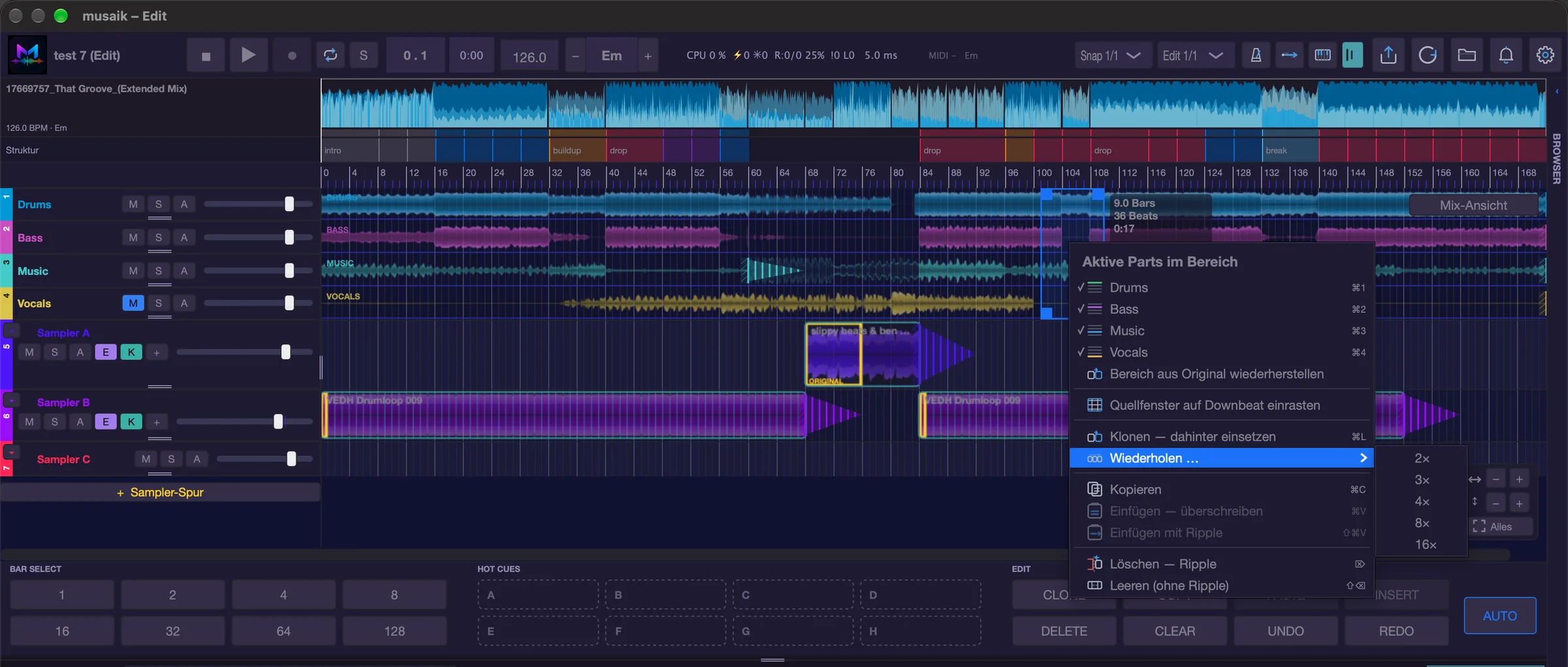
AUTO: presets and rule set
The AUTO button opens the auto-edit menu. All auto edits need the track's separated stems – onset, vocals, breaks and energy are measured on the stem files, not only on the estimated analysis. If the stems are not separated yet, musaik says so before anything happens.
- “Automatic (by rulebook)”
- “Prepend club intro” with 8, 16 or 32 bars
- “Append club outro” with 8, 16 or 32 bars
- “Tighten breaks” to 4 or 8 bars
- “Radio → club edit (16/16)”
- “Only one drop (remove first drop + break)”
- “Halve the mix-in (repeating 8 bars → 4, up to the break)”
- “Hook/drop first (edit starts with the drop/chorus)” with 8 or 16 bars
- “Build-up (drums → +bass → +music)” with 4 or 8 bars each
Club intro, club outro and build-up are built from the stems and only run in the stem view; in the mix view musaik reports “This preset builds the intro/outro from the stems. Please enable “Split into stems” first.” Every preset is one step that Cmd+Z takes back. If a preset cannot do anything, it tells you why and changes nothing.
Build-up puts three stages of 4 or 8 bars each in front of the title: drums only first, then drums and bass, then drums, bass and music, built from the most energetic part of the title.
Tighten breaks cuts in whole 4-bar phrases and keeps the end of the break – that is where the build-up and riser before the drop sit. With “to 8 bars”, the first 4 bars stay as well. Without detected song parts, only a stretch where drums and bass drop counts as a break; a verse with quieter drums is not shortened.
Only one drop removes the first drop and everything up to the second (break and the build-up before it). The second drop usually carries the closing mood and is longer.
Radio → club edit only builds intro and outro in the stem view; without it, it only merges doubled choruses. If it changes nothing, it tells you.
Hook/drop first puts 8 or 16 bars of the first drop (otherwise the first chorus, or without detected song parts the most energetic part) at the start. The start snaps to the measured entry. After that the track continues where the song really starts – at the vocal entry, with a pickup at the end of the hook; without vocals from the first phrase with full drums and bass. The intro before it is removed, so no dry intro drums follow the drop. If the hook already sits at the entry or at most 8 bars after it, the edit simply starts at the hook and nothing plays twice. You can still build a club intro in front of it. The preset cannot be applied a second time (“Der Edit beginnt schon mit einem Hook” — this message is still German in the English interface).
Halve the mix-in shortens the long intro of an extended mix up to the first break. musaik walks back from the break in 8-bar phrases. If everything stays the same within a phrase, bars 4 to 7 are removed: bars 1 to 3 with the entry and bar 8 with the fill stay, the phrase runs for only 4 bars, and the changes come twice as fast. “The same” means: no vocals (as with the club intro, only four bars in a row count – single vocal shots with reverb do not), no element comes in or drops out (drums, bass and music are equally loud in bars 1–3 and 5–7, for the drums also the highs, so hi-hats coming in are noticed), the rhythm of bars 5 to 7 repeats that of bars 1 to 3 (checked on the tracks that carry the phrase – a quiet background melody does not count), and no song part with a different name starts inside the phrase. If a vocal shot starts in bars 4 to 7, the cut moves forward (bars 3–6 or 2–5) so the shot is kept. Anything not clearly the same stays uncut; if musaik finds nothing, it tells you why. Without a detected break with at least one 8-bar phrase in front of it, the preset stops with a message. It needs the stems, because it measures the stem files (the stem view does not have to be on for this).
Club intro builds the lead-in a DJ needs for mixing: drums only, drums and bass in the second half, no melody and no vocals. musaik takes the beat from the main part of the title — a chorus or drop where drums and bass play at full strength — not from its quiet beginning; to find it, it measures the stems bar by bar. If the energy rises within an 8-bar stretch (hi-hats coming in for the second half, say), musaik does not loop that stretch, since the energy would drop back on every repeat; it takes an even stretch at the higher level instead. The title then comes in on the one of an 8-bar phrase — it is never cut into the middle of a phrase, so choruses and breaks stay on the grid. Whatever the original has before this phrase one is dropped if it is one or two phrases (8 or 16 bars) long; a longer original intro stays. If the edit already has a built intro, musaik does not build a second one in front of it (“Der Titel hat schon ein gebautes Intro …” — this message is still German in the English interface; take the first one back with Cmd+Z, then build again); the same applies to “Build-up”. If the vocal starts with a pickup before the phrase — even before the first bar of the file — that pickup sits in front of the end of the intro, starting where it is sung. If the title starts without a beat, the length decides: up to 8 bars, the intro beat keeps running until the title's own drums come in; if the beatless part is longer, it stays a break. Then the intro's elements drop out, and a short element from the break (a riser in the drums, otherwise a bass or melody hit) is copied to the start of the break.
To drop elements out, the auto edits use the existing tools, and everything stays visible and editable: the drums get a high-pass automation on their lane across the last bar (off → about 1 kHz, then off again) — no echo, since an echoing kick stutters. For bass, melody and, in the club outro, the vocals, the auto edit switches on echo out with the same switches you have: the echo switch in the element's lane header and the global ECHO switch in the toolbar. It switches the echo switch of the drums lane off. If you switch the lane header or the global switch off again afterwards, the echo is gone. So that the echo lands on a real ending, the silent part of the title behind it is muted, not deleted. Club outro starts on the one of the 4-bar phrase after the last bar in which the title's drums play at full strength — not at the end of the file, where there is often already silence or a fade. Whatever the title still has after that is cut at this point (bring it back with Cmd+Z or by dragging the clip edge). The outro mirrors the intro and is carried by the bass, not the melody: the elements leave in stages, one per stage — the melody first, then the bass — and the drums run to the end. With 32 bars in stages of 8 that is 8 bars of drums, bass and melody, 8 bars of drums and bass and 16 bars of drums only; with 16 bars it is 8 bars of drums and bass, then 8 bars of drums. Every element that leaves ends with echo out; the vocals already end at the edge. Whatever the title itself no longer plays at that point does not come back in the outro. Samples on sampler lanes have no influence. “Extend” via BAR SELECT still appends at the very end.
The topmost entry can only be clicked while the edit rule set is switched on. It lives in the “Rulebook” window (menu “Settings” › “Rulebook…”) on the tab “Edit”; the switch is called “Auto edits by rulebook”. There, rules decide which preset runs with which values — instead of you choosing every time.
Every preset works on one area of the title: the start (club intro, build-up, halve the mix-in, hook/drop first), the middle (tighten breaks, radio → club edit, only one drop) or the end (club outro). “Automatic (by rulebook)” applies the matching rule for each area — so a title gets its intro and its outro in one pass, and tightened breaks if you want them. All of it is one step that Cmd+Z takes back completely. If several rules match in one area, the one with the most conditions wins. If no rule matches, musaik changes nothing and shows, for every enabled rule, which condition is met and which is not. If a step could not be carried out (club intro or outro without the stem view, say), musaik afterwards lists under “Applied” and “Not applied” what happened.
Presets can be applied one after another, also to an edit you have already cut by hand. Tighten breaks, radio → club edit and only one drop find their spots in the title's analysis and translate them to where that material currently sits in the edit. If there is nothing left to do (the breaks are already short enough, or the drop is already gone), the preset says so and changes nothing.
Four rules are on by default; all four only apply when the title's stems have been separated:
- “Kein Beat zum Anmischen → Club-Intro (16 T)”: the title starts with fewer than 8 bars of beat without vocals.
- “Kurzer Beat zum Anmischen → Club-Intro (16 T)”: 8 to 15 bars of beat at the start are not enough for a clean 16-bar mix.
- “Kein Beat zum Ausmischen → Club-Outro (16 T)”: fewer than 8 bars of beat run after the last vocals.
- “Kurzer Beat zum Ausmischen → Club-Outro (8 T)”: 8 to 15 bars of beat at the end get 8 more bars of outro.
Vocals here means at least four bars sung in a row; single vocal shots in the intro or outro, as extended mixes often have, do not count. The templates that cut parts out of the title (tighten breaks, radio → club edit, only one drop) or rebuild an existing intro are off — switch them on when you want them.
Each rule can also set how entries and exits are built: the wind-down stage of the outro, the outro anchor (musical end or end of track), up to how many bars the beat is underlaid below a beatless song start (or never), whether a transition element goes to the start of a break, how the drums leave (high-pass up to 500 Hz, 1 kHz or 2 kHz, or no filter) and whether leaving elements get echo out. Matching conditions are “Beat to mix out at the end” and “no beat after the entry”. Whatever the default rule sets applies in every area, unless the rule that wins sets the value itself.
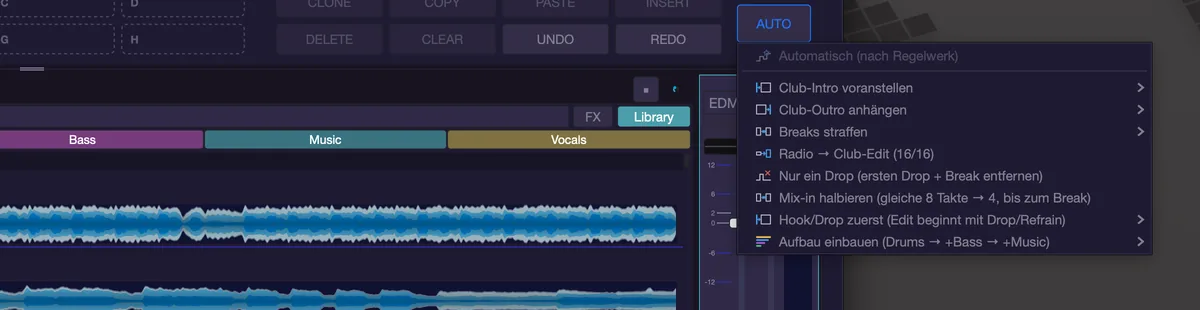
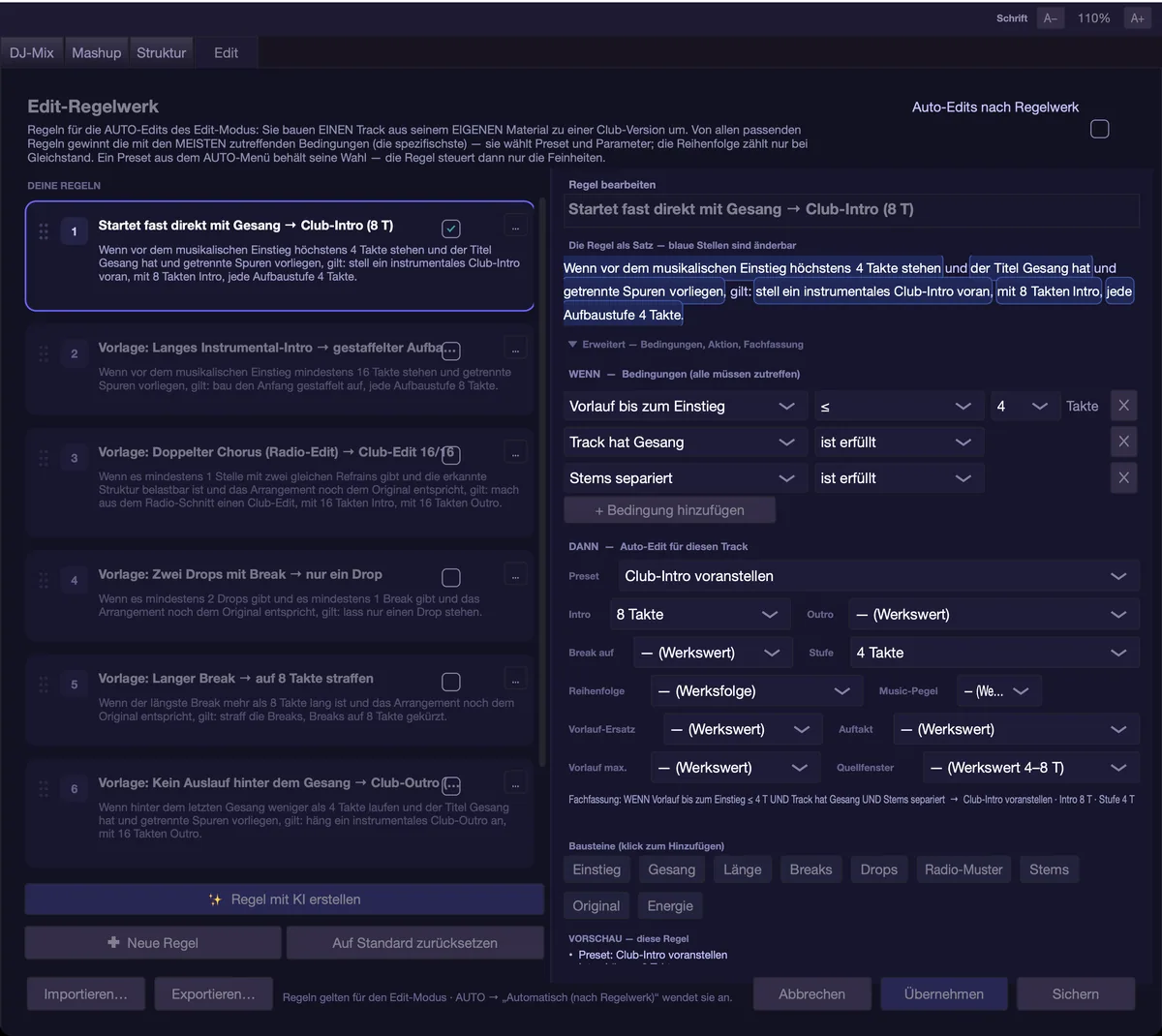
Stems in edit mode
- The button at the top right of the waveform reads “Split into stems” or “Mix view”. If the stems are missing, musaik asks first: the title is separated, which takes a few minutes, and the stem view appears by itself afterwards. Which engine does the separating is set in the settings (“Trennverfahren” — the label is still German in the English interface — factory setting “Automatic (fastest available)”).
- In stem view four sub-rows sit inside the same lane: DRUMS, BASS, MUSIC, VOCALS. Each can be resized in height; no additional lanes are created.
- Switching single elements inside a range: right-click or double-click the selection, header “Active parts in range” — or Cmd+1 to Cmd+4. Material switched off is not deleted but muted and drawn as a ghost. Without a selection the shortcuts deliberately do nothing.
- If you deleted or cleared a stem in the range, the switches do not bring it back, because there are no clips left there. For that, the same menu has “Restore range from original” (with a Shift selection “Restore from original: ” plus the stem's name): the range is rebuilt from the original and replaces what sits there.
- Going back to the mix view asks for confirmation: the range activations of the other stems are merged in the process.
- A stem range selected with Shift can be dragged to another spot on its own stem row. A copy lands there and the source stays; the original at the target spot is muted bar-accurately, not deleted.
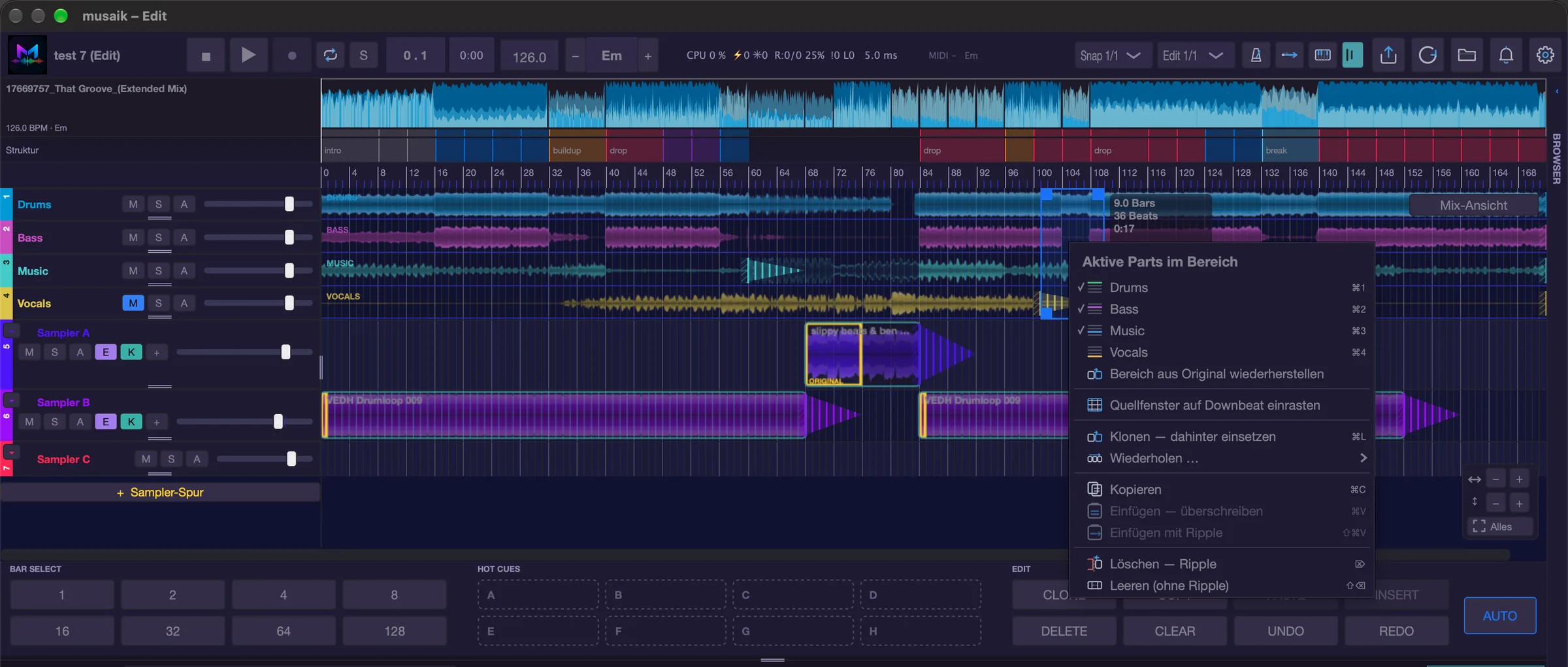
Automation
Automation works in edit mode as in the arrangement. A in the track header shows the lane's curves. With exactly one value, its curve sits in the lane and a chooser for the value replaces the volume in the header. + in the track header adds another value (also as the command “Track: add automation row”). From two values on, each gets its own row below the lane, with a chooser and ×; the lane then shows only the waveform. The chooser offers volume, pan, filters and sends as well as the parameters of the channel's insert plug-ins. × removes only the row; the curve stays and keeps working.
This applies to the four stem lanes, to the “TRACK” lane of the mix view and to the sampler lanes. “TRACK” uses the same curves as the MUSIC lane of the stem view. Drag a row's bottom edge to change its height. The project saves which values and rows each lane shows.
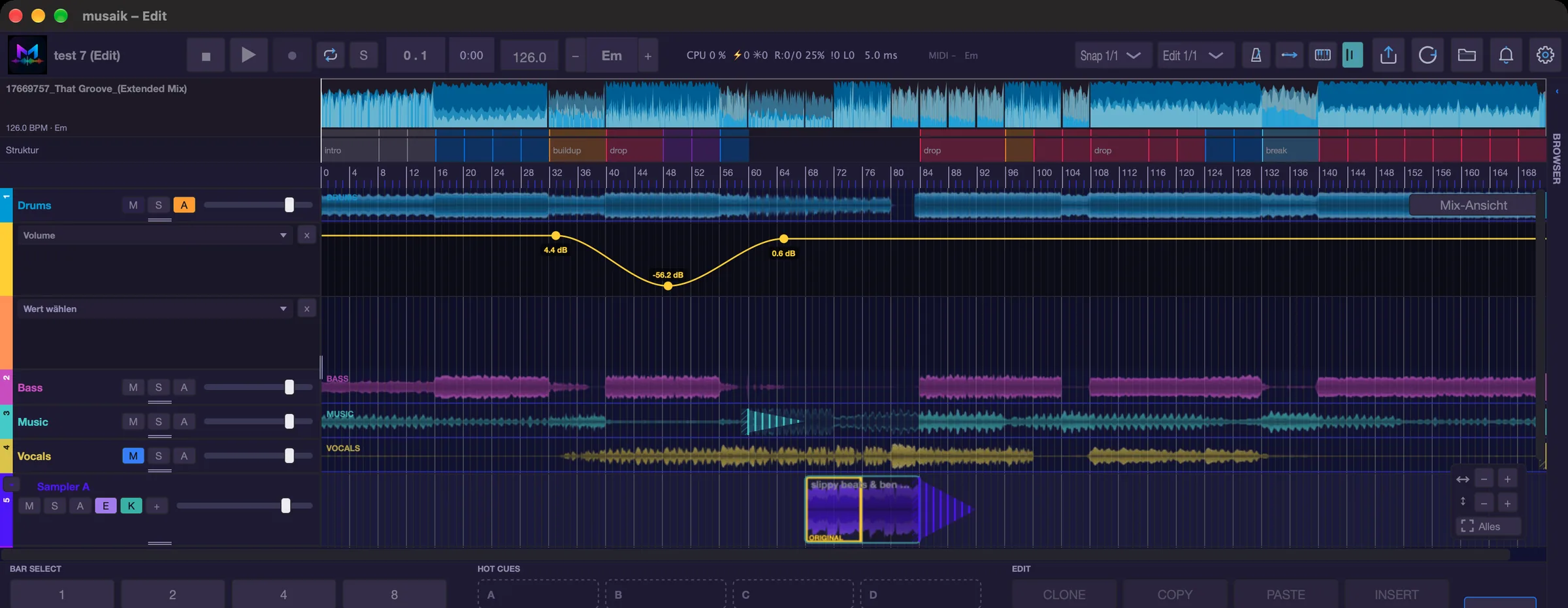
Sampler lanes and sample clips
Sampler lanes work in edit mode exactly as in a mashup: create them with Cmd+Shift+T, drop palette segments on them, drag the header width and row heights. A click without dragging in a sampler lane sets the playhead — as in the stem lanes — also during playback; a clicked clip stays selected. The grips at the bottom left and right of a sample clip trim and loop; with Shift, yellow grips appear on both outer edges and grow or shrink the excerpt from the original without anything looping. With Ctrl on the yellow edge you change the length of the loop cycle without moving the clip's start and end. Drag a clip to another spot or sampler lane; hold Option when you let go and a copy lands there. Right-clicking a clip opens its menu (among others “Split here”, “Split to grid”, “Shorten length (from right)”, “Requantise…”, Gain, “Mute”, “Delete”). An audio file from the browser can be dragged straight onto a sampler lane. A palette segment can also be dropped straight onto a stem sub-row, where it covers the original at that spot. See the chapter “Sampler & palette” for more.
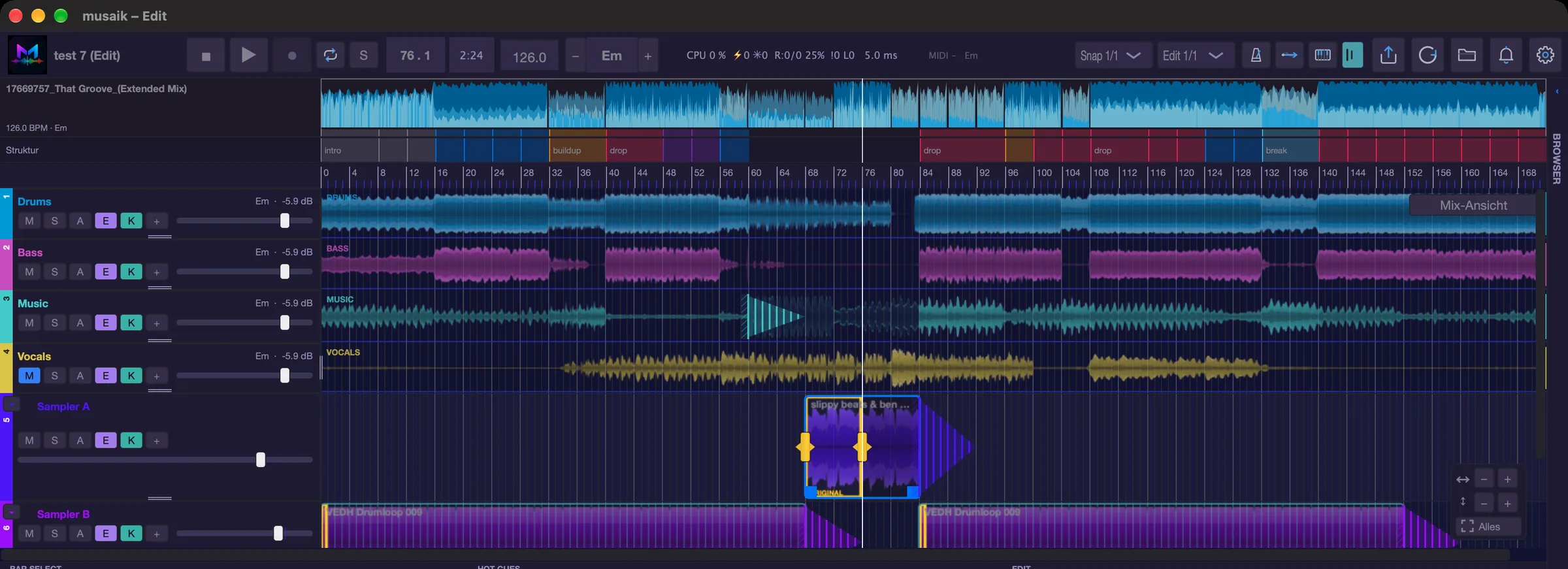
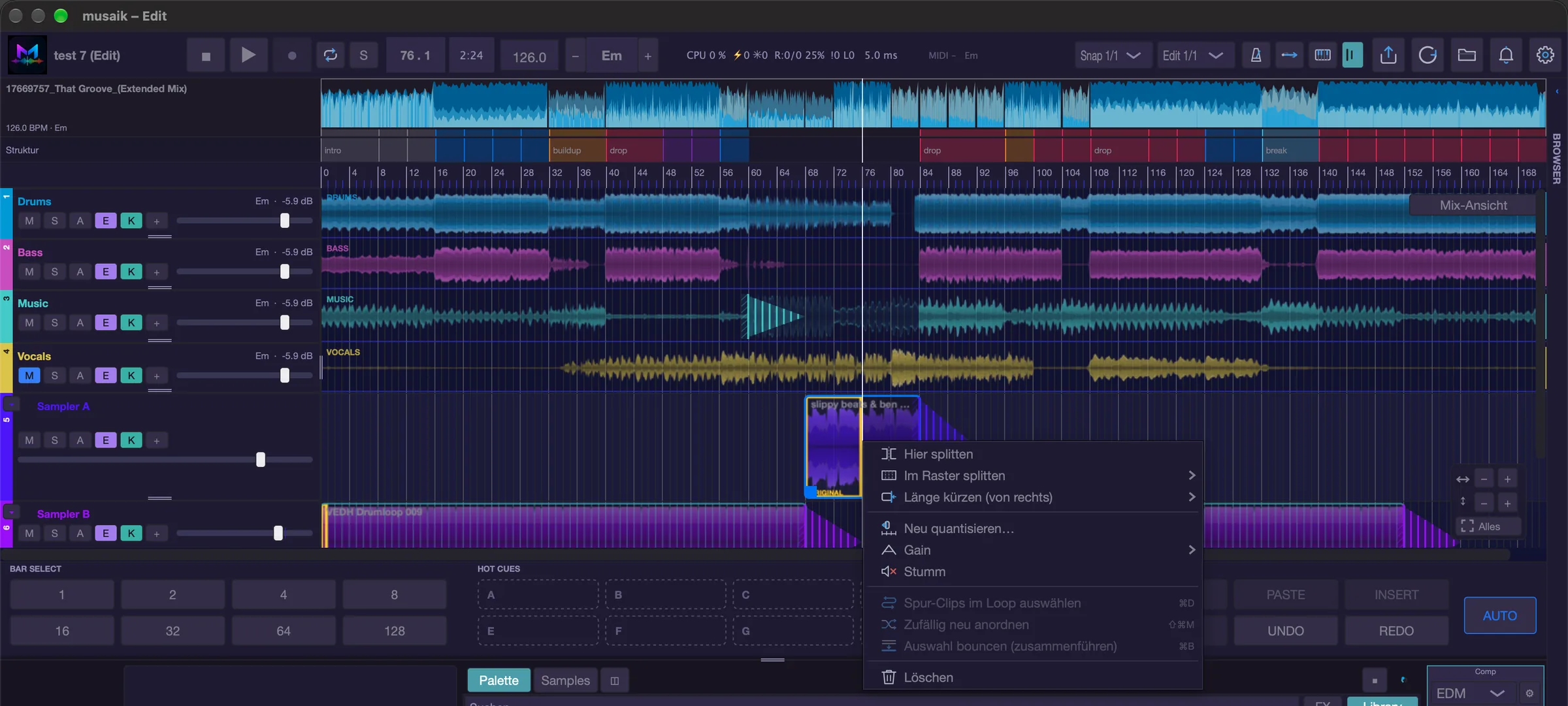
GRID: straightening the beat grid
If the analysis missed the grid, correct it with the grid symbol in the transport bar (tooltip “Correct grid: …”, key G). A window of its own opens; the transport stops, and the drums stem is used as the reference whenever possible.
- ‹ and › shift the grid by 1/64 of a beat, −1T and +1T by a whole bar, ½× and 2× halve or double the bar length.
- “From cursor”: off, the correction applies to the whole grid; on, everything before the playback position stays frozen.
- “Transient” puts the nearest grid line onto the actual hit.
- “+bar in front” adds a downbeat before the first one — for titles where the analysis swallowed the first bar. One bar of lead-in is visible left of the audio start (darkened); a bar that would lie entirely before the audio after dragging is dropped on Apply.
- “Click” switches on the metronome for checking, “Drums/Original” changes the audition source, RST restores the analysis original.
- Dragging in the wave moves the grid 1:1, the arrow keys work in 1/64 (Shift 1/256, Option one bar). Return applies, Esc cancels.
- At the top an overview shows the whole track, with the zoomed range in yellow. Drag the yellow window with the mouse; a click beside it moves it there. Zooming (Cmd+Plus/Minus, wheel with Cmd or Option, pinch) keeps the left edge fixed – the start stays put until you move it yourself.
- The phrase strip above the waveform shows the four-bar phrases and inserted bars: orange “+1” = set, dashed orange “+1?” = suggestion from the analysis (click to accept), red “−1” = missing bar. Drag a set field to another bar; right-click a bar for “A bar is inserted here”, “A bar is missing here” and “Remove offset here”; key E sets or removes it at the bar under the mouse. It takes effect with “Apply”.
- In a mashup, GRID opens the tool for the track of the selected stem lane, otherwise for the master. Corrections on a guest track only reinterpret its own bars; the project's clips and timeline stay, and there is no confirmation for that.
If you change the bar length or add a bar in front, musaik asks first (“Change the project's time base?”): clips, automation, loop range and matrix are recalculated, and the arrangement sounds unchanged.
Not to be confused: the edit grid (the “Edit 1/1” to “Edit 1/32” field in the transport bar) is only the snap grid for cursor, selection and grid lines.
Hot cues
If the track comes from rekordbox, musaik brings its hot cues along (A–H, optionally A–P in the settings). Memory cues and loops stay in rekordbox.
- Flags in the ruler show the cues in rekordbox's colours. Hover one and a line runs through the lanes; two cues at the same spot sit side by side.
- Pads in the lower area between BAR SELECT and EDIT: click an empty pad to set the cue at the playhead (snapped to the beat), click a used one to jump there and start playback there if it is stopped (as in rekordbox), Shift+click deletes, double-click renames, right-click opens the menu (change slot, colour, rename, move playhead here, delete, reload hot cues from rekordbox). The same menu opens with a right-click on a flag.
- Drag a flag to move the cue on the beat grid (Option for free).
- Cmd+drag inserts the range from the cue to the next cue at the drop point (from the last cue to the end); the target snaps to the bar.
- Shift+Cmd+drag to the left shortens the track: everything from the cue moves up to the drop point, the part in between is removed.
- Cues stick to their spot in the original and move with the arrangement. If that spot is deleted, the cue goes too. If a spot appears more than once, the first occurrence counts; repeats are hollow and are not exported.
On export to rekordbox the hot cues are written along — see the Export chapter.
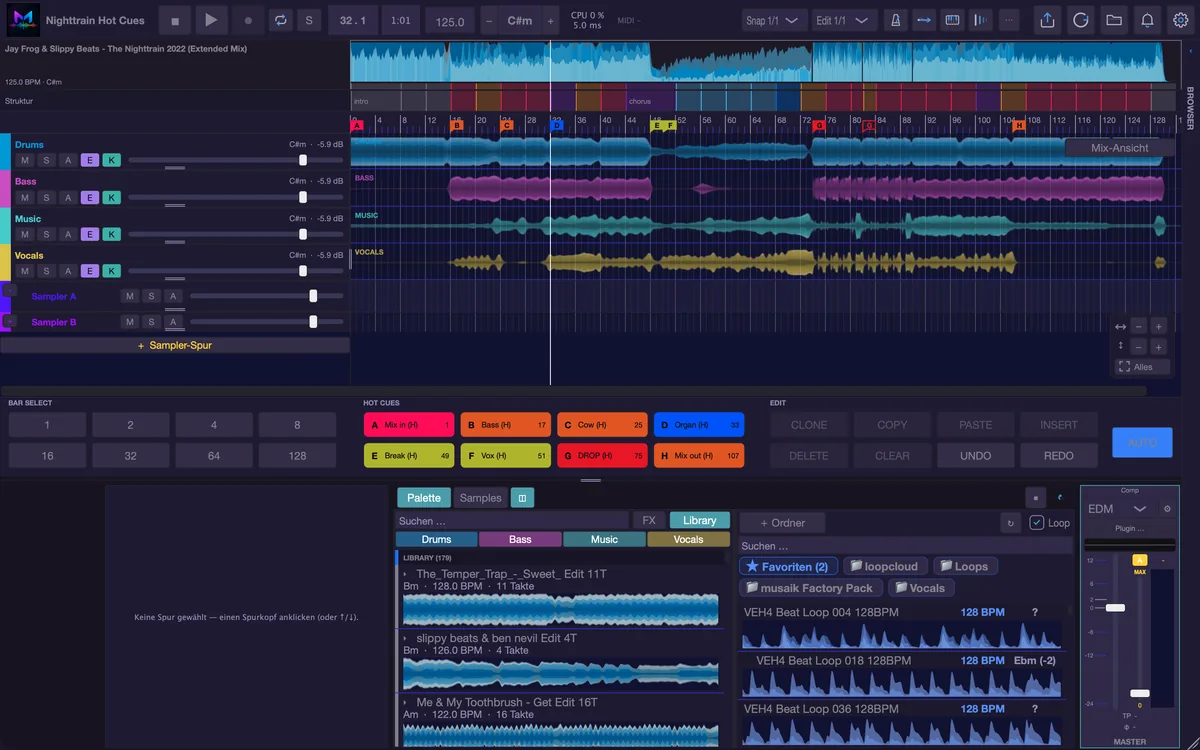
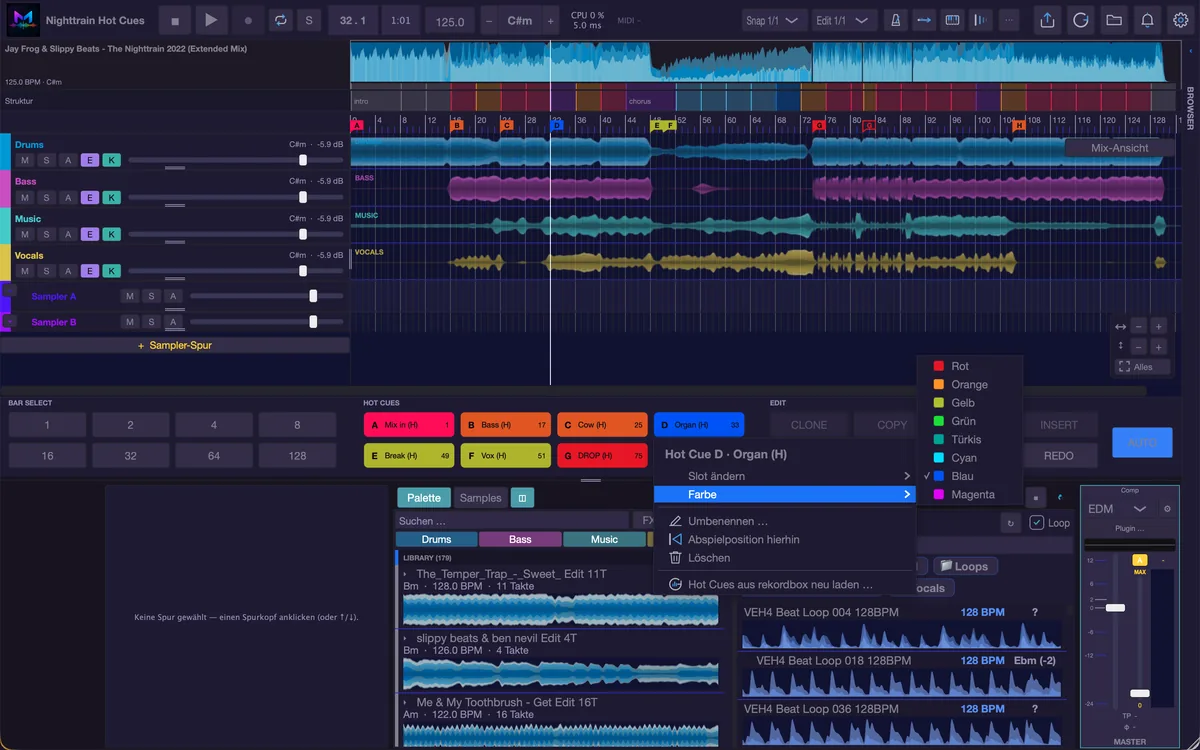
Source windows and the grid warning
If a stem clip sits off the grid, it audibly runs out of sync. musaik checks this and reports it as “Grid is inconsistent” with bar, stem and deviation in milliseconds; the spots are marked in red in the arrangement (triangle in the ruler, frame around the clip, dashed for muted clips).
The remedy: select the range, right-click, “Snap source window to downbeat”. In stem view the command acts on the selected sub-row, in mix view on all stems of the range. If the downbeat itself is wrong, the grid correction or a fresh analysis is the answer.
Keyboard shortcuts
- Shift+E – switch between edit mode and mashup mode
- Delete or Backspace – delete (ripple)
- Shift+Backspace – clear without ripple
- Cmd+C / Cmd+V – copy / paste (overwrite)
- Cmd+Shift+V – paste with ripple
- Cmd+L – clone
- Cmd+1 to Cmd+4 – drums, bass, music, vocals on/off inside the selected range (stem view)
- G – open the grid correction (Return applies, Esc cancels)
- Cmd+Shift+T – add a sampler track
- 1 to 8 – set or jump to hot cue A–H; Shift+1 to 8 – delete; X – hot cue into the next free slot
- Cmd+ / Cmd− / Cmd+0 – zoom in, zoom out, fit project
- Esc – clear the selection
- Cmd+Z / Cmd+Shift+Z – undo / redo
DJ mix
In DJ mix you line titles up into one continuous set. You set the order, musaik plans the mix points and builds the transitions — and you can fine-tune every one of them by hand afterwards.
The principle
The chain is the truth: order and transition lengths decide where a title sits. The timeline is magnetic — change one transition and the rest of the chain moves along. That is why deck clips cannot be dragged around freely; the order is changed in the playlist.
Titles alternate between deck A and deck B. Above the arrangement sits the overview band: the whole mix in miniature, with covers, the view frame and one symbol per transition. A click on it jumps to that spot and opens the transition.
The playlist
The panel at the bottom is called “DJ Playlist”. Its header carries, from left to right: the editor picker (“No editor”, “Inline editor”, “Overlay”), the switches “Loop”, “Edit” and “Stems”, the total length (“Total m:ss”), the switch “Auto” and the button “Automix”.
Every row shows the number, a drag grip, the cover, the deck badge A or B, title and duration, a waveform with a cue marker, BPM, the key in Camelot notation and “✕”.
- Adding: drag audio files from the Finder or entries from the browser onto the panel. While the analysis is running, the row shows the progress instead of waveform, BPM and key.
- Reordering: grab a row and drag it; a horizontal line shows the target. Important: transitions stay at their position in the chain — the title moves, its blend does not.
- Removing: “✕” in the row.
- Jumping: clicking the cover or the row jumps to the start of the title and plays; clicking inside the waveform jumps to that point in the title.
- Between two rows sits the mix pill with preset symbol, name and length in bars. Its colour is the relationship light: it shows how close the keys of the two neighbours are — from “perfect” through “mood” and “energy” to “clash”. A click opens the transition.
Automix
“Automix” (or “▾”) opens the automix window: “Automix — how the app mixes your transitions”. It is not modal, so you can keep listening. The sections apply to this project; “Save as default for new projects” makes them app-wide.
- Section 0 · Order: “Keep order” (default) or “Sort harmonically”. The latter sorts the playlist by key and BPM proximity — as step 1 of the automix run. Plus the key mode “Mood” or “Fuzzy” and the weighting from “BPM only” to “Key only”. The same sorting is available at once with Cmd+H.
- Section 1 · Transition style: “Automatic” or one of the eleven presets (Smooth Blend, Bass Swap, Filter Sweep, Cut, Echo Out, the filter variants …).
- Section 2 · Length: 4, 8, 16 or 32 bars.
- Section 3 · Timing: where the switch point sits inside the transition.
- Section 4 · Mix points: “out” and “in”, each from the structure or as a fixed number of bars, plus “Mix points automatic (stems)” and the DJ bias (from “Structure only” to “Strong DJ bias”).
- Section 5 · Stems: “Off”, “Automatic” or one of the eight stem presets. Only takes effect when both titles have stems.
- Section 6 · Tempo & pitch: “Fixed mix tempo (BPM field)” or “Mix tempo follows each track” (a beatmatch ramp per transition), plus “Keylock” or “Vinyl”.
- Section 7 · Actions: “Re-plan mix points only” and “Re-apply transitions only” run straight away.
At the bottom of the window, “Apply Automix” runs the whole pass in one step (and as one undo): first the order, if “Sort harmonically” is chosen, then mix points and transitions. Locked transitions and hand-drawn curves are left untouched.
At the very top sits the “RULEBOOK” card. With “Automix by rulebook” on, the rules take precedence, and the sections covered by an active rule disappear from the window. The rules themselves live in the “Rulebook” window, tab “DJ mix”.
The “Auto” switch in the playlist only works forwards: every newly added title gets the default transition. Existing transitions stay as they are. Locked transitions are never touched by any run.
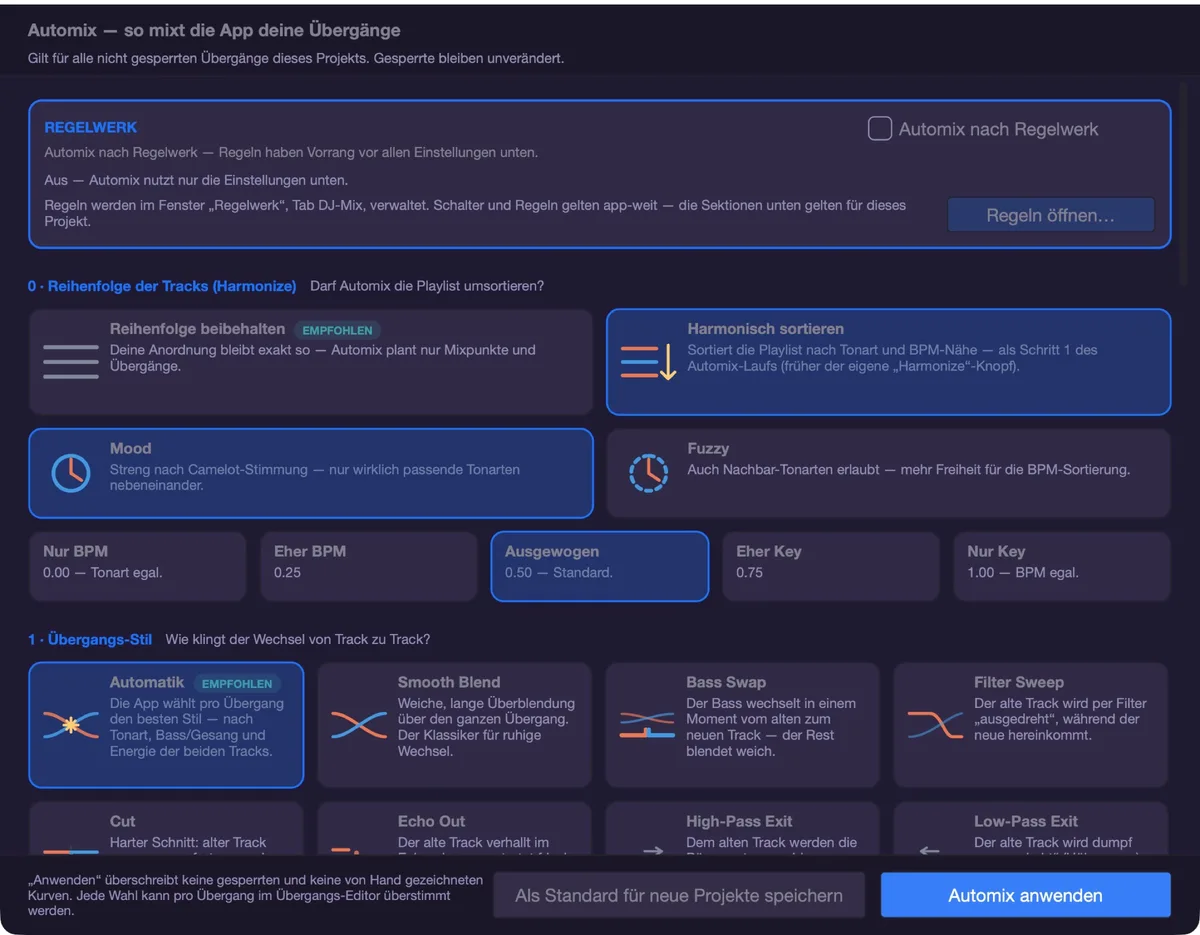
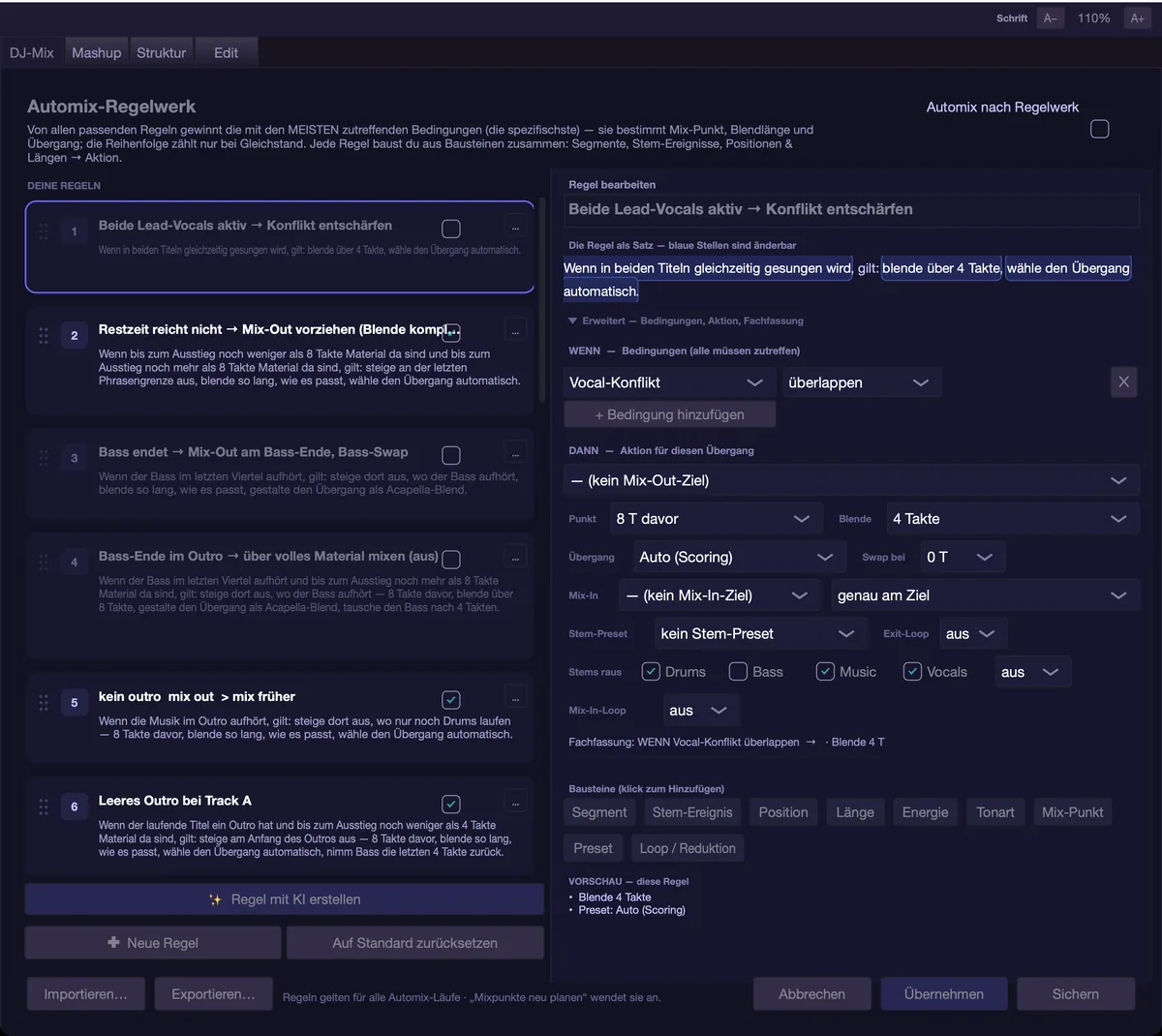
The transition editor
A click on the mix pill (or a double-click on the transition in the arrangement) opens the editor. Which one you get is decided by the picker in the header:
- “No editor”: the click only jumps to the spot; a double-click in the arrangement still opens the inline editor.
- “Inline editor”: the transition unfolds inside the arrangement, with grip gutters left and right and a bar for moving it.
- “Overlay”: the large window “Edit transition”.
With “Loop” on in the playlist, the transition starts looping as soon as it opens. In DJ edit (see below) every click only jumps to the spot; no editor opens there.
In the overlay deck A is on top and deck B below; the header says which title is “(out)” and which is “(in)”. You see the waveform, the curves (gain white, HP blue dashed, LP yellow dotted) and, at the bottom, the title's song parts.
Controls:
- Preset tiles on the left for the transition, on the right for the stem trick.
- “Length” (2 to 32 bars), “Intensity” (0 to 1), “Timing” and the switch “Locked”.
- “Tempo” (“Off”/“Sync”) and “Ramp” (“Full” or “Second half”).
- Curves are edited with nodes: click sets, dragging moves, double-click deletes. The selector “Volume · Filter · Sends” decides which curve is editable right now; “Grid” is the editor's own grid.
- “Auto” picks preset and stem trick for this one transition by scoring, “Rulebook” applies the automix rules to this transition only. Both are off while the transition is locked.
- “▶ Play” plays the transition; with “Loop” on in the playlist, as a loop.
- “Reset” discards hand-drawn curves on both decks.
- On the right sits the transition's status: “MU+stems confirmed”, “Stems supplemented”, “Conservative”, “Conflict”, “Stem fallback” or “MU”. On “Conflict” a click offers “Adopt structure from stems” for the title concerned (with undo).
A right-click on the transition in the arrangement opens the small editor instead, with preset, intensity, length, lock, stems and preview.
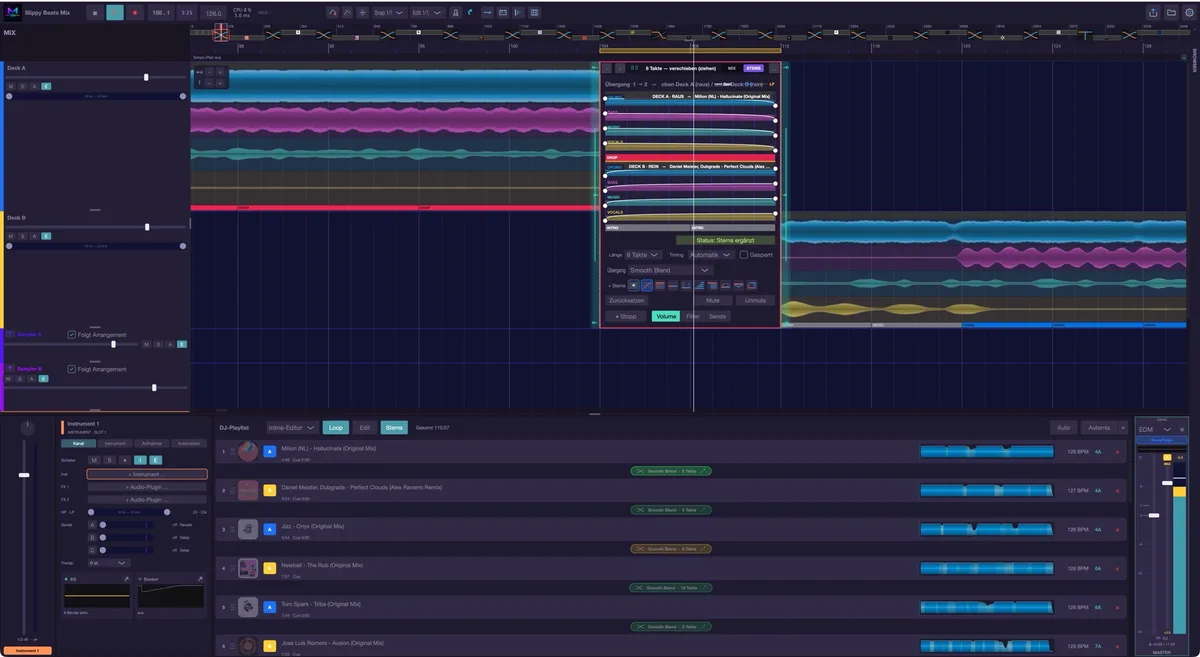
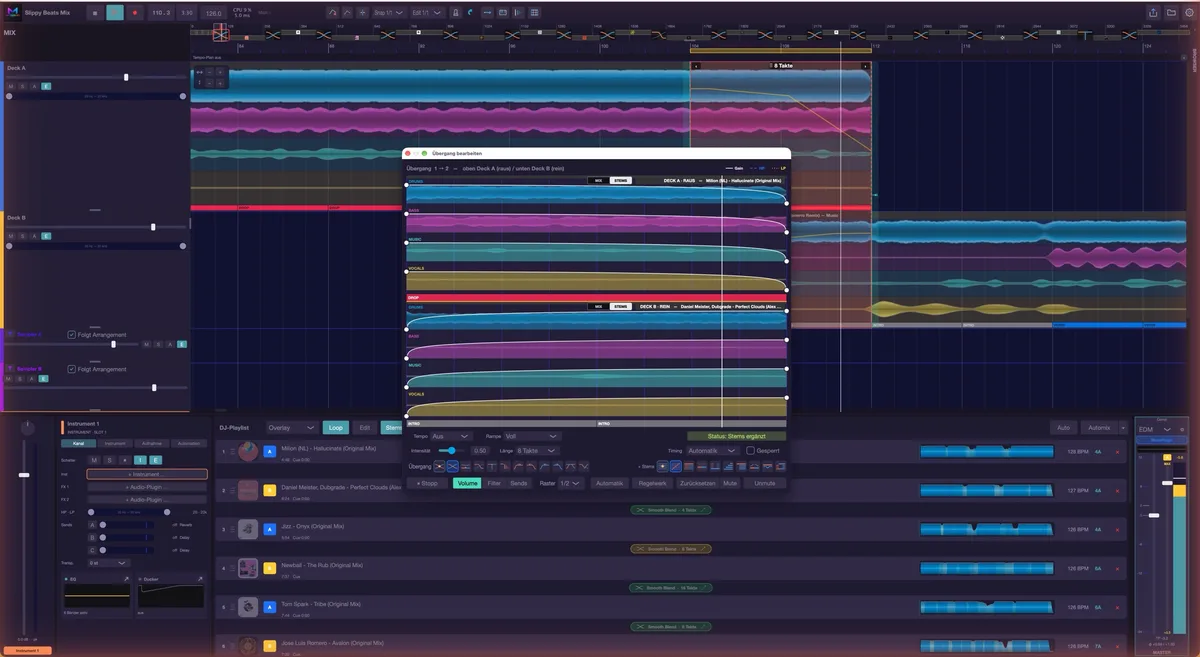
Stem transitions
If both titles are separated, each deck unfolds into four stem rows with curves of their own — via the deck badge or the “MIX | STEMS” switch. The eight stem presets run from “Acapella Blend” through “Bass Swap (real)”, “Drums Only”, “Instrumental Layer” and “Mashup Layer” to “Vocal Space Filter” and “Acapella Entry (B)”. View and sound are decoupled: a transition with a stem part sounds the way it does whether or not the stem rows are on screen.
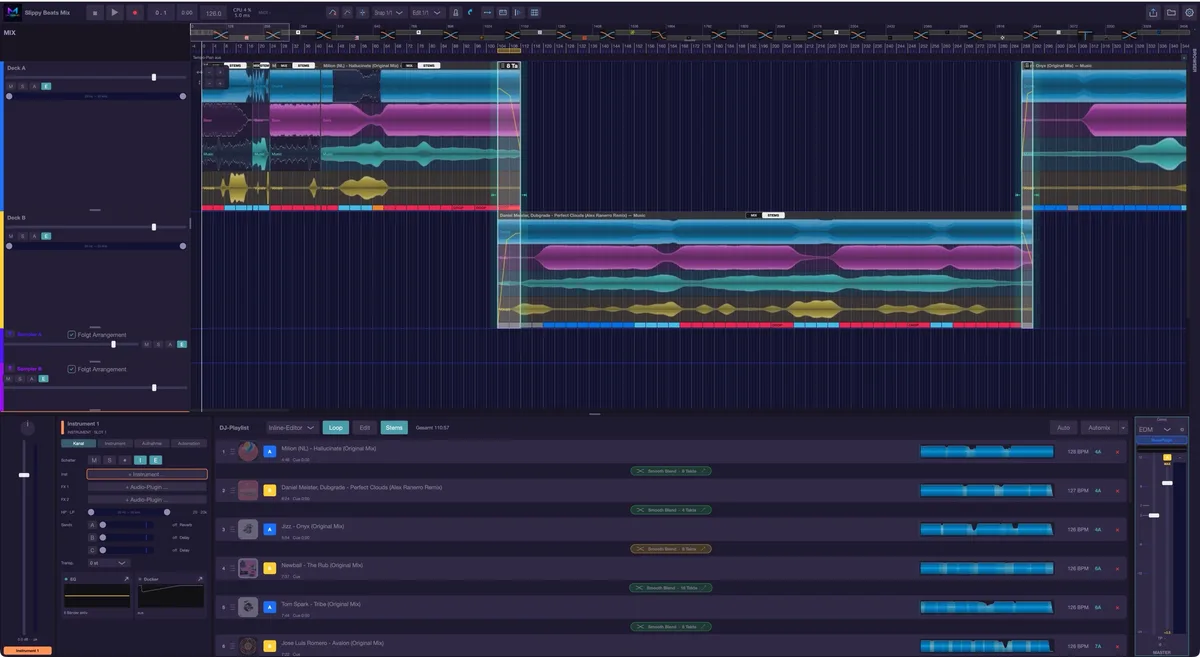
Tempo
- The mix tempo is entered in the tempo field of the transport bar. On the first build musaik uses the median of the BPM values of all analysed titles; your own entry is never overwritten.
- Normally the whole chain runs at this one tempo. Per transition you can choose “Tempo: Sync” instead — the incoming title is then matched inside the transition (“Ramp: Full” or “Second half”).
- In the automix window (section 6), “Mix tempo follows each track” switches the ramp on for all unlocked transitions at once, and “Fixed mix tempo (BPM field)” switches it off again — this takes effect on the existing mix immediately.
- Above the arrangement sits the tempo lane. While it reads “Tempo plan off”, the “+” button switches the tempo plan on; “-” switches it off again. A double-click on an empty spot of the lane sets a point (on whole bars, with Shift on quarters, with Option freely); drag points with the mouse. A double-click on a point opens a small window where you type the exact BPM value (“OK”) or delete the point. An active plan applies to the whole timeline; the tempo field is then locked and framed in red, and its tooltip says the tempo comes from the tempo lane. Right-clicking the lane offers “Delete node” and “Delete entire tempo curve”.
DJ edit
The “Edit” switch in the playlist turns on DJ edit mode. You can then edit content inside the titles without breaking the chain — delete (ripple), clear (silence), clone, copy, paste, paste with ripple or repeat, the same commands as in edit mode. The bar with “BAR SELECT” and “EDIT” appears below the arrangement for this.
- Cursor and selection: a click into a deck clip sets the cursor (snapped to the grid), dragging selects a range, which is marked in blue. The numbers under “BAR SELECT” (1 to 128) select that many bars from the cursor.
- Running a command: via the buttons under “EDIT” (CLONE, COPY, PASTE, INSERT, DELETE, CLEAR, UNDO, REDO), the keyboard shortcuts or a right-click on a deck clip: “Clone selection”, “Repeat” (2× to 16×), “Copy”, “Paste (overwrite)”, “Paste with ripple”, “Delete selection” and “Clear selection (silence)”. Pasting starts at the cursor.
- Cloning by dragging: hold Option and drag inside a deck clip — the current selection is cloned to the spot where you let go.
A selection across a transition automatically hits both titles.
There is no stem editing in DJ edit: all titles switch to mix view and back to their previous state afterwards. The editor picker and the “Stems” switch are locked while it is on.
Correcting the grid
Shift+double-click on a deck clip opens the grid correction in DJ edit; the clip's context menu carries “Correct grid…” at all times, independently of that switch. It is operated exactly as in edit mode. The grid button of the transport bar (key G) does not exist in the DJ mix, because here the correction always concerns a single deck title.
Switching stems on and off
The “Stems” switch in the playlist moves all already separated titles between mix and stem view together. Nothing is separated in the process — single titles are separated via the switch on the deck clip or its context menu. The collective switch only reads “on” when every separated title really is in stem view.
Export
The export renders the whole chain as it sounds — with all transitions and the master chain — as WAV or MP3 (Cmd+E or the export icon on the right of the transport bar). A skip range is cut out, a loop range is not repeated. The details are in the chapter “Export”.
Keyboard shortcuts
- Cmd+H – harmonize: sort the playlist by key and BPM proximity
- Space – start and stop playback
- M – mute or unmute the selected stem range
- Shift+double-click – grid correction on a deck clip (DJ edit)
- Delete – delete (ripple) in DJ edit
- Shift+Backspace – clear (silence) in DJ edit
- Cmd+C / Cmd+V / Cmd+Shift+V / Cmd+L – copy, paste, paste with ripple, clone
- Cmd+E – export
- Cmd+Z / Cmd+Shift+Z – undo / redo
Export
When your piece is finished, musaik renders it into an audio file — WAV or MP3, optionally straight into your rekordbox collection. Rendering happens offline, so faster than real time, and with exactly the chain you hear. This chapter covers the dialog, the settings behind it and the two smaller routes: saving a MIDI clip as a file and bouncing an instrument track to audio.
The export dialog
Open it with Cmd+E, with the export icon on the right of the transport bar, or via Project › “Export audio …”. The dialog is called “Export” and asks you to choose format and target:
- Track name — the file name. The name of the structure master is suggested, with “musaik” appended in Edit mode. The suggestion is selected, so it is easy to replace. If the file already exists, musaik creates a new one with a unique name — nothing is ever overwritten.
- Format — “WAV (uncompressed)” or “MP3”.
- MP3 quality — 320, 256, 192 or 128 kbit/s (CBR) plus “V0 (VBR, highest)” and “V2 (VBR)”. The field is only active for MP3. Your choice is remembered; it is the same setting as in the settings under Export › “MP3 quality (export)”.
- Sample rate — 44.1 kHz, 48 kHz or 96 kHz. Your choice is remembered.
- Destination folder — shows the folder that is written to. You change it in the settings (Export tab › “Export folder”, type the path or pick it with “...”); out of the box it is “musaik” in your music directory.
- “Also import into the rekordbox collection” — see below.
“Export” starts, “Cancel” aborts. While rendering, a progress window shows how far it has got; you can cancel there at any time. When the file is done, a window reports “Exported:” with the full path — with the rekordbox import, the result of the import instead.
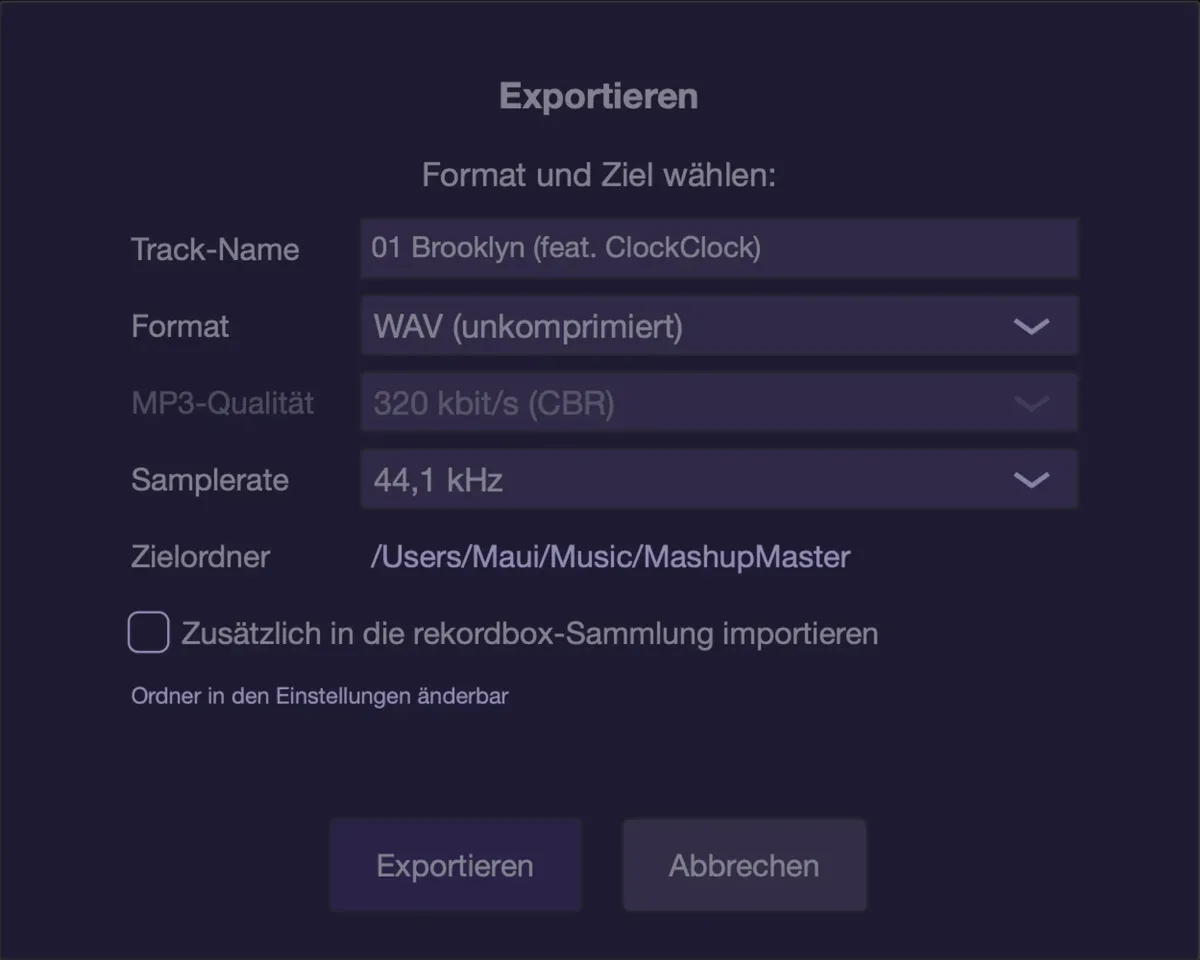
What ends up in the file
The complete signal path is rendered: every lane with its channel settings (volume, pan, filters, EQ, ducker, insert plug-ins), the three FX busses and the master chain with insert, fader, dynamics and maximizer. Instrument tracks are included: their plug-ins are loaded specially for the export and receive the state they have live — so the export sounds like playback. The play rules per lane and per clip apply as well.
Two things to know:
- A skip range is cut out. The file gets shorter accordingly.
- A loop range is ignored on export. The loop is a playback aid; nothing is repeated. If you want a passage twice, build it twice in the arrangement (Edit menu › “Repeat section”).
Export is locked in the trial version; a license unlocks it instantly.
Loudness and peaks
The two switches for this are in the settings on the Export tab:
- True peak — “Limit export to −1 dBTP”. This measures peaks the way an MP3 or AAC encoder will later produce them and only lowers, never raises. On by default, and there is little reason to turn it off: without this step a file can distort on the listener's side.
- Normalize — “find the highest peak and pull the track to −1 dBTP”. This also RAISES and is therefore a loudness decision. Off by default.
The safety clipper and the maximizer of the master chain apply to the export exactly as they do live; see the chapter “Environment & mixer”.
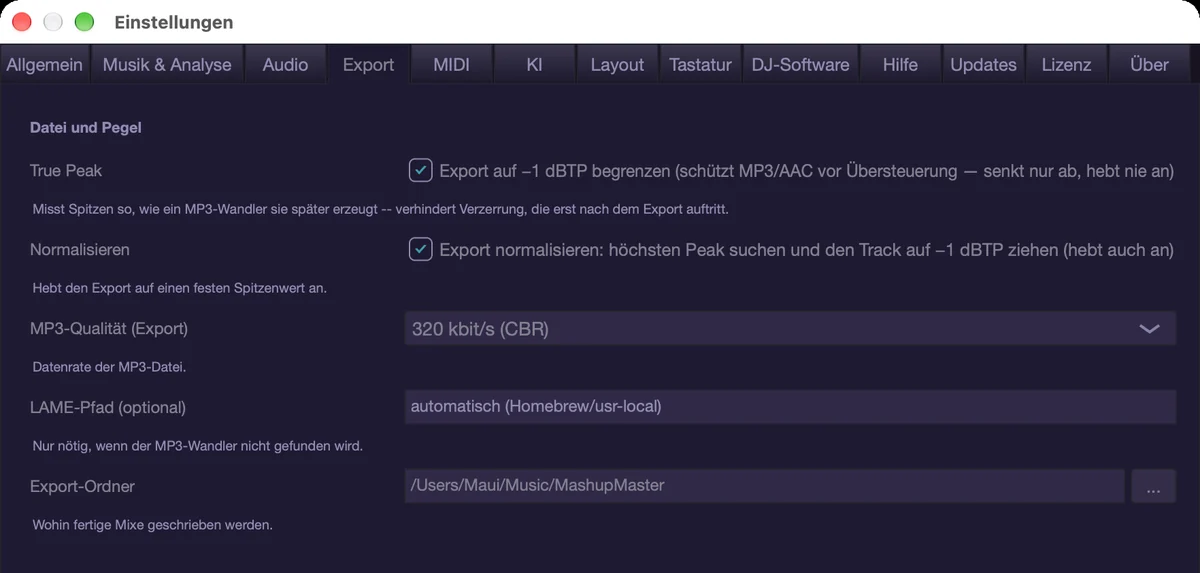
MP3
For MP3, musaik needs the LAME encoder. If it is not found, the export says so and names the way out: in Terminal
brew install lame
or enter the path in the settings on the Export tab › “LAME path (optional)”. Leaving it empty means: search automatically. A WAV file is always rendered first and removed automatically after encoding.
Into the rekordbox collection
With the checkbox ticked, musaik writes the finished track straight into your rekordbox database:
- The file is copied into the folder “musaik” in your music directory — a stable path rekordbox can find again. In rekordbox the track is also added to the playlist “musaik”; if it does not exist yet, musaik creates it.
- The master.db is backed up automatically before every write. The backups live in musaik's app data.
- rekordbox must be closed. musaik checks this as soon as you click “Export” – if rekordbox is running you get the notice right away, before anything is rendered – and once more just before writing.
- Written are the title (= your file name), the artist “musaik” and the project tempo. musaik does NOT write the key: the track is marked as “not analysed”, and rekordbox determines key, grid and waveform itself on its next start.
As soon as the box is ticked, two more fields appear below, plus a note describing what happens with the current choice. The fields take effect in edit mode:
- “rekordbox target”: “Add as a new track” (as above), “Re-link the original entry” – the original's entry in rekordbox then points to the edit; playlists, history and rating stay, the original file stays on disk – or “Replace the original audio file” – the edit overwrites the original file in the same format so path and name stay the same; musaik makes a backup copy first. In both cases rekordbox re-analyses the entry on its next start; an analysis lock on the entry is lifted. The two targets are only offered if the track came from rekordbox, “Replace the original audio file” additionally only for WAV and MP3 originals. When replacing, format and MP3 quality are locked: they follow the original, and an MP3 is written at 320 kbit/s (CBR).
- “Write hot cues (overwrites existing ones)”: writes the edit's hot cues and replaces the target's existing hot cues. When re-linking or replacing, memory cues and memory loops are kept and move to their place in the edit; if their spot is no longer in the edit they are dropped, and a loop that was cut through stays as a memory cue at its start. Off = no cues are written. For MP3 with variable bit rate no cues are written, because their position cannot be guaranteed there.
Defaults for both fields are in the settings under “DJ software”.
If musaik cannot find the database, enter the path to master.db in the settings under “DJ software”.
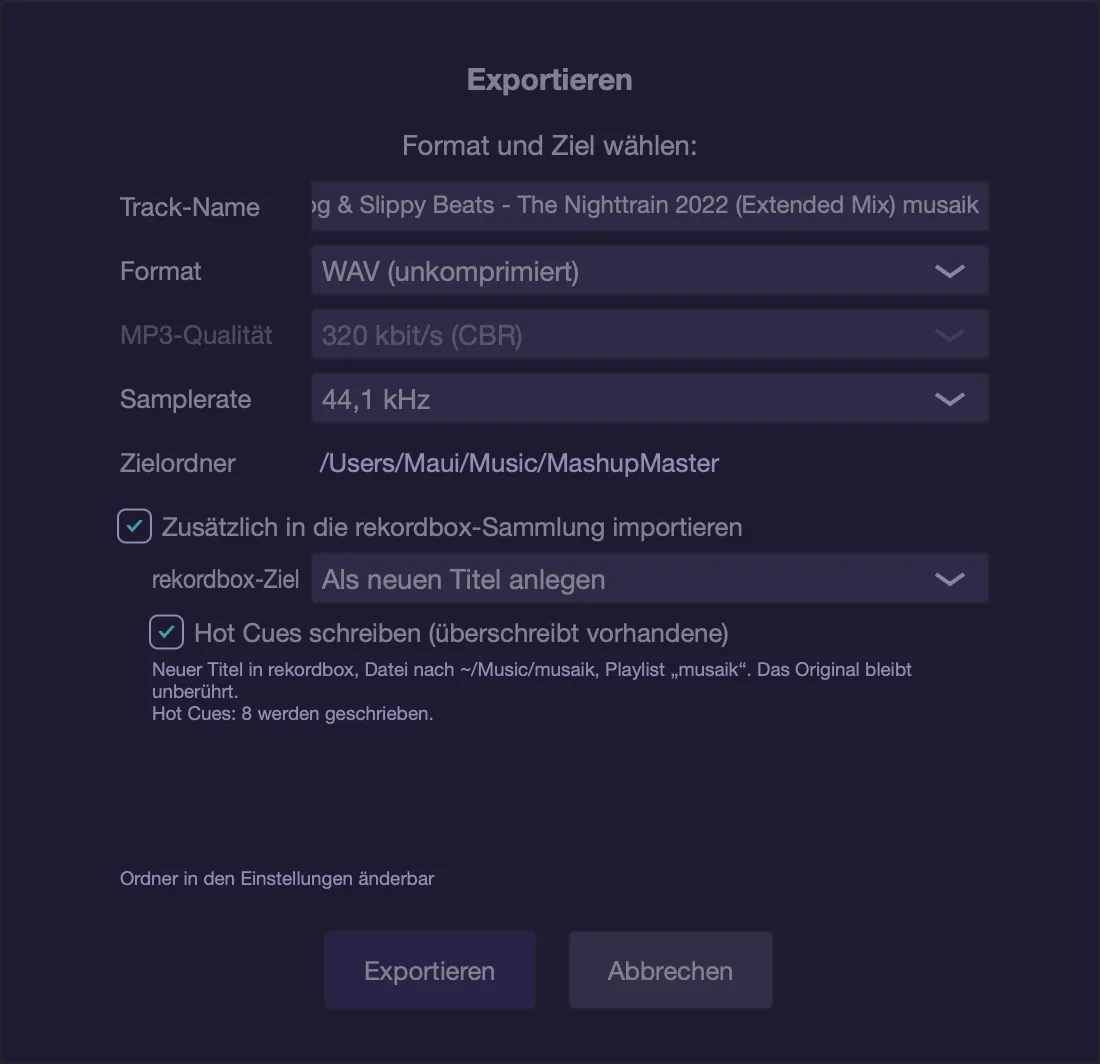
Exporting a DJ mix
Yes: a DJ mix project is exported just like a mashup — same dialog, same chain, the whole deck chain with its transitions. The loop is ignored here too, and a skip range is cut out.
Exporting single parts
- “Save MIDI clip as file …” (View menu) writes the clip currently open in the piano roll as a .mid file — to continue working in another DAW. The same for any clip: right-click the MIDI clip › “Save as MIDI file…”. A dialog asks for name and location (suggested: the desktop). Like the audio export, this is locked in the trial version. If the clip contains notes that came from the AI, the file carries the note “Created with AI assistance in musaik”.
- “Bounce instrument to audio …” (View menu) renders all MIDI clips of an instrument track into one audio segment (with one bar of tail) and places it on a sampler lane. The instrument track is muted in the process, its notes are kept. This saves CPU and makes you independent of the plug-in. Beforehand a dialog asks what goes in: “Include automation”, “Include channel” (EQ/filter, insert effects, volume, pan) and “Include effect buses”; “Bounce” starts it. The segment then also sits in the palette.
- For instrument tracks, export and bounce take the same path as playback: arp, phrase, track transposition and the automation of plug-in parameters are included. See the chapter “Instruments & MIDI”.
- Single clips in the arrangement can be bounced with Cmd+B; that is described in the chapter “Mashup”.
Shortcuts
- Cmd+E – export audio
Settings & remote control
You open the settings with Cmd+comma or via Settings › “Settings…”; Settings › “Audio devices …” opens the same window straight on the “Audio” tab. The tabs are at the top, and some of them have a second row of tabs. Almost every row carries a short explanation under its label; the full text appears as a tooltip when you move the mouse over the row. This chapter walks through the tabs in the order they appear, and ends with the rulebook window and remote control.
Note: a few labels in these tabs have no English translation yet and still appear in German. They are quoted here as they appear on screen.
General
Three sub-tabs: “Editing”, “Ablage” (storage) and “Community”.
“Editing” holds what applies while you work on the timeline: “Snap grid clips” (what clips snap to when you move them), “Edit grid (cursor + grid lines)” (grid for the cursor and guide lines in Edit mode) — both from 1/32 to 1/1, 1/4 out of the box — and “Replaced original (Edit)” (show the original replaced by palette segments as a dimmed outline; off out of the box).
“Ablage” holds the “Library-Ordner” with the button “Choose folder …” — where musaik looks for your tracks and where the browser copies files to; out of the box “musaik” in your music directory. If you change it while the current folder already contains files, musaik asks “Move library?”: “Move” takes the content along, “Leave in place” leaves it where it is and the new library starts empty.
“Community” first states briefly what sharing means and what is sent. Below that are two separate switches: “Share analysis data” (the button carries its state — “On — change …” or “Off — learn more …” — and opens the consent dialog, where you can also delete previous submissions) and “Use community data” (use other people's learned priors as a fallback for structure detection; on out of the box, no account, no reference to titles, nothing is sent). See the chapter “Corrections & community”.
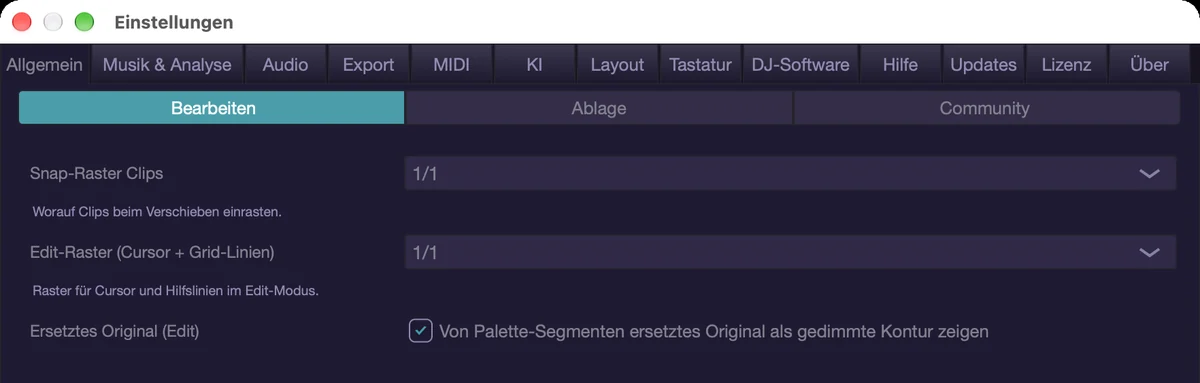
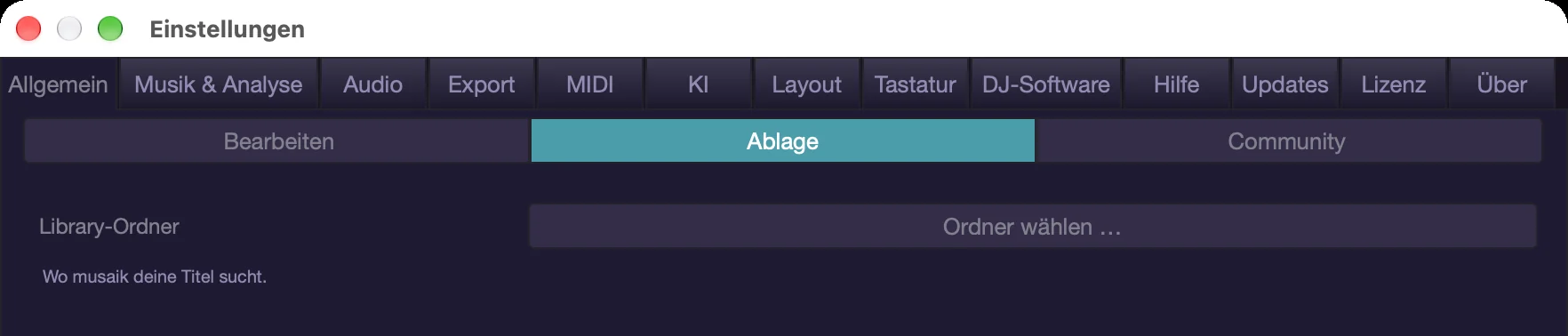
Music & analysis
Three sub-tabs: “Analysis”, “Chords”, “Key matching” — everything that decides what musaik finds in the music and how it makes tracks fit together.
Analysis — “Quantisation stem detection” (which grid detected stem entries snap to: 1, 2 or 4 bars, 2 out of the box), “Phrase grid (matching)” (in which phrase lengths musaik matches tracks against each other: 2, 4 or 8 bars, 4 out of the box) and “Fine segmentation” (extra boundaries from the MU segments; off out of the box). Quantisation and phrase grid take effect on the next “Arrange”.
Chords — “Grid automatic” (choose per title automatically, on by default; the choice is shown left of the chord lane, e.g. “1/2 bar (auto)”), and below it the grid itself: with the automatic on the field is called “Fallback grid (if undecided)”, without it “Smoothing (chord grid)” — eighth, quarter (both from the detection's fine data), half a bar, one bar (default) or two bars. Plus “Minimum confidence (chord follow)” between 0 and 1 (in steps of 0.05, 0 out of the box): how sure a chord must be before chord follow follows it. Below that value the key applies. 0 means “always follow”. The number measures how unambiguous the NAME is, not how good the detection was — related chords share notes, so even correct chords often sit around 0.2. See the chapter “Chord lane & key”.
Key matching — “Max. key correction (vocals)” (0 to 6 semitones, 3 out of the box: how far a vocal may be transposed before musaik rejects the track; for sampler clips a recommendation – they are still adjusted and marked orange), “Related keys” (allow subdominant, dominant and relative as a target; on out of the box) and “Vocals above limit” (retune the other stems instead and spare the vocals; on out of the box).
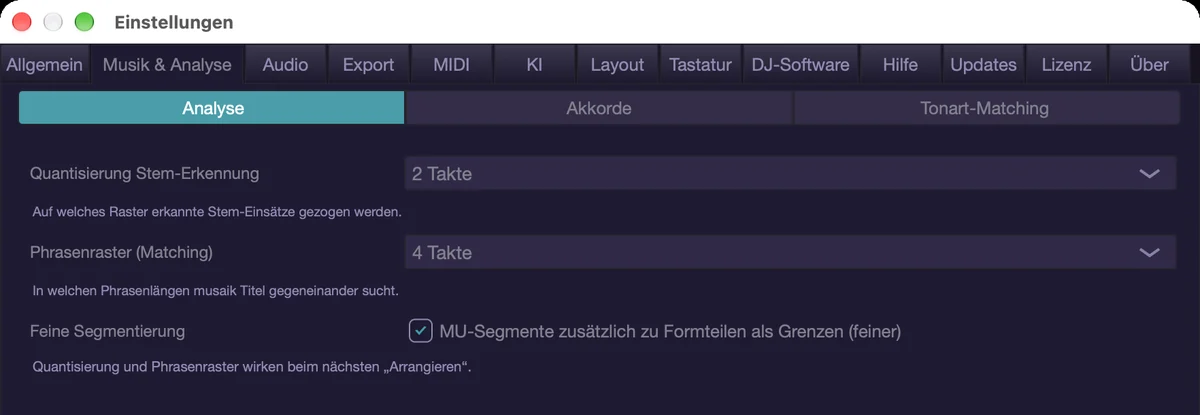
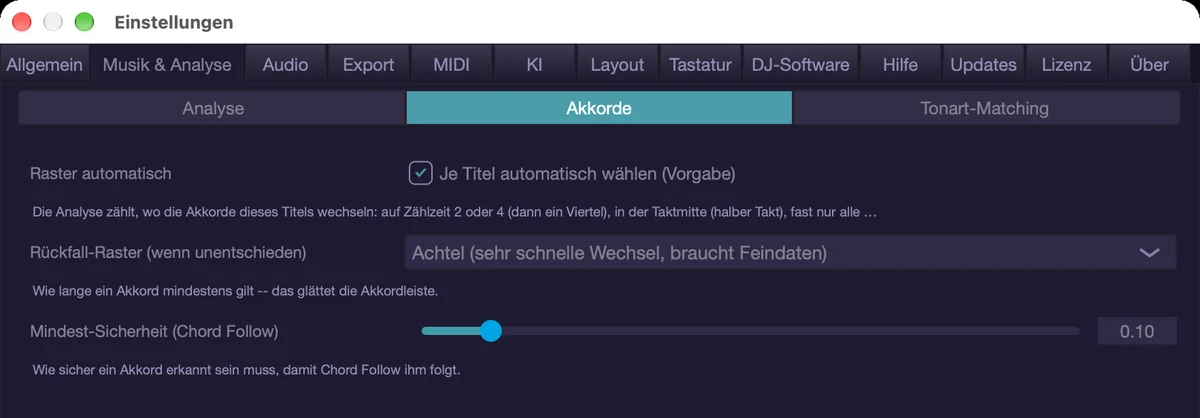
Audio
Three sub-tabs: “Gerät” (device), “Processing”, “Echo out”.
Gerät is the system's device selector: output device, sample rate and buffer size. There is no audio input choice here — musaik does not record audio. Smaller buffers mean less delay while playing in and more CPU load.
Processing — everything that decides sound and load:
- “Trennqualität” (separation quality): “Fast” (default) or “Best quality (clearly slower)”. Takes effect on the next separation.
- “Separation speed” and “Trennverfahren” (separation backend): how much the computation blocks overlap (“Quality (default)” or “Fast (about 16% less compute time)”), and which engine does the separation (“Automatic (fastest available)” takes the fastest one; a backend that does not run on this computer is greyed out with the reason next to it).
- Memory and disk limits: “Use memory up to” (2 to 24 GB; the default depends on the installed memory) — how much RAM musaik may use for stems and look-ahead — and “Pre-rendered stems per project up to” (5 to 200 GB, 20 GB out of the box) — how much pre-rendered audio stays per project; above it the oldest unused material is dropped.
- “Auto stems”: separate new tracks as soon as they are added (on out of the box).
- “Low latency” and “Limit”: for playing in — the record-armed track bypasses its latency-inducing inserts. Up to the “Limit” (2 to 30 ms, 5 ms out of the box) inserts stay on, above it they are bypassed, the biggest one first. Off out of the box; the matching switch also sits in the transport bar.
- “Stretch quality” in three levels: “Economy (less CPU)”, “Standard” (default) and “Highest (in the background)”. With “Highest” musaik plays at once in standard quality and computes the better version in the background; depending on your computer this takes a few minutes, the track headers show the progress. In Edit mode and with changing tempo it is computed live, which needs more CPU. “Apply to” (only selectable with “Highest”) decides whether “Vocals only” (default; where the difference is most audible) or “All elements” are computed this way (about five times as long).
- “Resampler quality” (keeps the highs intact for varispeed and sample-rate conversion; on out of the box; off = cheaper, highs above 14 kHz slightly damped; export always uses the high quality), “Formant preservation” (keeps the character of a voice when transposing; on out of the box) and the “Varispeed limit” (varispeed only up to ±8 % tempo deviation, pitch-preserving beyond; on out of the box; only applies in a DJ mix with Vinyl/Keylock off). Drums always keep their pitch in Mashup and Edit mode; in a DJ mix only the project switch Vinyl/Keylock decides.
- “Loudness matching” (match track loudness to the master) and “Auto trim (headroom)” (hottest stem per track to −3 dBFS, the ratio stays exact) — both on out of the box.
- Three performance switches for comparing by ear: “Perf: Stretch-Bypass” (bypass the stretcher when tempo/pitch are unchanged; on out of the box), “Perf: Leere Spuren” (skip empty tracks per block) and “Perf: Render-Cache” (render clips to disk once instead of stretching live) — the last two off out of the box.
Echo out — “Echo out: stem parts” (ring out at part ends; on out of the box), “Echo out: cut edges” (the same at cuts inside a track; off out of the box) and “Echo out: timing” (spacing of the repeats, 1/16 to 1/1, 1/4 out of the box). Level, decay and the window before the edge are set in the popup on the ECHO button in the transport bar.
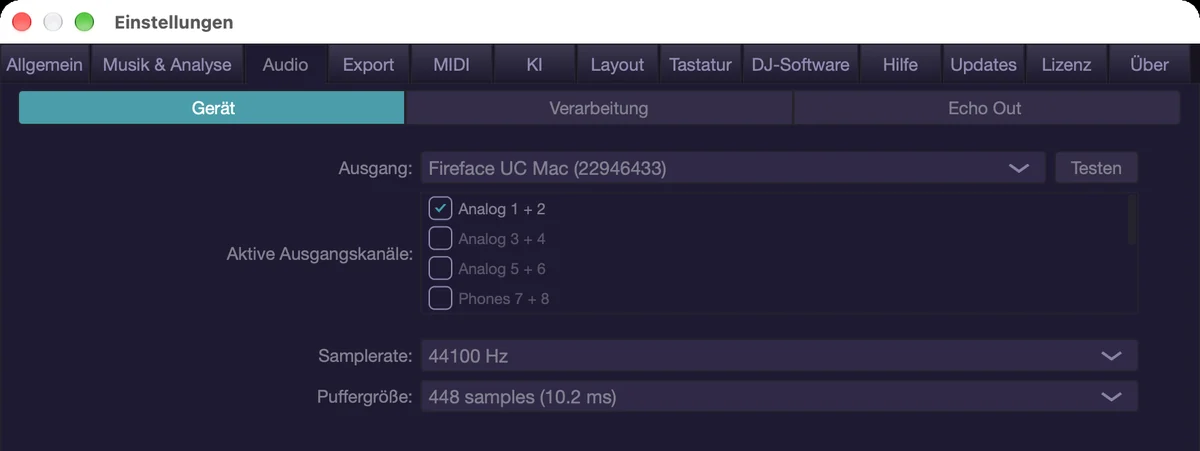
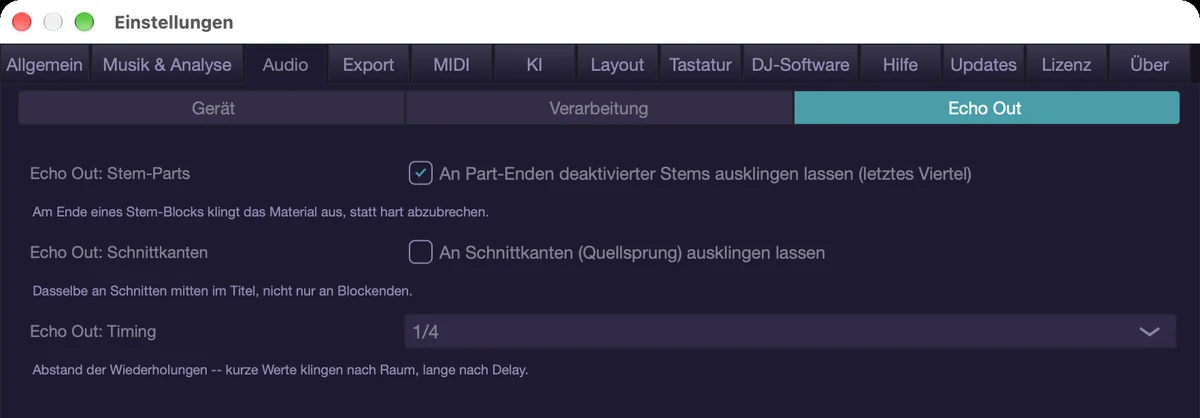
Export
Its own tab: “True Peak” (limit export to −1 dBTP — only attenuates, never boosts; on out of the box), “Normalize” (find the highest peak and pull the track to −1 dBTP, so it also raises; off out of the box), “MP3 quality (export)” (320, 256, 192 or 128 kbit/s CBR, VBR V0 or VBR V2; 320 kbit/s out of the box), “LAME path (optional)” (empty = search automatically) and “Export folder” (out of the box “musaik” in your music directory; the “…” button next to it opens the folder picker). Details in the chapter “Export”.
MIDI
Three sub-tabs: “Inputs”, “Surfaces (Mackie)” and “Sync (MMC)” — this tab is only about devices. Chords and key matching live under “Music & analysis”.
Surfaces or MMC? They are two different things. Mackie Control is the protocol for a surface with motor faders, buttons, lights and a display (X-Touch, NKS keyboards) — it drives the mixer and the transport. MMC (MIDI Machine Control) only knows transport commands: start, stop, wind, record, locate. It couples musaik with another program. A surface does not need MMC.
Inputs — which connected devices musaik accepts MIDI from. Each device has a checkbox and a light that flashes on every message: green = accepted, orange = switched off (the device sends, musaik ignores it). Switched-off devices stay connected, but their notes, controllers and MMC commands reach neither tracks nor synth nor MIDI learn. A newly connected device is accepted; a switched-off device that is not connected right now stays grey in the list (“not connected”) so the setting applies the next time it is plugged in. The surfaces chosen under “Surfaces” always work (“Mackie surface — always works”).
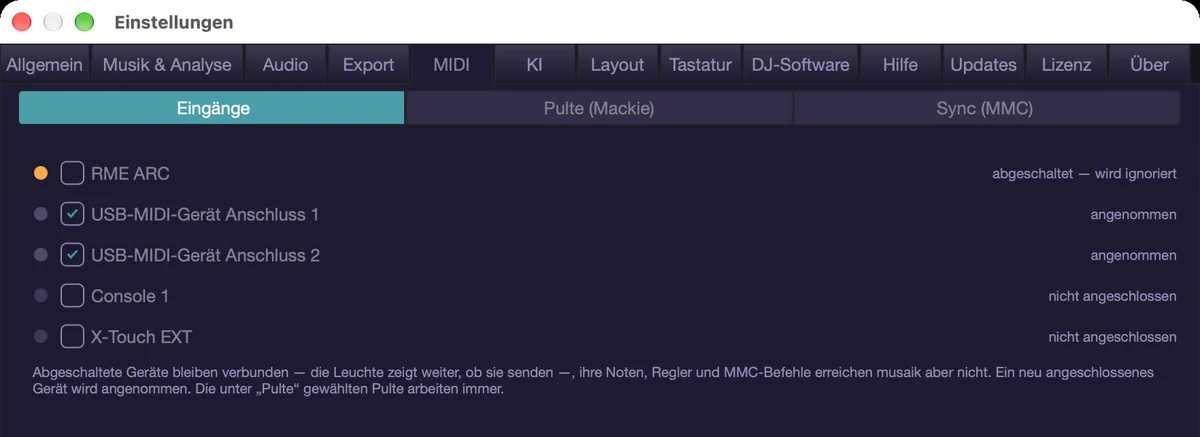
AI
Under “Path” you choose where the AI suggestions come from: “Off”, “Local AI model (Ollama / LM Studio)”, “Your own API key” (OpenAI, Anthropic, Google Gemini or your own OpenAI-compatible address), “OpenRouter”, “musaik credits (prepared)” and, where available, “On this Mac (Apple, free, offline)”. Depending on the path, rows for app (with “Search”, which probes the usual addresses of Ollama and LM Studio), model (with “Load”, which fetches the model list from the service), context length, service, API key or address appear. “Test connection” checks the path, the “Status” row shows the result, and “What is sent?” shows with “Show example” exactly the card musaik transmits. Everything else is in the chapter “AI”.
Layout
Appearance and language, without sub-tabs:
- Text sizes: “Font size browser/palette” (10 to 16 pt, 16 out of the box), “UI scaling (entire app)” (80 to 150 %, 100 % out of the box) and “Text size walkthrough/help” (13 to 24 pt, 13 out of the box; the same reading size that “A-” and “A+” set in the help).
- “Stem sub-lanes: show contents immediately” (on out of the box) and “Mixer channel width” (110 to 160 px).
- “Mixer centre in edit mode” (“Empty”, “Palette” (default), “Samples” or “Palette + Samples (side by side)”) and “Mixer-Mitte im Mashup-Modus” (mixer centre in Mashup mode: “Tracks & Stems” (default), “Palette”, “Samples” or “Stem groups”): what the centre of the lower area starts with.
- Waveforms: “Waveform style” and “Waveform (overview)” (each spectral ribbon, contour, bars or deck; deck out of the box), plus “Waveform smoothing” (0 to 100, remembered per style) and “Waveform transparency” (0 to 90 %, 25 % out of the box).
- “DJ mix track colour” (clicking the colour field opens the colour picker), “DJ mix segments” (“Segment colours instead of track colour”) and “Source song parts” (show in every lane which song part the material comes from; off out of the box).
- “Key display” — keys as Camelot (8A/5B) instead of classical (Am/D#), in track headers, the browser and for the system key; on out of the box.
- “Struktur-Fallback” (structure fallback) — estimate structure even without stems; such sections are marked “~ estimated”. On out of the box.
- “Language (restart required)” — system, Deutsch or English. The new language applies fully after a restart.
- At the bottom the colour and theme editor; View › “Colours & theme…” opens the same thing.
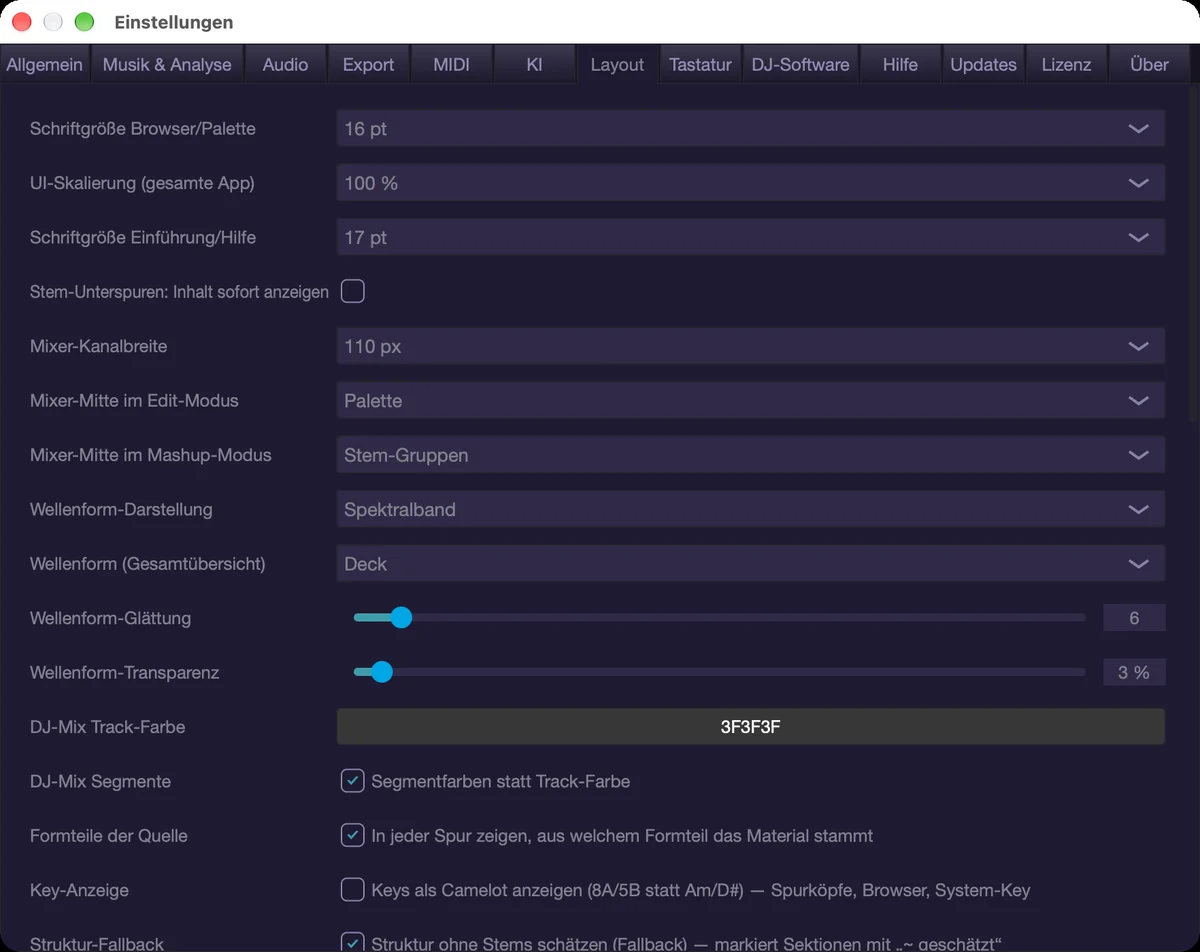
Keyboard
This is where you change the shortcuts. A search field at the top (“Search command or key …”) with a hit counter, below it all commands by category. The search looks at the command name, the category and the assigned key — to find out what sits on ⌘B, type exactly that; several words must all match, “×” clears the search. Clicking a shortcut opens a menu to change or remove it, the plus sign adds another shortcut for the same command (then press the key combination you want). If the key is already taken, musaik asks whether to re-assign it. The button at the bottom resets everything to the defaults. Almost every function of the app can be bound here — including those that have no key out of the box.
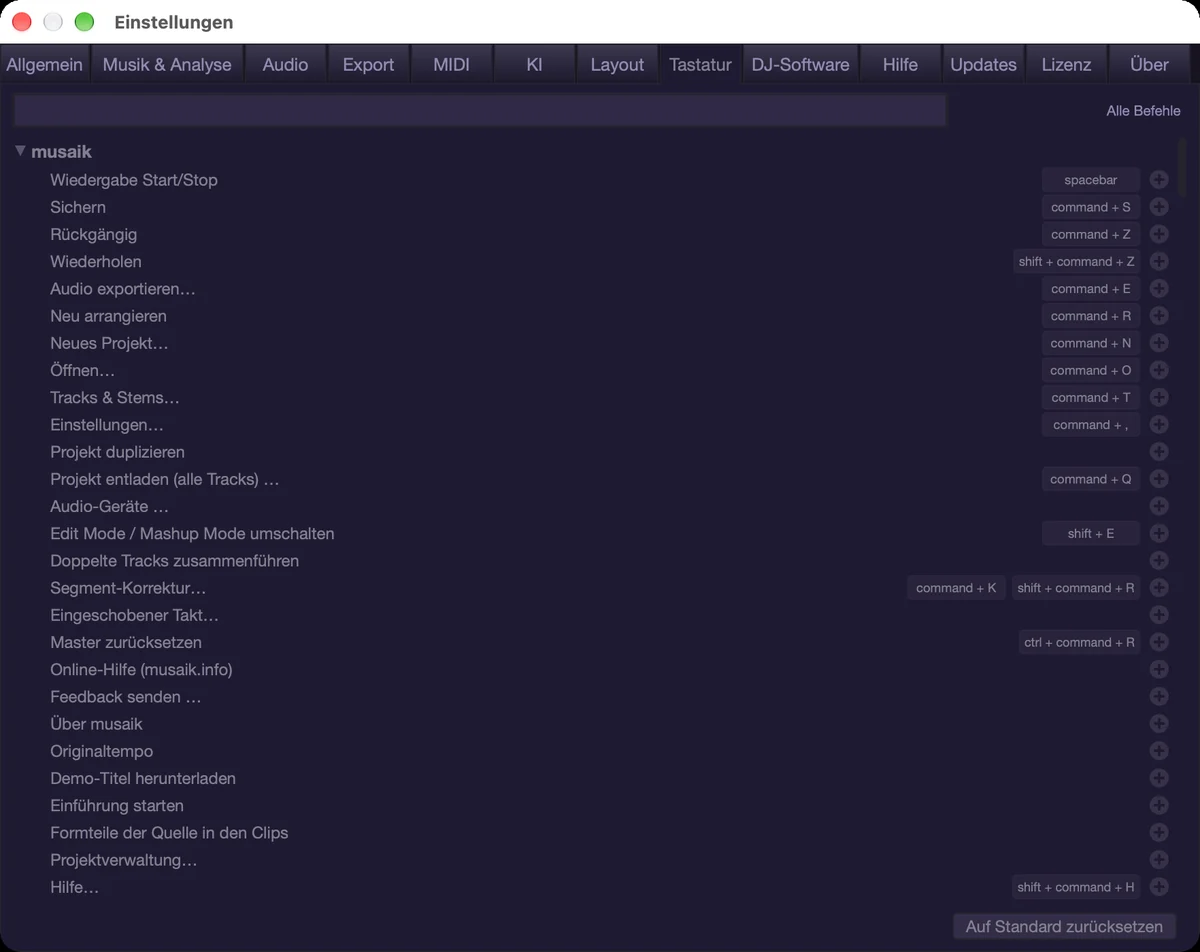
DJ software
Paths and access for the bridge: “rekordbox master.db” and “Serato folder (Serato)”, each with “Choose …”, and a status line below (database found, Python modules, Serato folder).
The group “rekordbox · tempo, hot cues and export”: “Number of hot cues” (8 = A–H or 16 = A–P; 8 out of the box, rekordbox itself shows only 8), “Edit mode: take tempo and beatgrid from rekordbox (instead of musaik's analysis)” (on by default; applies from the next analysis of a track rekordbox has analysed, a hand-corrected grid is kept), “Write hot cues on export” (overwrites the target's existing cues; on out of the box) and the “Export target” (add as a new track — the default —, re-link the original entry to the edit, replace the original audio file). The two export fields are defaults – the export dialog lets you change them for each export.
At the very bottom is “Cloud access (Dropbox, iCloud Drive …)”: macOS blocks those folders until you grant access; the list below shows for each cloud folder whether musaik may access it. “Request access …” asks again (active while a folder is blocked), “System Settings …” opens the privacy settings, “Choose cloud folder …” is the manual route. The same call is in the Library menu under “Check cloud access…”.
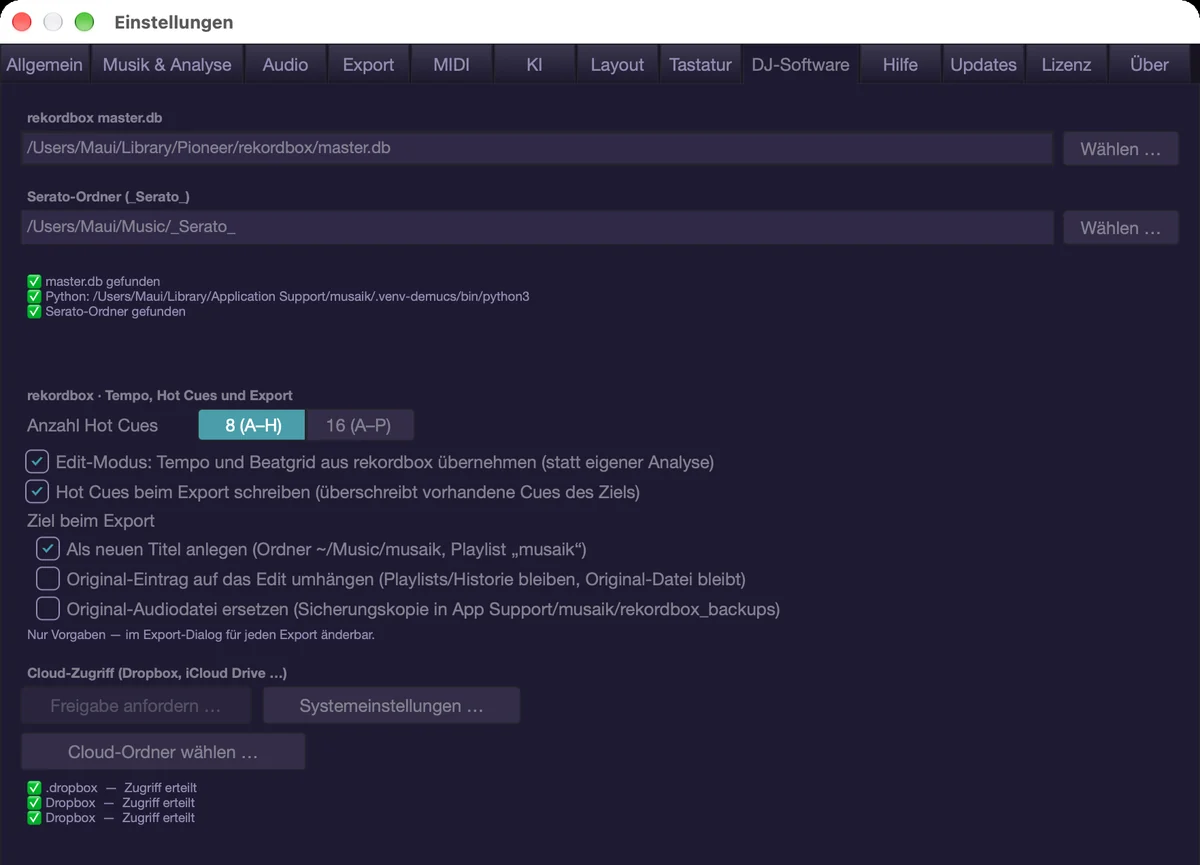
Help
The same help you are reading — chapters on the left, the text on the right, at the top the search field (“Search … (Cmd+F)”: hides chapters without a match, Return jumps to the next match, Esc clears the field) and the “Start walkthrough” button. Shortcut: Cmd+Shift+H. At the top right, “Online help” opens the help on musaik.info (with pictures and tour), “Feedback …” the contact form there – with “Beta feedback” already selected; “A-” and “A+” next to them set the text size. “Online help (musaik.info)” and “Send feedback …” are also in the Settings menu.
Updates
Shows the installed and the latest version, under “Available versions” a choice of versions and below that, under “What's new”, the changelog of the chosen version in your language. “Check now” asks again. If musaik can update itself, the button is called “Update now” and handles downloading, checking and replacing on its own; otherwise it is called “Download” and fetches the version through your browser. “Stop reminding me about this version” hides one version. The switch “Check for updates at startup” controls the automatic check, “Show news (bell in the transport bar)” the messages from musaik.info. The check sends no data.
License
“Status”, the three “Modules” (Mashup Mode, Edit mode, DJ Mix Mode — each “included”, “open during trial” or “not included”) and the “License key” field with “Activate”. If a module is missing, “Buy” sits next to it; the button opens the purchase page in your browser. Several keys can be activated one after another, their rights are merged. “Devices…” shows on which machines the key is activated (up to three per key) and releases seats. After that musaik confirms the license silently whenever it is online anyway – once shortly after purchase, later occasionally; without internet it keeps working. Only a key that has actually been revoked (e.g. after a refund) is locked. Without a license musaik runs as a trial with all modes for up to 14 days — export is locked then, and five stem separations are free. To start the trial and to activate a key, musaik needs to go online once (without a connection the trial allows three days of grace).
Forgot your key or can no longer reach an old device? At musaik.info/lizenz you can see your key and release activated devices – you sign in with a link sent to your purchase address.
About
Version, rights holder, the Rubber Band Library credit and the collapsible open-source licenses (“Show open-source licenses”). Directly reachable via the app menu “musaik” › “About musaik”. Five quick clicks on the version number unlock developer mode; an extra “Developer” tab then appears with measurement functions you do not need day to day.
The rulebook window
The rulebook is a window of its own: Settings › “Rulebook…”. It has four tabs:
- DJ mix — the rules the automix uses for order, mix points and transitions.
- Mashup — the rules “Arrange” uses to distribute material.
- Structure — the adjustments for section detection.
- Edit — the rulebook behind the AUTO presets in edit mode.
The rules read as whole sentences and can be switched and saved. Each rulebook also has a switch that turns it on and off completely (“Arrange by rulebook”, “Automix by rulebook”, “Auto edits by rulebook”). Details are in the chapters “Mashup” and “DJ mix”.
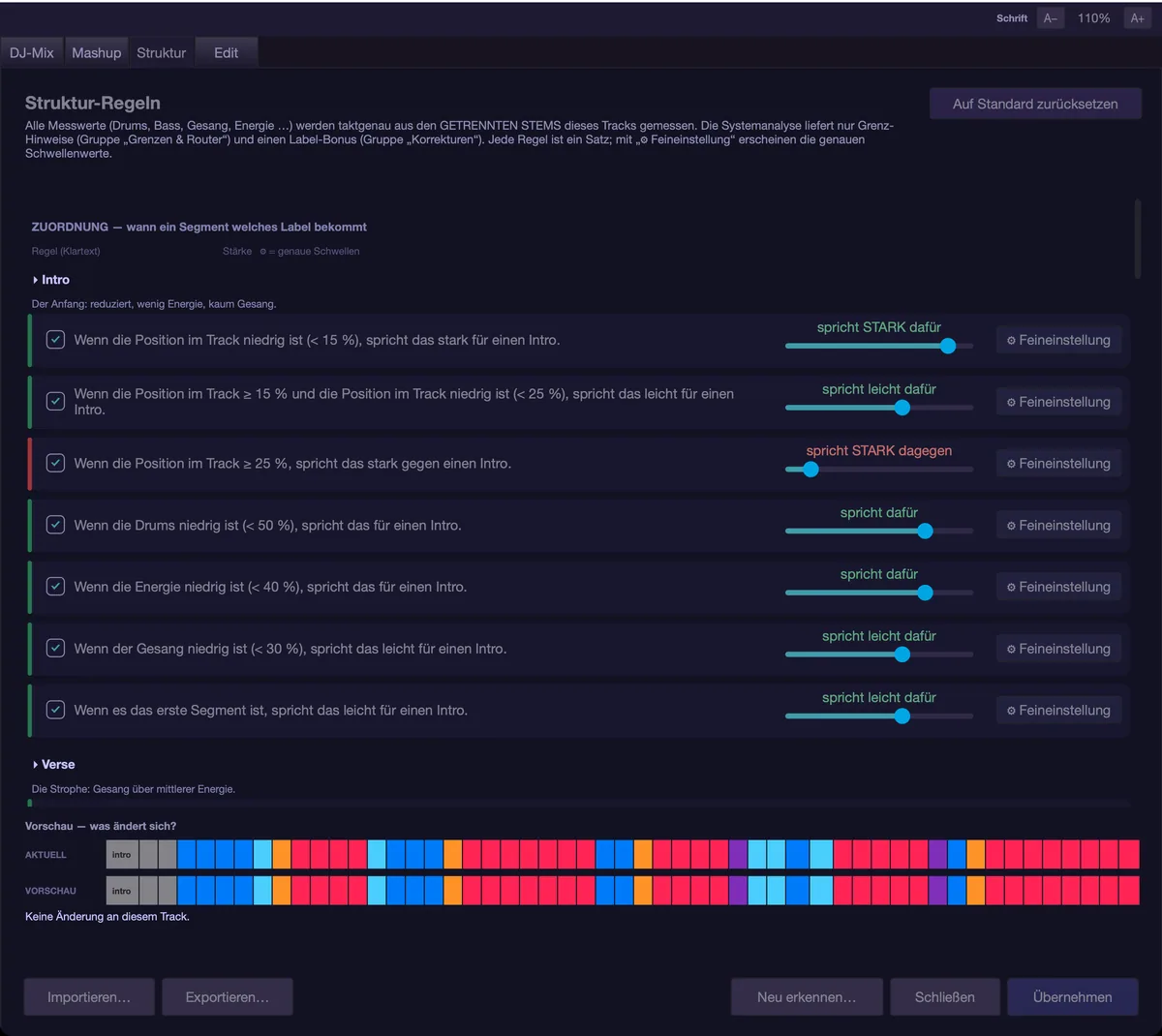
Remote control: MMC
MMC (MIDI Machine Control) is the simplest way to start musaik together with another device. Under MIDI › “Sync (MMC)”:
- “MMC input” — “Receive MMC (stop, play, wind, record, locate)”. Off by default, on purpose: a device that starts the transport unasked is worse than one you have to switch on first.
- “MMC output” — “Send MMC”: pass musaik's transport on to another device (off out of the box), with “MMC target” (target device or program, “None” out of the box), “MMC device ID” (127 is the broadcast to all, the default and almost always right) and “MMC frame rate (timecode)” (24, 25, 29.97 drop or 30 fps, 25 out of the box — it is part of the locate command and must match your partner device).
MMC only controls the transport of the whole arrangement: start, stop, wind, locate. “Record” means MIDI recording on the selected instrument track; musaik does not record audio tracks.
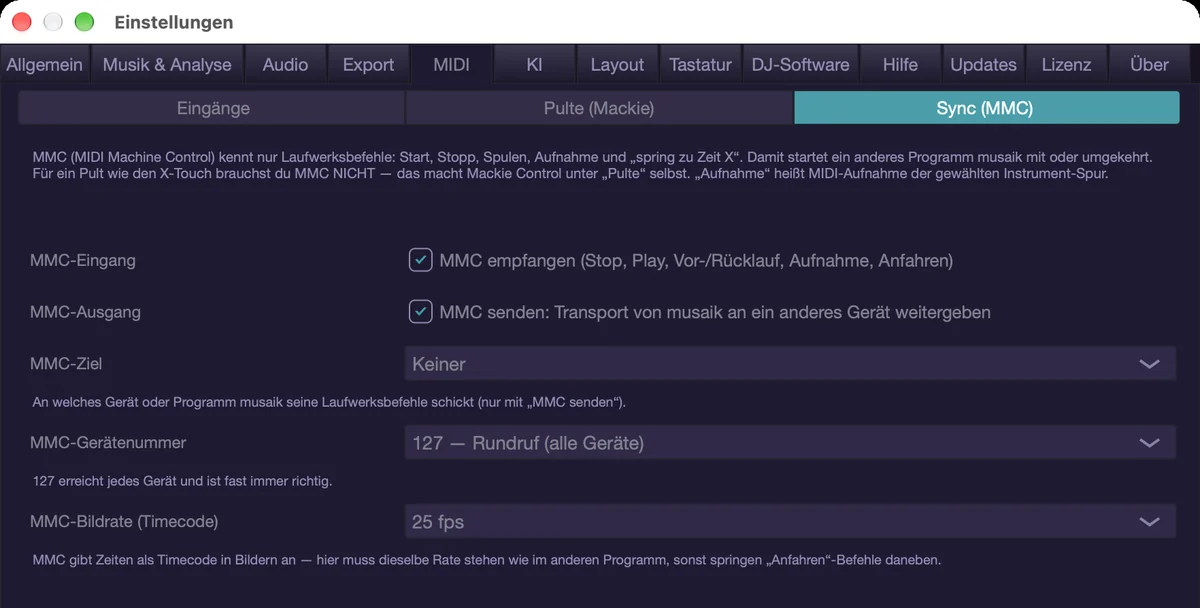
Remote control: Mackie Control
Under MIDI › “Surfaces (Mackie)” you set up a surface with faders and buttons:
- Switch “Use” on. The checkbox alone does nothing while no surface input is selected below.
- “Surface 1 — input (strips 1-8)” and “Surface 1 — output (faders, LEDs, display)”. The output is only needed for feedback; without it the surface works, it just does not show anything.
- “Surface 2 — input (strips 9-16)” and “Surface 2 — output” for a second device to its right, such as an X-Touch Extender. Which device takes which strips is your decision here — it cannot be automatic, because both identify themselves the same way.
- X-Touch Extender: it shows up over USB as its own device “X-Touch-Ext X-TOUCH_INT” — choose that entry for surface 2. Do not confuse it with “X-Touch EXT” — that is the second port of the X-Touch itself (its MIDI socket). If “X-Touch-Ext” is not in the list, the extender is not connected via USB or is switched off. The second surface's display is addressed as an extender (Mackie XT).
What works on the surface:
- Faders control the strips' volume, the master fader the sum – from either surface. The motor faders follow musaik. FLIP swaps faders and encoders: the fader then controls the pan.
- Per strip: mute, solo, record arm, SELECT (selects the track – like clicking its channel strip); pressing the encoder resets it.
- Display: track name and value, in the track's colour (X-Touch: eight colours, the track colour is rounded to the nearest); NAME/VALUE switches the lower line between the value and the parameter name. Level meters per strip run along, even with the mixer folded away.
- Encoder assignment (buttons TRACK, SEND, PAN, PLUG-IN, EQ, INST – the active one is lit):
- PAN – pan per track.
- SEND – send per track to bus A; SEND again switches to B, then C. Pressing the encoder: send off ↔ 0 dB.
- TRACK – channel strip of the selected track: high- and low-pass, their Q, filter mix, sends A–C.
- EQ – the selected track's EQ, band by band (frequency, dB, Q, on/off).
- PLUG-IN – the parameters of insert 1 of the selected track; PLUG-IN again = insert 2.
- INST – the parameters of the selected instrument track's instrument.
- With TRACK, EQ, PLUG-IN and INST the display shows the parameter on top and its value below; CHANNEL ◄ ► pages through the parameters, BANK ◄ ► still moves the strips.
- Automation: READ = play back only (A-REC off), TOUCH = writes while you touch the fader, LATCH = writes from the first touch until stop. The choice also applies to the plug-in automation of the selected instrument track. Every pass is thinned out afterwards (see chapter “Environment & mixer”). WRITE, TRIM and GROUP do not exist in musaik; the buttons stay dark.
- Transport: play, stop, record, rewind/fast forward (4 bars). CYCLE (loop), CLICK (metronome) and SOLO (clear all solos) are lit while loop, metronome or any solo is on.
- SAVE, UNDO, CANCEL (like Esc) and ENTER (like Return).
- Cursor cross: without ZOOM, ▲ ▼ change the instrument track, ◄ ► jump one bar. ZOOM (the magnifier in the middle) brings the playhead to the centre of the view and switches the arrows to zooming (◄ ► horizontal, ▲ ▼ track height); the magnifier is then lit.
- Jog wheel: one bar per detent, with SCRUB one sixteenth; with ZOOM it zooms. It does not jump while playing.
- F1–F8: mixer, piano roll, browser, show automation, edit grid, echo out, reset view, settings.
- MARKER, NUDGE, DROP and REPLACE have no counterpart in musaik and stay silent.
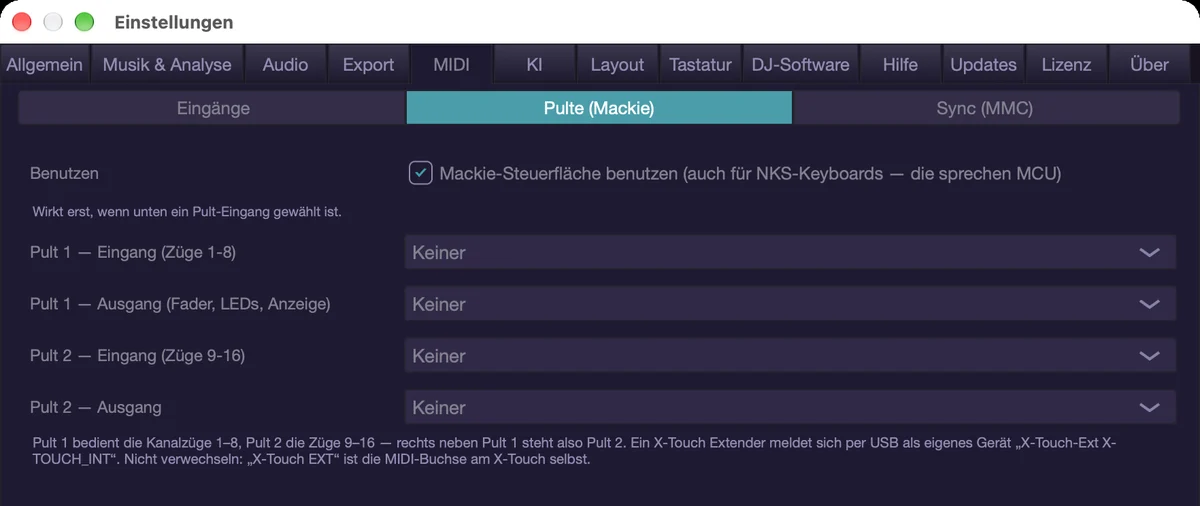
MIDI learn
To put any parameter on a knob of your controller, go to the track environment, tab “Automation”: search for the parameter (“Search parameters … (e.g. cutoff)”) or touch a control, then switch “MIDI learn” on and move the control. “Clear assignment” removes it again. This only controls — recording goes through the mode “While turning (touch)” or “From first turn (latch)” together with A-REC in the transport bar.
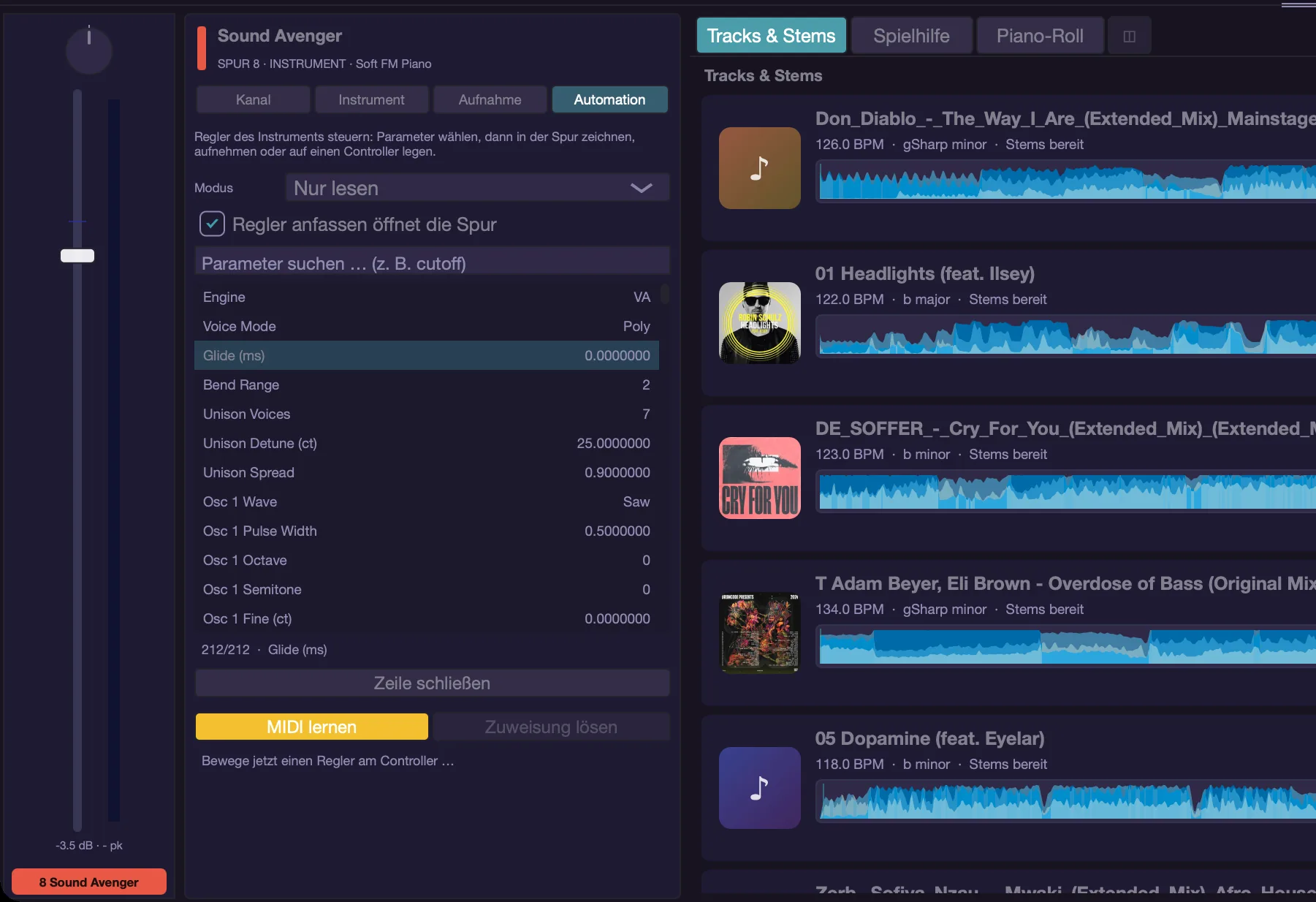
Shortcuts
- Cmd+comma – settings
- Cmd+Shift+H – help
- Cmd+F – in the help: search field
- A – record automation (A-REC)
Corrections & community
Detection is not always right — least of all with the names of the sections. So you can correct every result, and musaik remembers it. If you want, you share your corrections with others and get their work in return. Voluntary, and off by default.
The segment correction
Cmd+K opens the “Segment correction” window (Cmd+Shift+R leads to the same place). The waveform sits at the top, the band with the sections below it, and at the bottom the list “Tracks in project (click = correct)”. The structure master is preselected; from the list you can take any other track of the project without changing the master.
This is how you work in it:
- Click a section — it plays from there. The space bar starts and stops, a click in the waveform jumps.
- Shift+click selects a range, Return merges the selection. If a section is too long, T or the “Split (T)” button splits the section under the playhead in two, on the nearest bar. The left and right arrow keys select the previous or next section.
- Set the matching label as a chip: Intro, Verse, Pre-Chorus, Chorus, Build-up, Drop, Break, Bridge, Outro or Section.
- In the row below, say whether there are vocals: “automatic”, “Vocals: yes” or “Vocals: no”. “automatic” measures the vocal stem; only correct it where the measurement is wrong.
- “Apply” writes the correction into your project.
Two kinds of help sit in the header. “How this works” explains briefly which section is what, gives three rules of thumb and the vocal switch. The “?” next to it is the detailed guide: label by function in the arrangement, not by instruments; if two functions overlap, the defining one wins; when in doubt, “Section”.
Boundaries almost always sit on a downbeat, usually every eight or sixteen bars. Better leave “Section” standing than name it wrongly.
If the track has inserted bars, the band marks them orange with “+1” or “+2”; dashed with a question mark (“+2?”) means detected but not yet applied because of your manual correction. In the list at the bottom every track shows “corrected” or “open”. Right-clicking a track in the list offers “Correct this track” and “Discard my correction …”: after a confirmation your correction is removed on this computer, as a reference and in the community, and the track gets the structure from the analysis back.
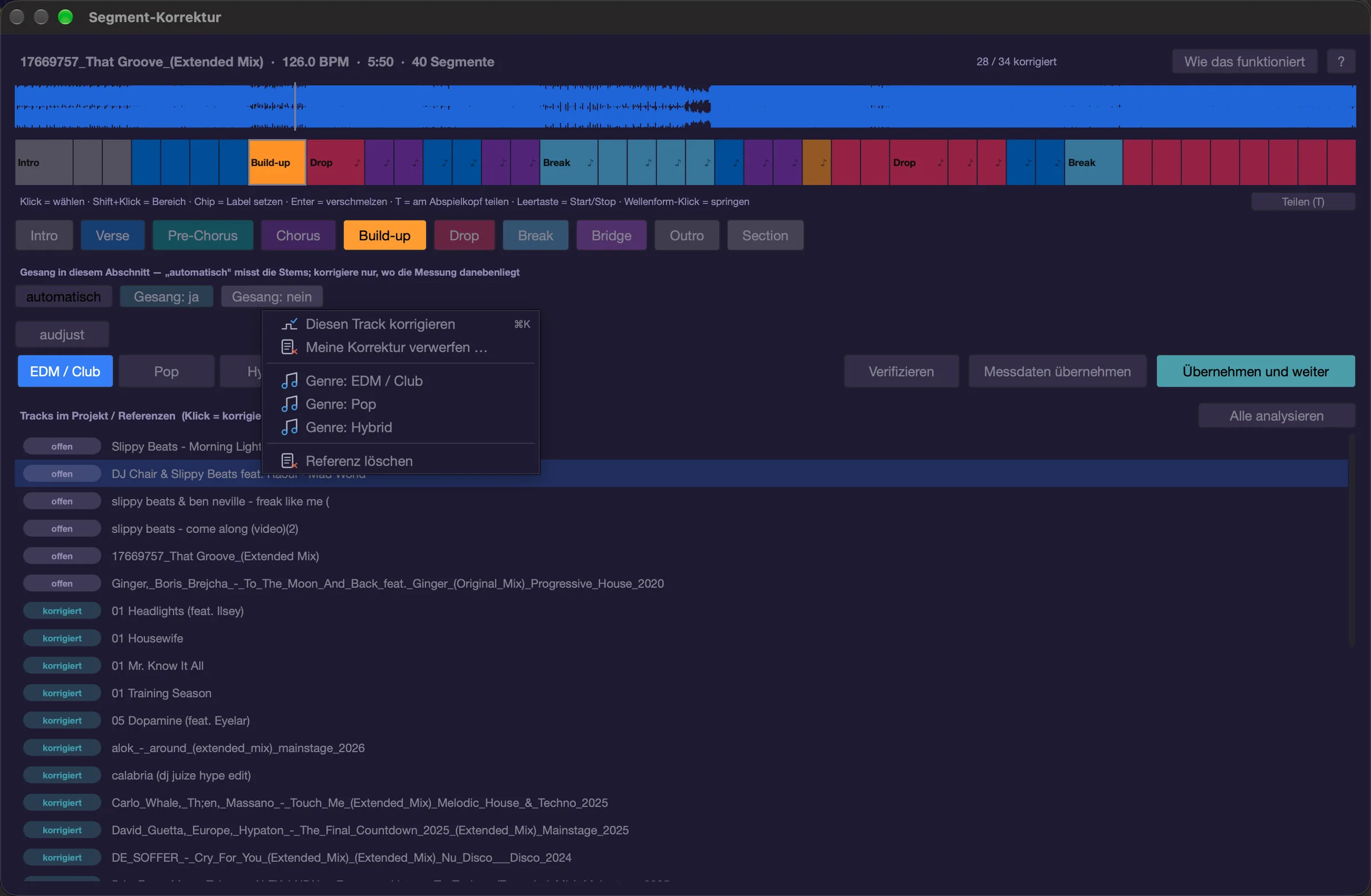
Correcting in the structure band
For small changes to the structure master you do not need the window at all. In the structure band above the arrangement, a double-click on a section opens the list of labels to pick the new one from. Drag the boundaries with the mouse. Right-click offers “Split at this position”, “Merge with next”, “Remove section (ripple)” and “Open segment correction …”. Shift+click selects several sections; right-click then merges them with “… sections — merge into one”.
“Remove section (ripple)” cuts the range out of the arrangement and everything after it moves up; the track's analysis stays unchanged. After a change in the band the “↻ Recalculate arrangement” button appears so the other lanes fit the sections again.

What happens to your corrections
- They apply in your project at once and survive a new analysis.
- They apply on this computer in new projects too. musaik recognises the same recording by a fingerprint of its sound — moving, renaming or re-tagging the file changes nothing, and a differently trimmed version is found through the time offset.
- All of this works without a network, without an account and without consent: the memory lives on your computer.
- If a track already has clips in the arrangement, musaik does not replace its sections silently. The suggestion then waits for you in the correction window.
- You take a correction back with “Discard my correction …” (right-click the track in the segment correction list).
Sharing with the community
Sharing is off by default. You can switch it on in two places: the first time you open the segment correction musaik asks once, and in the settings under “General” › “Community” you find the row “Share analysis data”. The button next to it states what applies: “Off — learn more …” or “On — change …”. Both open the same text.
In that dialog you find the switch “Share my corrections”, below it “Also share measurements” (on by default once you share), the full text behind “What exactly is sent …” and, once you are enrolled, “Delete submissions”.
What is sent
- a fingerprint of the sound, that is numbers, no audio
- the sections with their names, in seconds and in bars
- whether a section has vocals
- tempo, key and loudness
- what the app had guessed beforehand
Only with “Also share measurements”
- the per-bar measurements the detection decides from: how strong drums, kick, hi-hats, bass, vocals and pads are, brightness and energy — numbers, no audio. That way the detection also learns from tracks the server does not have as audio.
- a confirmation when you use the automatically detected sections unchanged for arranging or exporting. It counts much less than a correction.
What is never sent
- no music, no excerpt, no audio
- no file names, no paths, no folders
- no titles, no artists, no albums
- nothing from your playlists or projects
- no email address and no name
Your submissions run under an identifier computed once from your licence. Your licence key travels exactly once, at enrolment; after that only a token does. The identifier exists so submissions can be attributed and suspended in case of abuse — not so that anyone knows you.
What you get back
What others have checked is offered while you correct: one line names the source, “Preview” shows their sections next to yours, “Adopt suggestion” puts them in — everything with no selection, or just that range with a selection in the band. Your own version always takes priority over the community's.
A community suggestion only counts as confirmed once enough people have reported the same thing with enough agreement. Until then it says “From the community (provisional)”. Corrections by the musaik developer count as confirmed right away; the other submissions are measured against them. A confirmed result may also flow quietly into the analysis of a track nothing is built on yet; as soon as something depends on the track, it is only ever offered.
If your submissions consistently differ strongly from everyone else's, the system suspends your contribution. You see this in the status under the switch and can object; after a waiting period your contribution counts again as soon as several submissions in a row agree well. Not sure? Then rather do not submit — wrong entries do more harm than missing ones.
“Delete submissions” removes the data sent so far.
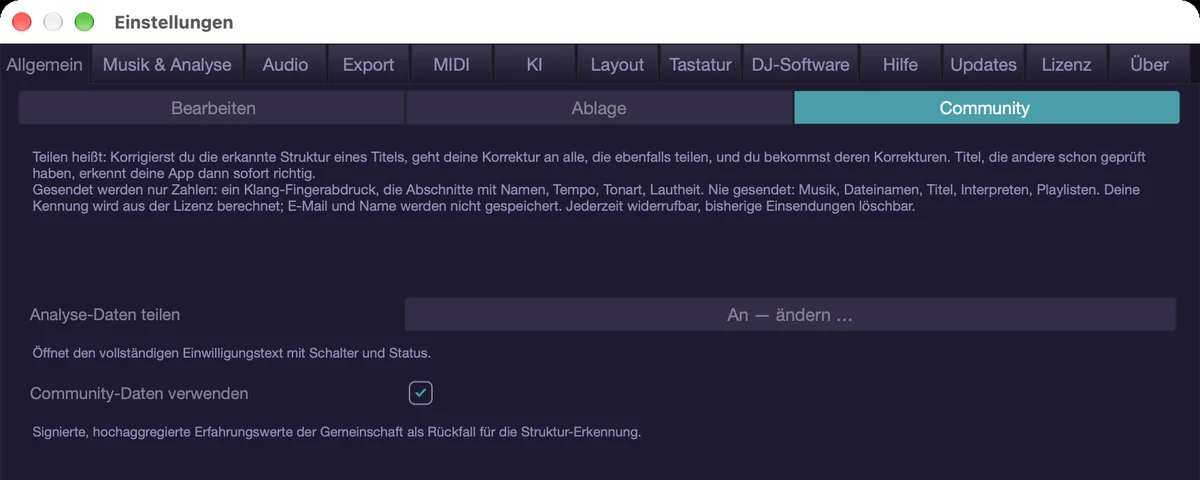
Use community data
Separate from sharing, the same settings group holds the switch “Use community data”, on by default. With it musaik fetches a small signed profile from the server at most once a day: condensed figures about how tracks are usually built. They help the detection with tracks nobody has corrected yet. They belong to no track and to no person, nothing of yours goes out for them, and without a valid signature musaik accepts nothing. You can switch it off at any time; then nothing is fetched.
Learning structure from rekordbox
If you have already analysed phrases in rekordbox, musaik can learn from them. Open the rekordbox source in the browser, right-click a playlist and choose “Learn structure from “name””. musaik reads the phrases of the tracks in it and derives new prior values per genre; the message at the end says how many tracks were learned and how many reference tracks you now have in total.
- A track without a rekordbox analysis contributes nothing — load it there once and let it analyse.
- Smart playlists cannot be read; drag the tracks into a normal playlist.
- Genres with very few tracks do not get their own values but feed into a general club or pop value.
- Your own learned values take priority over the community data.
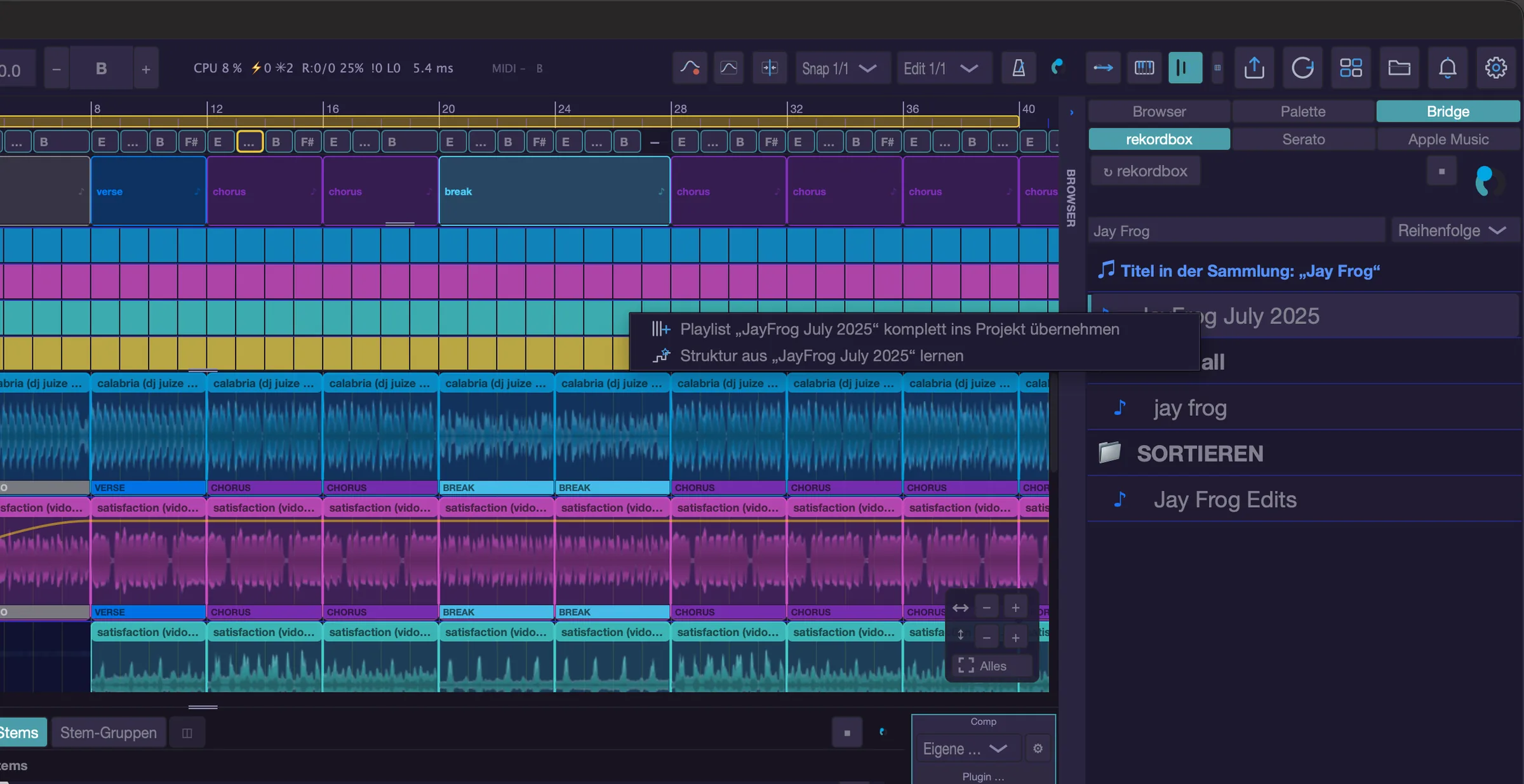
Privacy at a glance
- Analysis, stems, chords and your correction memory live on your computer. Music is never uploaded.
- Nothing is shared unless you agree — and even then no music, no file names, no titles, no name, no email address.
- “Use community data” only downloads, highly aggregated and signed.
- The AI only gets the song card: measured values such as tempo, key, sections and chords, plus your instruction. Never audio, never titles or file names. Under “What is sent?”, “Show example” shows you exactly what would go out.
- Where it goes is decided by the path in the settings under AI. “On this Mac” and a local model never leave your computer; your own API key, OpenRouter and credits talk to the respective provider.
- The local path has one exception: if a cloud access is set up (your own API key, otherwise OpenRouter), musaik still fetches melodies and phrases from there, because small models fail at that task. The arp stays on the chosen path. If you do not want that, do not set up a cloud access.
- Your API key is stored in the system keychain, not in the settings file.
Keyboard shortcuts
- Cmd+K – open the segment correction
- Cmd+Shift+R – the same window
- Space – play and stop inside the correction window
- Shift+click – select a range, Return – merge the selection
- T – split the section at the playhead (on the nearest bar)
- Left/right arrow – select the previous/next section
- Right-click a title in the list – “Discard my correction …”
- Cmd+, – open the settings
When something goes wrong
Most problems have a short cause and a short cure. This chapter is meant for looking things up: find the symptom, read the cause, make the one move.
No sound
- Check the output first: settings (Cmd+,) under “Audio”, in the first sub-tab (the device selector). Is the device listed there the one you are actually listening to?
- Is a track muted, or another one soloed? In the track head these are the M and S switches. The S key triggers “Solo off everywhere”.
- Is the master fader down? Shift+M opens the mixer.
- With an audio interface: check the interface's own mixer software. Many interfaces have a separate mix in which the computer channel can be turned down.
- Is the transport running at all? The space bar starts and stops.
A note hangs
- Cmd+Option+. sends “All notes off” to every instrument on every channel. Same move: double-click the MIDI indicator in the transport bar.
- Only one track affected? In the track environment (key E), on the “Instrument” tab in the block “HOW YOU PLAY”, there is a separate “All notes off” button for that track.
- If it keeps happening, the instrument plug-in is usually to blame. Reload it or try another one.
The track runs at “half speed” or the bar is off
- That is a grid problem, not a playback problem. The G key or the grid icon in the transport bar opens the grid tool (in edit mode and in mashups).
- “2×” and “½×” fix the bar length, “-1T” and “+1T” shift by whole bars, ‹ and › in fine steps.
- If almost a whole bar of audio lies before the first detected bar, the analysis places the first grid line in front of it by itself – even if a few milliseconds are missing at the start. The grid tool shows one bar of lead-in before the audio start (darkened), so you can see and drag a line that sits just before the beginning. If the first bar still starts too late, “+Bar in front” helps; it only refuses when there is no audio left before it. If you drag the grid so far forward that a whole bar would lie before the audio, that bar is dropped on Apply – the status line announces it beforehand. This way bar 0 always begins where the audio starts. “Transient” puts the nearest grid line on the actual hit. “Apply” writes it in, “RST” takes everything back.
- If the bar is only off from a certain point on, a bar has usually been inserted there. Right-click the track in “Tracks & Stems” › “Inserted bar…” places the sections correctly from that point; in the grid tool the phrase bar above the waveform marks inserted (“+1”) and missing (“−1”) bars.
- If the grid is wrong from the ground up, re-analyse: right-click the track in “Tracks & Stems” (Cmd+T) and choose “Re-analyse (tempo, key, structure)”. For all tracks at once: Cmd+Shift+A.
- The DJ mix has neither the G key nor the grid icon: there you open the grid tool via right-click on the deck clip › “Correct grid…” or, with the “Edit” switch in the playlist on, with Shift+double-click on the deck clip. The same right-click menu offers “Re-analyze track”.
The message “Grid is inconsistent”
musaik noticed that clips or downbeats sit beside the grid — something audibly runs out of sync there. The spots are marked red in the arrangement. The cure in edit mode: select the range, right-click, “Snap source window to downbeat”. If the downbeats themselves are the problem, reset the grid with the grid tool or re-analyse.
Key or chords are wrong
- The key comes from the harmony reference, not from the structure master. In “Tracks & Stems” use the “Harmony” button to pick a track with clear harmony, or, in a mashup, step on with Ctrl+Option+H.
- If the chord lane shows “Key Am (detected: C)” in yellow, musaik swapped the key based on the chords. That is usually right.
- Single chords are corrected in the chord lane (Cmd+Shift+C): click a field to choose another chord, drag the edges, and right-click for split, merge, delete and “Detect chords again”.
- Your hand corrections survive “Detect chords again”. If you really want to start over, use “Discard all corrections”.
The sections are wrong
This is the most common and the most important case, because the arrangement builds on them. Cmd+K opens the segment correction: click a section, set the label as a chip, select ranges with Shift+click, Return merges, T or the “Split (T)” button splits the section under the playhead, “Apply” writes it into the project. Small changes also work directly in the structure band above the arrangement.
The keys sound different from what I press
- Check the harmony assistant (harmonizer) in the play helper. If it is active and “Live playing follows too” is on, your live playing is steered onto the chord in the lane. Off means the key sounds exactly as you play it.
- Choosing “Melody” or “Chords” under “Mode” switches “Live playing follows too” on as well. If you only want clips to follow, turn it off again in the “Advanced” section.
- If everything is evenly too high or too low, the track's “Transp.” is not at zero (track environment, key E).
- If notes arrive late or snapped to a grid, an input grid or a delay is set in the performance rules.
Arp or phrase stay silent
- Is “On” switched on for that page of the generator panel (Shift+A)?
- While the arrangement runs, arp and phrase only sound where this track has a clip. An empty clip is enough — it is the gate.
- For the arp the source decides: with “held notes” nothing happens without keys. For a run along the chord lane choose “chord lane” or “held, else chord”.
- While the transport is stopped, your live playing drives the generators. On their own they only run with start/stop (Shift+S).
- If the piano roll says “Phrase selected but off”, the “On” switch on the phrase page is missing.
- If the chord lane has no field at that spot, both play the triad of the key — provided “Key applies where no chord” is on.
The plug-in window
- The editor opens with a double-click on the instrument or FX slot in the track environment, with the pencil button, or with Cmd+Option+E.
- The pencil is only there when an instrument is really loaded. If the slot says “no instrument”, choose one first.
- Windows remember their position as soon as you move them. If one has vanished, close it via the slot and open it again.
Dropouts, crackles, high load
- The load is shown in the transport bar as “CPU … %”, right after tempo and key. If it climbs and stays there, a larger audio buffer size in the settings under “Audio”, first sub-tab (device), helps.
- If the transport bar shows “Preparing …” or “Background …” in yellow, musaik is preparing material; if a track header shows a progress ring, a higher stretch quality is being computed there. While that runs, playback costs more CPU. Let it finish.
- Fewer simultaneous tracks and fewer insert effects help right away. Under “Audio” › “Processing” you can also allow more memory (“Use memory up to”) and lower the “Stretch quality”.
- If “Low latency” is on, the record-armed track bypasses its inserts and runs ahead of the rest. That is meant for playing in — switch it off afterwards.
The AI does not answer
- Is a path set in the settings under “AI”? With “Off” all AI buttons stay silent.
- “Test connection” sends a tiny request through the whole path. The “Status” row tells you what came back.
- For a local model the app has to be running: Ollama or LM Studio. “Search” probes both usual addresses; in LM Studio the server must be started in the “Developer” tab.
- If no model is chosen yet, fetch the list with “Load”.
- If the answer breaks off halfway or comes back as nonsense, the context length is usually too small. Raise it on the local path.
- With your own key: the key belongs to the selected service and lives in the keychain. After switching the service, fill the field again.
Stems are missing or a track counts as “not separated”
- “Tracks & Stems” shows per track what is going on: “Waiting for analysis…”, “separation running…” or “stems ready”.
- If new tracks are not being separated at all, check the switch “Auto stems” (“Analyse new tracks with stems automatically …”) in the settings under “Audio” › “Processing”.
- A track without stems cannot serve as a harmony reference and provides no individual elements in the arrangement. You can catch up with “Re-create stems (separation runs again)” in the right-click menu of the track.
- For all tracks of the project at once: Project menu › “Re-create all stems”. In the DJ mix you separate a track with the “MIX | STEMS” switch on the deck clip or via its right-click “Enable stems (separate)…”.
- Depending on your computer, separation takes from seconds to minutes per track and runs one track after another.
Keyboard shortcuts
- Cmd+Option+. – all notes off (MIDI reset)
- G – grid tool (edit and mashup)
- Cmd+Shift+A – re-analyse all tracks
- Cmd+K – segment correction
- Cmd+Shift+C – show/hide the chord lane
- S – solo off everywhere, K – metronome, P – stop preview
- Shift+M – mixer, E – track environment
- Cmd+, – settings