From the whole set
to the broadcast.
Plan, mix, export, play live – in one program.
In DJ mix mode musaik turns your titles into one continuous mix: every transition on the beat, down to stem level if you like, the order planned by key, tempo and energy. You take your titles straight from rekordbox, Serato or VirtualDJ. The finished mix goes back to your DJ software as an audio file or as a playlist with mix cues, live on air – or as the musaik Library straight to your CDJ/XDJ.
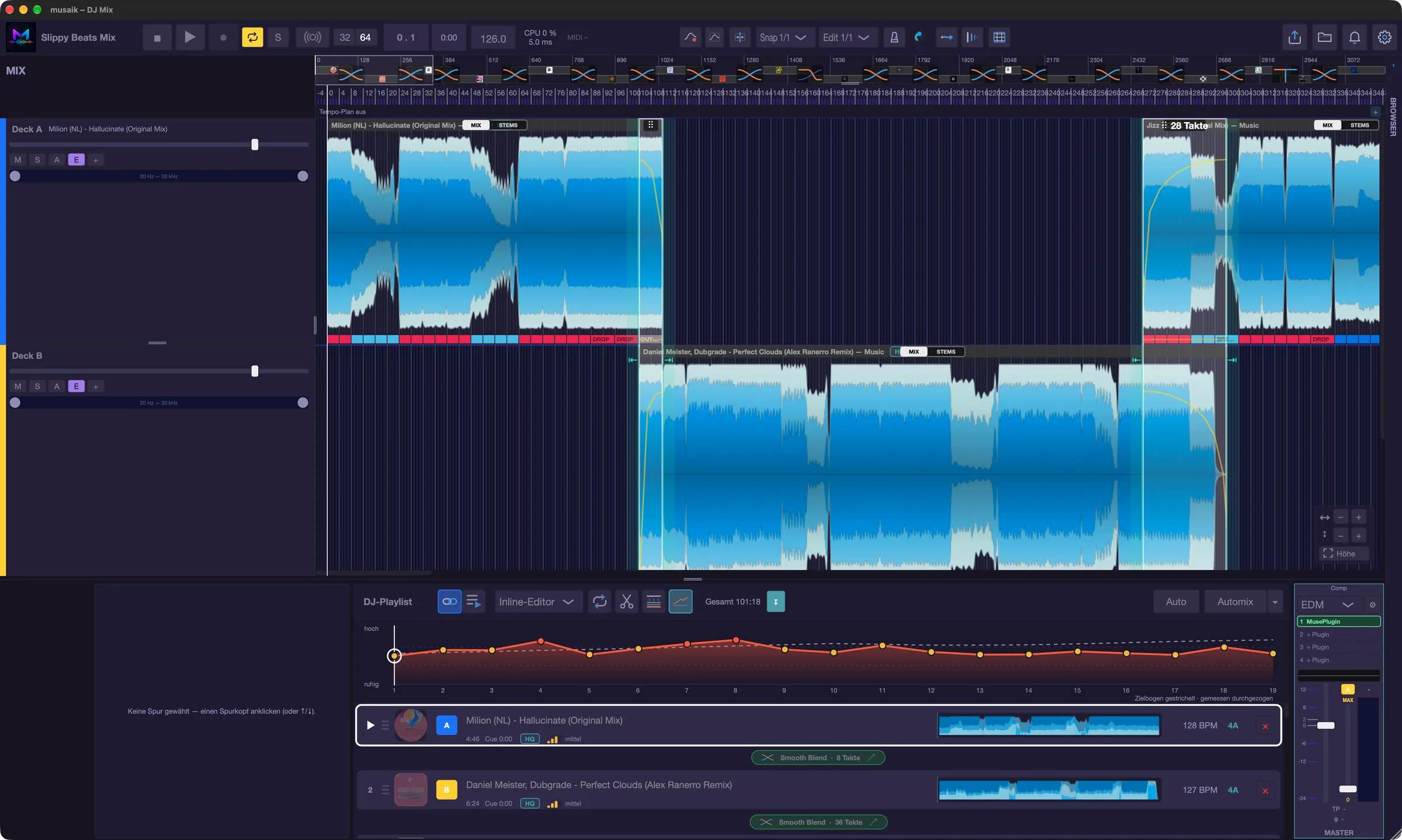
A set, not just one transition.
musaik thinks of the mix from the first title to the last. Automix places every transition where the bass of the playing title stops and the bass of the new one comes in – two basslines never play at once. Full planning finds the order for the whole set: harmonic, in tempo and with an energy curve you choose.
Full planning
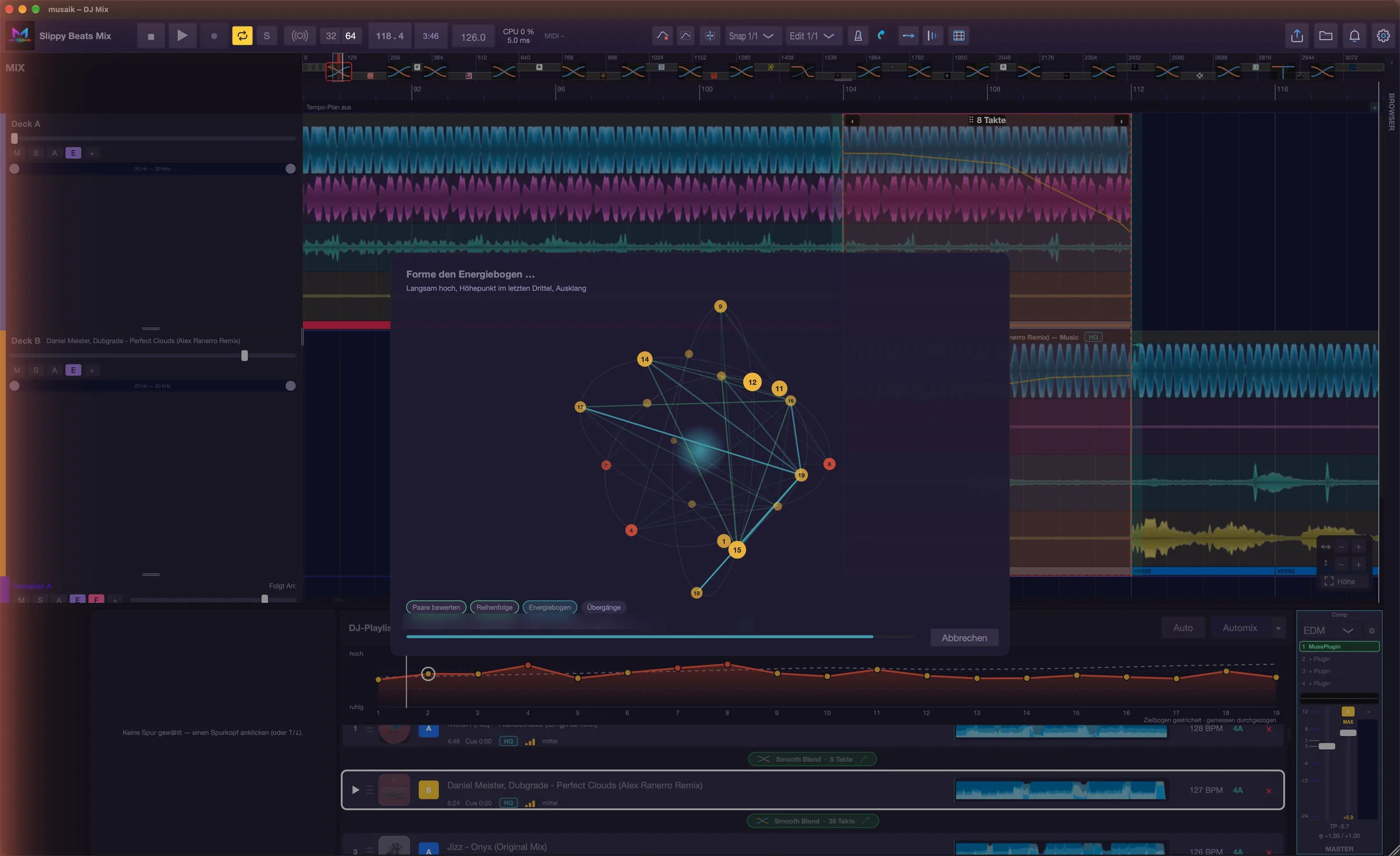
musaik rates every pair in your mix against each other and finds the best order for the whole set. Then all transitions are placed anew; a start track stays at the front, locked transitions stay together.
Energy curve
Set dramaturgy, warm-up, peak time or closing – plus weak, medium or strong. The energy arc above the playlist shows every title as a dot and the chosen curve dashed behind it.
Original wherever possible
Stems only sound where a transition needs them. Before and after, every title plays its original – live and in the export. If the keys clash, the basses swap directly instead of playing together.
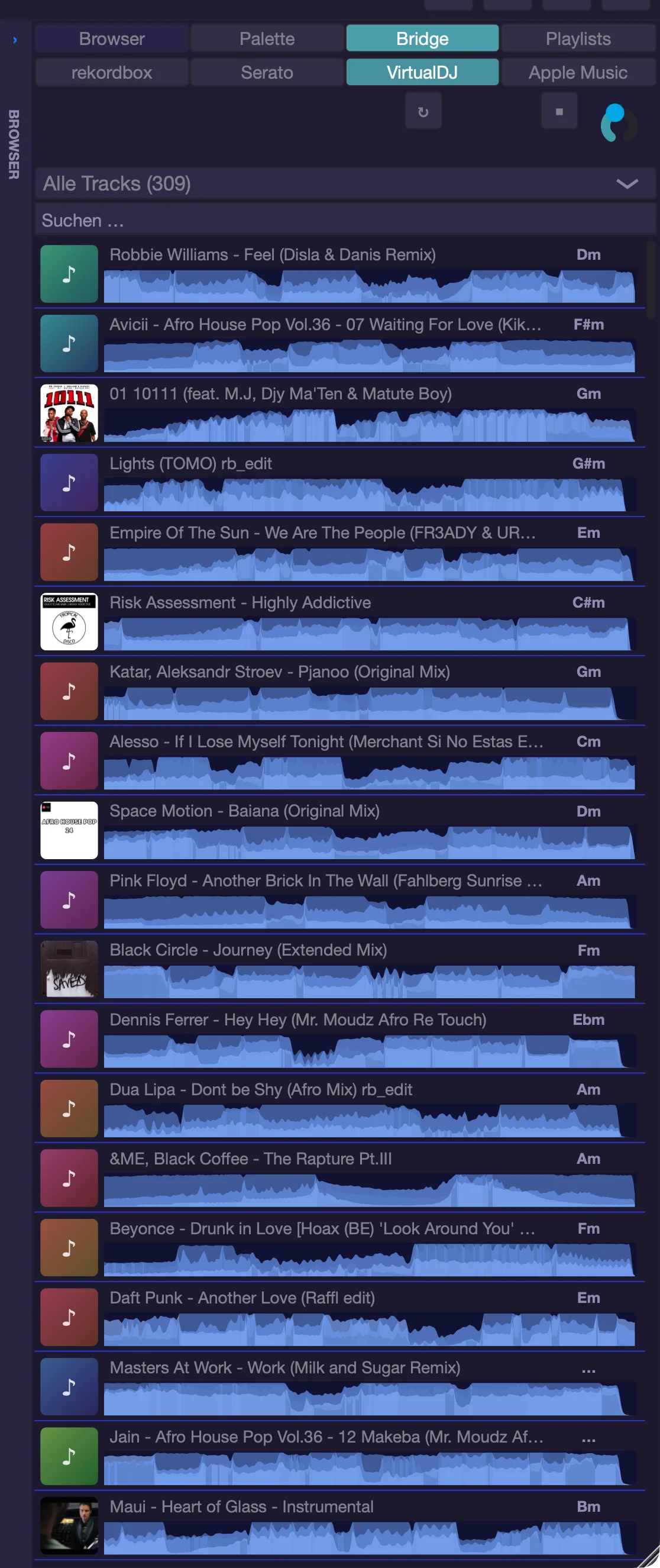
Your library is already there. rekordbox, Serato, VirtualDJ.
The browser on the right of the window reaches straight into your DJ software under Bridge – no export, no detour. Drag titles into the arrangement or the playlist; take over whole playlists and crates with a right-click.
You choose which programs musaik may read under Settings › DJ software.
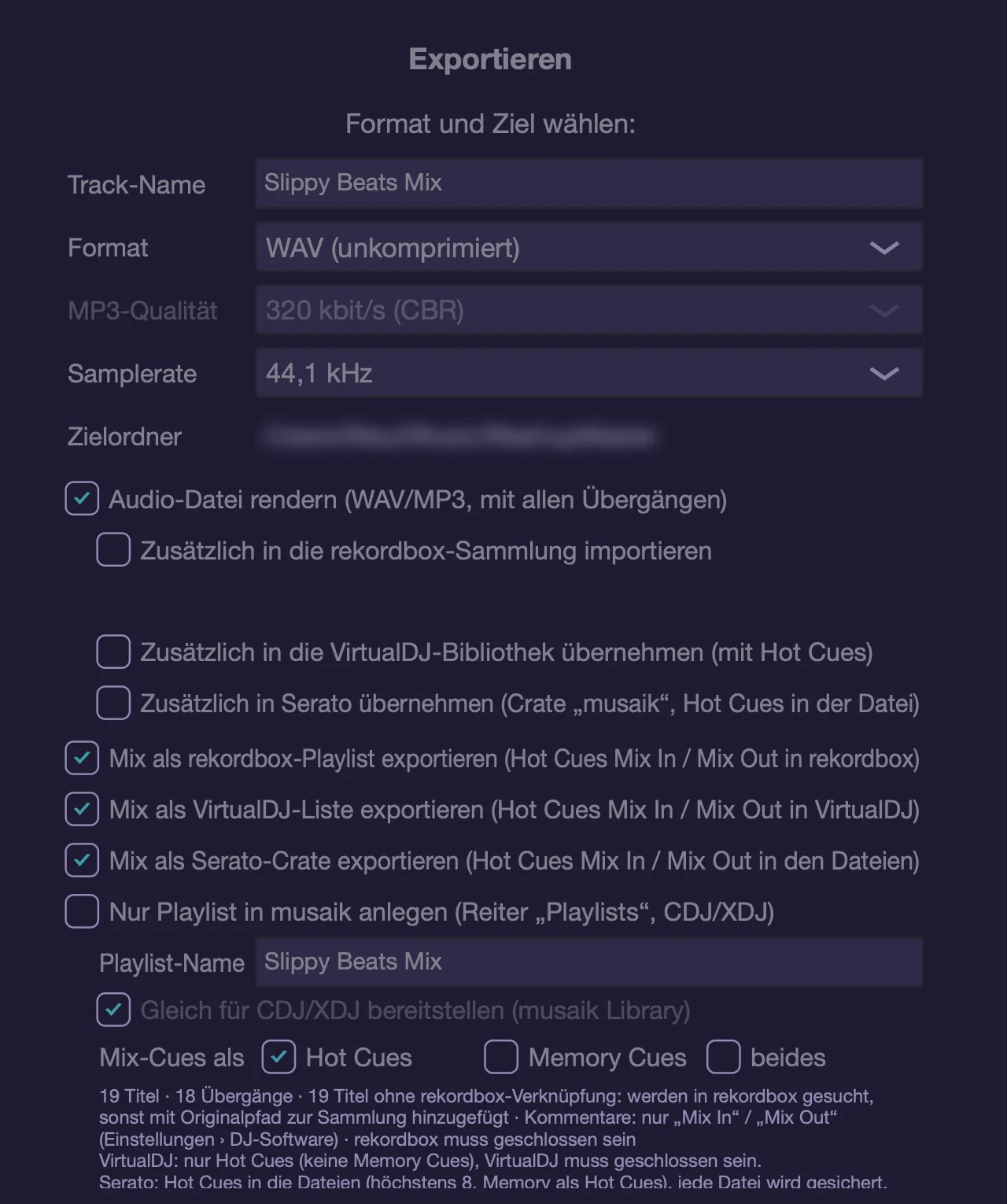
The mix goes where you play.
In the export dialog you tick what should be created – musaik works through everything one after another. As a playlist, the titles land in mix order in your DJ software, with the cues “Mix Out” and “Mix In” at every transition. That way you can replay a mix built in musaik at the decks.
Safe: the DJ software must be closed during the export; musaik backs up its library or every changed file first.
The broadcast keeps running. You are already hearing the next transition.
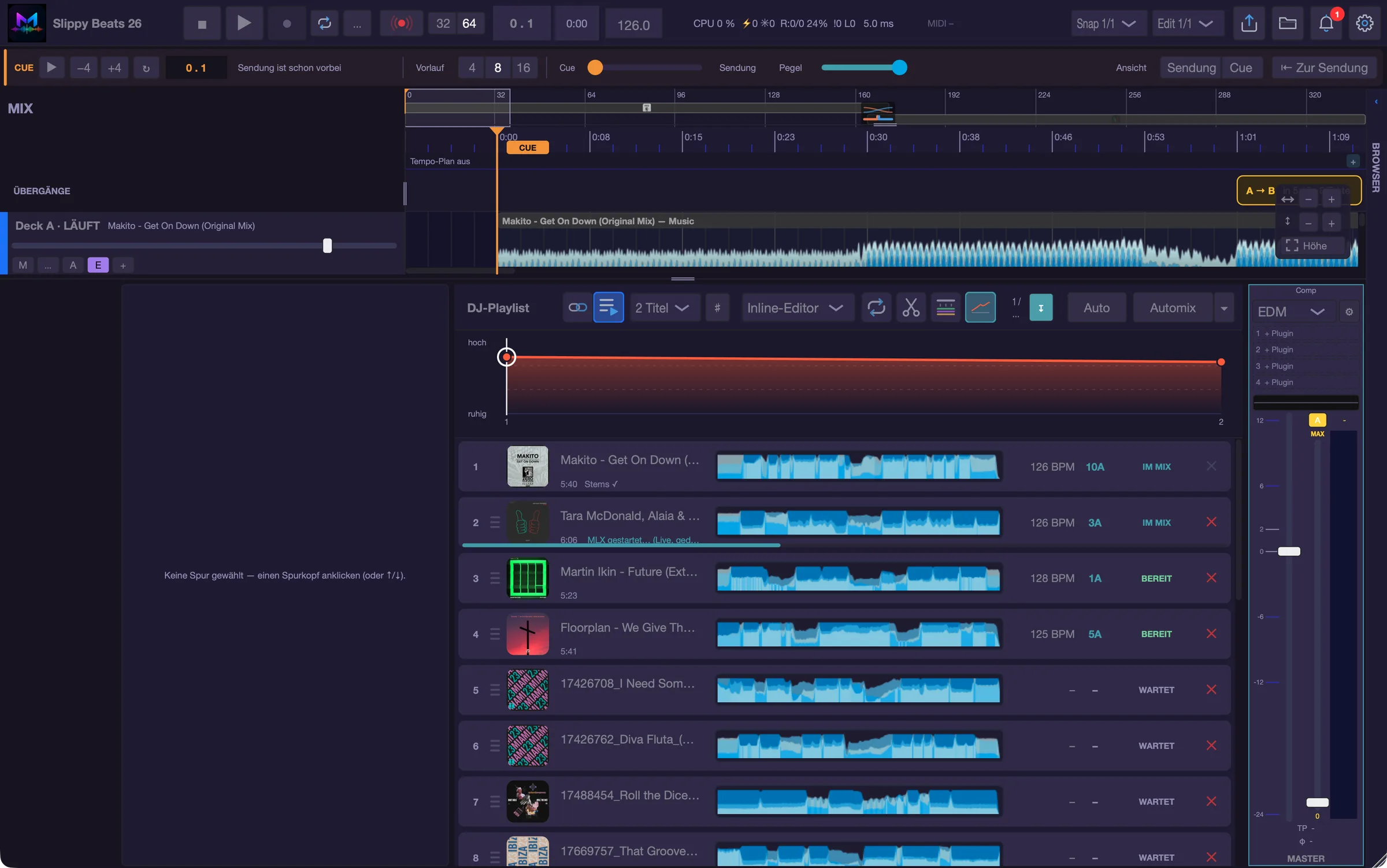
In radio there are two paths: the broadcast the audience hears, and the cue path on which the host checks what comes next. That is exactly what OnAir turns musaik into. Your mix is the broadcast – and you get a second head to move through the set without touching the broadcast.
The broadcast
Plays on outputs 1/2 – to the sound system, the stream, the station. One click on OnAir is enough, without interruption. From then on it is frozen: nothing jumps, nothing stops. Only the stop button can halt it, and it asks first.
The cue
The orange cue head plays on the cue output, for example 3/4 – into your headphones on the DJ mixer or interface. Clicks into the ruler, play, solo, grid and segment correction: everything now affects the cue, not the broadcast.
The lock zone
Whatever the broadcast reaches within the next 32 or 64 bars is hatched red and stays as it is. Behind it you rebuild – transitions, lengths, order – while the broadcast keeps running.
How you go on air
Choose the cue output
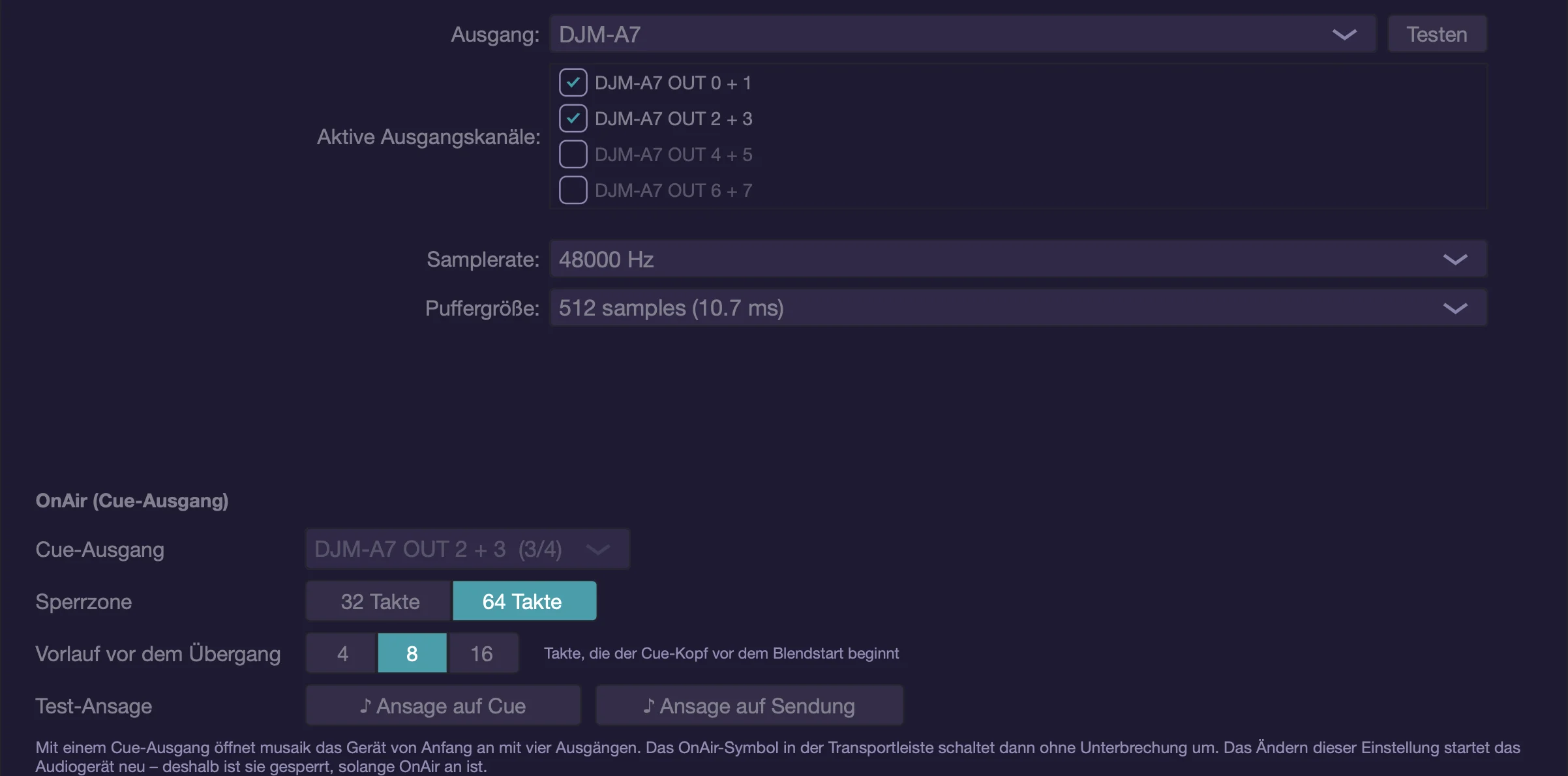
In the settings under Audio › OnAir you choose where the cue goes – for example outputs 3/4 of your DJ mixer. musaik then opens the device with four outputs from the start. There you also set the lock zone (32 or 64 bars) and the lead-in before a transition (4, 8 or 16 bars). With “Announcement on cue” and “Announcement on broadcast” you check that everything is wired correctly.
Switch OnAir on
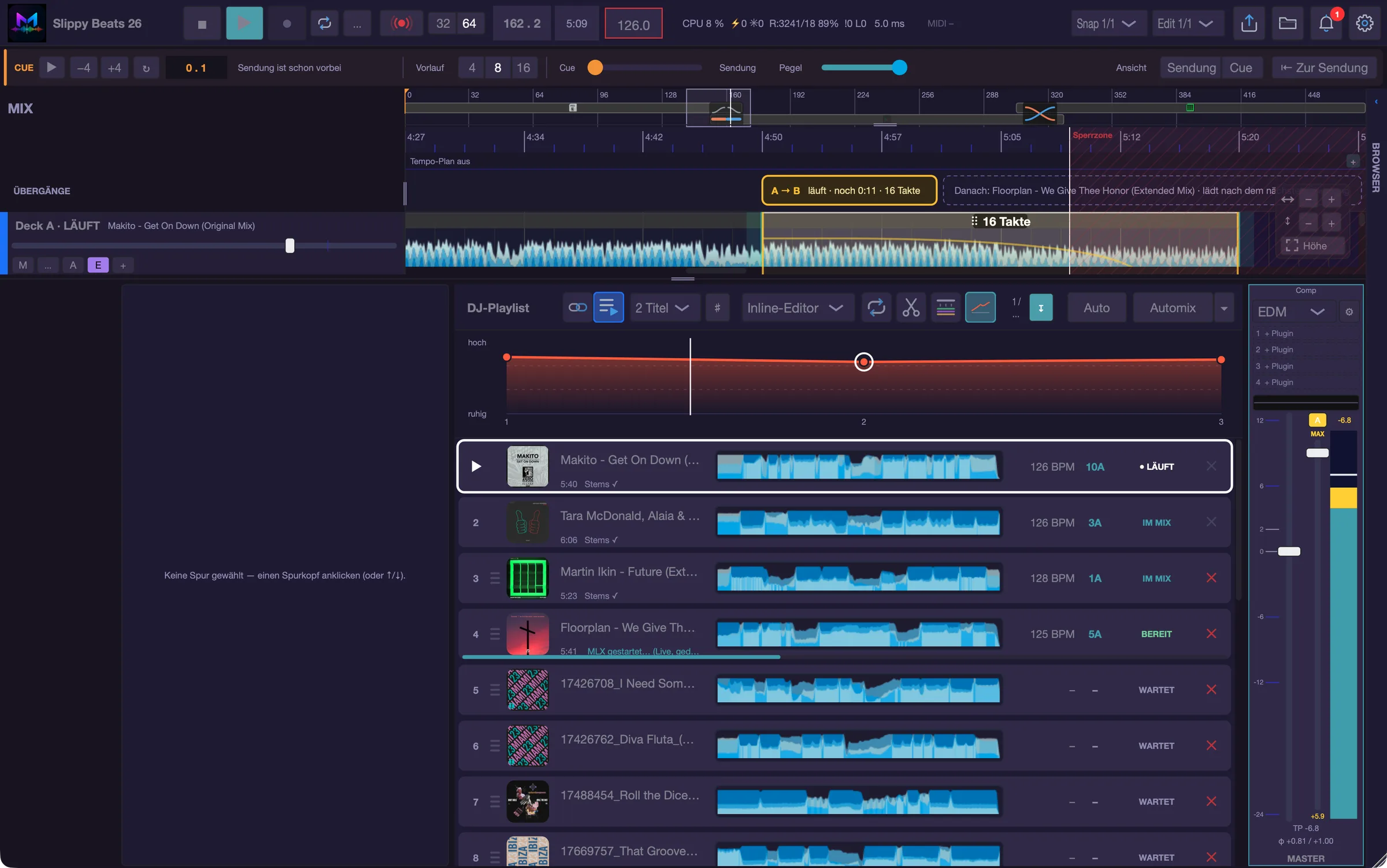
One click on the OnAir symbol in the transport bar – the arcs start broadcasting, the broadcast keeps running without interruption. Below it the cue bar appears: cue transport, ±4 bars, position, lead-in, cue/broadcast balance, level and “To broadcast”. With “View: broadcast | cue” you choose which head the arrangement follows.
Pre-listen to what’s coming
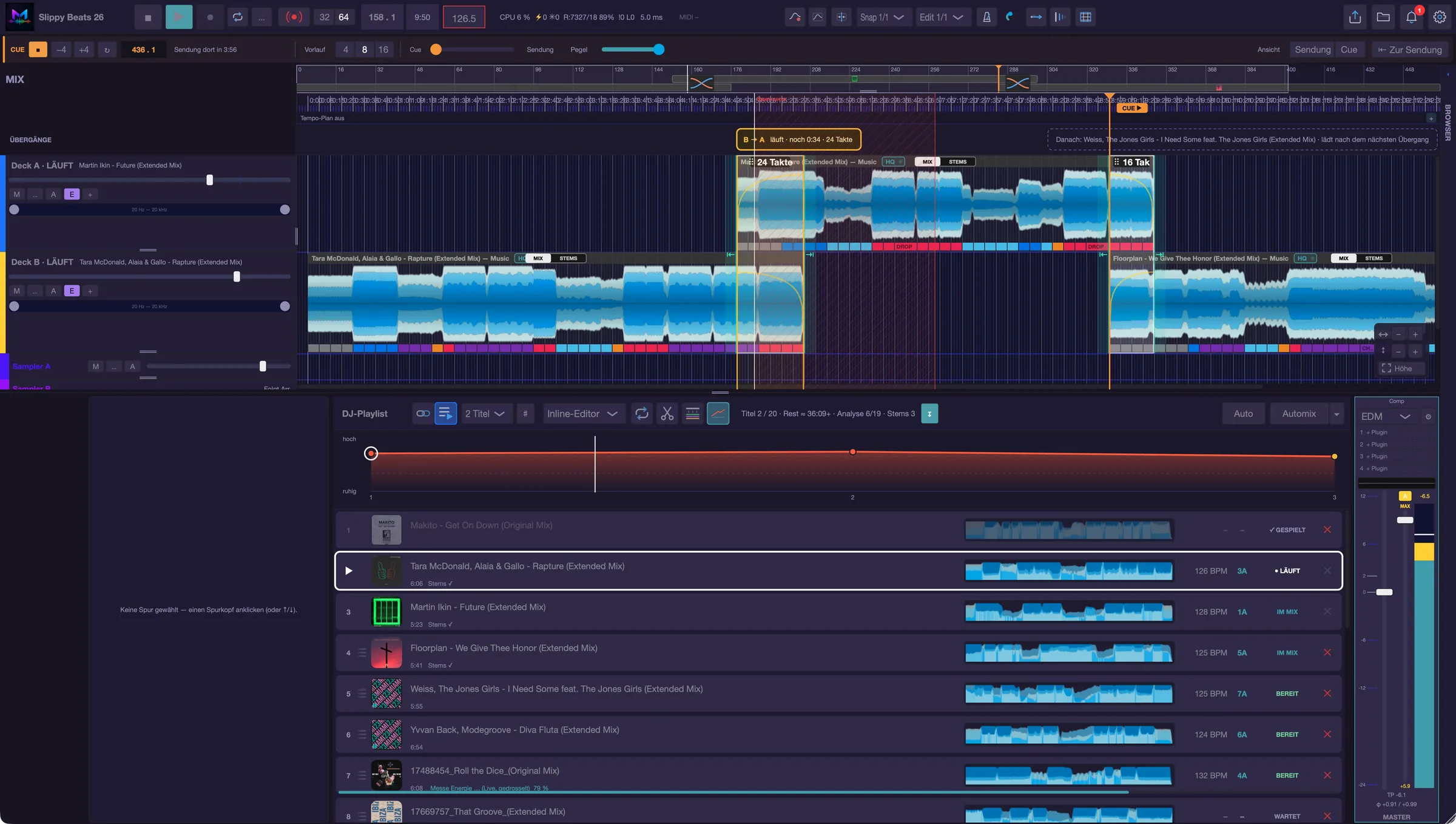
Click into the ruler behind the lock zone – the cue head jumps there and plays on headphones. The display tells you when the broadcast will arrive there. Even faster: the headphone button on every transition pill plays exactly that transition with lead-in. If something doesn’t sound right, you change it before anyone hears it.
The lock zone protects the broadcast
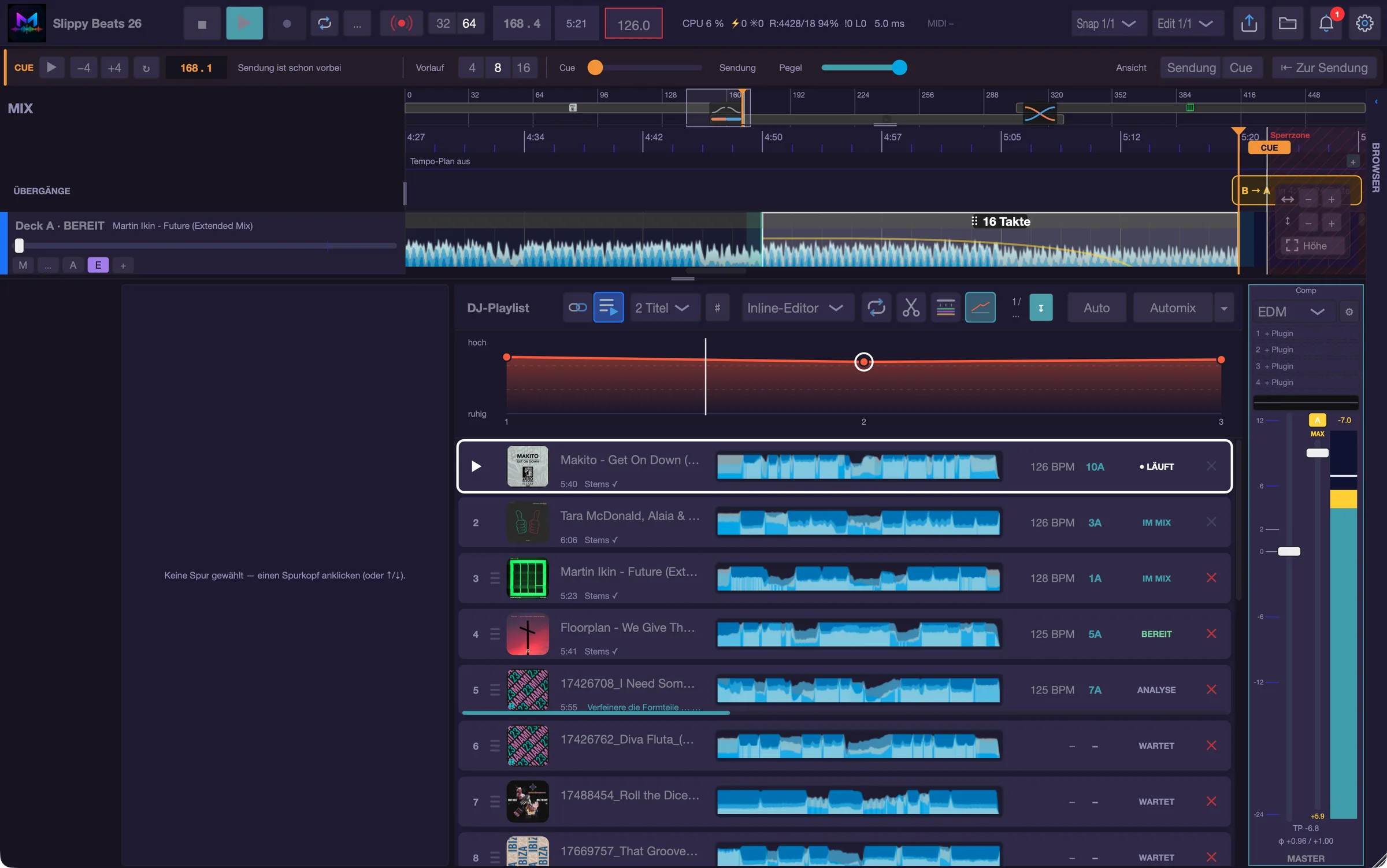
If you put the cue into the red zone, musaik says “locked – in the lock zone”. What is about to be broadcast can no longer shift. The transitions band shows the running transition with a countdown and, next to it, which title will be loaded next.
Your playlist, mixed live. As good as a fully calculated mix.
The DJ mix offers two ways of working. Normal is the finished set: all titles in the arrangement, every transition shapeable by hand. DJ Playlist is the live way: you give musaik a long list – a whole rekordbox playlist, say – and musaik mixes it title after title in real time. Every transition is planned exactly like “Apply Automix” in the fixed mix, with the same bass handover, the same stems and the same original outside the transitions.
From the mix straight to the CDJ/XDJ.
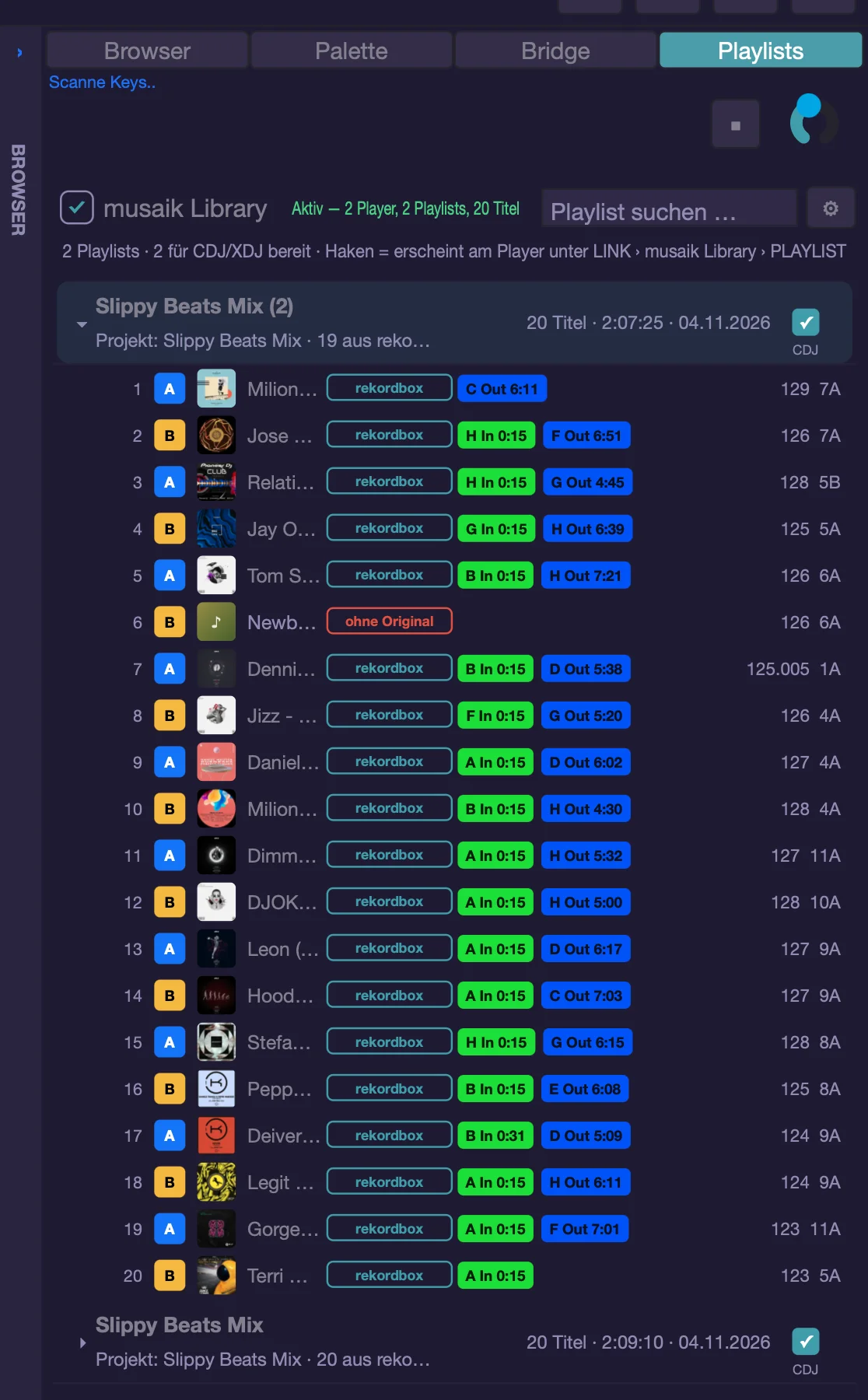
With the musaik Library, musaik appears in the LINK menu of your CDJ/XDJ on the same network – like a laptop running DJ software. You load your playlists right at the player, without a USB stick and without an export.
Your mix goes straight to the station.
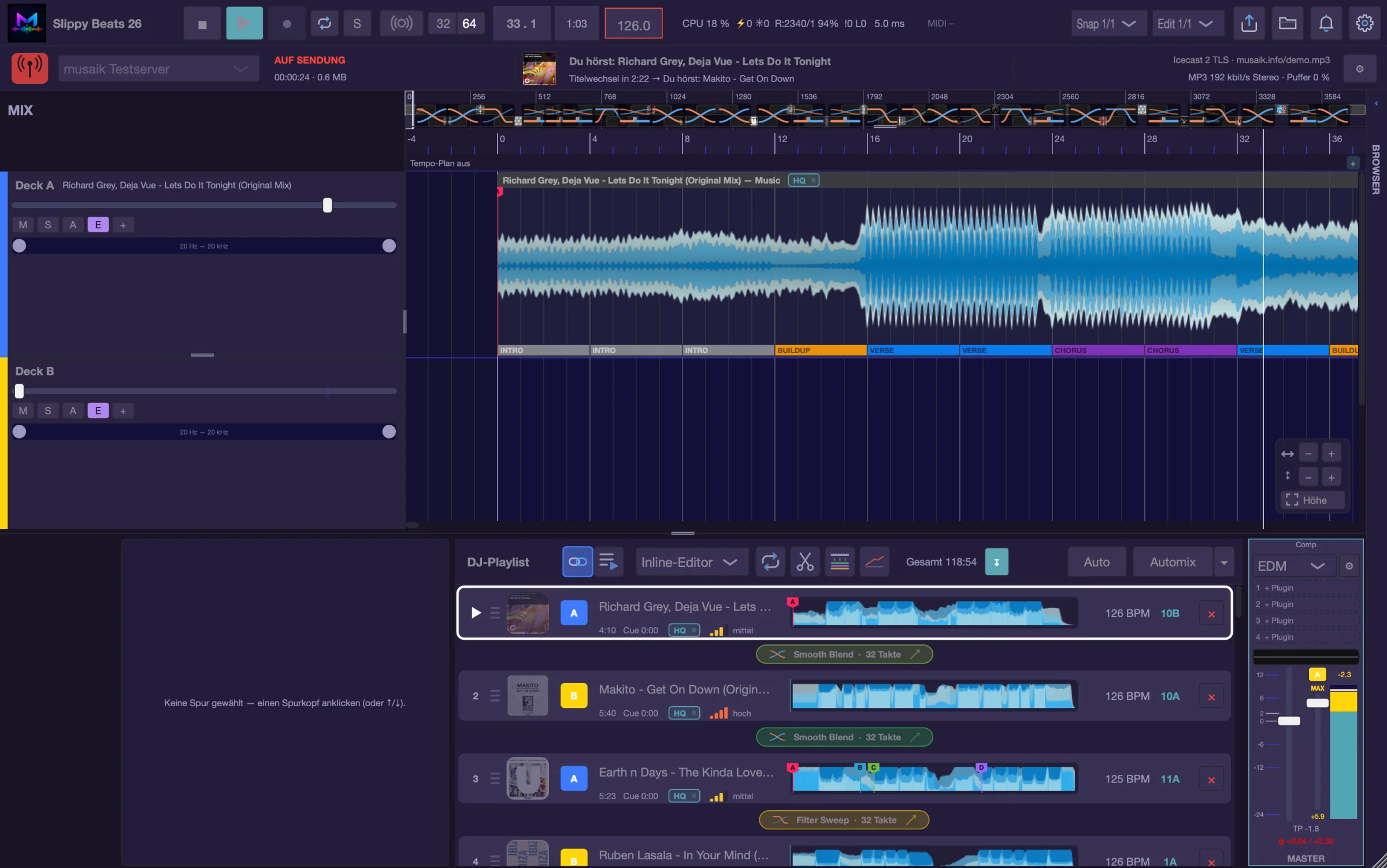
With the Broadcast Extension musaik sends the broadcast as an audio stream to an Icecast or Shoutcast server. There the station’s playout software picks up the stream – just as it takes over the stream of an external DJ. A title line and a cover go along with every track, in time with the transition. You need neither a second program nor a virtual sound card for it.
Available from version 1.2
The broadcast, not the cue
What goes out is what plays on outputs 1/2: your DJ mix, the DJ Playlist or the broadcast in OnAir operation. Whatever you pre-listen to on the cue stays with you.
Title and cover in time
The title line changes at the moment you set – for example in the middle of the blend. The track’s cover is ready on your web space in time, and its address travels in the stream.
Presets for several targets
Every target is a preset: server, login, format, title data and cover. You switch the target in the bar. Passwords are kept in the system keychain, and the connection can be encrypted with TLS.
How you set up your target
Enter the server
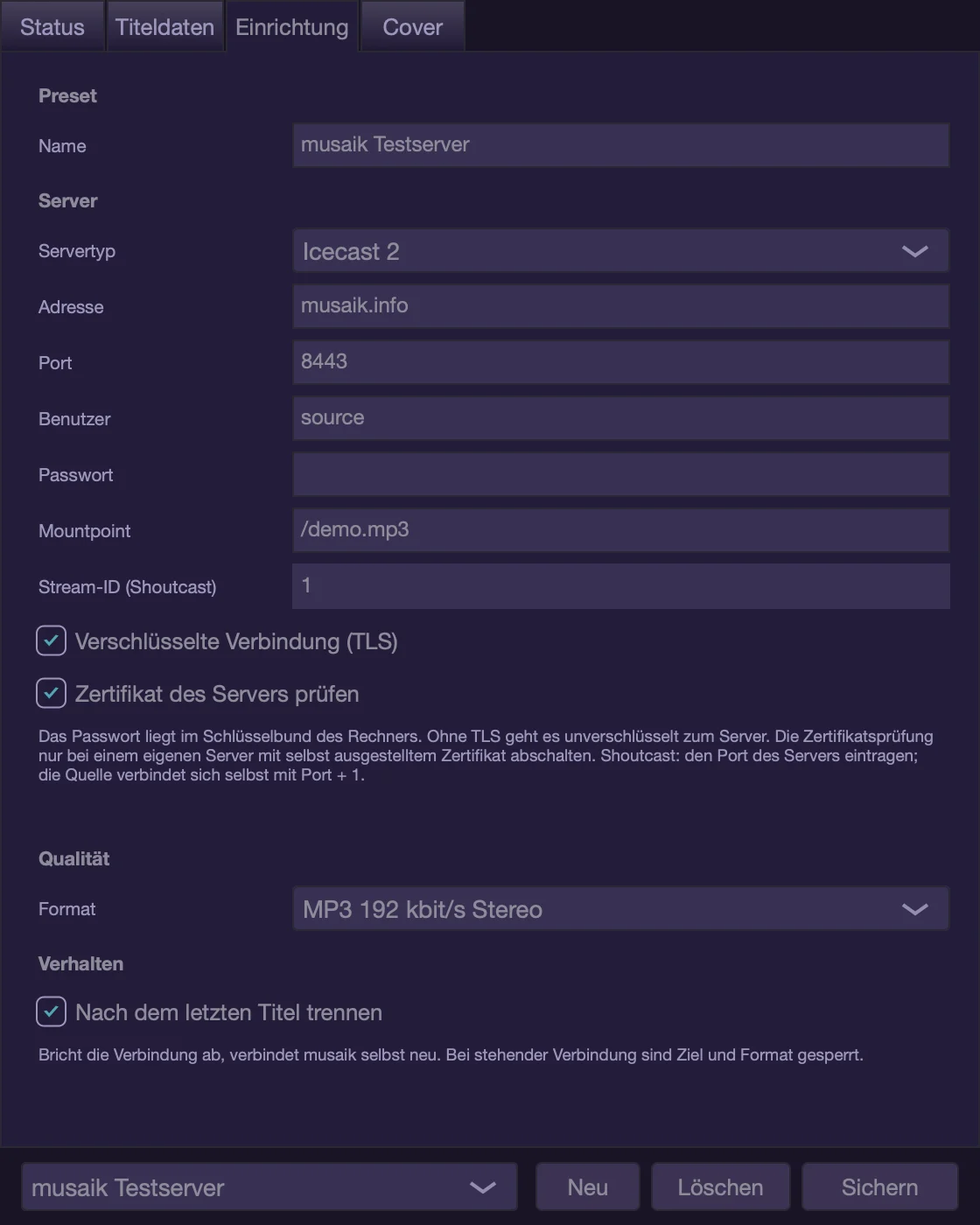
The cog on the right of the broadcast bar opens the setup. Under Setup you choose the server type – Icecast 2 or Shoutcast – and enter address, port, login and, for Icecast, the mount point. You get these details from your station or your streaming provider. With “Encrypted connection (TLS)” the password travels to the server protected as well. The format is MP3, here at 192 kbit/s stereo.
Set the title data
Under Title data you find station name, web address and genre. musaik builds the title line from a freely chosen prefix, artist and title – the preview shows the result. If you like, musaik tidies up the spelling: additions in square brackets, “(Original Mix)”, all-caps, inconsistent “feat.”. The details in the project stay untouched. For single tracks you assign a broadcast name of their own with a right-click. You decide the moment of the title change yourself, with an offset in seconds.
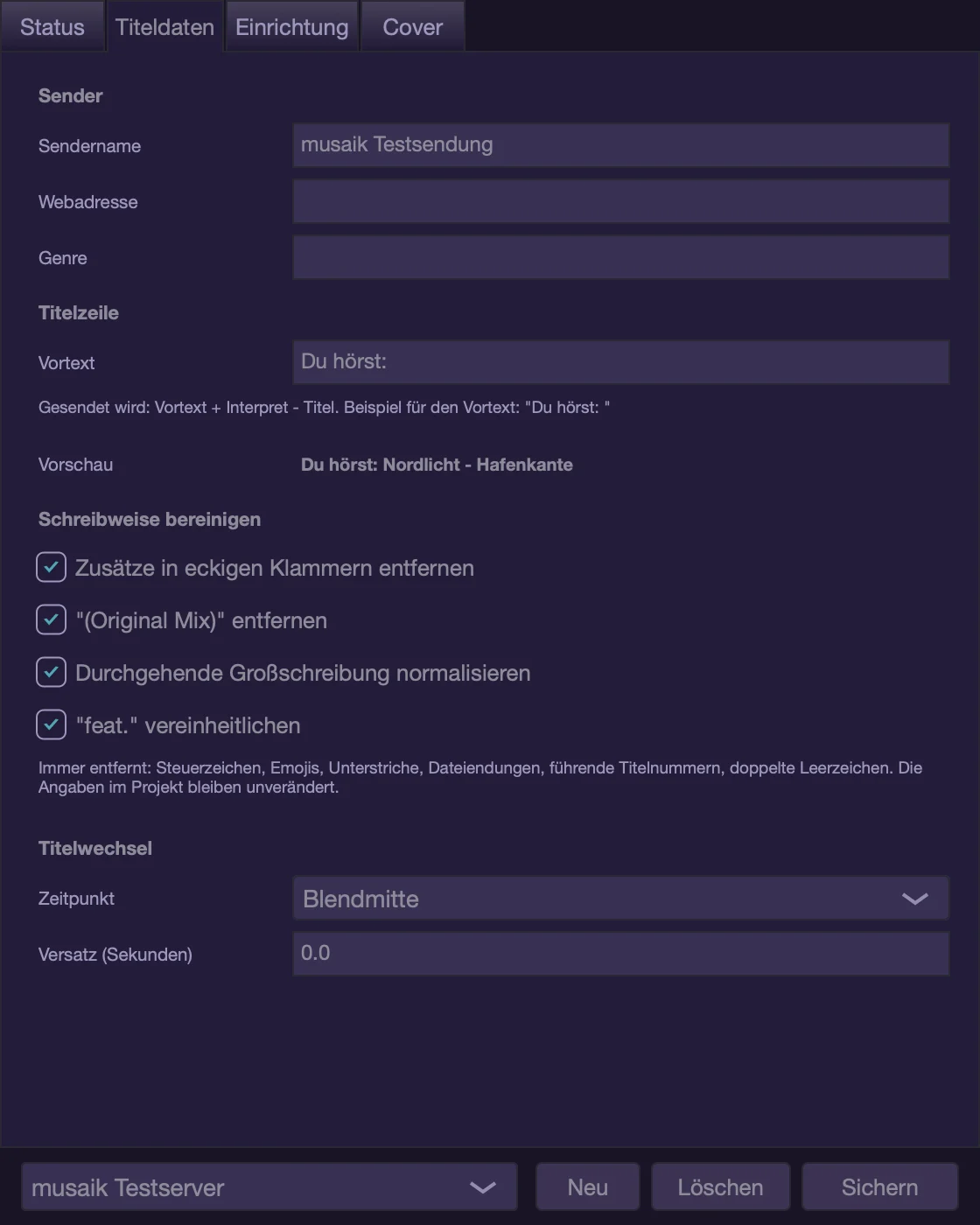
Check first, then send
Under Status, “Test connection” logs in to the server with your details and disconnects right away – without sound. If you want to hear what arrives, use the musaik test server: “Test for 10 minutes” sends the current playback with your title and cover settings, and through your personal listening link only you hear the stream and see the title data. The test can be restarted as often as you like. It is only there to check connection and setup – not for broadcasting or sharing.
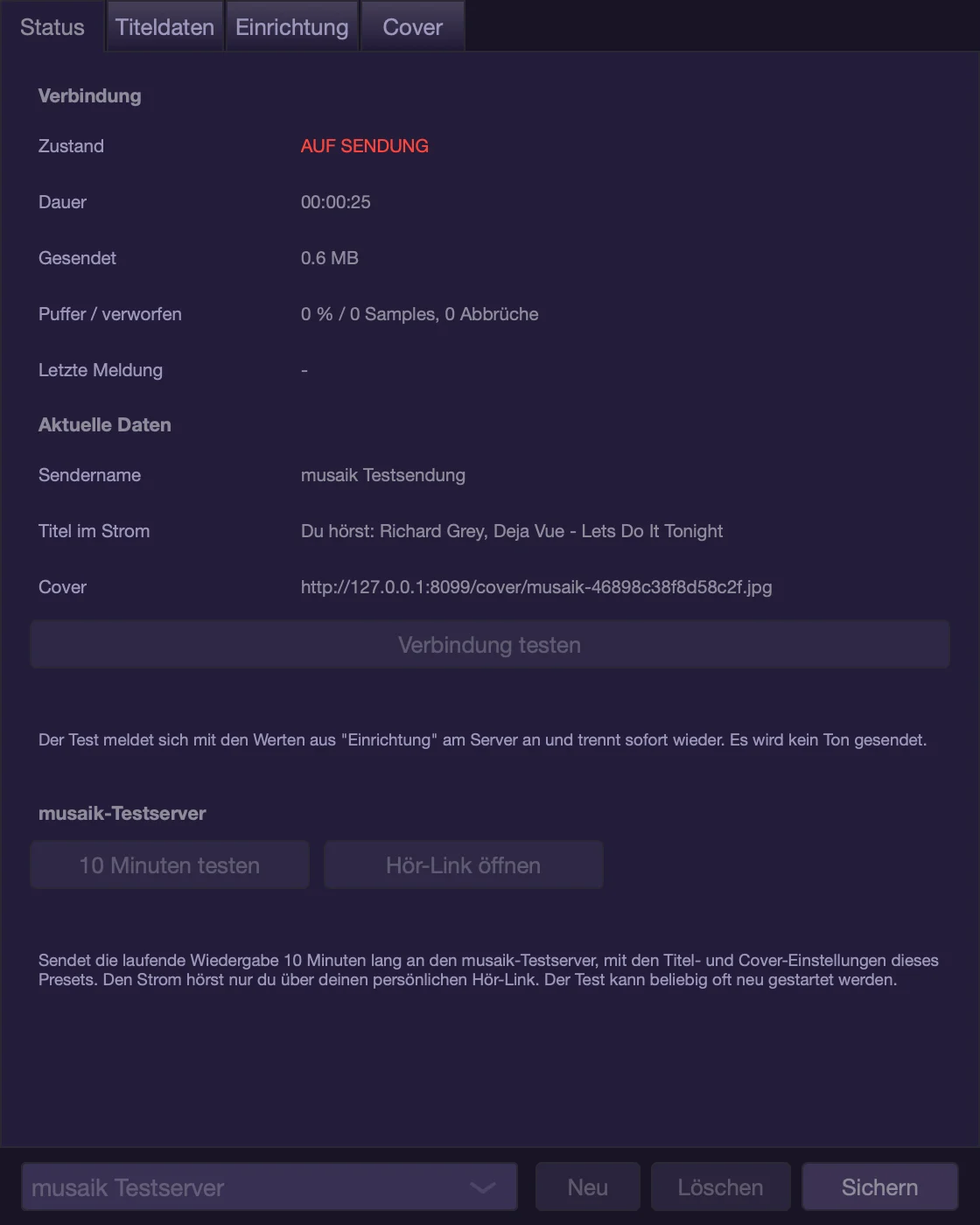
The broadcast bar

Covers on your web space
Under “Cover” you enter an FTP or FTPS login and the public address of the folder. musaik puts each track’s image there before the title change. For tracks without an image of their own you pick a fallback graphic. “Test cover storage” shows whether everything can be reached.
A license of its own
The Broadcast Extension is an add-on for DJ mix mode with a license of its own. It is not part of Ultimate and arrives with version 1.2.
Rights are your responsibility
musaik delivers the stream. You yourself are responsible for what you broadcast and for the broadcasting and music rights it requires.
Made for DJs. And for long nights.
Radio shows & streams
Outputs 1/2 to the broadcast, cue for you – you prepare the next block on headphones.
Bars & lounges
A long playlist, mixed title after title – without anyone having to stand next to it.
Set preparation
Plan in the studio, then send it as a playlist with mix cues to rekordbox, Serato or VirtualDJ – or to the CDJ via the Library.
Mixtapes & podcasts
The whole mix as WAV or MP3, planned with the energy arc and fine-tuned at every transition.
Questions about the DJ mix
Do I need rekordbox, Serato or VirtualDJ?
No. musaik also mixes titles from your folders or from Apple Music and analyses them itself. If DJ software is installed, musaik takes key, BPM, beatgrid and hot cues from there and can return the mix as a playlist.
Does the DJ Playlist sound worse than a finished mix?
No. Every transition is planned exactly like “Apply Automix” in the fixed mix. As soon as a title’s stems are ready, musaik re-plans the transition – never inside the lock zone.
What do I need for OnAir?
An audio device with at least four outputs – for example a DJ mixer with USB audio or an interface. Outputs 1/2 are the broadcast, the cue output (e.g. 3/4) goes to your headphones. Without a second output the DJ Playlist still runs, just without pre-listening.
Can I stop the broadcast by accident?
No. While OnAir is on, clicks, play and corrections only affect the cue. Only the stop button halts the broadcast – and it asks first.
Does musaik change my library in rekordbox, Serato or VirtualDJ?
Only during an export, and only what you tick. The preview shows every change beforehand, the DJ software must be closed, and musaik backs up its library or every changed file first. Reading changes nothing.
Which players work with the musaik Library?
CDJ and XDJ players that can load a LINK source over the network, on the same network as your computer. rekordbox must not be running on that computer at the same time.
Ready for your set?
Everything on this page is part of the DJ mix mode in musaik 1.1.
Try for free See pricing